> ## Documentation Index
> Fetch the complete documentation index at: https://docs.converlens.com/llms.txt
> Use this file to discover all available pages before exploring further.
# Getting set-up with Converlens
Before you can start using Converlens, you need an account and access to a workspace. This page details how workspace admins can add team members, how new users can log in, and where to find common login troubleshooting guidance.
# Creating an account
To create an account you will need to be a workspace admin, or contact your organisation’s workspace admin to create a new account for you.
## Workspace Admin: Adding a new team member
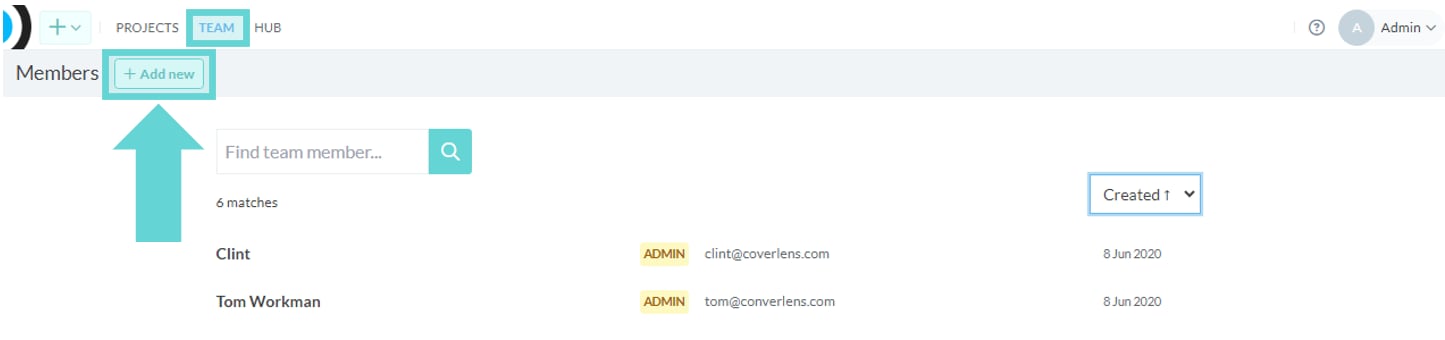
From the Workspace Sidebar, open **Team** and then click **Add member**.
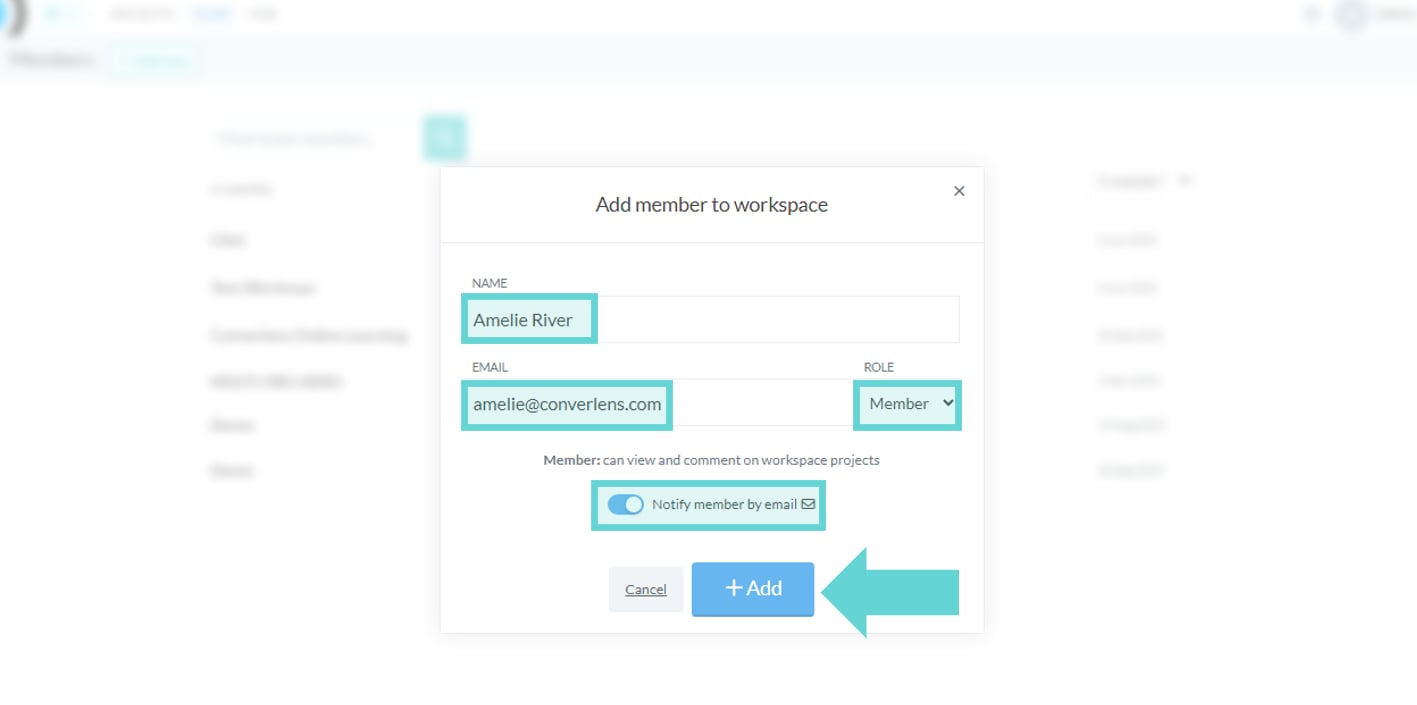 You can also opt to send the new team member a notification email or switch this off. Enter the required details and, when confirmed, click **Add** to add the new member to the team.
Workspace admins can update team access later from the Team page. Project-specific access can also be managed from a project's Members settings.
# Managing access
For more information on adding, editing and removing workspace members please see [Team](/docs/01-03-01-07-02__team). For project-specific access, see [Members](/docs/01-03-04-03-02__members).
You can also opt to send the new team member a notification email or switch this off. Enter the required details and, when confirmed, click **Add** to add the new member to the team.
Workspace admins can update team access later from the Team page. Project-specific access can also be managed from a project's Members settings.
# Managing access
For more information on adding, editing and removing workspace members please see [Team](/docs/01-03-01-07-02__team). For project-specific access, see [Members](/docs/01-03-04-03-02__members).