> ## Documentation Index
> Fetch the complete documentation index at: https://docs.converlens.com/llms.txt
> Use this file to discover all available pages before exploring further.
# Projects
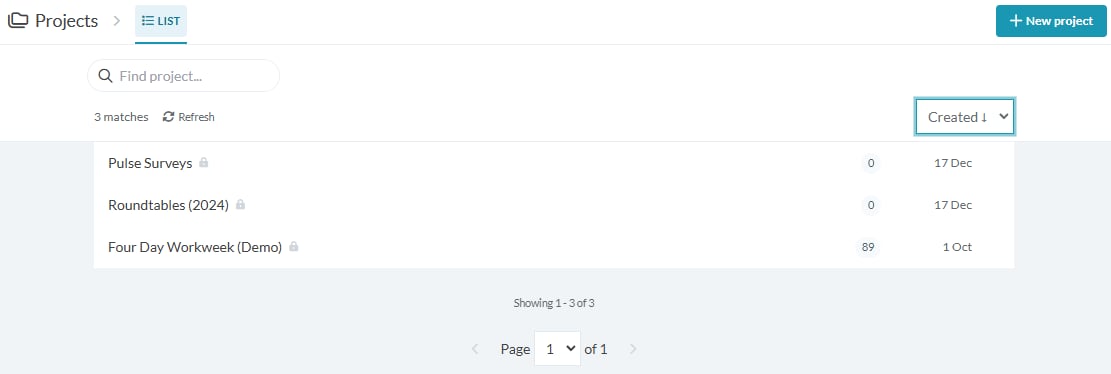
To access the list of projects for your workspace, select **Projects** from the Workspace Sidebar.
You should see something similar as shown below when you select **Projects** from the Workspace Sidebar.
# Adding a new project
If you would like to create a new project, select the **New project** button in the right hand corner. You will see this button if you are a workspace admin, or if members can create projects in your workspace.
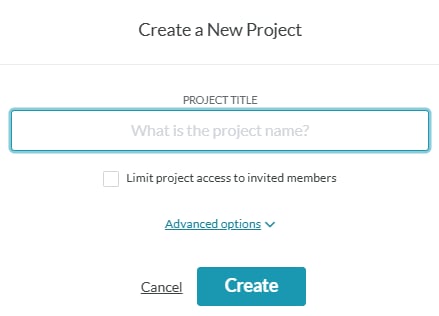
A pop-up will appear for you to make a new project.
Enter a name for your project, and choose whether to limit the project access to invited members only.
## **Limit project access to invited members**
Selecting this will ensure only invited members can see this project. Workspace admins still have admin access to all projects.
## **Advanced options**
This will enable you to edit the web link URL for your project.
**Tip:** You can edit the project title and access permissions at a later stage
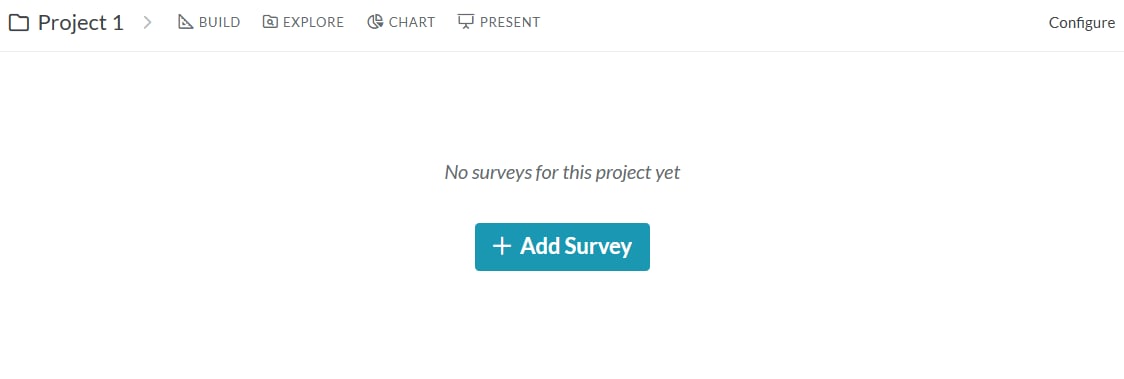
Once you are ready, click “Create” and your project will be created and opened automatically:
# Next steps
 Once a project has been created you can set up the project settings via Configure or add a survey to the project. See the links below for further information on each of these steps:
* [Configure (Project Settings)](/docs/01-03-04-03__configure)
* [Add a survey](/docs/01-03-04-03-01-01__adding-a-survey)
Once a project has been created you can set up the project settings via Configure or add a survey to the project. See the links below for further information on each of these steps:
* [Configure (Project Settings)](/docs/01-03-04-03__configure)
* [Add a survey](/docs/01-03-04-03-01-01__adding-a-survey)