> ## Documentation Index
> Fetch the complete documentation index at: https://docs.converlens.com/llms.txt
> Use this file to discover all available pages before exploring further.
# Adding a block or a page break
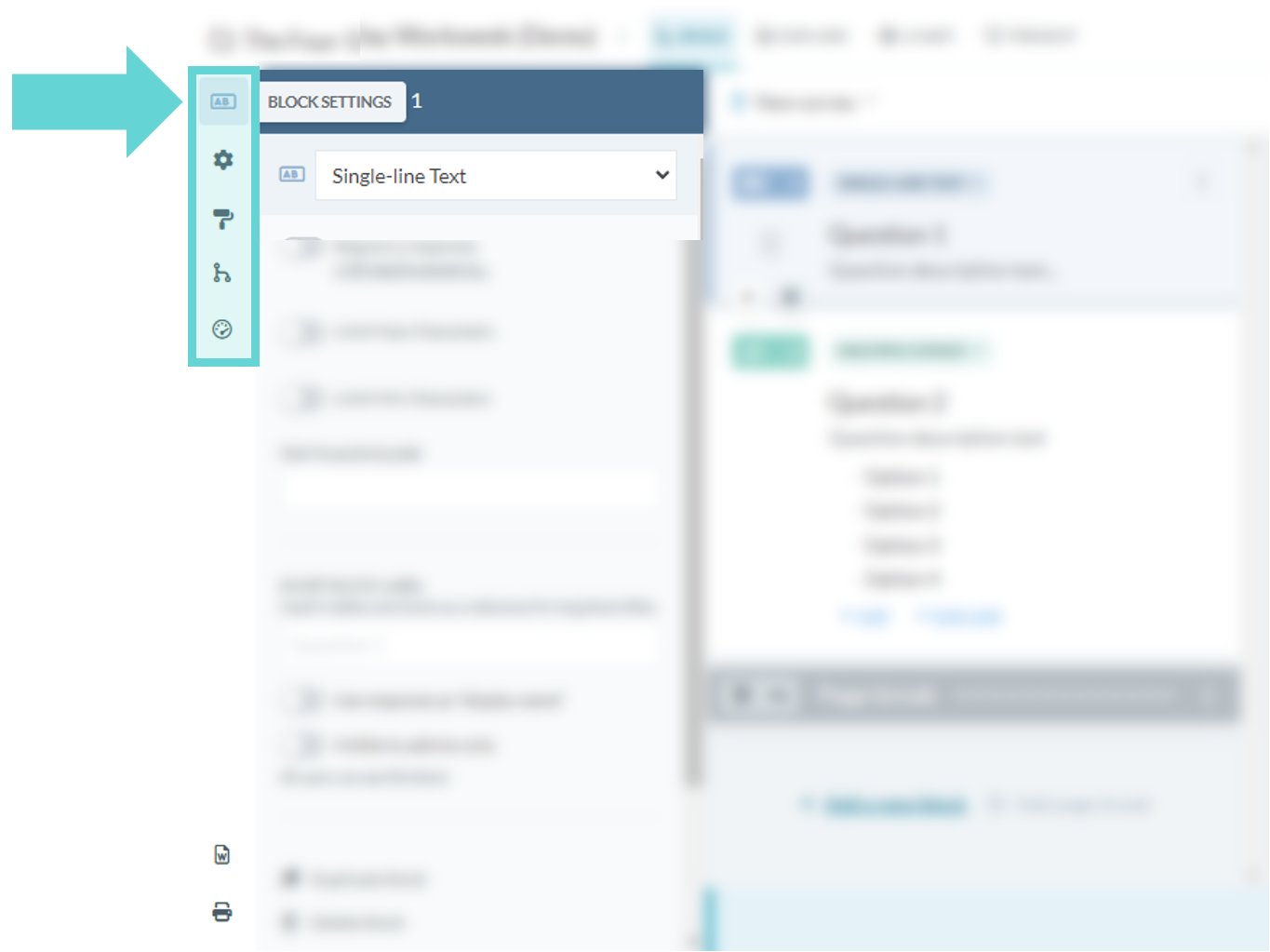
The **Build** tab will default to the Block settings menu when opened. Click the **Block Settings** button from the left-hand options to return to this menu at any time.
To build a survey the immediate options available are:
* **Add a new block:** These are the questions and content blocks of the survey
* **Add page break:** These are inserted to break up the survey so that there aren’t too many blocks on a page for a respondent to answer. It can be used to provide better grouping of blocks together that have a similar theme.
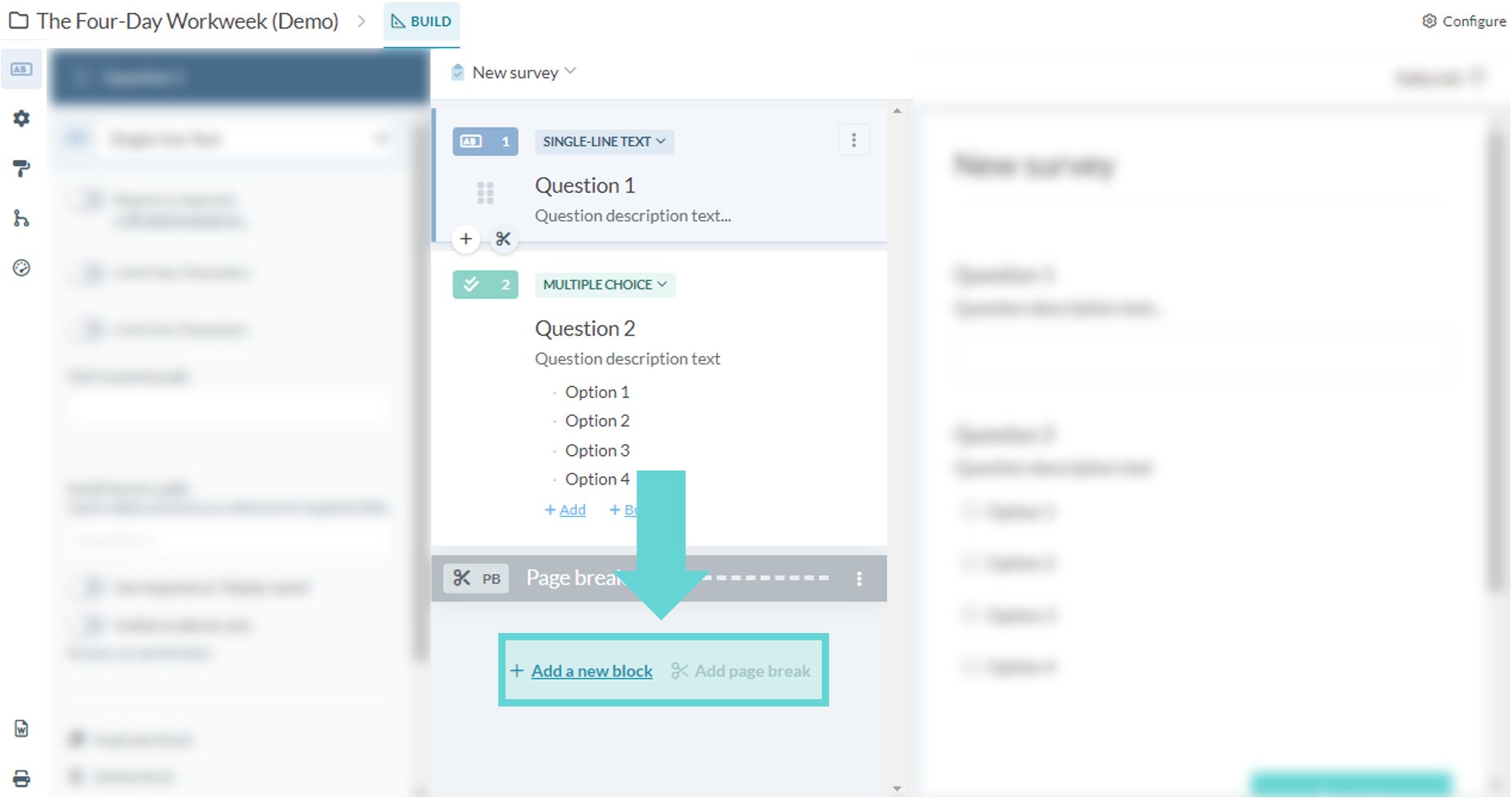
The **Add a new block** and **Add page break** links will appear in the Survey editor column in the Block settings menu on the Build tab.
**Tip:** These links will appear at the bottom of the Survey editor column regardless of the number of blocks or page breaks. Scroll down if you cannot see them.
If the survey has at least one block added, you can also add a new block by clicking the (+) button on the bottom left hand corner of the preceding block in the Survey editor (2) column:
# Adding a new block
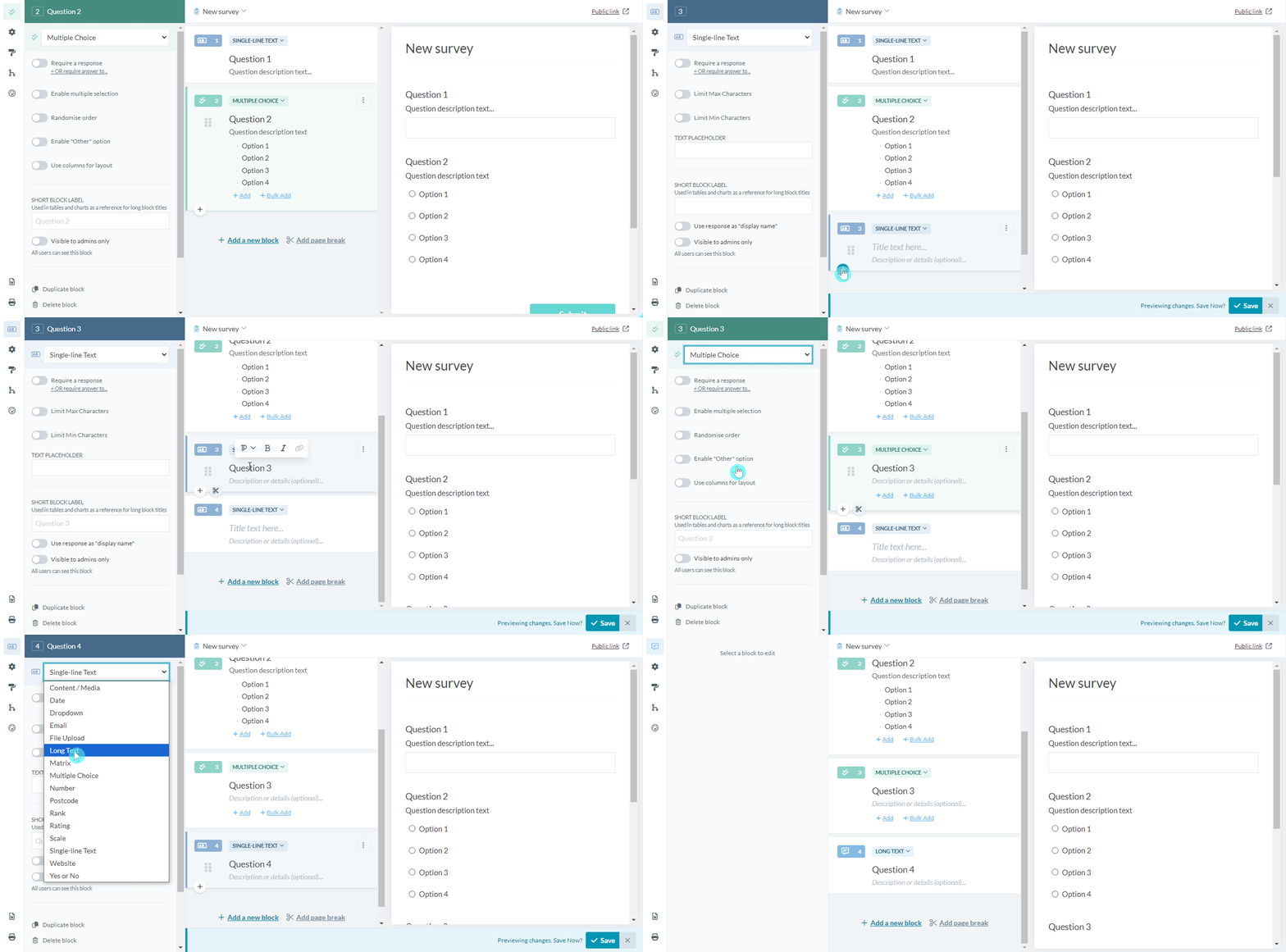
To **Add a new block** click on the **+Add new block** link or (+) button. By default this will add a **Single Line Text** block.
To change the block type select the dropdown list in the Block editor column and select the type of block required:
## Re-order blocks
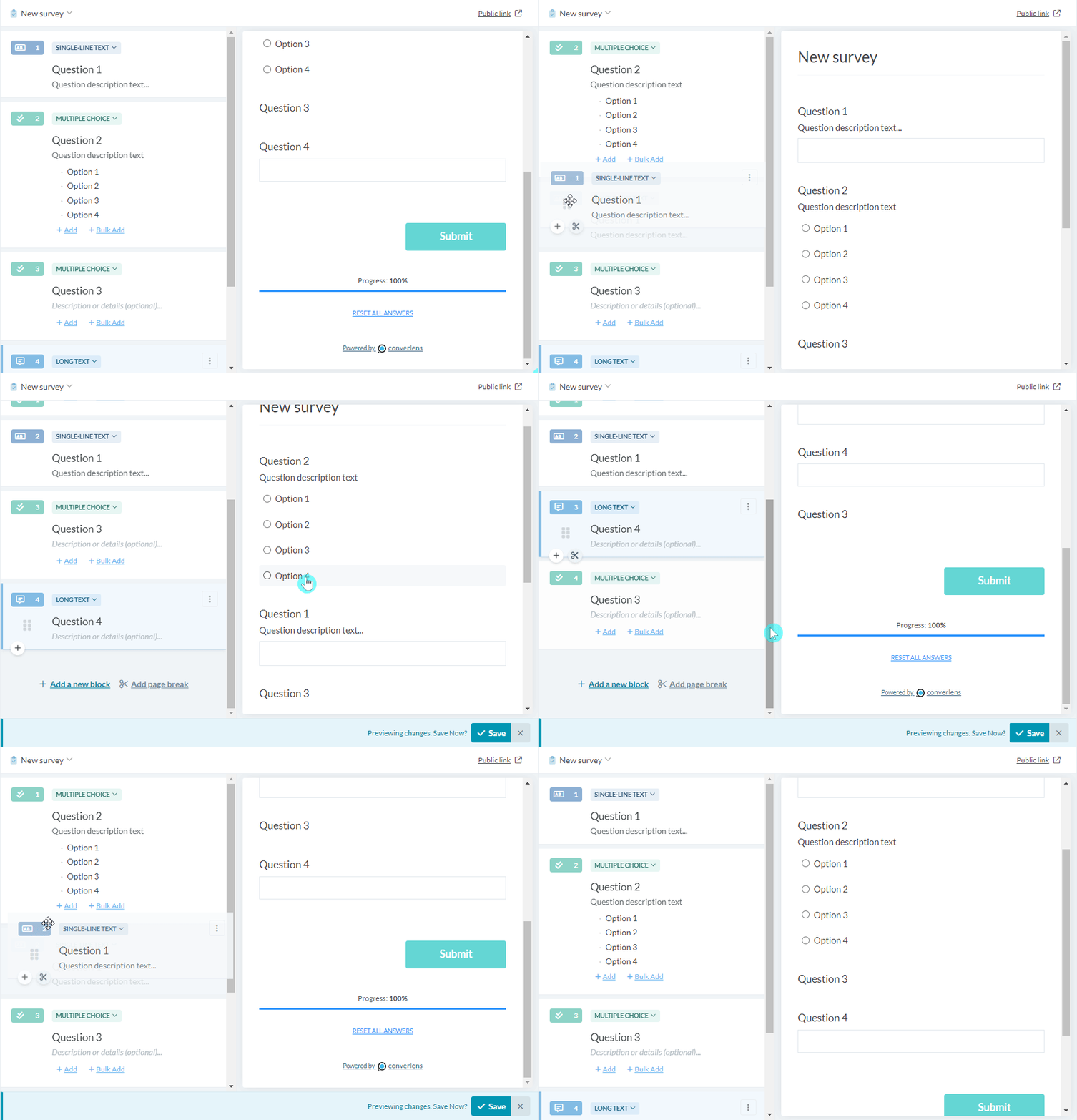
 To change the order of blocks click the 6 dot icon on the left hand side of the block. This will enable the block to be moved and dragged into the required position. Remember to save changes by clicking the Save button in the bottom right hand corner.
# Adding a page break
To change the order of blocks click the 6 dot icon on the left hand side of the block. This will enable the block to be moved and dragged into the required position. Remember to save changes by clicking the Save button in the bottom right hand corner.
# Adding a page break
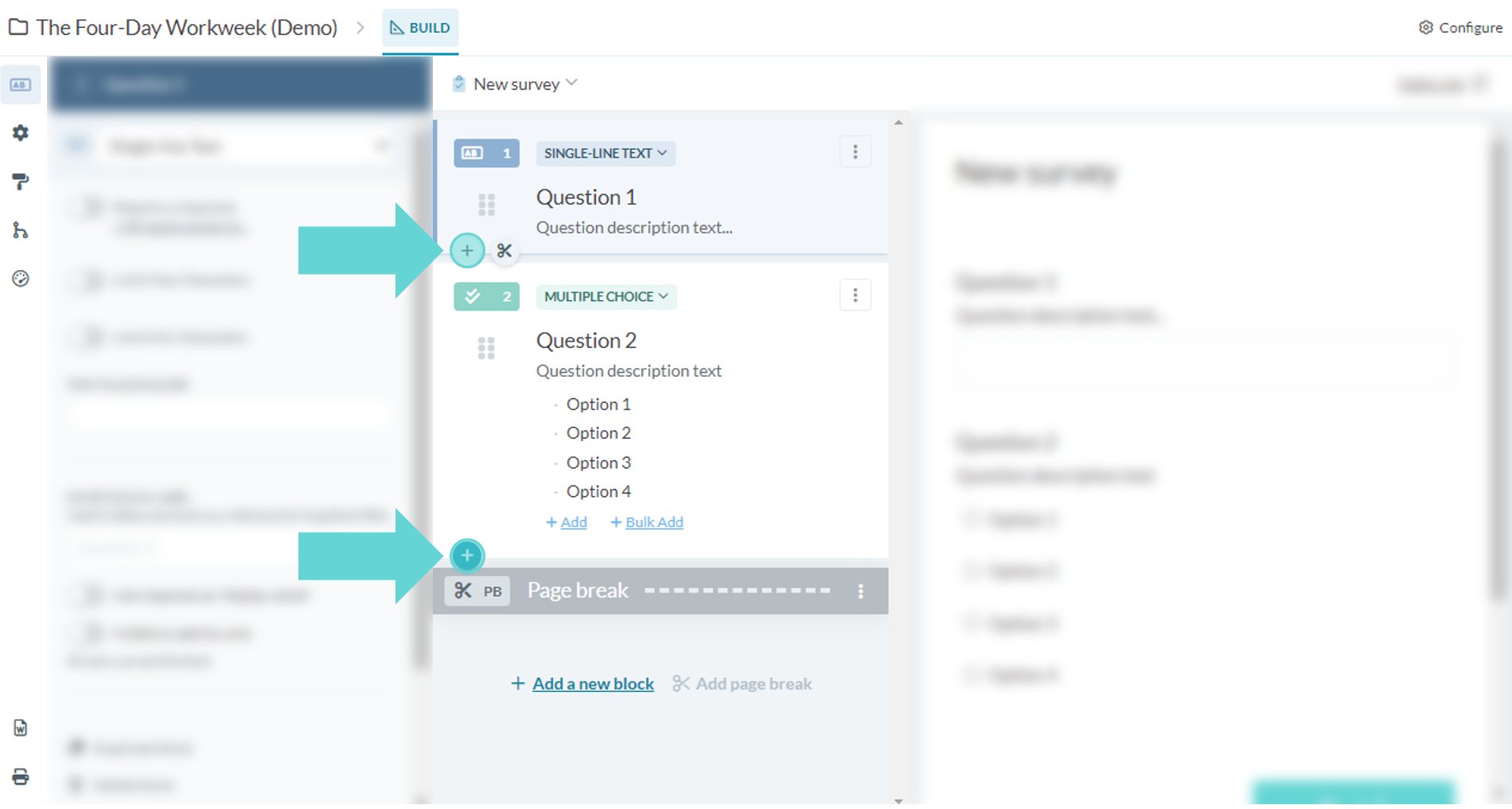
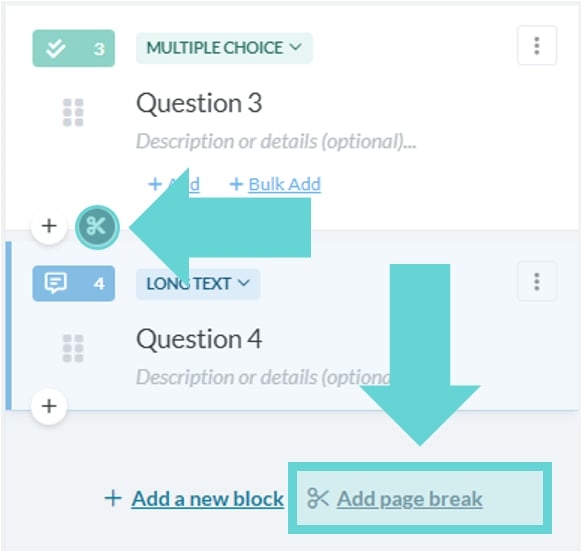
 To **Add a page break** click on the **Add page break** link in the Survey editor (2) column. If the survey has more than 1 question, a scissor icon will also appear next to the (+) button in the bottom left hand corner of the preceding block. Clicking this button will add a page break between the questions.
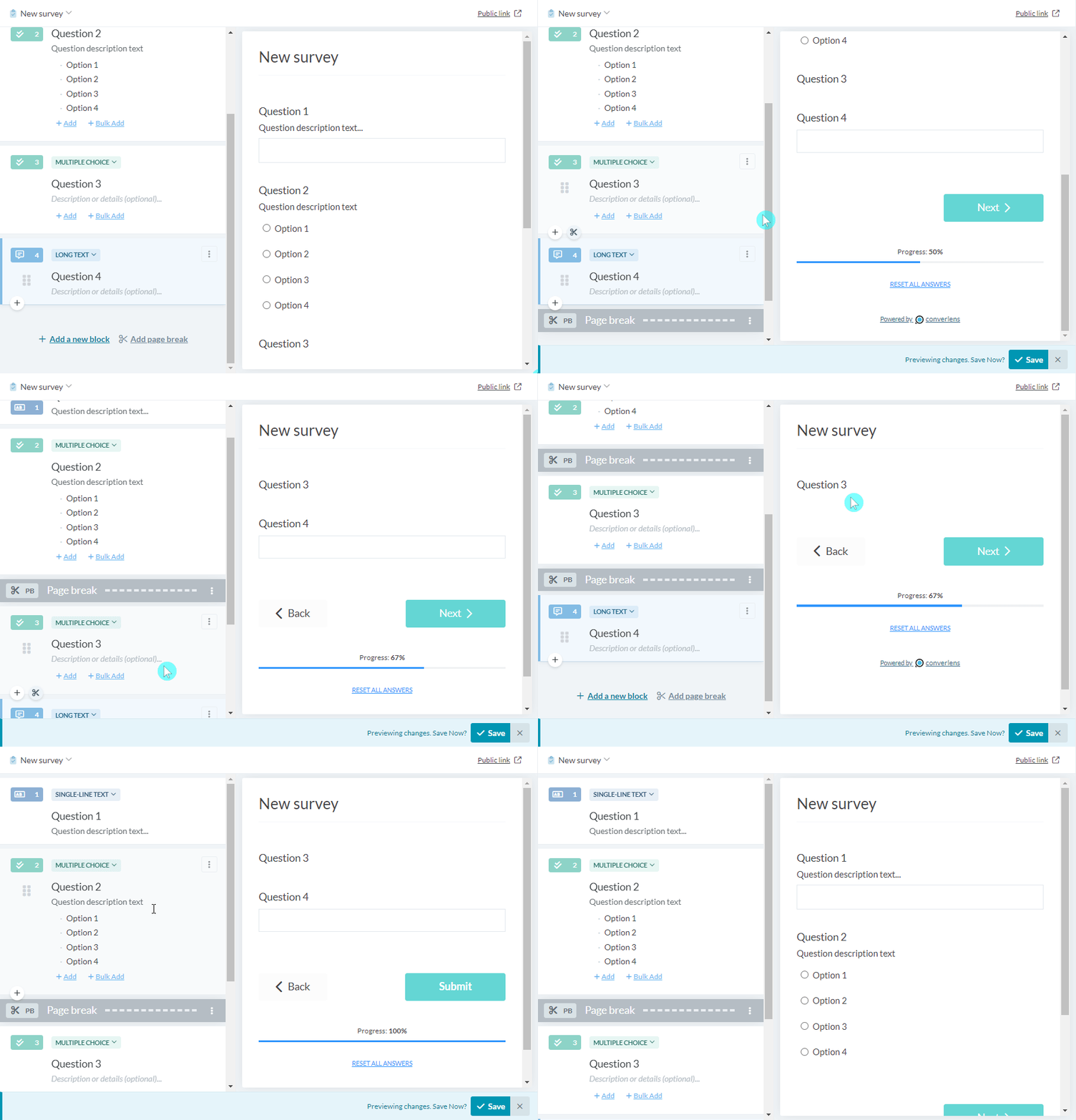
Once a page break is added, you can click and drag them between blocks to change their position, or select the **Delete** button on the right hand side to remove them. You can also apply Skip Logic settings from the 3-dot menu.
The Survey preview (3) window will now show a **Next** button. Click this to navigate between pages of the survey based on the page breaks added. Click the **Back** button to navigate to the previous page(s). The **Submit** button will appear on the last page of the survey where there are no further page breaks.
To **Add a page break** click on the **Add page break** link in the Survey editor (2) column. If the survey has more than 1 question, a scissor icon will also appear next to the (+) button in the bottom left hand corner of the preceding block. Clicking this button will add a page break between the questions.
Once a page break is added, you can click and drag them between blocks to change their position, or select the **Delete** button on the right hand side to remove them. You can also apply Skip Logic settings from the 3-dot menu.
The Survey preview (3) window will now show a **Next** button. Click this to navigate between pages of the survey based on the page breaks added. Click the **Back** button to navigate to the previous page(s). The **Submit** button will appear on the last page of the survey where there are no further page breaks.