> ## Documentation Index
> Fetch the complete documentation index at: https://docs.converlens.com/llms.txt
> Use this file to discover all available pages before exploring further.
# Logic Settings
The **Build** tab will default to the Block settings menu when opened. Click the Logic Settings button to access Logic settings:
Logic settings in a survey allow you to customise the flow and behaviour of the survey based on specific conditions or responses provided by the participants.
Logic is applied at a block level. Select the block (question) to apply a logic setting and the Display Logic and Skip Logic settings will appear.
**Tip:** To effectively use display and skip logic, ensure you have a preceding question. For skip logic, make sure the block type is a question (rather than a content block). Please note that logic cannot be applied to the very first question in the survey.
# Display Logic
 Display Logic enables you to display or hide certain questions based on specific conditions. This helps in presenting follow-up questions or supplementary inquiries only to respondents who meet certain criteria. Conditional questions allow for a more targeted and focused survey experience.
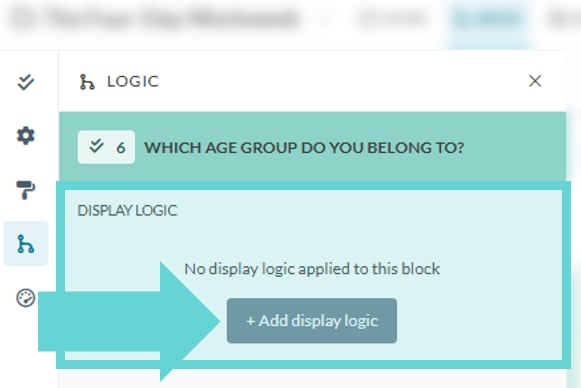
To access the Display Logic settings for a block, select the block you would like to apply logic and click the +Add display logic button:
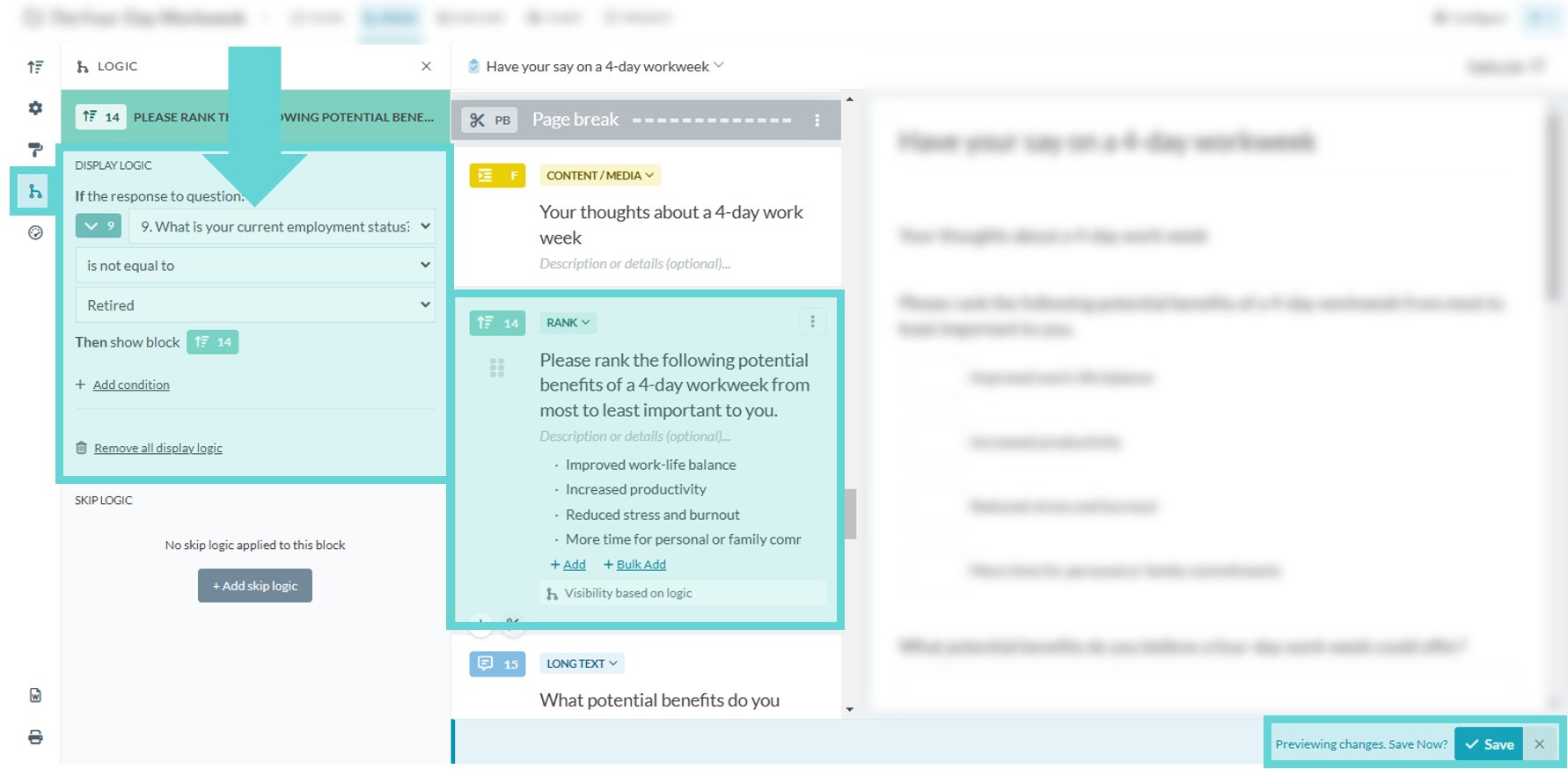
From here you can enter your conditional requirements for the preceding question. When the logic is completed ensure you Save changes by clicking the save button in the bottom right hand corner.
## Adding multiple display logics
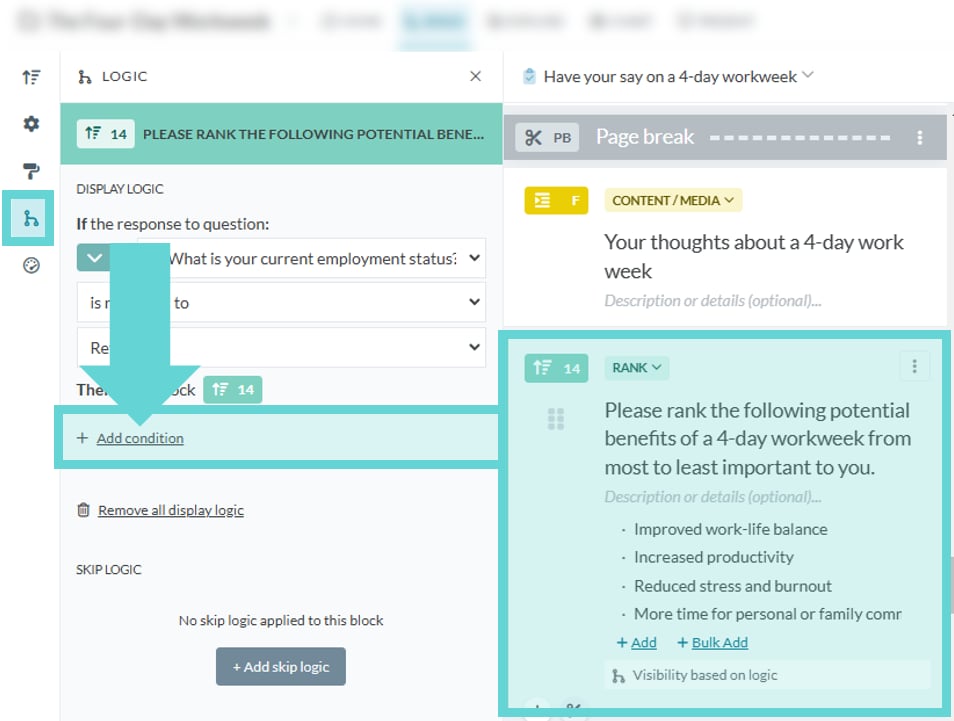
If the question block requires multiple conditions, select the +Add condition link:
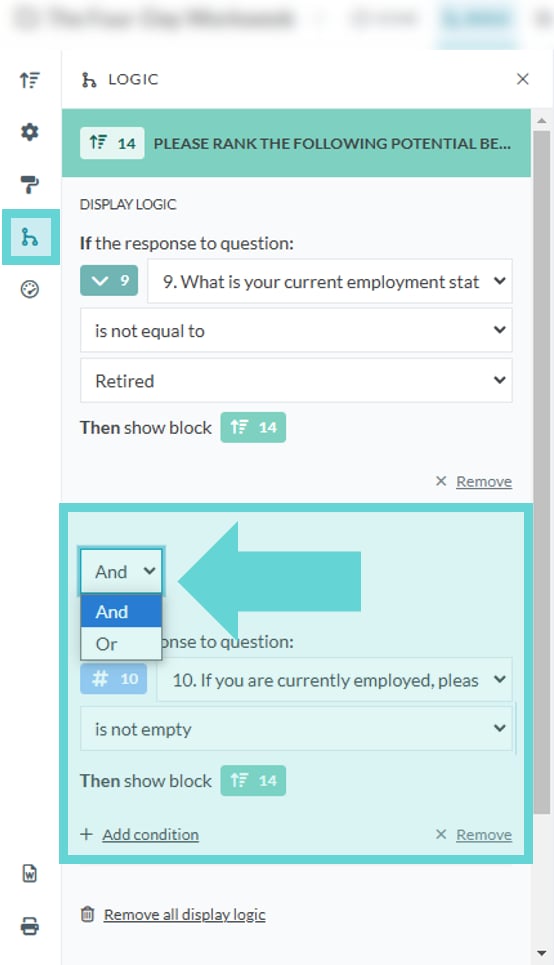
This gives you the option to join multiple conditions together or to apply one or another condition to the Display Logic for a question block.
**And:** Both (or more) display logic conditions must be met in order to display the next question block
**Or:** One (or more) display logic conditions must be met in order to display the next question block
# Skip Logic
Skip Logic enables you to end the survey or direct respondents to specific pages based on their previous answers. It allows you to create a more personalized and efficient survey experience by skipping irrelevant questions for certain respondents, saving time and improving survey completion rates.
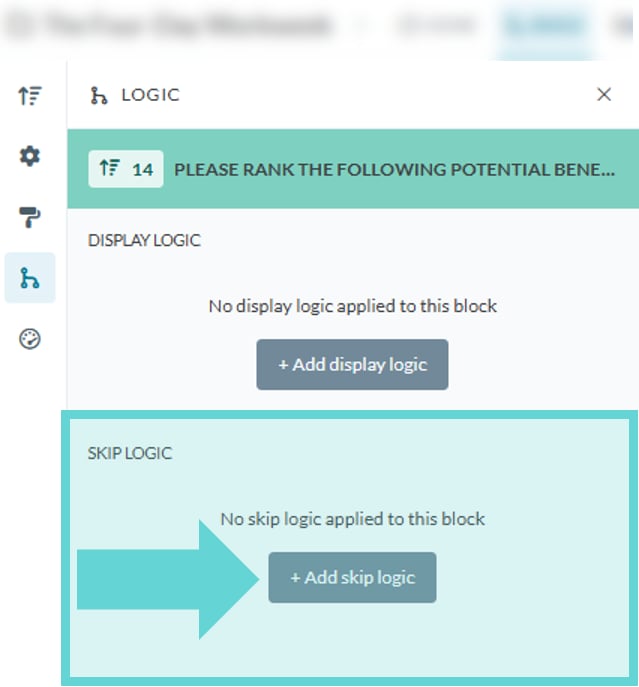
To access the Skip Logic settings for a block, select the block you would like to apply logic and click the +Add skip logic button:
There are two options for skip logic:
* **End survey:** Concludes the survey immediately
* **Jump to page:** Redirects to a specific page
## End survey
Skip Logic can end a survey based on an answer to a question.
**Tip:** It usually works best to create a page break immediately after a Skip Logic block so that the user can click ‘Next’ and be immediately directed to the end of the survey rather than having to complete other questions before clicking Next.
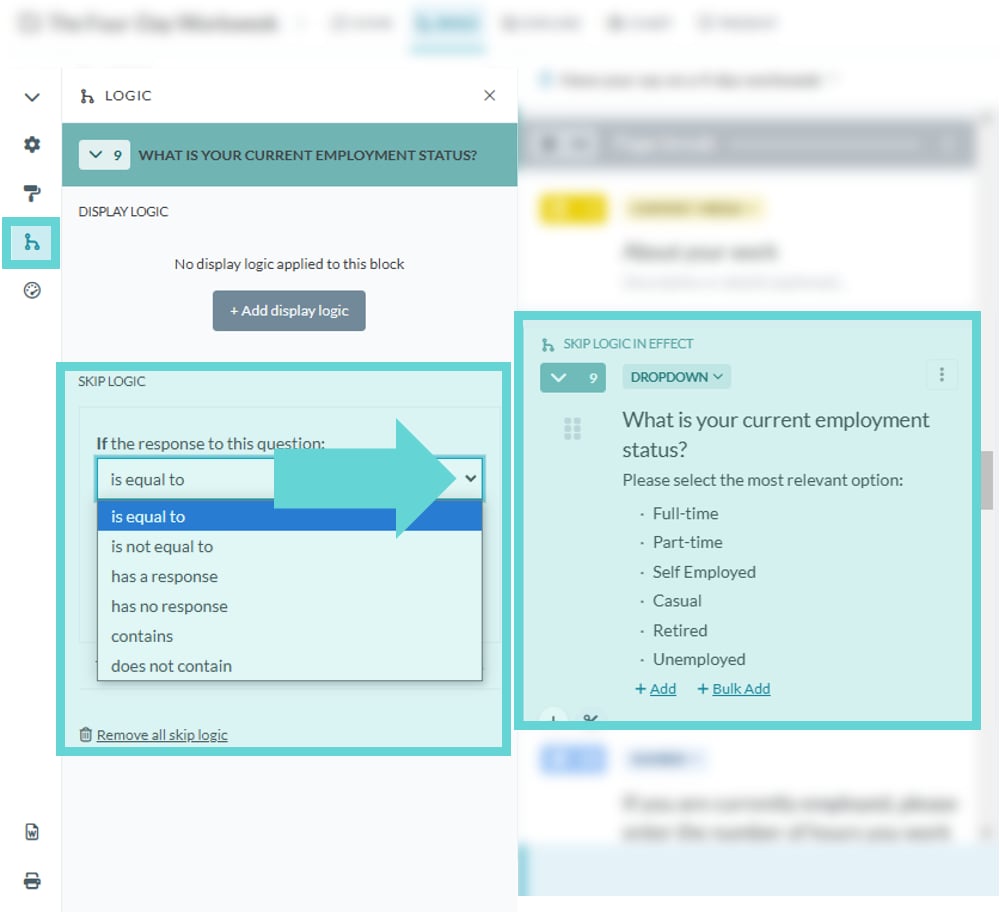
Select the block (question) you want to enter your requirements for the responses that will trigger a skip. Click on the dropdown to select the conditions. The options in this menu will change depending on the block type (choice or text).
* **is equal to:** Matches a specific value exactly
* **is not equal to:** Does not match a specific value
* **has a response:** A response has been provided
* **has no response:** No response has been provided
* **contains:** Includes one or more of a specific option
* **does not contain:** Excludes one or more of a specific option
* **is empty:** Field has no content
* **is not empty:** Field has some content
* **is more than:** Value is greater than specified
* **is less than:** Value is less than specified
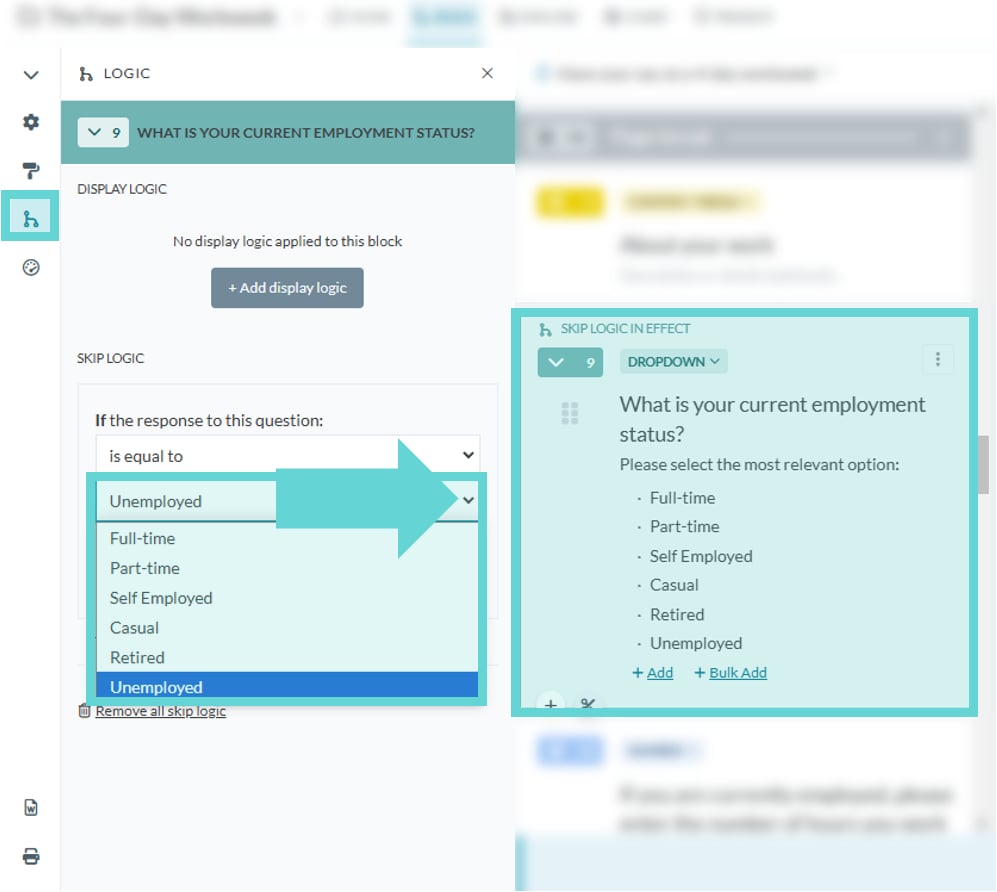
If you have selected a condition that requires you specify a respondent’s choice, click on the next dropdown to select that choice from the available options:
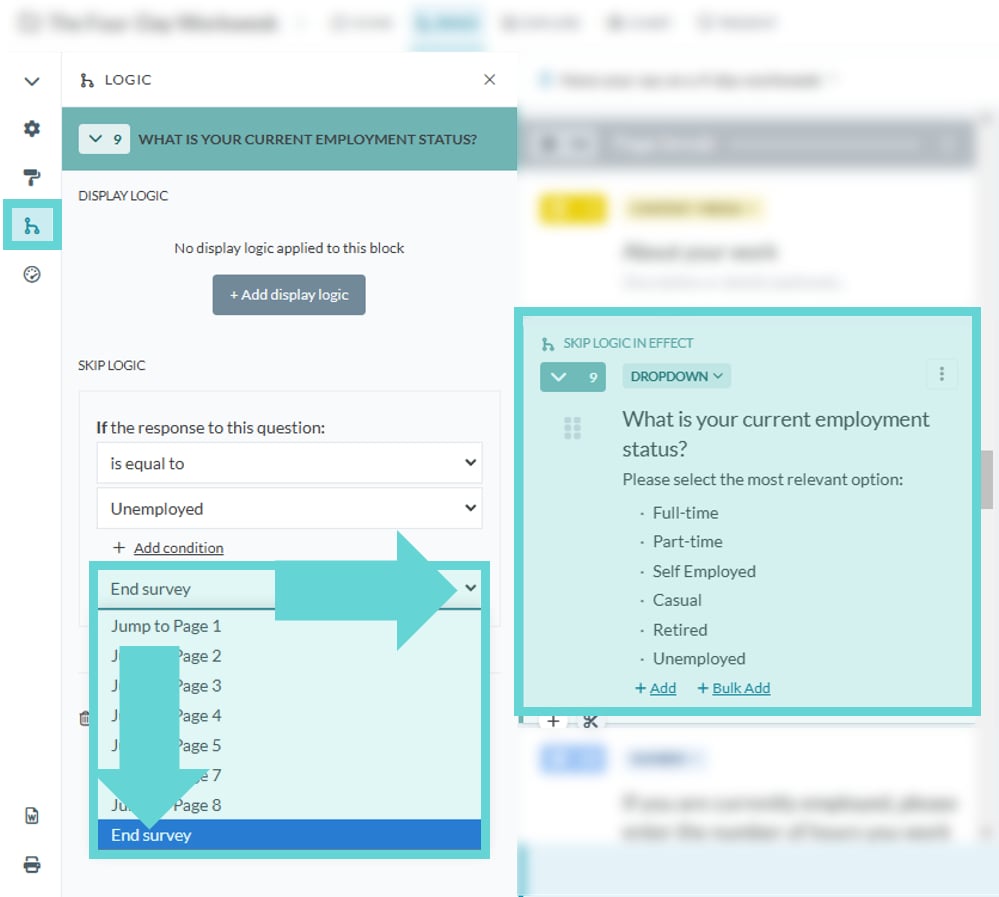
To end the survey if the respondent’s selection matches the applied condition, select “End Survey” from the action options.
Click “Save” to save changes to your survey and the conditions will be applied.
**Tip:** To test your logic conditions you can toggle on “preview mode only” from the Survey Settings and take the survey as a respondent. See [Build: Survey Settings](/docs/01-03-04-01-06__survey-settings) for more information.
## Jump to page
Skip logic allows you to jump to a specific page in your survey.
**IMPORTANT:** You need to have created some pages in order to select a page to skip to. Click the “scissors” icon at the bottom of the block you wish to create a page break at. *If you have no pages, you cannot select a page to “skip” to.*
**Tip:** It usually works best to create a page break immediately after a Skip Logic block so that the user can click ‘Next’ and be immediately directed to the next page, rather than having to complete other questions before clicking Next.
Select the block (question) you want to enter your requirements for the responses that will trigger a skip. Click on the dropdown to select the conditions. These will change depending on the block type (choice or text).
* **is equal to:** Matches a specific value exactly
* **is not equal to:** Does not match a specific value
* **has a response:** A response has been provided
* **has no response:** No response has been provided
* **contains:** Includes one or more of a specific option
* **does not contain:** Excludes one or more of a specific option
* **is empty:** Field has no content
* **is not empty:** Field has some content
* **is more than:** Value is greater than specified
* **is less than:** Value is less than specified
If you have selected a condition that requires you specify a respondent’s choice, click on the next dropdown to select that choice from the available options:
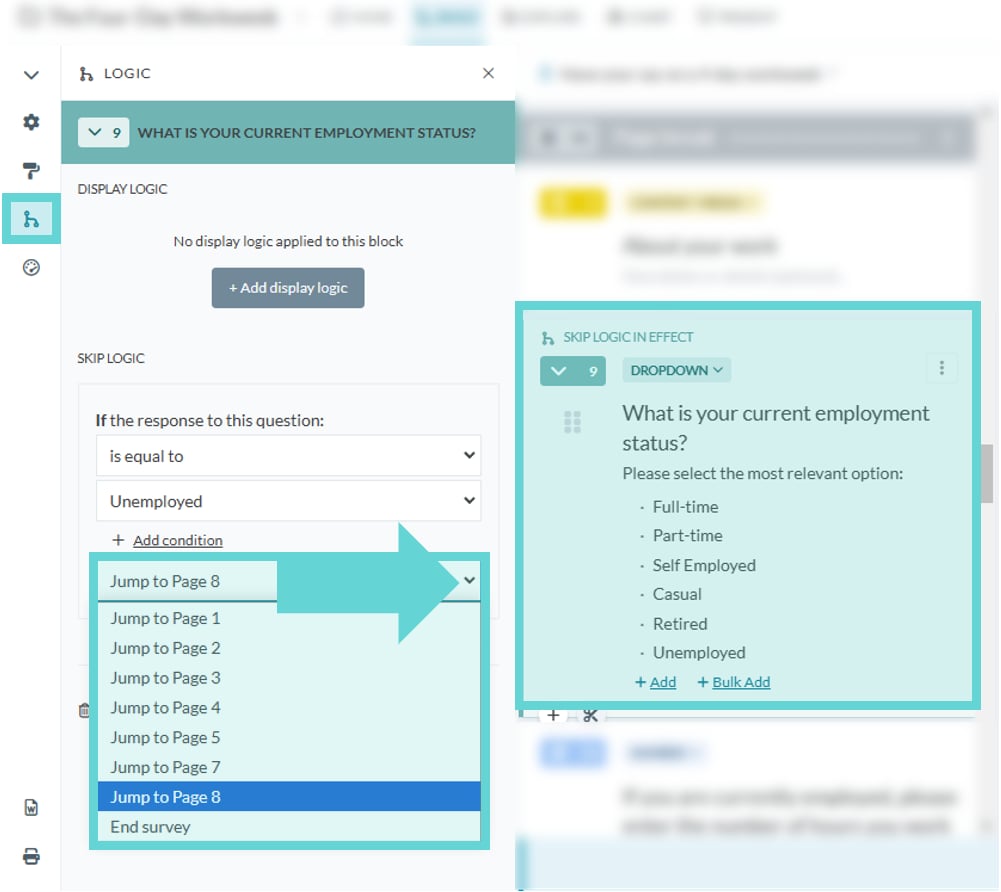
To jump the page and direct a respondent to another page of the survey, select **Jump to Page** and the desired Page Number from the action options. Pages in the survey are added from the survey editor. See [Adding a block or a page break](/docs/01-03-04-01-01-01__adding-a-block-or-a-page-break) for more information on how to add and remove pages from the survey. Click **Save** to save changes to your survey and the conditions will be applied.
## Jumping backwards
You can choose to jump “backwards” in your survey, which means directing a survey participant to an earlier page in the survey. This can be useful when you want to set up “branching logic” using a table of contents approach to get users to optionally answer question sets, for example something like “Would you like to comment on A, B, C or D, or are you done commenting?” and then having a skip logic question on each of the subsequent pages giving the user the option to “jump back” to answer other sections.
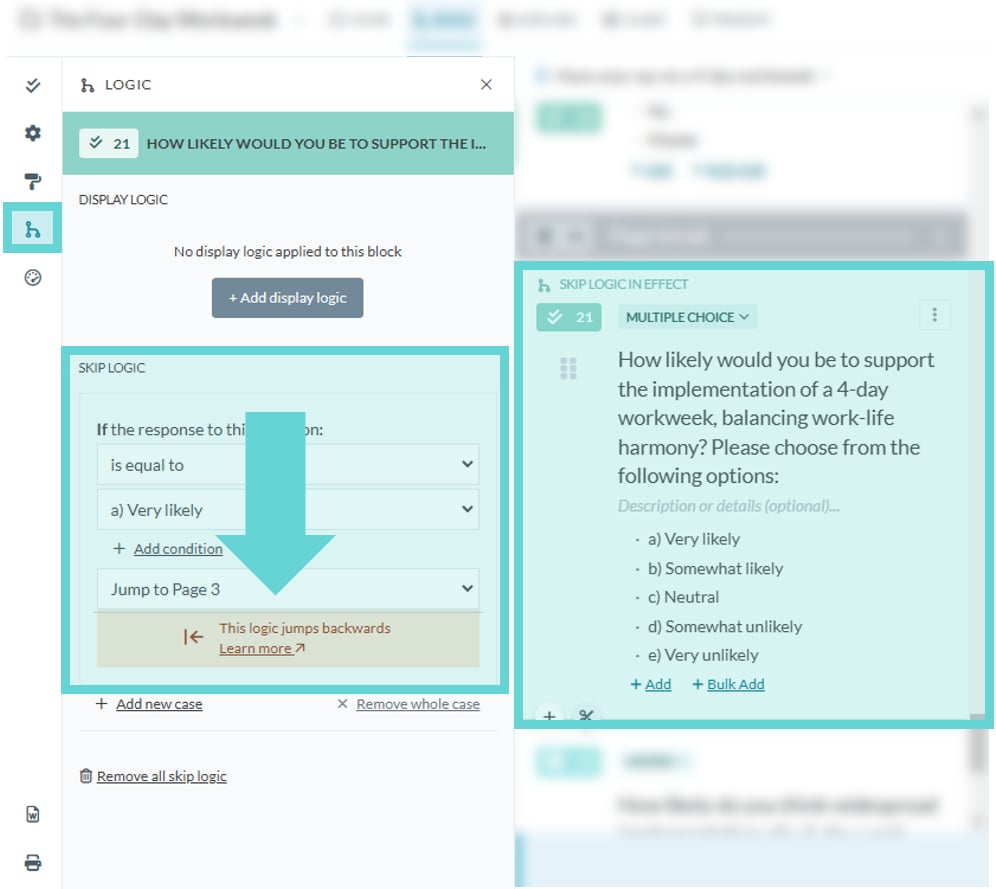
You’ll see a warning about jumping backwards, as this is advanced behaviour, and to be aware that it’s possible to setup backwards jumping logic that prevents participants from completing your survey. Ensure there is always at least one option to progress the survey when using backwards jumps.
If you’re enabling jumping backwards to allow participants to choose which pages they answer using the branching “table of contents” approach, you should **turn off the following survey settings**:
* **Show progress bar:** this doesn't apply if you're jumping back and forth and can choose how much of the survey to fill in or not. There is no meaningful percentage to show.
* **Clear answers on skipped pages**: when you’re using a “branched survey” approach with skip backwards logic. If you leave this setting on, it will clear the answers to any skipped pages which is what you want in a linear survey, but not in a branching one.
## Adding multiple skip logics
If the question block requires multiple conditions, select the +Add condition link:
This gives you the option to join multiple conditions together or to apply one or another condition to the skip logic for a question block.
**And:** Both (or more) skip logic conditions must be met in order to apply the skip.
**Or:** One (or more) skip logic conditions must be met in order to apply the skip.
# Removing Logic
Display Logic enables you to display or hide certain questions based on specific conditions. This helps in presenting follow-up questions or supplementary inquiries only to respondents who meet certain criteria. Conditional questions allow for a more targeted and focused survey experience.
To access the Display Logic settings for a block, select the block you would like to apply logic and click the +Add display logic button:
From here you can enter your conditional requirements for the preceding question. When the logic is completed ensure you Save changes by clicking the save button in the bottom right hand corner.
## Adding multiple display logics
If the question block requires multiple conditions, select the +Add condition link:
This gives you the option to join multiple conditions together or to apply one or another condition to the Display Logic for a question block.
**And:** Both (or more) display logic conditions must be met in order to display the next question block
**Or:** One (or more) display logic conditions must be met in order to display the next question block
# Skip Logic
Skip Logic enables you to end the survey or direct respondents to specific pages based on their previous answers. It allows you to create a more personalized and efficient survey experience by skipping irrelevant questions for certain respondents, saving time and improving survey completion rates.
To access the Skip Logic settings for a block, select the block you would like to apply logic and click the +Add skip logic button:
There are two options for skip logic:
* **End survey:** Concludes the survey immediately
* **Jump to page:** Redirects to a specific page
## End survey
Skip Logic can end a survey based on an answer to a question.
**Tip:** It usually works best to create a page break immediately after a Skip Logic block so that the user can click ‘Next’ and be immediately directed to the end of the survey rather than having to complete other questions before clicking Next.
Select the block (question) you want to enter your requirements for the responses that will trigger a skip. Click on the dropdown to select the conditions. The options in this menu will change depending on the block type (choice or text).
* **is equal to:** Matches a specific value exactly
* **is not equal to:** Does not match a specific value
* **has a response:** A response has been provided
* **has no response:** No response has been provided
* **contains:** Includes one or more of a specific option
* **does not contain:** Excludes one or more of a specific option
* **is empty:** Field has no content
* **is not empty:** Field has some content
* **is more than:** Value is greater than specified
* **is less than:** Value is less than specified
If you have selected a condition that requires you specify a respondent’s choice, click on the next dropdown to select that choice from the available options:
To end the survey if the respondent’s selection matches the applied condition, select “End Survey” from the action options.
Click “Save” to save changes to your survey and the conditions will be applied.
**Tip:** To test your logic conditions you can toggle on “preview mode only” from the Survey Settings and take the survey as a respondent. See [Build: Survey Settings](/docs/01-03-04-01-06__survey-settings) for more information.
## Jump to page
Skip logic allows you to jump to a specific page in your survey.
**IMPORTANT:** You need to have created some pages in order to select a page to skip to. Click the “scissors” icon at the bottom of the block you wish to create a page break at. *If you have no pages, you cannot select a page to “skip” to.*
**Tip:** It usually works best to create a page break immediately after a Skip Logic block so that the user can click ‘Next’ and be immediately directed to the next page, rather than having to complete other questions before clicking Next.
Select the block (question) you want to enter your requirements for the responses that will trigger a skip. Click on the dropdown to select the conditions. These will change depending on the block type (choice or text).
* **is equal to:** Matches a specific value exactly
* **is not equal to:** Does not match a specific value
* **has a response:** A response has been provided
* **has no response:** No response has been provided
* **contains:** Includes one or more of a specific option
* **does not contain:** Excludes one or more of a specific option
* **is empty:** Field has no content
* **is not empty:** Field has some content
* **is more than:** Value is greater than specified
* **is less than:** Value is less than specified
If you have selected a condition that requires you specify a respondent’s choice, click on the next dropdown to select that choice from the available options:
To jump the page and direct a respondent to another page of the survey, select **Jump to Page** and the desired Page Number from the action options. Pages in the survey are added from the survey editor. See [Adding a block or a page break](/docs/01-03-04-01-01-01__adding-a-block-or-a-page-break) for more information on how to add and remove pages from the survey. Click **Save** to save changes to your survey and the conditions will be applied.
## Jumping backwards
You can choose to jump “backwards” in your survey, which means directing a survey participant to an earlier page in the survey. This can be useful when you want to set up “branching logic” using a table of contents approach to get users to optionally answer question sets, for example something like “Would you like to comment on A, B, C or D, or are you done commenting?” and then having a skip logic question on each of the subsequent pages giving the user the option to “jump back” to answer other sections.
You’ll see a warning about jumping backwards, as this is advanced behaviour, and to be aware that it’s possible to setup backwards jumping logic that prevents participants from completing your survey. Ensure there is always at least one option to progress the survey when using backwards jumps.
If you’re enabling jumping backwards to allow participants to choose which pages they answer using the branching “table of contents” approach, you should **turn off the following survey settings**:
* **Show progress bar:** this doesn't apply if you're jumping back and forth and can choose how much of the survey to fill in or not. There is no meaningful percentage to show.
* **Clear answers on skipped pages**: when you’re using a “branched survey” approach with skip backwards logic. If you leave this setting on, it will clear the answers to any skipped pages which is what you want in a linear survey, but not in a branching one.
## Adding multiple skip logics
If the question block requires multiple conditions, select the +Add condition link:
This gives you the option to join multiple conditions together or to apply one or another condition to the skip logic for a question block.
**And:** Both (or more) skip logic conditions must be met in order to apply the skip.
**Or:** One (or more) skip logic conditions must be met in order to apply the skip.
# Removing Logic
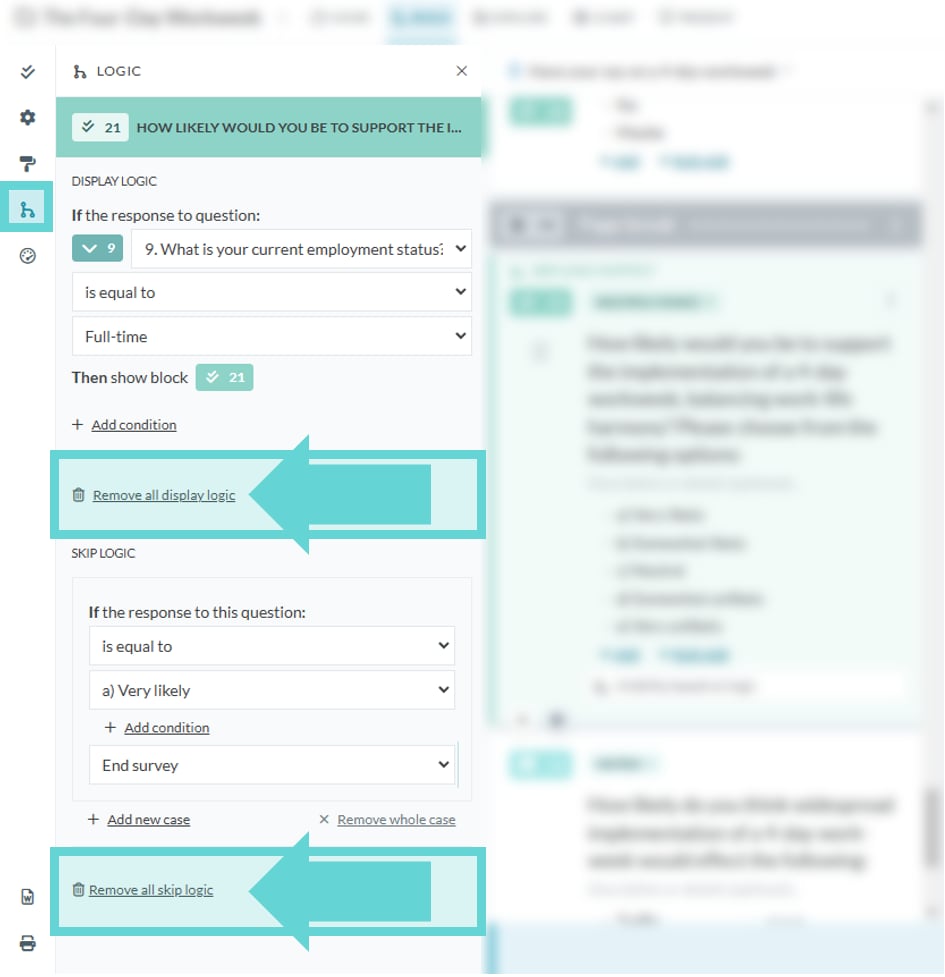 If you need to remove the logic applied to a specific block, open logic settings from the menu on the right hand side, select the block you want to edit, and click the Remove all display logic link for display logic, or Remove all skip logic link for skip logic. These changes will be applied immediately but ensure you save changes to your survey when complete.