> ## Documentation Index
> Fetch the complete documentation index at: https://docs.converlens.com/llms.txt
> Use this file to discover all available pages before exploring further.
# Navigating Build
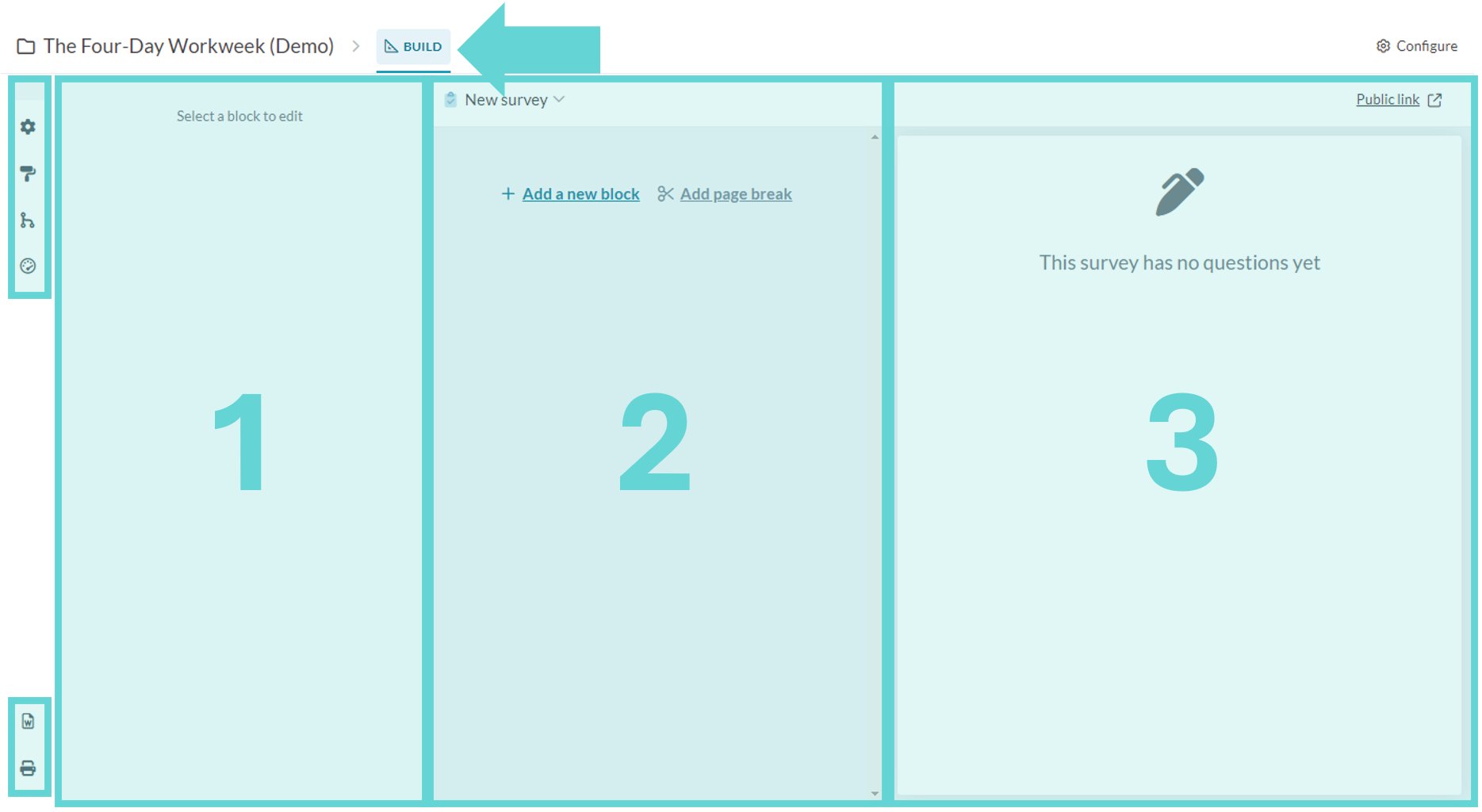
For ease of reference throughout this guide, the **Build** page has been split into 3 main sections:
1. **Block editor:** this is where new survey questions and content blocks are added and edited
2. **Survey editor:** this is where you edit questions and content blocks
3. **Survey preview:** this is where you see what the survey will look like when published
# **Menu**
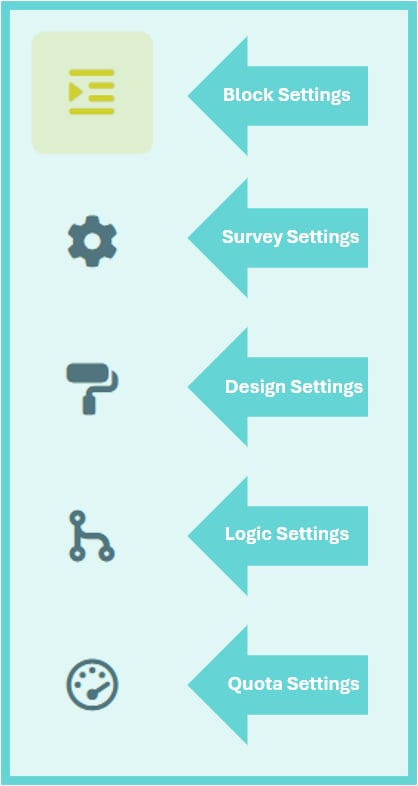
From the **Build** tab you can edit the block settings, survey settings, design settings, logic settings and quota settings. These settings are available in the left hand menu.
# **Export (Print Survey)**
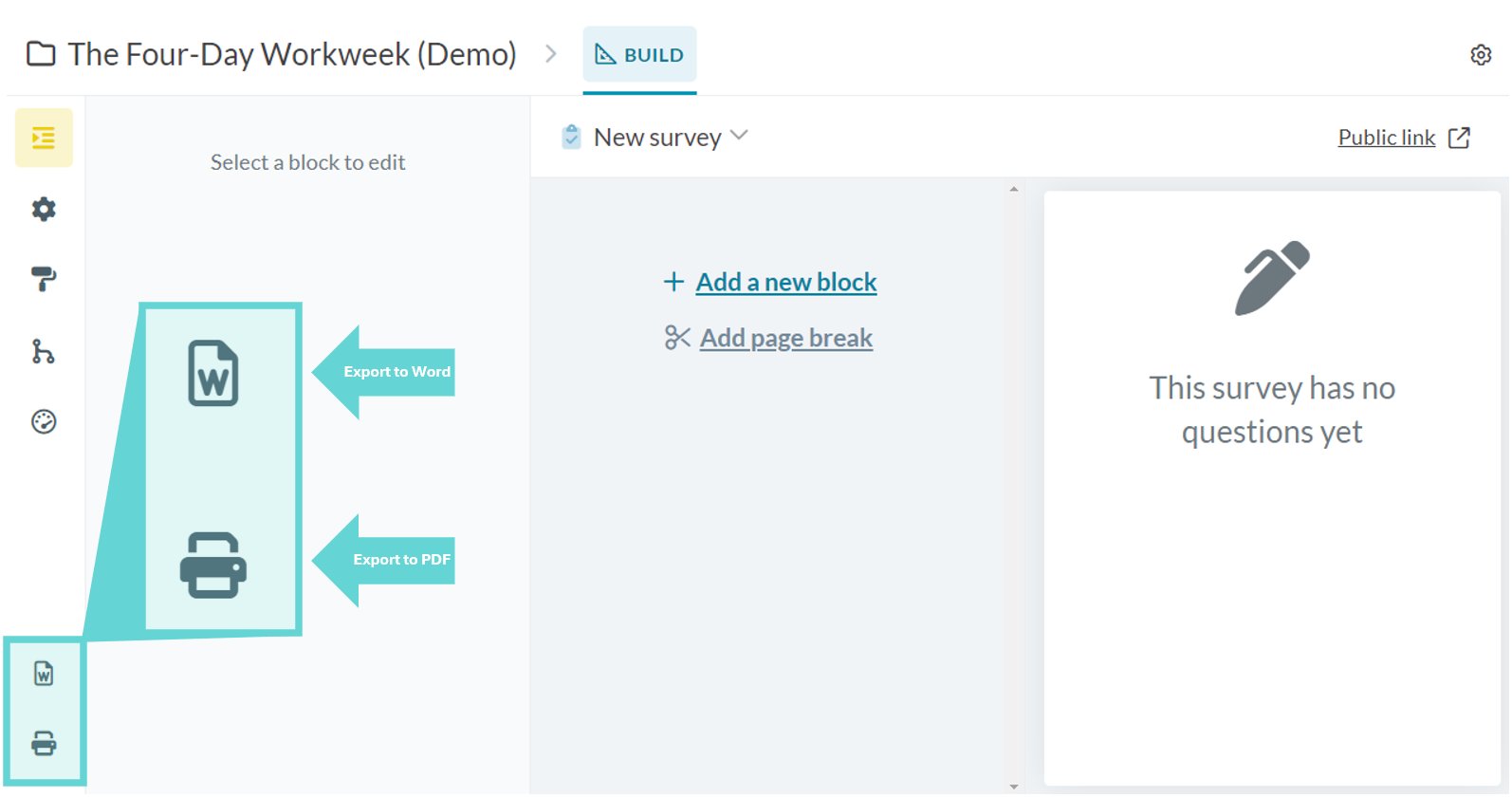
To export (print) the survey to a PDF click on the Printer icon on the bottom of the left hand menu. To export (print) the survey to a Word docx file, click on the Word file icon in the same area
The file will automatically download via your browser. The exported document will give a blank copy of the survey blocks, the block titles, descriptions and includes all available choices (options) per block. See a sample export below:
# (1) Block editor
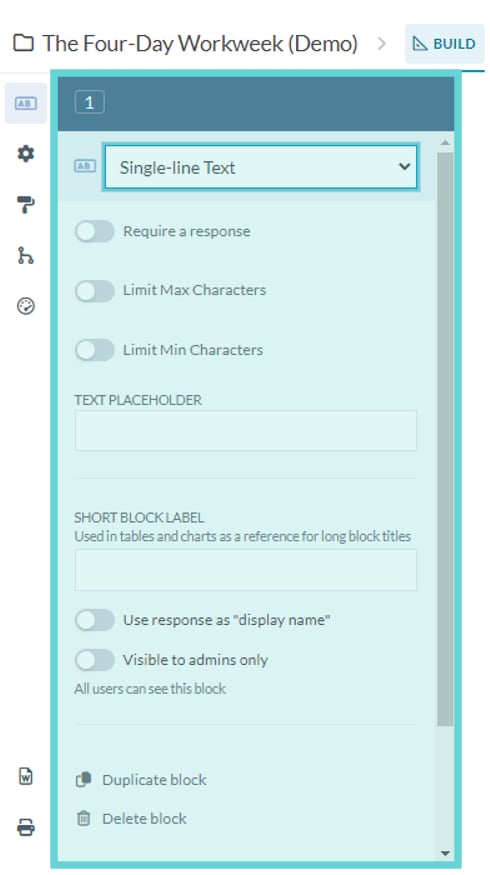
The first column will display the edit settings for the selected survey block. Select from the dropdown to change the block type and display and edit settings for that block type. For more information on each block type and associated settings, see [Block Types and Functions](/docs/01-03-04-01-02__block-types-and-functions).
# (2) Survey editor
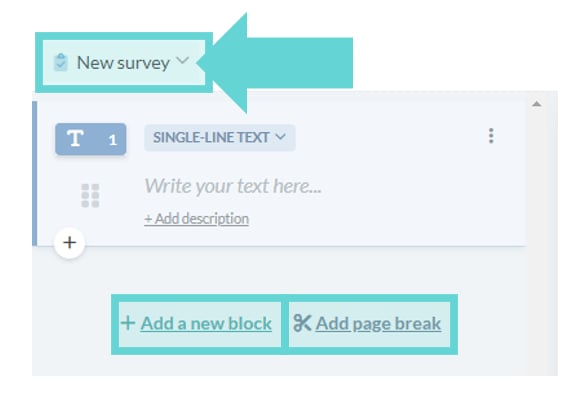
The second column displays the list of blocks in the survey, the **+Add new block** button and the **+Add page break** button. There is a dropdown arrow with the title of the survey you are working on. Click this to navigate between multiple surveys (data spaces) in the project. For more information on adding a block or page break see [Adding a block or page break](/docs/01-03-04-01-01-01__adding-a-block-or-a-page-break).
# (3) Survey preview
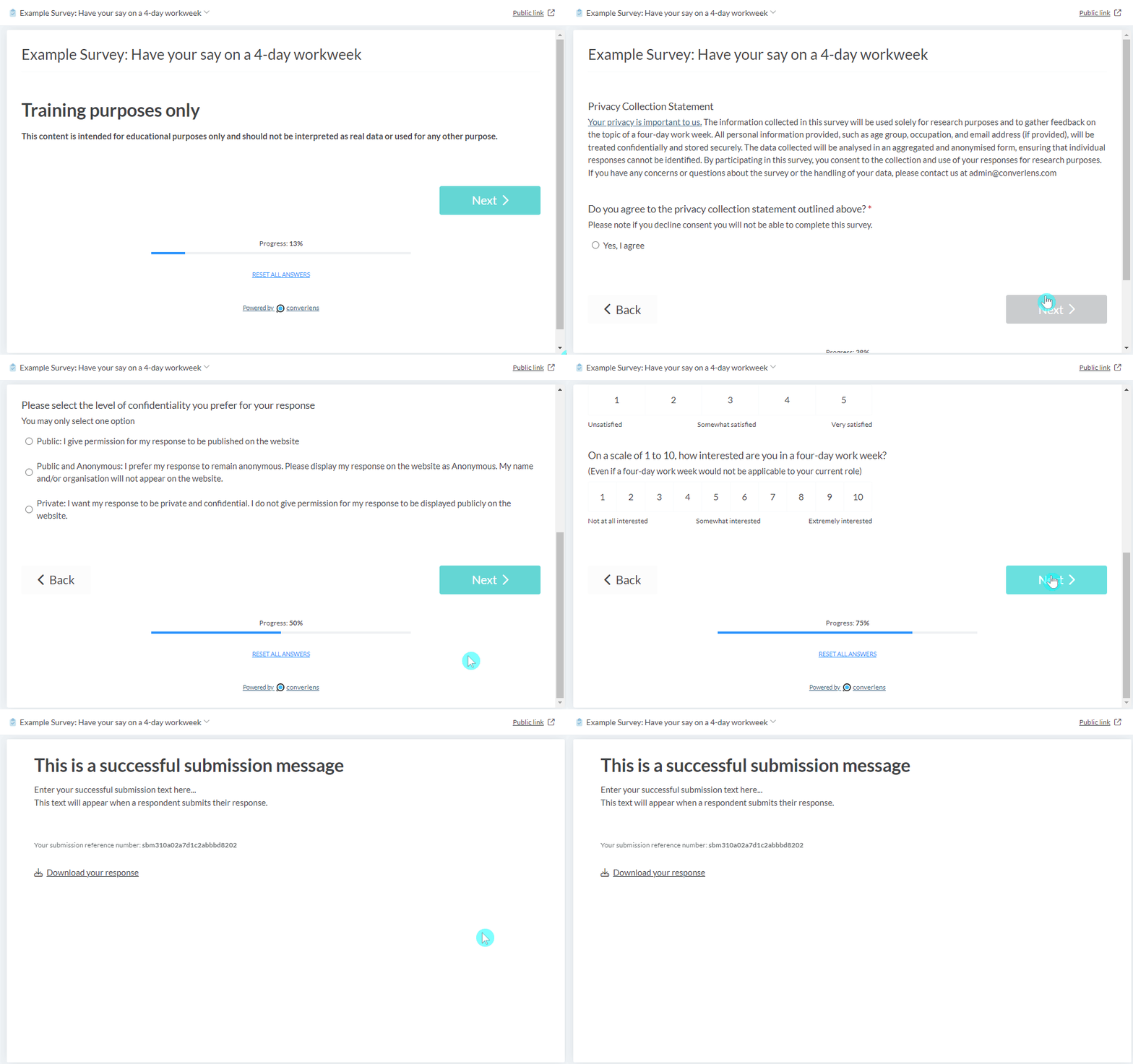
The third column displays the survey and block preview – this is what the survey will look like on a website. Click the Next and Back navigation buttons to move across the survey sections and see what the survey will look like to respondents.
**Tip:** If you have marked questions "Require a response" the survey preview will not load the next section until an answer is entered in that question. The answers provided in the survey preview screen will only show in your results if you hit "Submit" on the last page of the survey preview.
# Save changes
**Tip:** There is no way to recover an unsaved draft survey. If you are working on designing a survey, ensure you save as you go to avoid losing any progress.
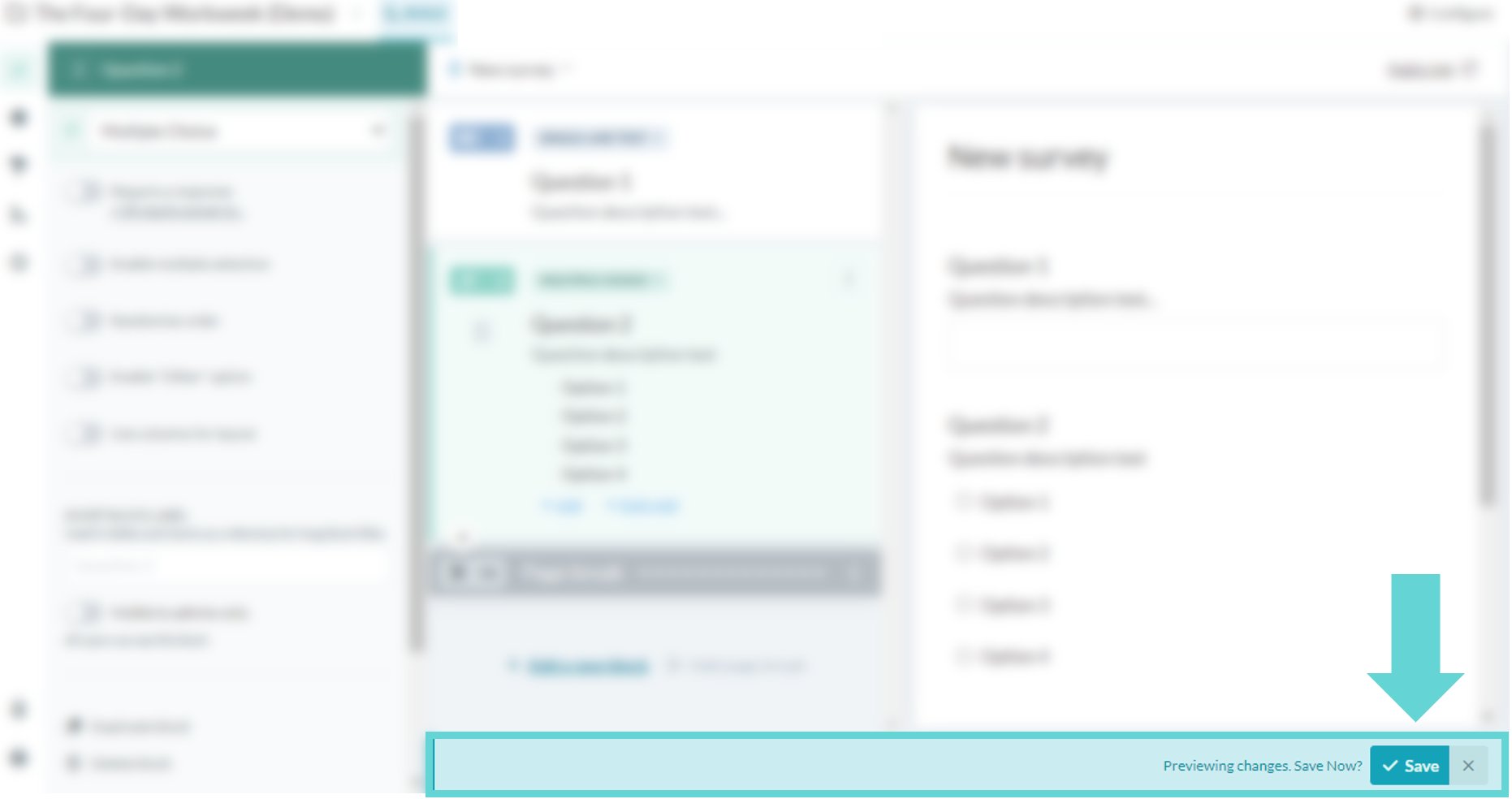
There is a Save button that will appear on the bottom right of the window as changes are made. Click the **Save** button to save your progress.