> ## Documentation Index
> Fetch the complete documentation index at: https://docs.converlens.com/llms.txt
> Use this file to discover all available pages before exploring further.
# Data Spaces
Data spaces are like folders for your project's data. They tell you where the information in your project comes from. If you made a survey in Converlens, that's a data space. If you did a series of surveys, each of them is a data space. Even if you brought in data from somewhere else, that imported data gets its own data space. It's a way to organise and recognise the source of your information easily. So, when you see "data space", think of it as the origin label for your project's data.
# Data space settings
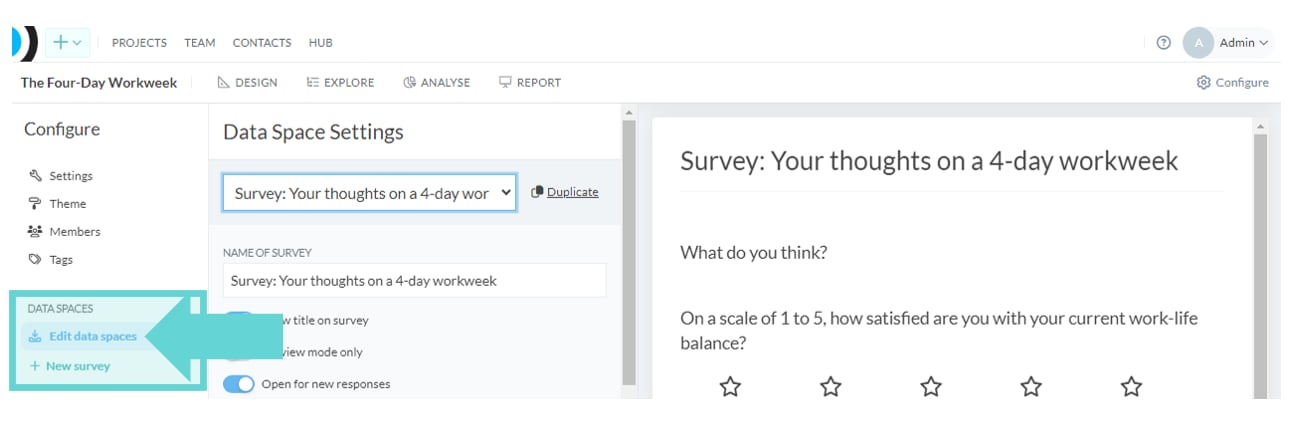
To open the data space settings menu, click on the **Edit data spaces** link in the Configure menu on the left hand side of the window:
## Select data space
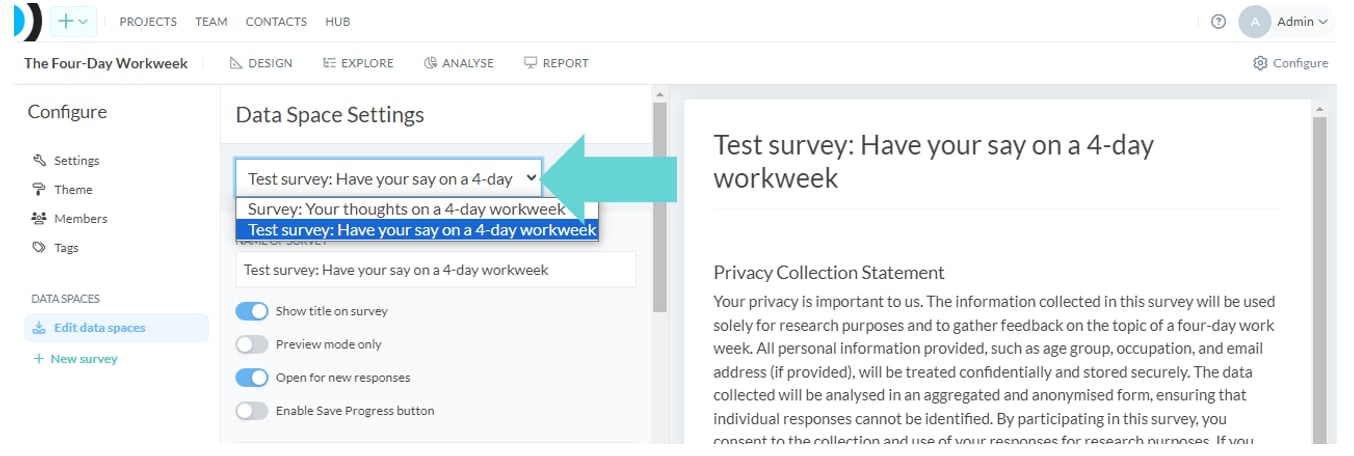
If the project has multiple surveys, select the survey to edit by clicking the dropdown arrow:
# Data space settings options
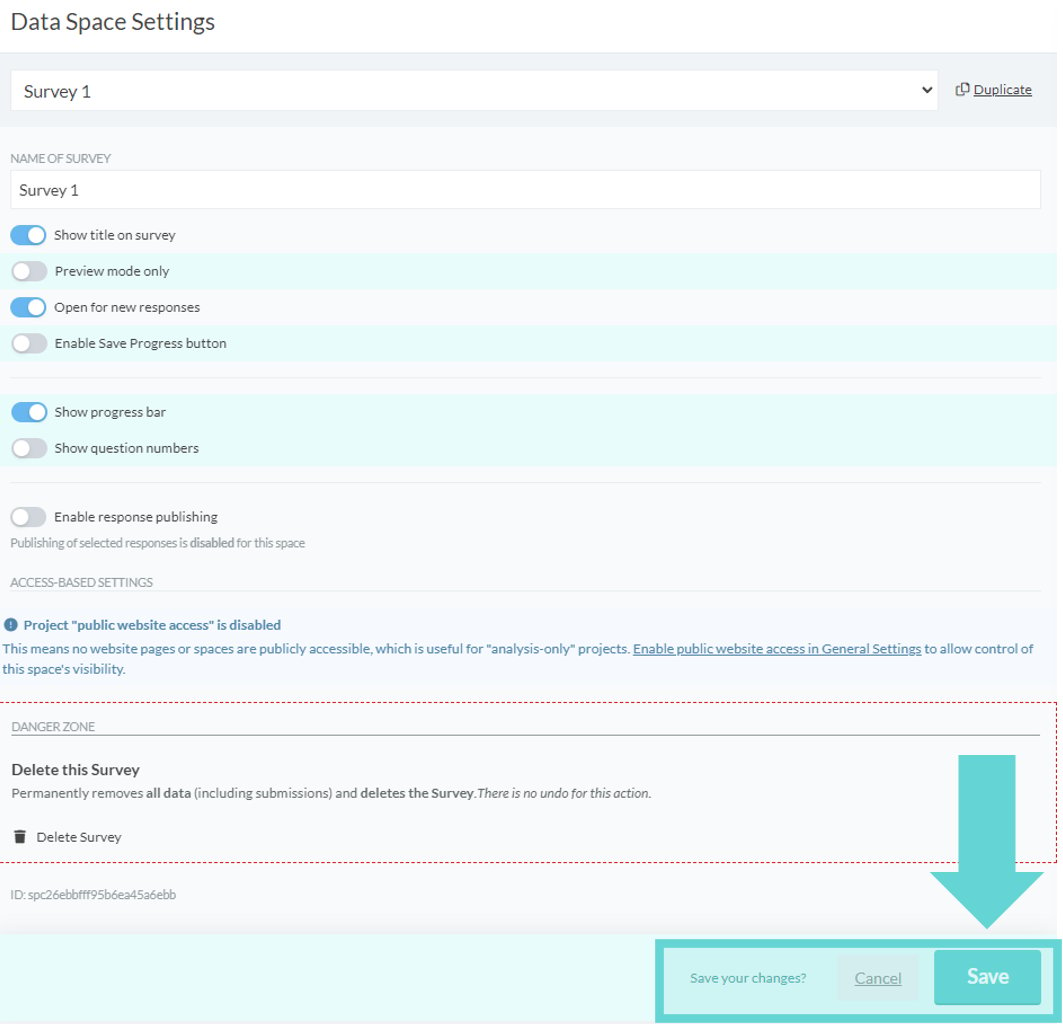
The following settings can be edited in the data space settings options:
* **Name of survey**: Edit the survey name
* **Show title on survey:** Toggle on/off to show/hide title of survey on the survey page
* **Preview mode only:** Toggle on/off to enable/disable preview mode only
* **Open for new responses:** Toggle on/off to enable/disable new survey responses
* **Enable Save Progress button:** Toggle on/off to enable/disable the save progress button on the survey
* **Show progress bar:** Toggle on/off to show/hide the progress bar button on the survey
* **Show question numbers:** Toggle on/off to show/hide question numbers on the survey
* **Users can download their response:** Toggle on/off to let respondents download a copy of their completed response.
* **Limit responses by unique email field:** If an email question is selected, limit each email address to one response.
* **Enable response publishing:** Toggle on/off to enable/disable publishing of survey responses (more information below).
* **Access based settings:** Configure the survey visibility settings. Requires public access to be enabled in project settings. See [Project public website access](/docs/01-03-04-03-03__settings-project-configuration#project-public-website-access).
* **Custom messages:** Edit success, closed survey, quota exceeded, and published response preamble text.
* **Panel and redirect settings:** Configure panel capture fields and redirect URLs if enabled for your workspace.
* **Custom PDF footer:** Add footer content used on response PDF exports.
* **Danger zone:** Delete the survey. See [Deleting a project](/docs/01-03-04-03-03__settings-project-configuration#deleting-a-project)
**Tip:** Remember to save your changes as settings are edited by clicking the **Save** button at the bottom of the settings menu
## Duplicate
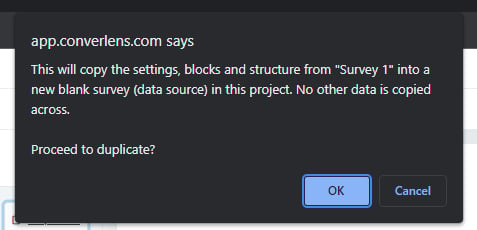
To duplicate the survey into a new blank survey click on the duplicate link located to the right of the select data space dropdown:
Converlens will pop up a confirmation box with the survey you are duplicating. Click **OK** to confirm or **Cancel** if you do not want to duplicate that survey in the project.
# Response publishing settings

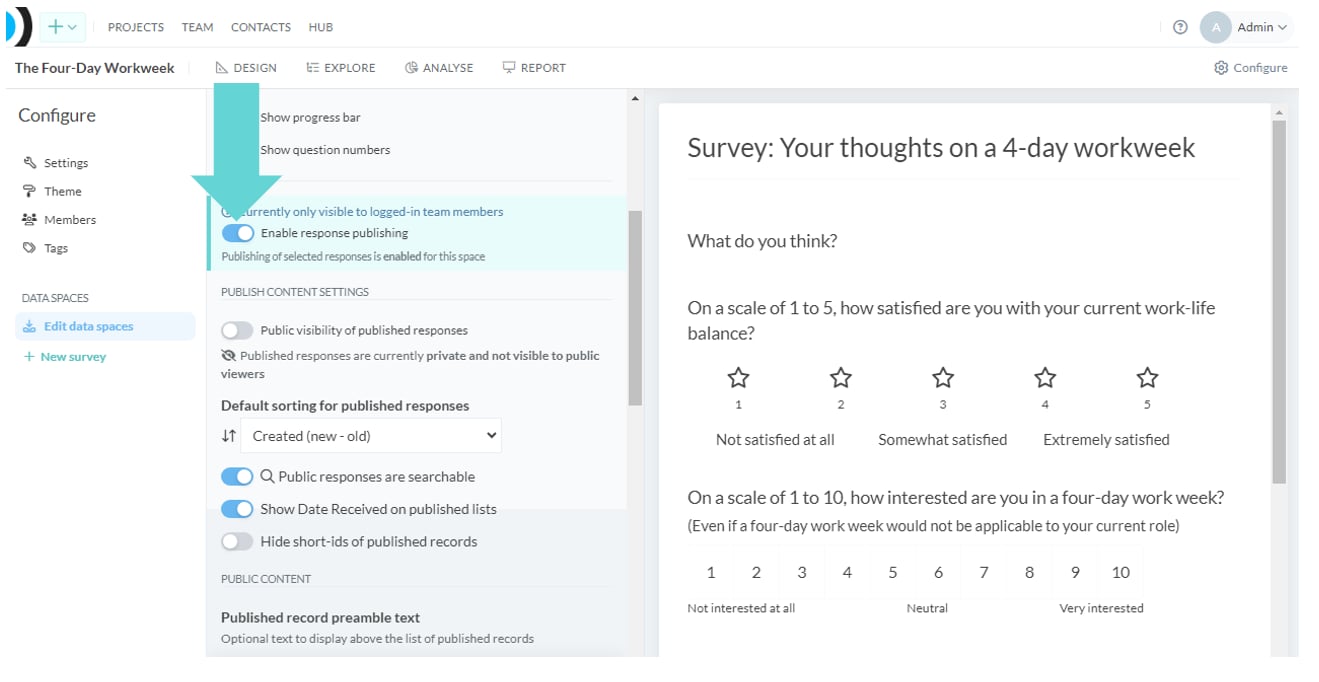 To publish responses so they can be viewed on the front-end, ensure the **Enable response publishing** toggle is on.
These settings determine how published responses look and operate. The following settings can be edited in response publishing:
* **Public visibility of published responses:** Toggle on/off to show/hide published responses to public viewers
* **Default sorting for published responses:** Select from dropdown options to change how published responses appear in a list:
* **Created (new – old):** Display published responses with the newest response at the top of the list sorting to the oldest at the bottom.
* **Created (old – new):** Display published responses with the oldest response at the top of the list sorting to the newest at the bottom.
* **Display name (A – Z)**: Display published responses in alphabetical order showing A at the top of the list sorting through to Z at the bottom.
* **Display name (Z – A)**: Display published responses in reverse alphabetical order showing Z at the top of the list sorting through to A at the bottom.
* **Public responses are searchable:** Toggle on/off to enable/disable searching of published public responses
* **Show Date Received on published lists:** Toggle on/off to show/hide the date of submission receipt in the published response.
* **Hide short-ids of published records:** Toggle on/off to show/hide the submission ID number.
* **Published record preamble text:** Add optional text above the public response list.
To publish responses so they can be viewed on the front-end, ensure the **Enable response publishing** toggle is on.
These settings determine how published responses look and operate. The following settings can be edited in response publishing:
* **Public visibility of published responses:** Toggle on/off to show/hide published responses to public viewers
* **Default sorting for published responses:** Select from dropdown options to change how published responses appear in a list:
* **Created (new – old):** Display published responses with the newest response at the top of the list sorting to the oldest at the bottom.
* **Created (old – new):** Display published responses with the oldest response at the top of the list sorting to the newest at the bottom.
* **Display name (A – Z)**: Display published responses in alphabetical order showing A at the top of the list sorting through to Z at the bottom.
* **Display name (Z – A)**: Display published responses in reverse alphabetical order showing Z at the top of the list sorting through to A at the bottom.
* **Public responses are searchable:** Toggle on/off to enable/disable searching of published public responses
* **Show Date Received on published lists:** Toggle on/off to show/hide the date of submission receipt in the published response.
* **Hide short-ids of published records:** Toggle on/off to show/hide the submission ID number.
* **Published record preamble text:** Add optional text above the public response list.