> ## Documentation Index
> Fetch the complete documentation index at: https://docs.converlens.com/llms.txt
> Use this file to discover all available pages before exploring further.
# Members
Configure user access, permissions and management for the project in this section. To open the member settings, click the **Members** link on the left side of the **Configure** menu.
# Limit project access
Limit project access determines if the project is viewable by members of your workspace. Click the toggle button to enable/disable project access by members of your workspace.
**Note:** You’re in control! Use the Limit Project Access setting to decide which workspace members can access your project data. When this setting is toggled on, only the members added by Project Admins will have access to the data spaces within the project. Workspace admins retain admin access to all projects. You can enable/disable this setting at any time.
## Disabled
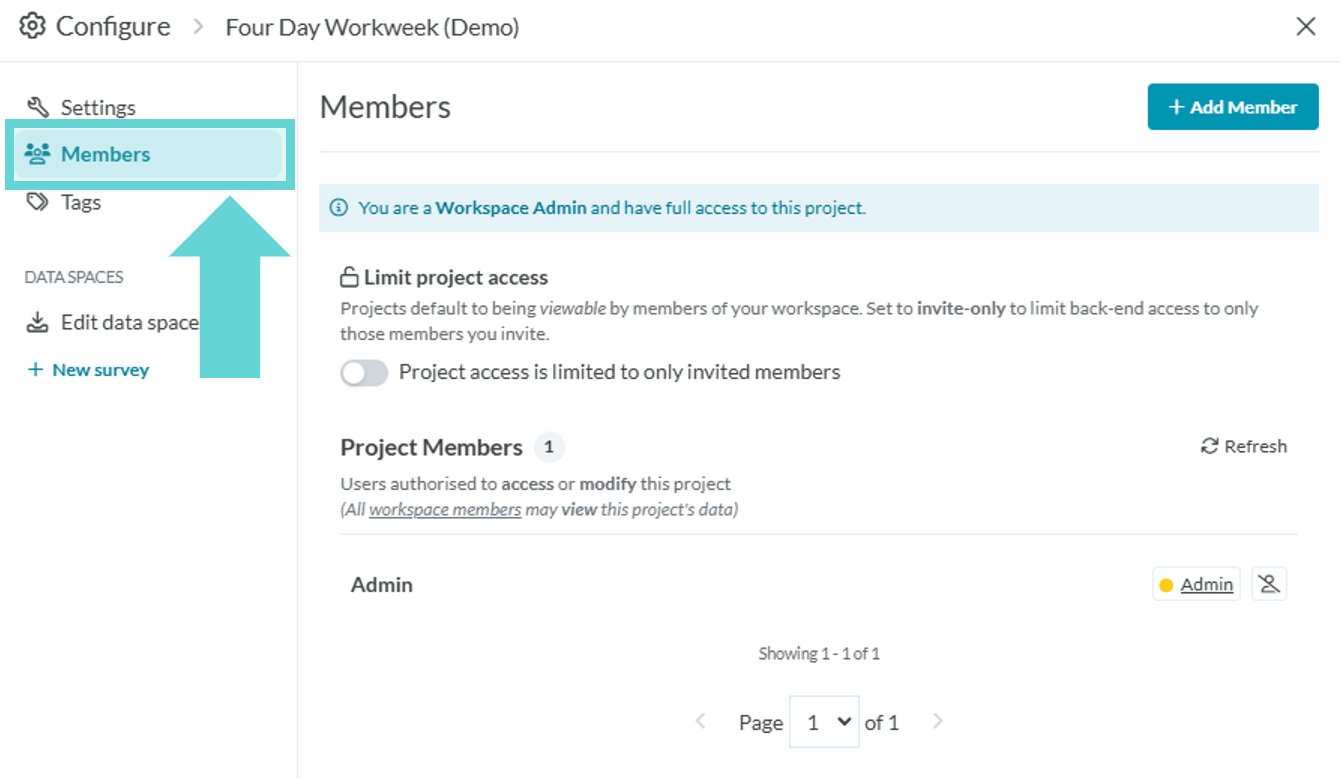 By default this option will be disabled, allowing members of your workspace to view and access the project data spaces according to their workspace role.
## **Enabled**
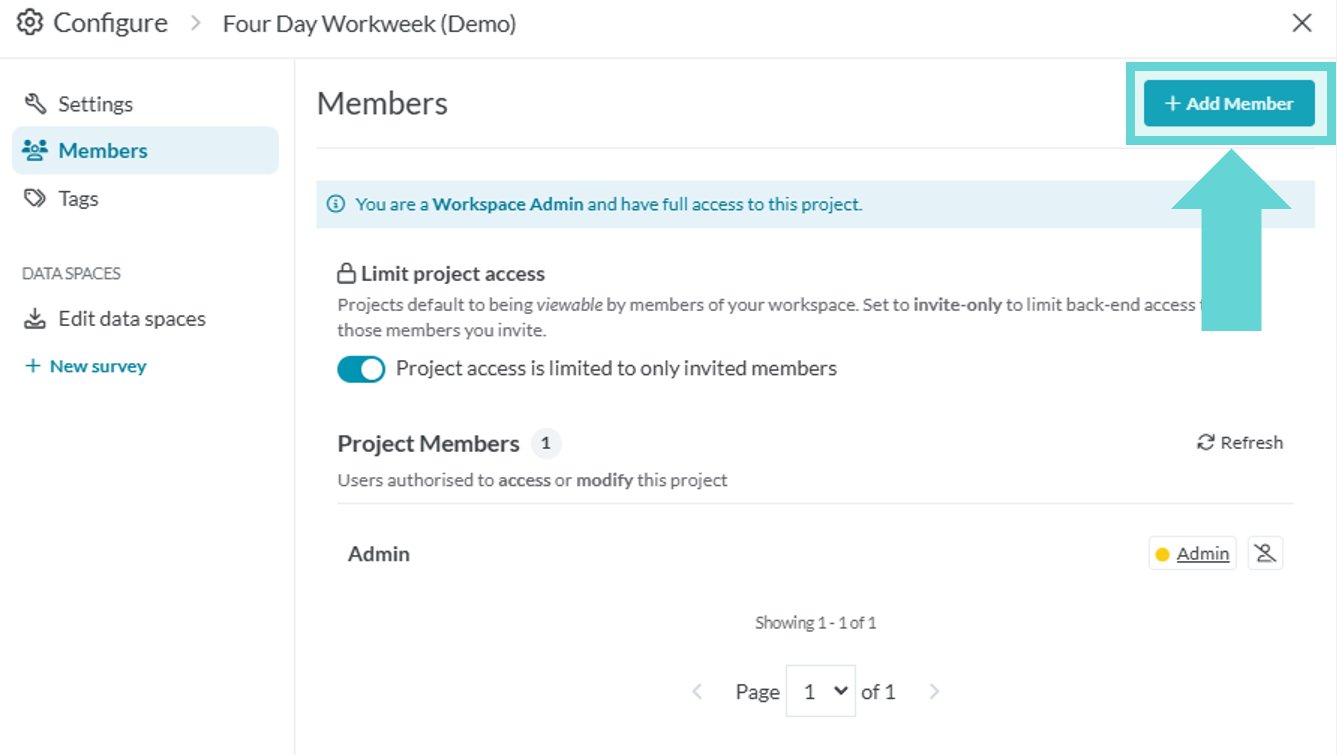
To limit project back-end access toggle the **Limit project access button** (click the toggle). When enabled, only invited members have access to the project.
# Project members
**Note:** You will only need to manually add project members where the project setting is set to Limit project access (enabled)
This is where you are able to add members to the project and edit what level of access they have.
To add a member to the project, click on the **+Add Member** button located on the top right of the Member window.
**Note:** You can only add project members if they are already in your workspace. If a member is not available from the list, you will need to first add them to your workspace. View [Adding members to the platform](/docs/01-03-01-03__getting-set-up-with-converlens#workspace-admin-adding-a-new-team-member) to be able to add them to the project.
From here, you can select **Add** and choose that individual's role within the project.
### Adding a project member and role
Adding a new project member:
**By workspace member**
To add a member to the project from your workspace locate their email address or name in the list of workspace members. When located, mouse over the +Add link on the right hand side of the screen.
This will display the project role dropdown. Select the role for the member you are adding from the dropdown list and click the blue tick to the right of the dropdown box to add them to the project.
Converlens will pop up a confirmation box including the name of the member you are trying to add. Click **OK** to confirm to **Cancel** if you do not want to add that member to the project.
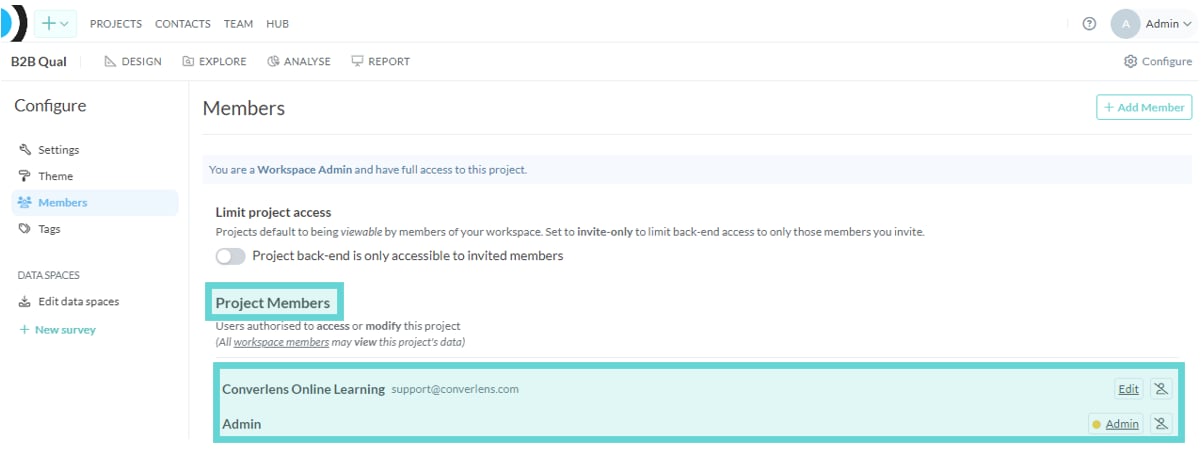
Once a member has been added to the project, they will appear in the list of project members in the main **Members** window:
### Project Member roles
By default this option will be disabled, allowing members of your workspace to view and access the project data spaces according to their workspace role.
## **Enabled**
To limit project back-end access toggle the **Limit project access button** (click the toggle). When enabled, only invited members have access to the project.
# Project members
**Note:** You will only need to manually add project members where the project setting is set to Limit project access (enabled)
This is where you are able to add members to the project and edit what level of access they have.
To add a member to the project, click on the **+Add Member** button located on the top right of the Member window.
**Note:** You can only add project members if they are already in your workspace. If a member is not available from the list, you will need to first add them to your workspace. View [Adding members to the platform](/docs/01-03-01-03__getting-set-up-with-converlens#workspace-admin-adding-a-new-team-member) to be able to add them to the project.
From here, you can select **Add** and choose that individual's role within the project.
### Adding a project member and role
Adding a new project member:
**By workspace member**
To add a member to the project from your workspace locate their email address or name in the list of workspace members. When located, mouse over the +Add link on the right hand side of the screen.
This will display the project role dropdown. Select the role for the member you are adding from the dropdown list and click the blue tick to the right of the dropdown box to add them to the project.
Converlens will pop up a confirmation box including the name of the member you are trying to add. Click **OK** to confirm to **Cancel** if you do not want to add that member to the project.
Once a member has been added to the project, they will appear in the list of project members in the main **Members** window:
### Project Member roles


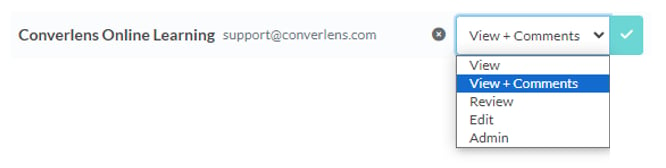
 In a **PROJECT** there are the following roles:
* **Admin** (admin): Full access. Workspace admins are admins in all projects.
* **Editor** (edit): Can edit project content, surveys, charts, reports, and responses, but cannot manage project members or delete the project.
* **Reviewer** (review): Can review project data, comment, tag, and highlight text.
* **Member** (comment): View + comment.
* **Observer** (view): View only.
See the full abilities listed in [Roles and permissions](/docs/01-03-01-05__roles-and-permissions).
To configure your **workspace** team members, roles and permissions you will need to be a workspace admin. See **[Team](/docs/01-03-01-07-02__team)** for further information.
In a **PROJECT** there are the following roles:
* **Admin** (admin): Full access. Workspace admins are admins in all projects.
* **Editor** (edit): Can edit project content, surveys, charts, reports, and responses, but cannot manage project members or delete the project.
* **Reviewer** (review): Can review project data, comment, tag, and highlight text.
* **Member** (comment): View + comment.
* **Observer** (view): View only.
See the full abilities listed in [Roles and permissions](/docs/01-03-01-05__roles-and-permissions).
To configure your **workspace** team members, roles and permissions you will need to be a workspace admin. See **[Team](/docs/01-03-01-07-02__team)** for further information.