> ## Documentation Index
> Fetch the complete documentation index at: https://docs.converlens.com/llms.txt
> Use this file to discover all available pages before exploring further.
# Draft Responses
Got a long survey? No worries! Converlens has your respondents covered with our **Save Progress** feature. If your survey is a bit of a deep dive, enabling **Save Progress** gives respondents the freedom to save their answers partway through and come back whenever they’re ready. This means they can pick up right where they left off without losing any of their work.
Want to know how to set it up? Read on to see how you can make surveys easier for everyone with Draft responses.
# **Enabling Draft Responses**
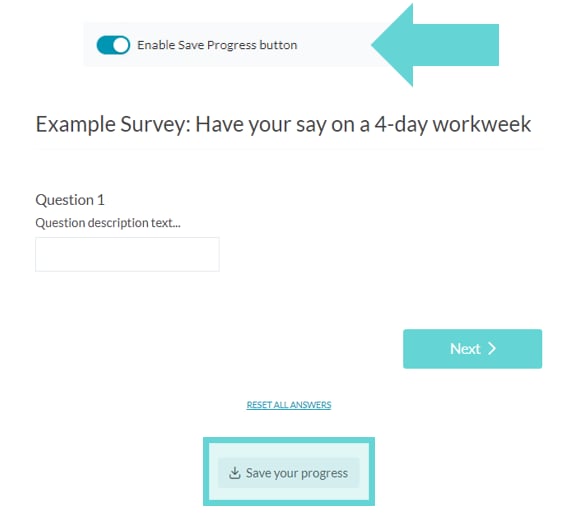
To allow respondents to save incomplete survey responses, toggle on the **[Enable Save Progress](/docs/01-03-04-01-06__survey-settings#enable-save-progress-button)** option in the Survey Settings. This setting enables the “Save” feature for respondents, allowing them to return to their submission at any time before final submission.
# Guide to saving responses as a respondent
Ensure the “Enable Save Progress” button is enabled in order for respondents to be able to save their partially completed survey response.
## **Saving Survey Progress**
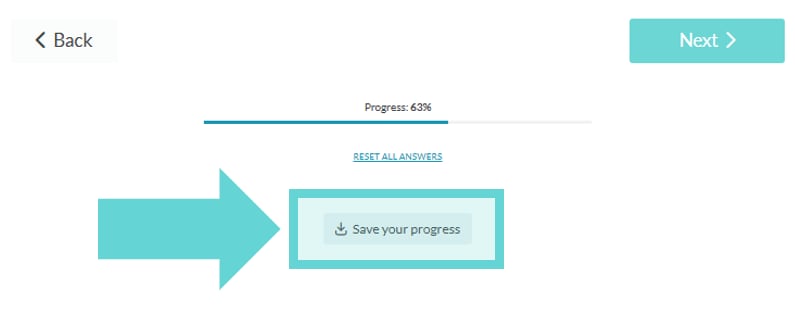
To save progress in a partially completed response, respondents need to click the **Save your progress** button located at the bottom of the current page they are on. This button appears on all survey pages.
Clicking the **Save your progress** button will open a new page in the same window prompting the respondent to “Save your response for later”. The respondent should then click the “Save progress” button from this page.
## **Retrieving** saved survey
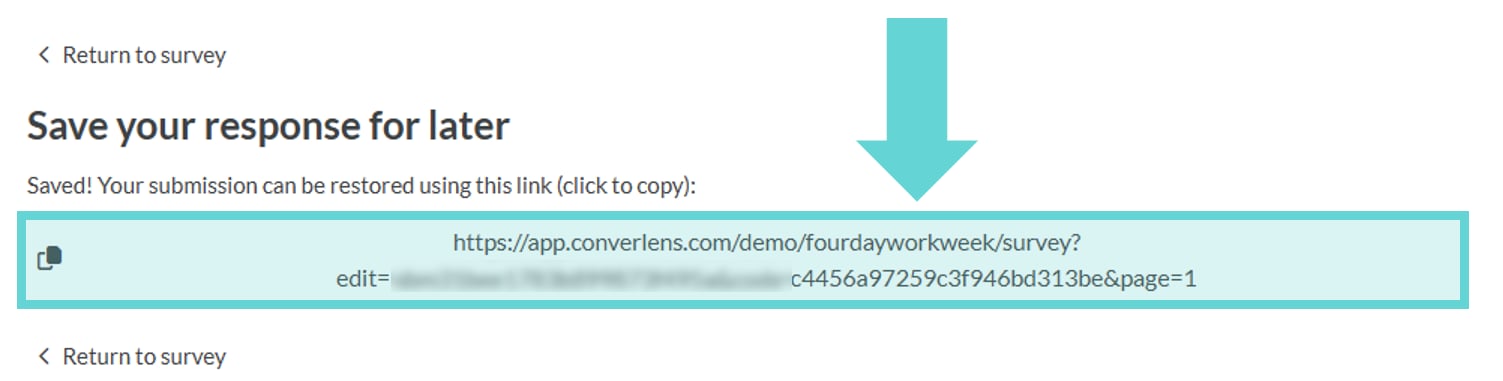
After confirming, respondents will see a custom URL displayed on the screen, which they should copy or bookmark. This URL allows them to return to their survey from any device. Click anywhere in the URL box to automatically copy the URL.
## **Continuing the Survey**
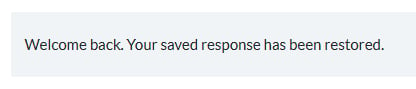
Using the URL, respondents can re-enter the survey and pick up right where they left off. This can be done from the same or a different device they started the survey from, simply enter the unique URL in any browser and the saved submission will load.
If a respondent misplaces their unique URL for a draft response, they can reach out to the survey administrator to request it. For privacy and security, only survey administrators are responsible for providing access to these URLs.
# View Draft Responses
To view Draft Responses, open the Project and Survey (Data Space) you want to view and open the **Explore** tab from the Project Navigation Bar
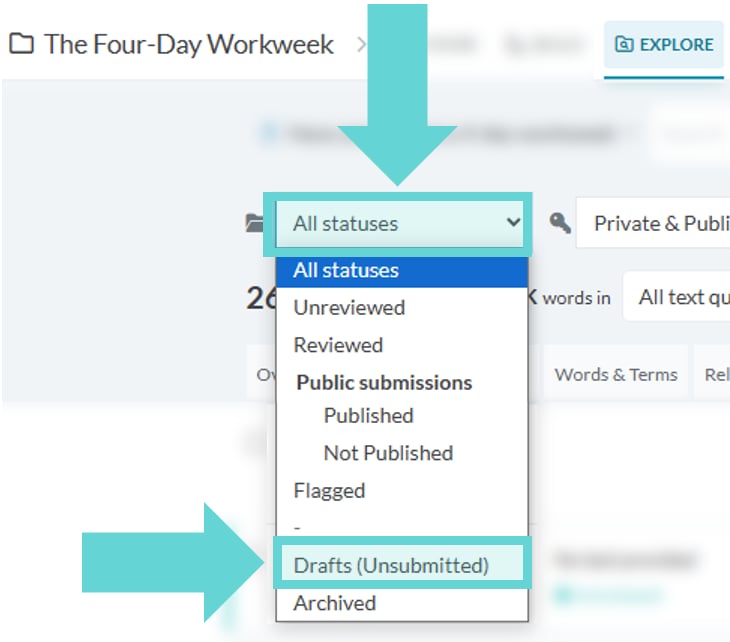
From the Explore sidebar, select **Draft**. This filter only appears when Save Progress is enabled for the data space.
The Results tab will now display a list of all draft responses. The match count will also change to display the number of drafts in the survey.
**Note:** Draft responses will not add to the main results count in the live responses view. Only responses which have been submitted to the survey will add to the results count when viewing responses in Explore, unless the Draft filter is active.
# Accessing Draft Submissions URL
Survey administrators can access draft submissions if needed. If a respondent loses their custom URL:
**Open Draft Responses in Explore**
To help a respondent retrieve their draft, navigate to the survey’s **Draft** responses section (see above). The respondent will need to provide identifying information to locate their draft, which may include details like name, email address, organisation, or location, depending on what the survey collected. In some cases, it may not be possible to locate a draft if there isn't enough identifying information available.
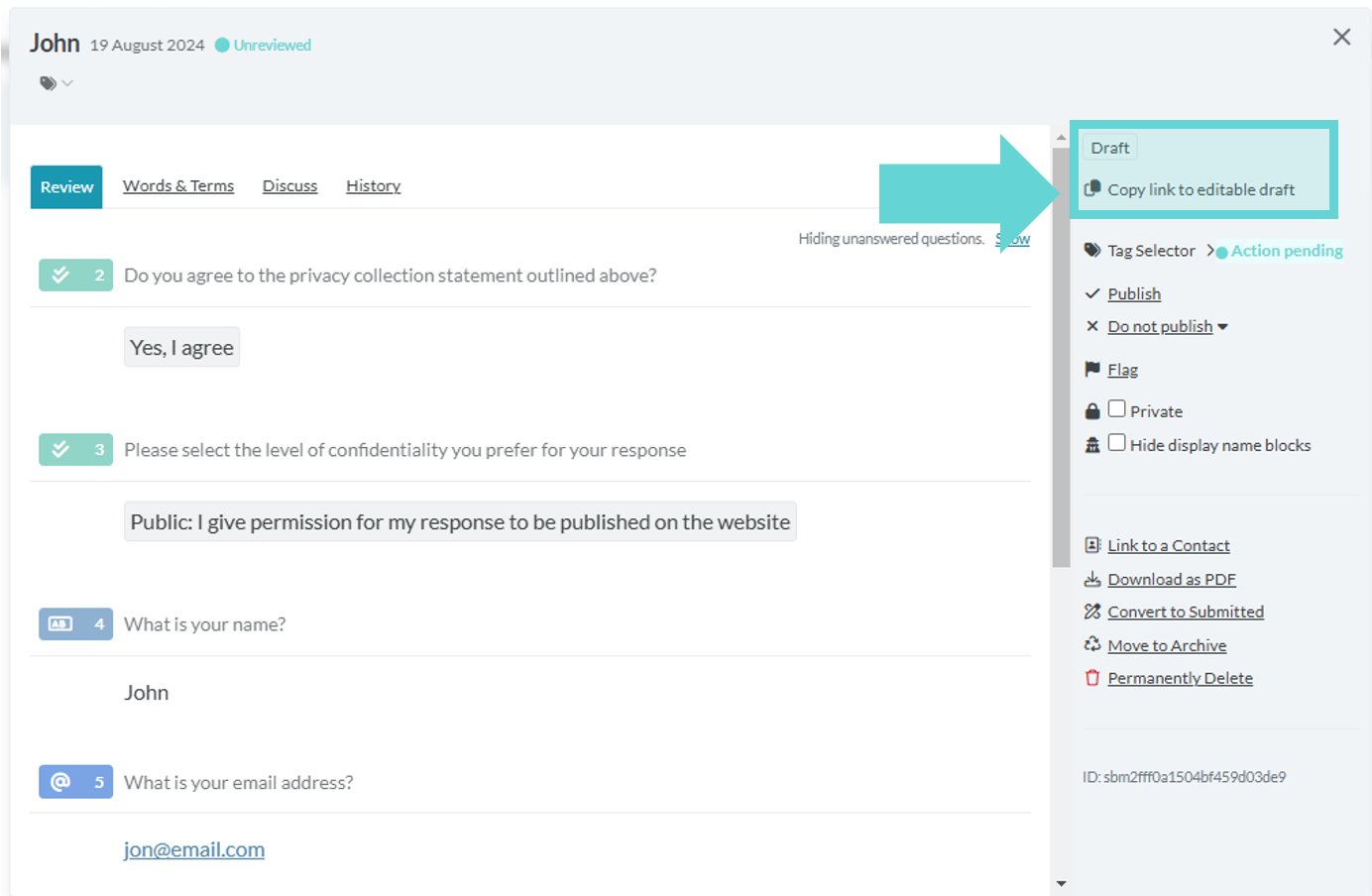
Locate the respondent’s draft response in the Results list and click on the response to open it. In the right hand Action Bar, click on the “Copy link to editable draft” button:
This will copy the unique URL which can then be provided to the respondent to continue their response.
# Handling Drafts When the Survey Closes
Once the survey period closes respondents will no longer be able to complete or load their saved drafts. If a respondent tries to load their draft response after the survey has closed they will see the Survey Closed message (if set), and the incomplete draft will stay in the Drafts (Unsubmitted) folder.
**Tip:** Drafts can be edited by Project Administrators if a late response is required.
# Deleting Drafts
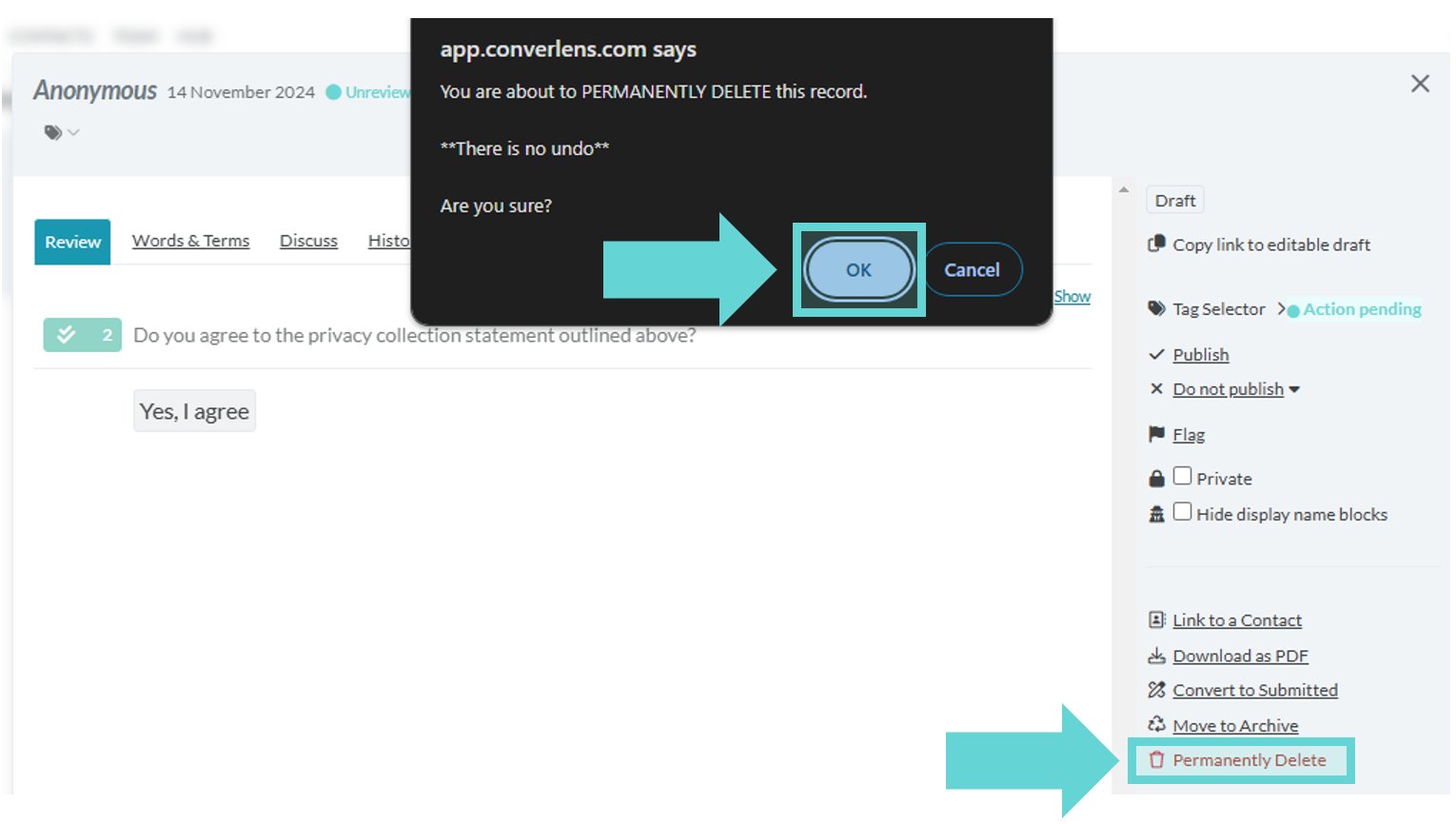 To delete a draft response, navigate to the survey’s **Draft** responses section (see above). Click on the draft response you want to delete. From the Action Bar on the right hand side, click “Permanently Delete”.
Converlens will open a confirmation popup. Click “Ok” and the draft response will be deleted.
To delete a draft response, navigate to the survey’s **Draft** responses section (see above). Click on the draft response you want to delete. From the Action Bar on the right hand side, click “Permanently Delete”.
Converlens will open a confirmation popup. Click “Ok” and the draft response will be deleted.