> ## Documentation Index
> Fetch the complete documentation index at: https://docs.converlens.com/llms.txt
> Use this file to discover all available pages before exploring further.
# Exporting responses
## Exporting responses
The Exporting Responses feature in Converlens lets you extract survey data in Word or CSV format, giving you control over your data and providing portability for use outside the platform. Export access depends on the project or workspace export permission level.
### Where to find Export in Converlens
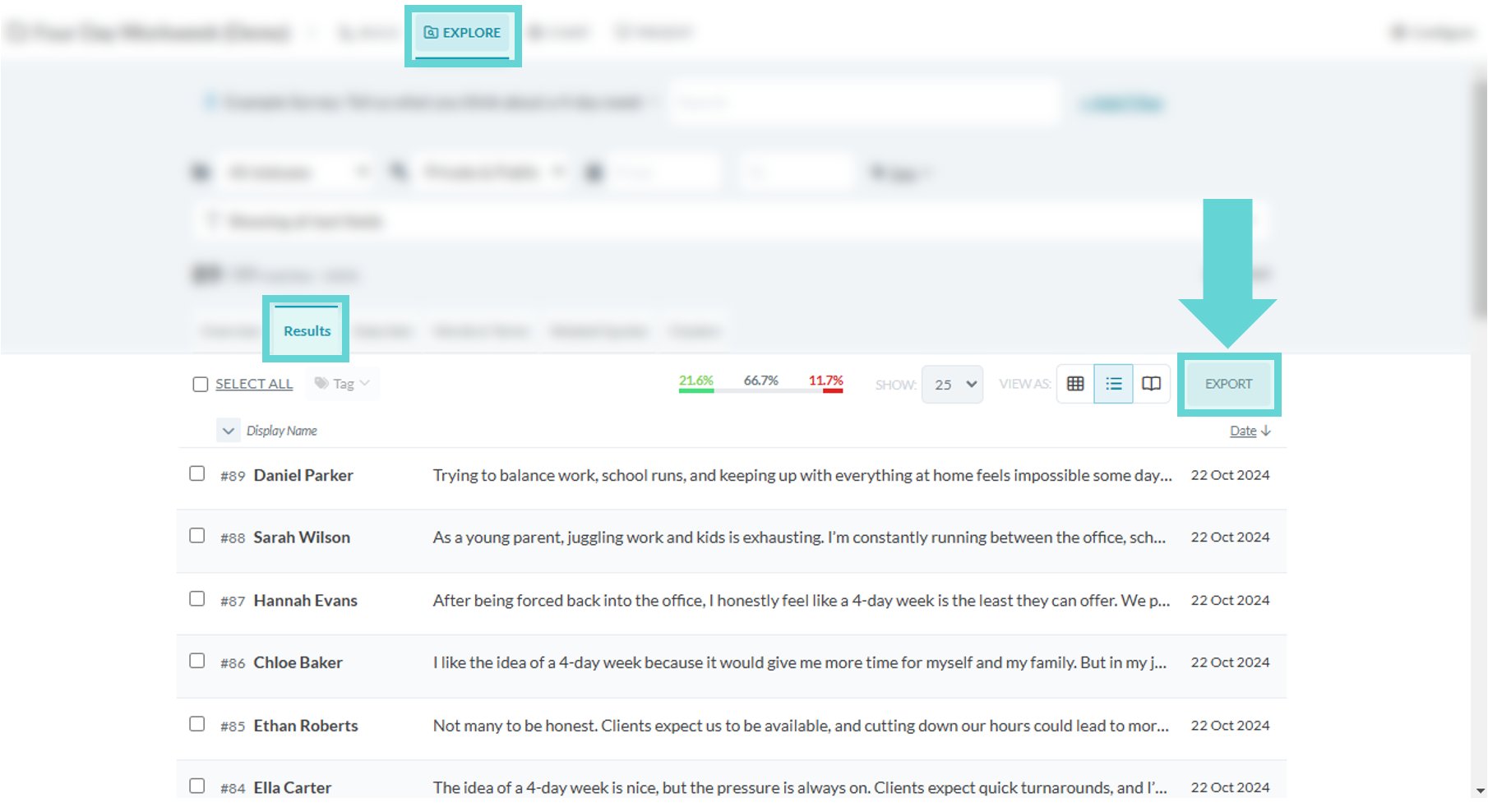
From Explore, select Results in the Explore Navigation tab. The Export button is located to the right of the window.
Clicking Export will open the Export options window
You can opt to export the responses as either a:
* **Word document:** lists each response one after another
* **CSV spreadsheet:** lists all responses in a table format
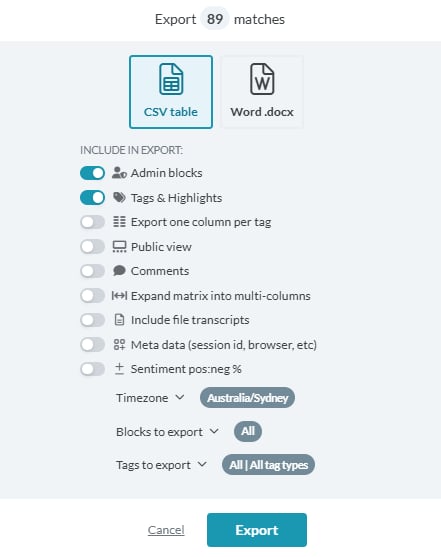
**Export to CSV menu:**
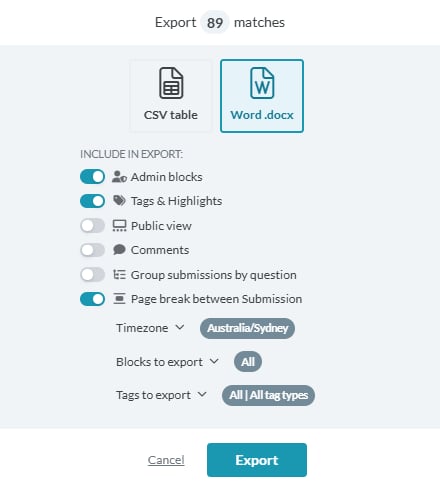
**Export to Word menu:**
### **General export options**
* **Blocks to export:** Use the dropdown to select/deselect specific blocks to export. Use this to export a specific list (such as respondent’s emails) without having to export all data or manually extract from submissions.
* **Timezone:** Use the dropdown to select the timezone for displaying the receipt date and time of submissions. In CSV exports, this appears as a column header formatted as “Created (GMT\[timezone] Country/City).” In Word exports, the timezone is displayed beneath the submission ID in the format: Day, Month Date, YEAR, Timestamp Timezone Name.
* **Tags to export:** Use the dropdown to select/deselect specific tags applied to submissions during analysis to export. This allows you to export only the responses associated with certain labels or codes.
**Tip:** Microsoft Excel limits the maximum characters in a single cell to 32,767 (approx. 5000-6000 words or 20-26 pages). If a question response exceeds this amount Excel will *fail to correctly display* the file and Excel will appear corrupted. This is due an Excel limitation and is outside of Converlens. The alternative is to open the spreadsheet in another app like Numbers (Mac), Google Sheets, LibreOffice, or export to Word and manually copy the responses into Excel.
## Export to CSV
To export to CSV, click the CSV table icon. Set the required options (see below). Click the teal Export button to export the results to a CSV file. The file will download to your device.
### CSV export options
There are a number of options you can choose to include in the export:
* **Admin blocks:** Toggle on/off to include blocks that have been set as “[admin only](/docs/01-03-04-01-01__block-settings)” in the export. You can set admin blocks in the [Build settings](/docs/01-03-04-01__build) when creating your survey.
* **Tags & Highlights:** Toggle on/off to include the tags for the submission in the export. Tags will show separated by comma in a single column on each submission row.
**Tip:** in Excel, ensure you “Wrap Text” on the Tags column to see all tags per submission in the column.
* **Export one column per tag:** Toggle on/off to export the tags as individual columns per submission row.
* **Public view:** Toggle on/off to only export submissions that have the “Published” status. For more about response publishing see [Publishing responses.](/docs/01-03-04-05-08__publishing-responses)
* **Comments:** Toggle on/off to include/exclude comments made on submissions as a column in the export. Comments can be added in Submission Reader view. See [here](/docs/01-03-04-05-10-02__submission-actions) for more information on adding comments to a submission.
* **Expand matrix into multi-columns:** Toggle on/off to split [matrix block types](/docs/01-03-04-01-02-01-07__matrix) into single columns per choice.
* **Include file transcripts:** Toggle on/off to include file transcripts (uploaded files) in the download. Note: Excel has a character limit per cell and may not display long transcripts correctly.
* **Session metadata:** Toggle on/off to include available technical session metadata.
* **Original filenames:** Toggle on/off to include original filenames for file uploads.
* **Sentiment pos:neg%:** Toggle on/off to include/exclude sentiment values for text-based block types in the export. These will display as numbers in a positive and negative column per text question.
## Export to Word
To export to Word, click the Word .docx icon. Set the required options (see below). Click the teal Export button to export the results to a docx file. The file will download to your device.
### Word export options
 There are a number of options you can choose to include in the export:
* **Admin blocks:** Toggle on/off to include blocks that have been set as “[admin only](/docs/01-03-04-01-01__block-settings#universal-block-settings)” in the export
* **Tags & Highlights:** Toggle on/off to include the tags and highlights for the response in the export
* **Public view:** Toggle on/off to only export submissions that have the “Published” status. For more about response publishing see [Publishing responses.](/docs/01-03-04-05-08__publishing-responses)
* **Comments:** Toggle on/off to include/exclude comments made on submissions in the export
* **Group submissions by question:** Toggle on/off to export the submissions as question blocks. When toggled on all responses to a question show under one heading in the export.
* **Page break between** **Submission/Question:** Toggle on/off to add a page break between each submission or each question (if group by question is enabled as above). Each submission or question will start on a new page.
There are a number of options you can choose to include in the export:
* **Admin blocks:** Toggle on/off to include blocks that have been set as “[admin only](/docs/01-03-04-01-01__block-settings#universal-block-settings)” in the export
* **Tags & Highlights:** Toggle on/off to include the tags and highlights for the response in the export
* **Public view:** Toggle on/off to only export submissions that have the “Published” status. For more about response publishing see [Publishing responses.](/docs/01-03-04-05-08__publishing-responses)
* **Comments:** Toggle on/off to include/exclude comments made on submissions in the export
* **Group submissions by question:** Toggle on/off to export the submissions as question blocks. When toggled on all responses to a question show under one heading in the export.
* **Page break between** **Submission/Question:** Toggle on/off to add a page break between each submission or each question (if group by question is enabled as above). Each submission or question will start on a new page.