> ## Documentation Index
> Fetch the complete documentation index at: https://docs.converlens.com/llms.txt
> Use this file to discover all available pages before exploring further.
# Highlight (Auto-Code)
# What is Highlight?
Highlighting, or ‘coding’ for qualitative analysts, is a trusted method of qualitative data analysis where you categorise text data into topic groupings. In Converlens, this process can be done manually or through the Highlight feature, which scans your data automatically based on text parameters you set. The feature can highlight matching terms, sentences, paragraphs, or entire answers against a tag (code) that you create.
## Where to find Highlight (Auto-code)
Access the Highlight function from the Explore tab in the Project Bar. Highlight is available to users with review permissions, if enabled for your workspace.
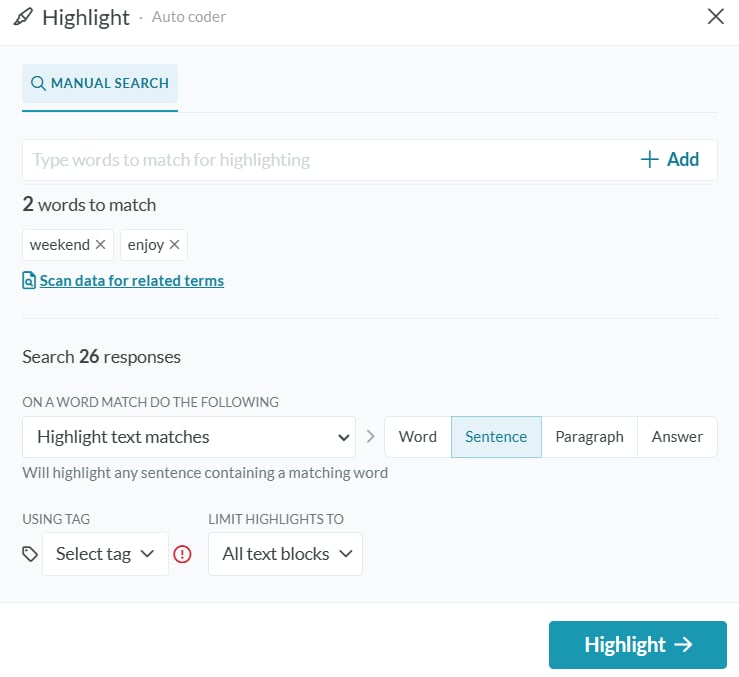
This will open the Highlight popup:
## Add terms to highlight
To add terms, enter a search term in the text box and click **Add** to include it in the list of search terms for the auto-highlight. The system will use this list to search the text and apply highlights accordingly.
### Scan for related terms
Click the **Scan for Related** button to search for similar terms to the ones you have added. If you see a term you would like to include in your search, add it by clicking on the term.
### Words to match
The "Words to Match" counter displays the number of words you have added for this particular highlight. These words appear listed below the counter. To remove a search term, click the X next to it.
## Apply parameters
### Highlight text matches
Select this option to highlight only the matching text (not the entire result/record) from a submission.
* **Word**: Highlights only the matching word.
* **Sentence**: Highlights the entire sentence.
* **Paragraph**: Highlights the entire paragraph.
* **Answer**: Highlights the entire answer.
### Highlight by scope
For the following response text:
> This is a fantastic idea. I’m happy with how the process turned out. The ideation process was really beneficial.
> Thanks for all your help.
If highlighting for “**idea**”:
**Word**
> This is a fantastic idea. I’m happy with how the process turned out. The ideation process was really beneficial.
> Thanks for all your help.
**Sentence**
> This is a fantastic idea. I’m happy with how the process turned out. The ideation process was really beneficial.
> Thanks for all your help.
**Paragraph**
> This is a fantastic idea. I’m happy with how the process turned out. The ideation process was really beneficial.
> Thanks for all your help.
**Answer**
> This is a fantastic idea. I’m happy with how the process turned out. The ideation process was really beneficial.
> Thanks for all your help.
### Or: Add a Label (Tag) to Matching Responses
This method applies a label to results at the record level without highlighting any text within. The label will appear on the “front page” of your submission.
## Select Tag
To use tags, click the dropdown to select a tag to use for the highlight. Tags are created in the Configure menu. Refer to [Tags](/docs/01-03-04-03-04__tags) for more details about setting up tags for your project.
## Limit Highlights to
To limit highlights to a particular block only, click the dropdown to select specific blocks (questions) to apply the highlight to. This is useful if you only want to apply the highlight to a particular block (questions) rather than applying highlights across all questions in a response.
# How to read/access your highlights in Converlens
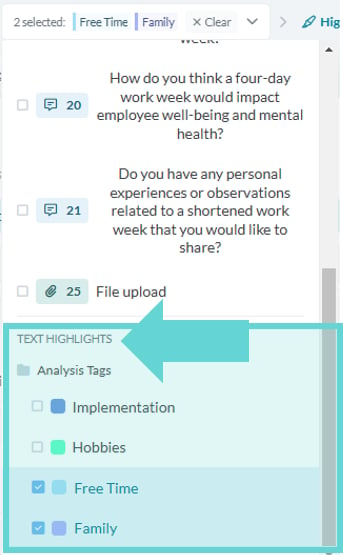
 Once highlights are applied, they will appear as a text block in Explore > [Text Questions](/docs/01-03-04-05-12__text-question-limiter). Click into the All Text Fields dropdown from the Text question limiter, scroll to the bottom of your survey blocks (Text Fields), and underneath the questions, you will see a heading “Coded Text”. This will list any tags that have been applied as highlights. Click on the highlight(s) you want to view.
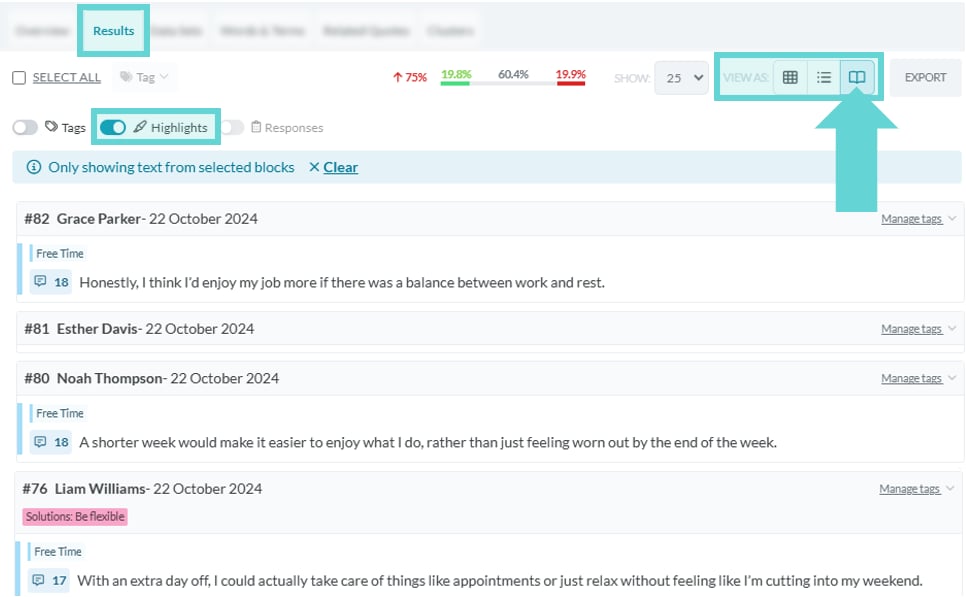
In the [Results](/docs/01-03-04-05-07-05__results) tab, switch your View As mode to Quick Read for better visibility. To view highlights only, toggle the Tag button to Off and ensure Highlights is toggled On. This view will show only the text from responses where the selected highlight(s) has been applied.
## Remove a Highlight
### From a Single Response
To remove a highlight from a single response, open the Submission Reader by clicking on the response in Explore. Find the highlighted text in the response and click anywhere on the highlighted text. A floating menu will appear. Click the toggle next to the tag you want to remove as the highlight. The toggle will slide from blue (on) to grey, and the highlight will be removed from that section of text.
### From All Responses
Once highlights are applied, they will appear as a text block in Explore > [Text Questions](/docs/01-03-04-05-12__text-question-limiter). Click into the All Text Fields dropdown from the Text question limiter, scroll to the bottom of your survey blocks (Text Fields), and underneath the questions, you will see a heading “Coded Text”. This will list any tags that have been applied as highlights. Click on the highlight(s) you want to view.
In the [Results](/docs/01-03-04-05-07-05__results) tab, switch your View As mode to Quick Read for better visibility. To view highlights only, toggle the Tag button to Off and ensure Highlights is toggled On. This view will show only the text from responses where the selected highlight(s) has been applied.
## Remove a Highlight
### From a Single Response
To remove a highlight from a single response, open the Submission Reader by clicking on the response in Explore. Find the highlighted text in the response and click anywhere on the highlighted text. A floating menu will appear. Click the toggle next to the tag you want to remove as the highlight. The toggle will slide from blue (on) to grey, and the highlight will be removed from that section of text.
### From All Responses

 To bulk-remove a highlight from all responses, open the Configure menu. Navigate to the tag you used for the highlight. Click on the three-dot menu and select Remove Auto-Highlights. Converlens will display a confirmation window. Click OK to confirm. All highlights applied using that tag will be removed.