> ## Documentation Index
> Fetch the complete documentation index at: https://docs.converlens.com/llms.txt
> Use this file to discover all available pages before exploring further.
# Creating reports
## Create a new report
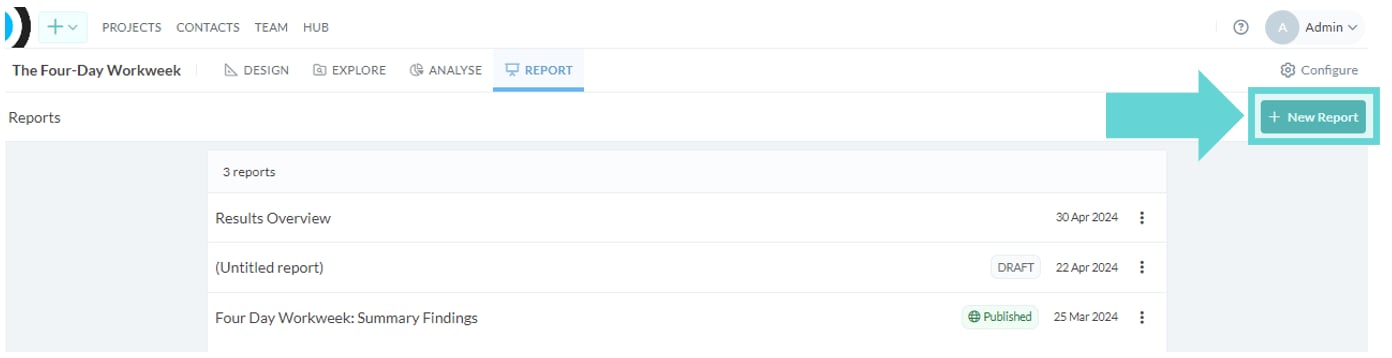
To add a new report, click **New Report** in the top right hand corner of the Present menu. This will open the report builder.
 ## Edit existing report
To open an existing report, click on the report title from the Present menu. This will open the report builder where you can edit, share and publish the report.
Note: Active reports can be viewed in the app by logged in team members, or by project members for private projects. See [Sharing and Publishing](/docs/01-03-04-06-08__sharing-and-publishing-reports).
## Add cover image
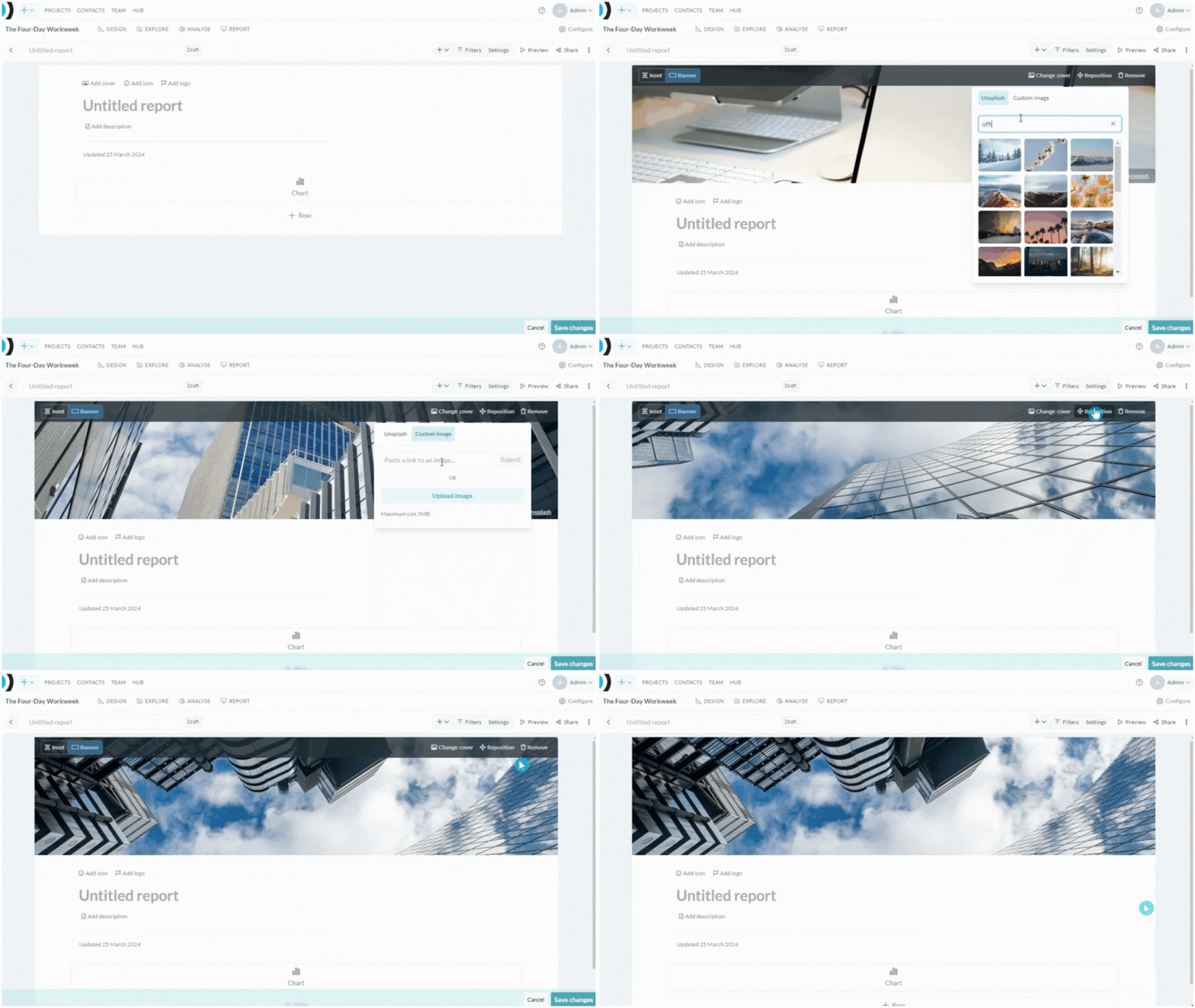
To add a cover image to your report, click the **Add cover** button in the top left. To change the cover image, click the **Change cover** button in the right hand side of the banner image. From here, you can search and select a free image from Unsplash, or upload a Custom image. Click the Reposition button to drag the image to your preferred position. You can also switch between an Inset layout or a Banner layout. To delete the cover image click the Remove button on the right hand side of the banner. Remember to save your changes as you edit by clicking the Save changes button in the bottom right hand corner of the window.
## Edit existing report
To open an existing report, click on the report title from the Present menu. This will open the report builder where you can edit, share and publish the report.
Note: Active reports can be viewed in the app by logged in team members, or by project members for private projects. See [Sharing and Publishing](/docs/01-03-04-06-08__sharing-and-publishing-reports).
## Add cover image
To add a cover image to your report, click the **Add cover** button in the top left. To change the cover image, click the **Change cover** button in the right hand side of the banner image. From here, you can search and select a free image from Unsplash, or upload a Custom image. Click the Reposition button to drag the image to your preferred position. You can also switch between an Inset layout or a Banner layout. To delete the cover image click the Remove button on the right hand side of the banner. Remember to save your changes as you edit by clicking the Save changes button in the bottom right hand corner of the window.
 ## Add icon
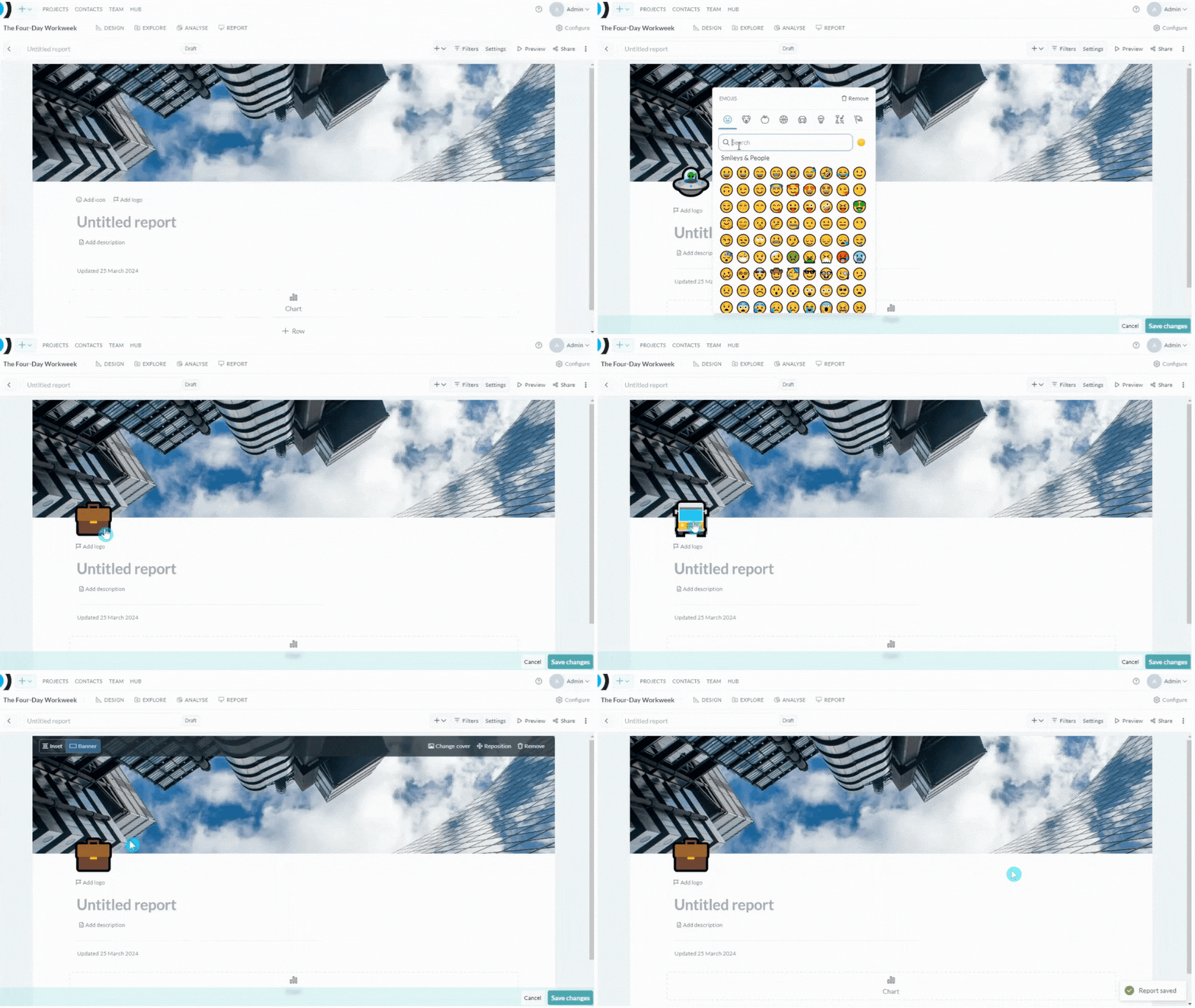 To add an icon to your report, click the Add icon button on the left hand side of the report window underneath the banner. An icon will be randomly generated. To edit the icon, click on the icon to open the emoji window to search and select your preferred icon. To remove the icon from the report, click Remove in the top right corner of the emoji window. Remember to save your changes as you edit by clicking the Save changes button in the bottom right hand corner of the window.
## Add logo
To add an icon to your report, click the Add icon button on the left hand side of the report window underneath the banner. An icon will be randomly generated. To edit the icon, click on the icon to open the emoji window to search and select your preferred icon. To remove the icon from the report, click Remove in the top right corner of the emoji window. Remember to save your changes as you edit by clicking the Save changes button in the bottom right hand corner of the window.
## Add logo
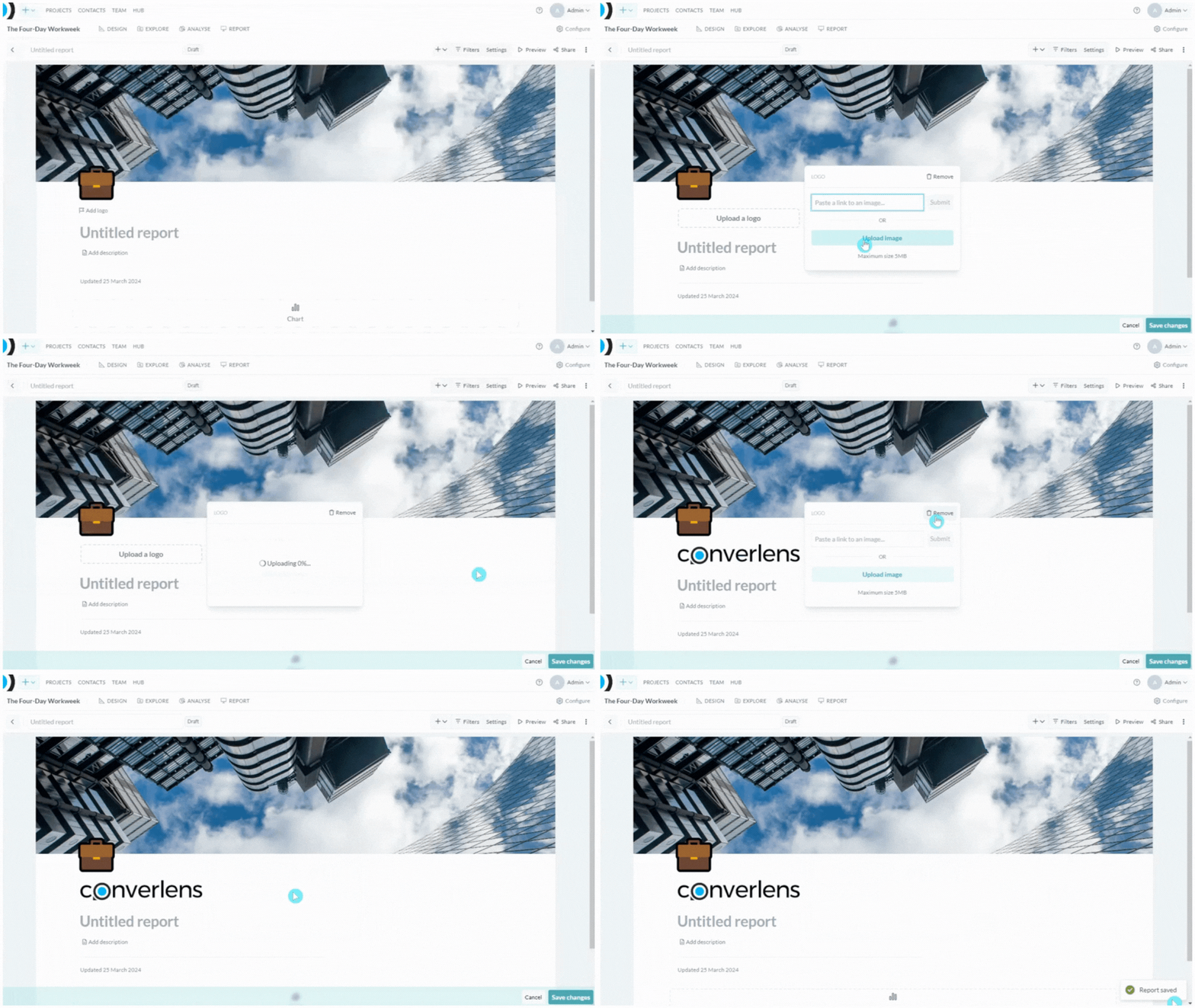 To add a logo to your report, click the Add logo button on the left hand side of the report window underneath the banner and icon (if added). A flyout window will appear. You can enter a link to your logo image or Upload an image from your device. To remove the logo from the report, click the Remove button in the top right hand corner of the Add logo flyout menu. Remember to save your changes as you edit by clicking the Save changes button in the bottom right hand corner of the window.
## Add title
To add a logo to your report, click the Add logo button on the left hand side of the report window underneath the banner and icon (if added). A flyout window will appear. You can enter a link to your logo image or Upload an image from your device. To remove the logo from the report, click the Remove button in the top right hand corner of the Add logo flyout menu. Remember to save your changes as you edit by clicking the Save changes button in the bottom right hand corner of the window.
## Add title
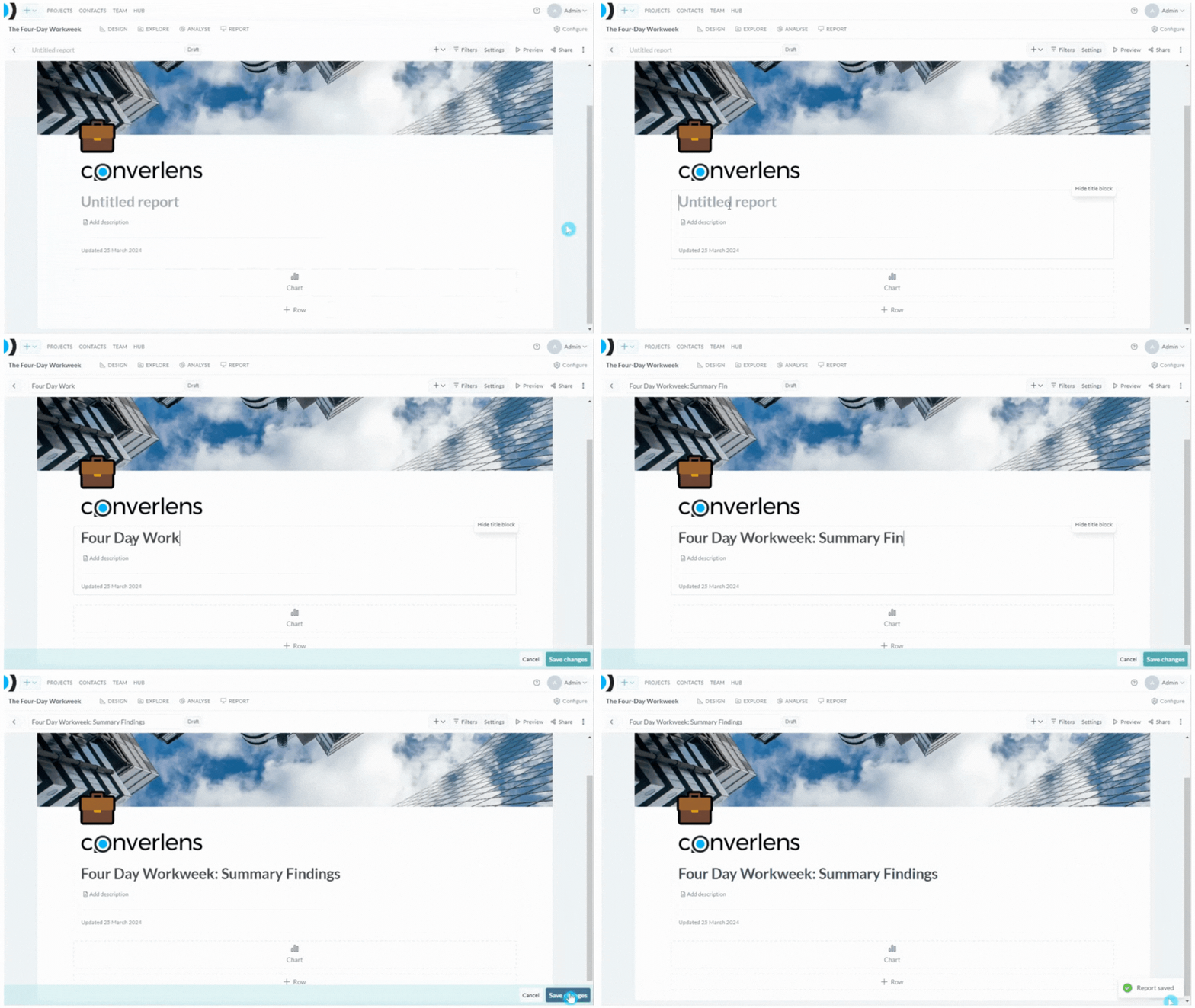 To add a title to your report, click the title area showing the text “Untitled report”. Enter your desired title. Remember to save your changes as you edit by clicking the Save changes button in the bottom right hand corner of the window.
 ## Add description
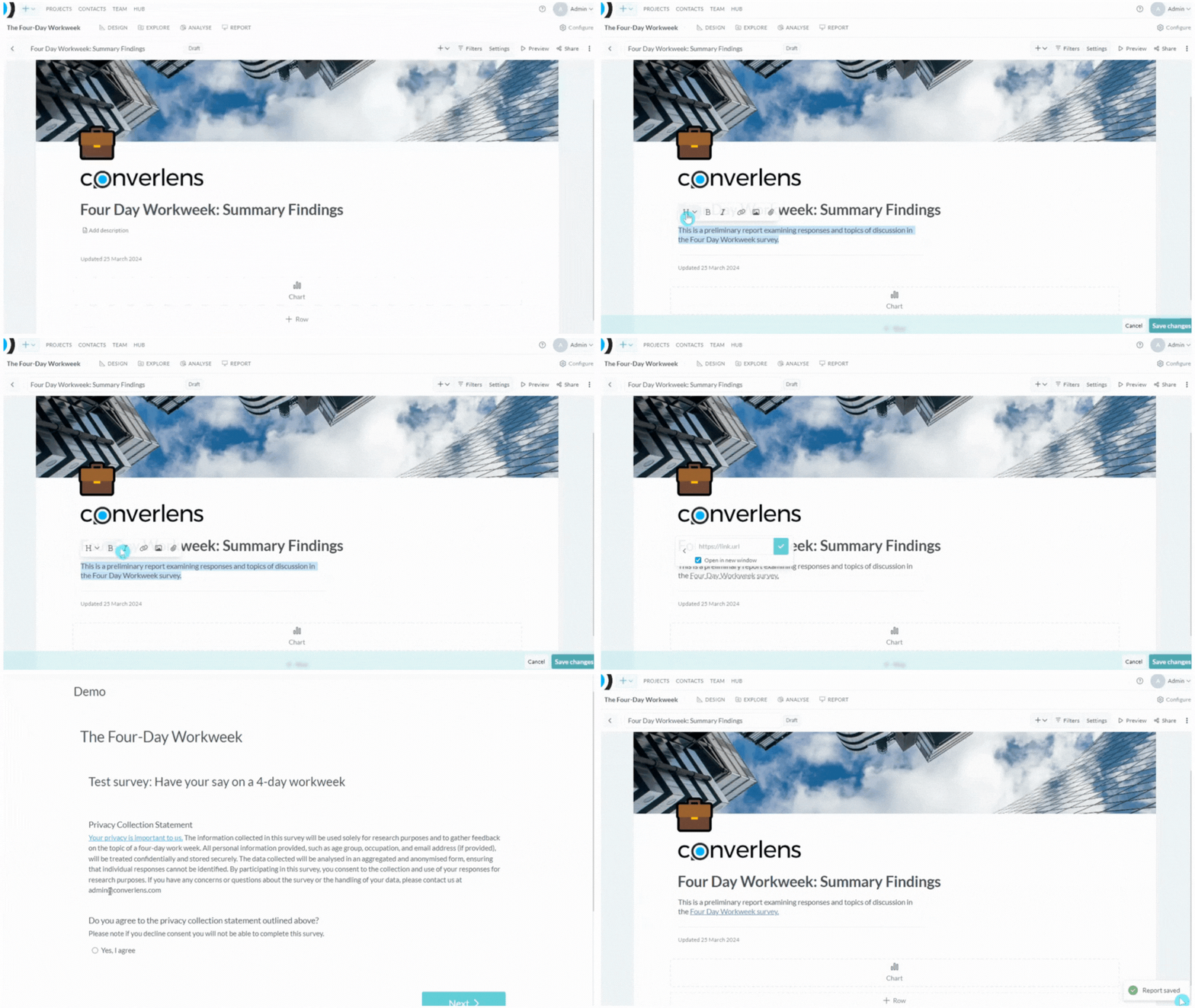
To add a description beneath your title, click the **Add description** area. Start typing in your description. To open Rich Text editing options click anywhere inside the text box and floating menu will appear. From here you can add headings, paragraphs, links, photos and file attachments. You also can change the text to bold and italic. Remember to save your changes as you edit by clicking the **Save changes** button in the bottom right hand corner of the window.
## Add description
To add a description beneath your title, click the **Add description** area. Start typing in your description. To open Rich Text editing options click anywhere inside the text box and floating menu will appear. From here you can add headings, paragraphs, links, photos and file attachments. You also can change the text to bold and italic. Remember to save your changes as you edit by clicking the **Save changes** button in the bottom right hand corner of the window.