> ## Documentation Index
> Fetch the complete documentation index at: https://docs.converlens.com/llms.txt
> Use this file to discover all available pages before exploring further.
# Navigating Present
## Where to find Present
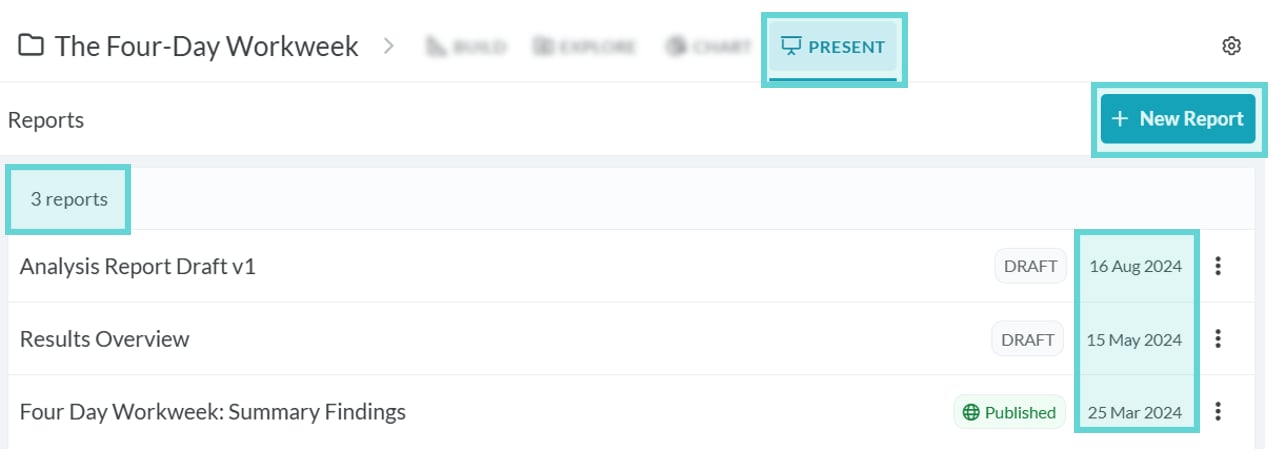
To access the Present page, click the Present tab in the Project Navigation Bar:
## **Present Menu**
Clicking on the Present tab will open the Present Menu. For detailed information about using the options in this menu see [Present Menu](/docs/01-03-04-06-05__present-menu).
The Present menu shows the count of the number of reports created for that project, alongside a list of all the reports created by title, with the most recently created report on top.
From this menu you can select the report you would like to edit or create a new report by clicking on the +New Report button.
Opening an existing report or creating a new report will open the Report Builder page which is further detailed below.
## Present Composer

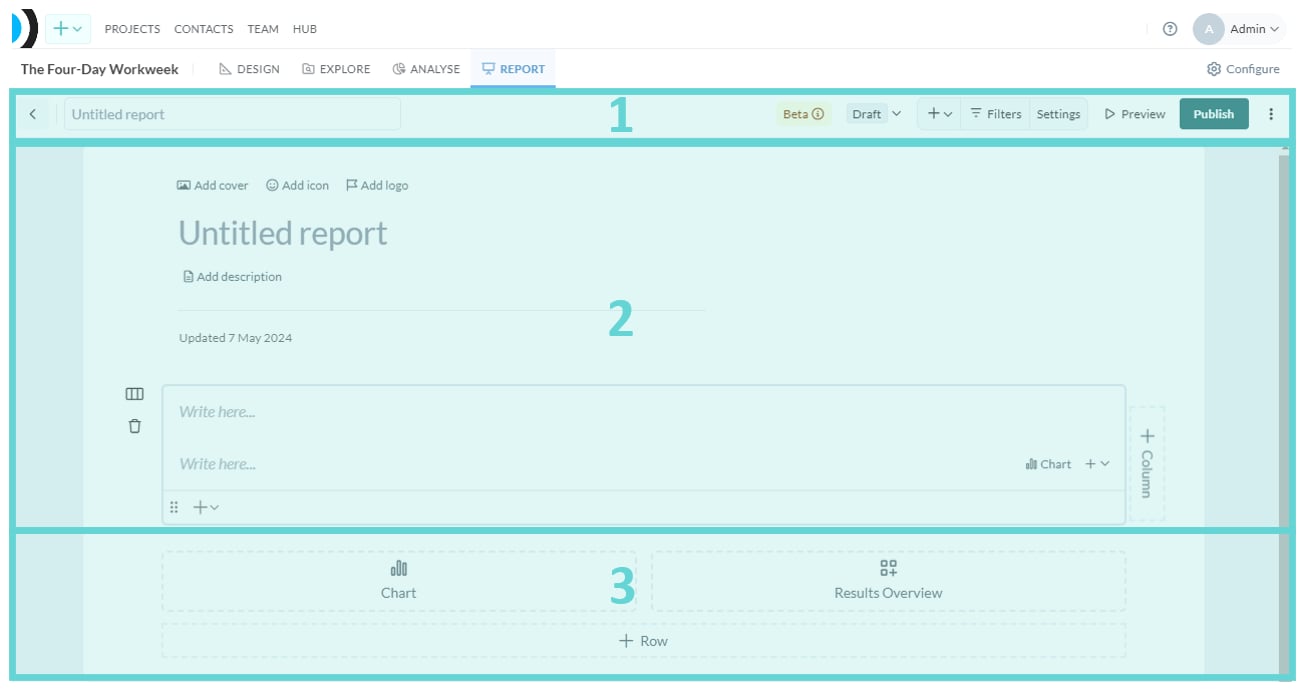
 For ease of reference throughout this guide, the Present Composer page has been split into 3 main sections:
* (1) Present toolbar: Interact and change report settings, status, title, and preview your report.
* (2) Present editor: The staging area for building your report. Add content here.
* (3) Present widgets: The building blocks available for your report, pull your data directly in.
**Save changes**
There is a Save button that will appear on the bottom of the window as changes are made. Click the **Save** **changes** button to save your progress.
There is no way to recover an unsaved draft report. If you are working on creating a report, ensure you save as you go to avoid losing any progress.
For ease of reference throughout this guide, the Present Composer page has been split into 3 main sections:
* (1) Present toolbar: Interact and change report settings, status, title, and preview your report.
* (2) Present editor: The staging area for building your report. Add content here.
* (3) Present widgets: The building blocks available for your report, pull your data directly in.
**Save changes**
There is a Save button that will appear on the bottom of the window as changes are made. Click the **Save** **changes** button to save your progress.
There is no way to recover an unsaved draft report. If you are working on creating a report, ensure you save as you go to avoid losing any progress.