> ## Documentation Index
> Fetch the complete documentation index at: https://docs.converlens.com/llms.txt
> Use this file to discover all available pages before exploring further.
# Sharing and Publishing Reports
In this section, we will explore the lifecycle stages of your reports: Active, Draft, Published, and Unpublished, and provide a detailed overview of the mechanisms and best practices for sharing your reports effectively.
## Report Status
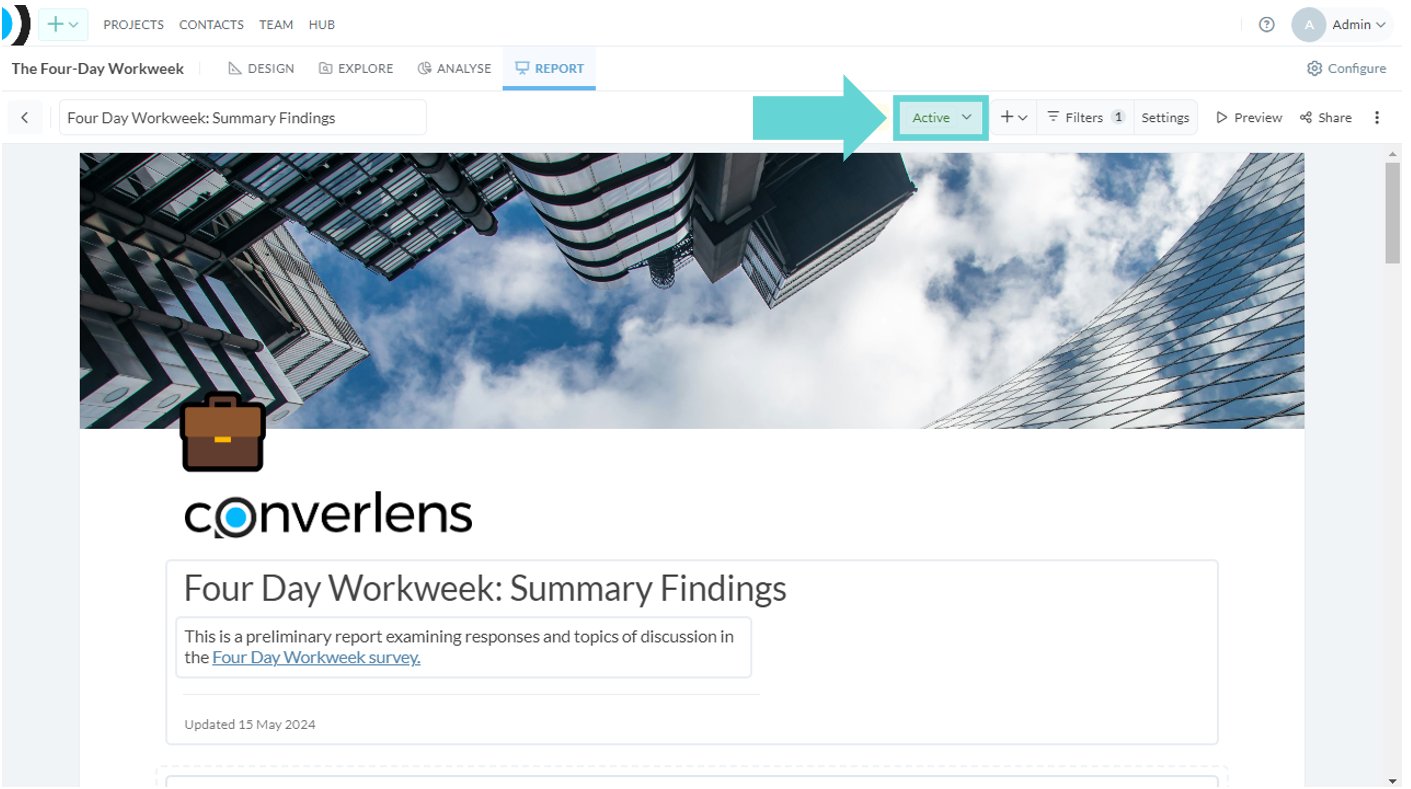 To access the report status, from the Reports Toolbar click on the Status dropdown (Active/Draft):
Reports have two statuses:
* **Draft**: Visible only to admins and editors. Cannot be published or shared outside of project admins and editors.
* **Active**: Visible to all logged in team or project members and can be published and publicly shared.
### Change report status
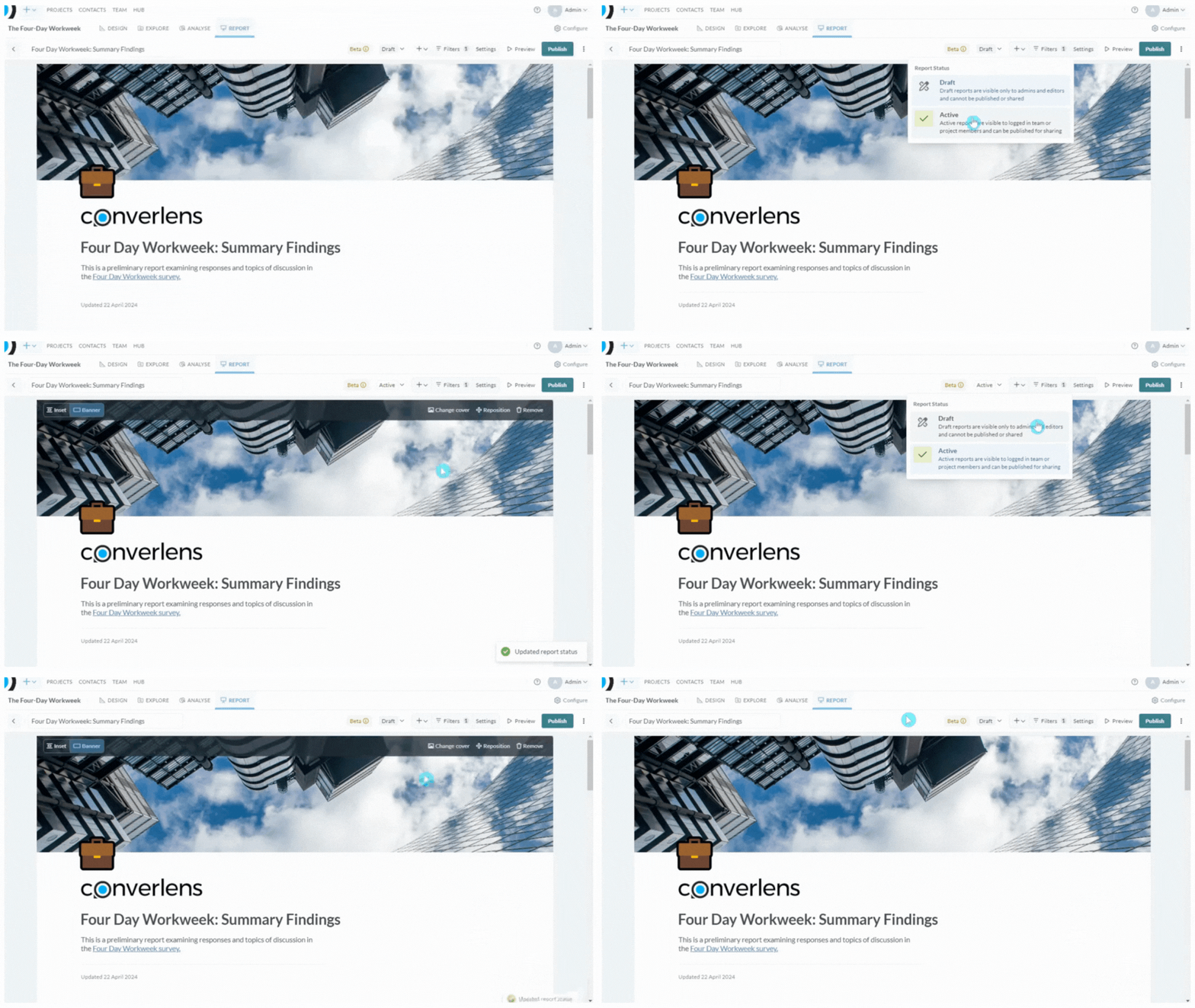
To change the report status, click on the Status dropdown (Active/Draft) from the Report toolbar. The current status will have a blue highlight around it. Click on Active to enable sharing report with team members. To change your report to Draft, click on the dropdown Status menu and select Draft. The current status of your report will show in the Reports toolbar. Draft reports will show the status as Draft in the [Present Menu](/docs/01-03-04-06-05__present-menu). Published reports will show as Published in the [Present Menu](/docs/01-03-04-06-05__present-menu).
To access the report status, from the Reports Toolbar click on the Status dropdown (Active/Draft):
Reports have two statuses:
* **Draft**: Visible only to admins and editors. Cannot be published or shared outside of project admins and editors.
* **Active**: Visible to all logged in team or project members and can be published and publicly shared.
### Change report status
To change the report status, click on the Status dropdown (Active/Draft) from the Report toolbar. The current status will have a blue highlight around it. Click on Active to enable sharing report with team members. To change your report to Draft, click on the dropdown Status menu and select Draft. The current status of your report will show in the Reports toolbar. Draft reports will show the status as Draft in the [Present Menu](/docs/01-03-04-06-05__present-menu). Published reports will show as Published in the [Present Menu](/docs/01-03-04-06-05__present-menu).
 ### Copy app link
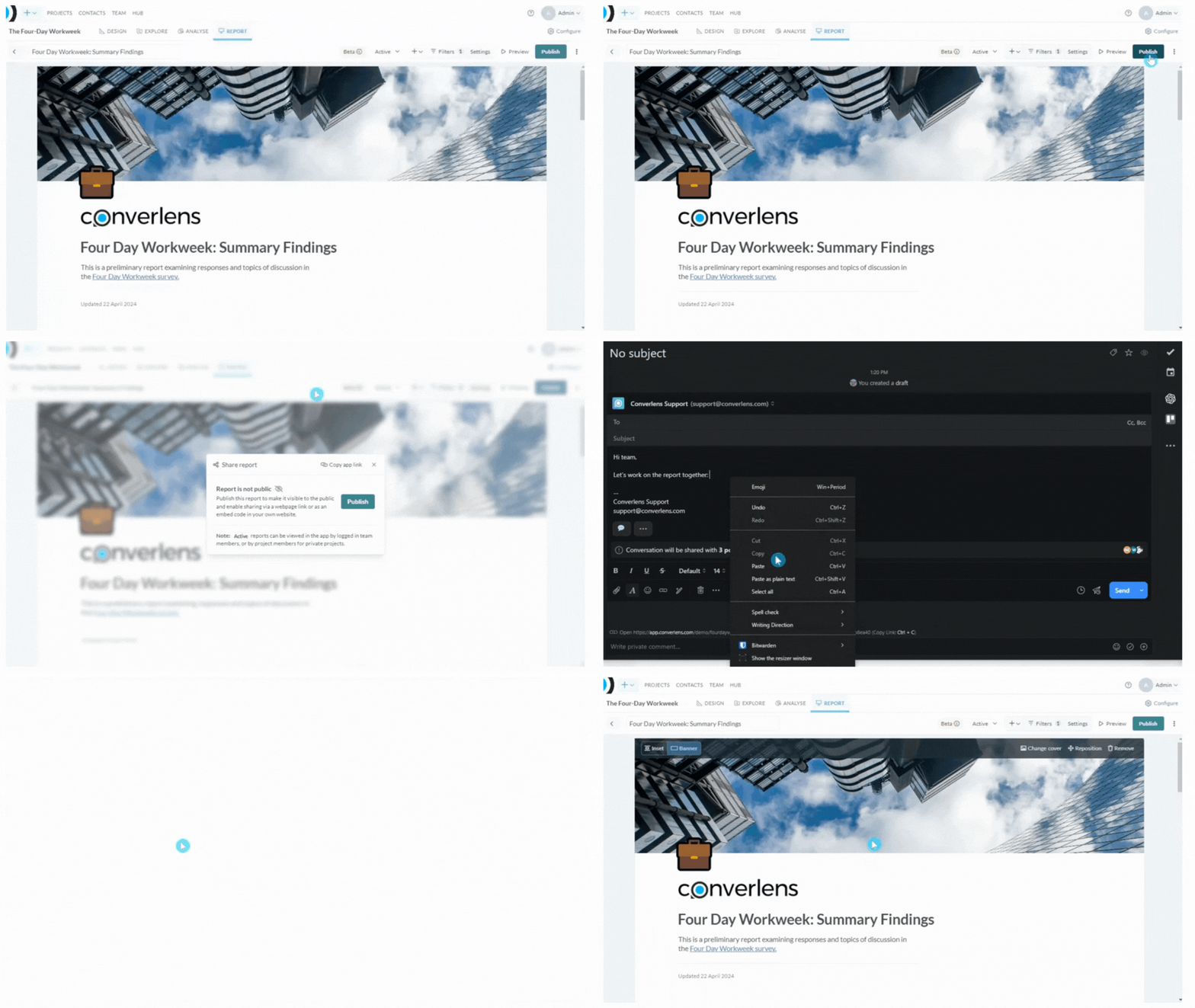 Want to work on a report collaboratively with your colleagues/team? Use the **Copy app link** button to quickly share the report with your team members who have access to Converlens. Ensure your report is **Active**. Click the Publish button in the Reports Toolbar to open sharing options (this will not publish your report yet). In the top right hand corner, click the **Copy app link** button. This will copy the app link to your clipboard. Open the area you want to share the link to (email, teams message, direct message etc). Paste the link using the same method you would to paste any other content (usually Ctrl+v/Cmd+v/Right Click+paste). The link will take you straight to the Report editor in Converlens for the report you shared.
Team members will need to have an active Converlens account and access to the Project in order to collaborate on the report via a copied app link. Contact your workspace admin to add team members or edit access levels.
## Publish a report
To publish a report and enable public access, click **Publish** in the right hand corner of the Reports Toolbar. This will open a popup menu. Click **Publish** from the popup menu. Draft reports will be converted to Active when published. Your report is now published. A confirmation message will display in the bottom right hand corner of the report builder window. The report will also show a Published label in the Present menu.
### Share on (domain)
Want to work on a report collaboratively with your colleagues/team? Use the **Copy app link** button to quickly share the report with your team members who have access to Converlens. Ensure your report is **Active**. Click the Publish button in the Reports Toolbar to open sharing options (this will not publish your report yet). In the top right hand corner, click the **Copy app link** button. This will copy the app link to your clipboard. Open the area you want to share the link to (email, teams message, direct message etc). Paste the link using the same method you would to paste any other content (usually Ctrl+v/Cmd+v/Right Click+paste). The link will take you straight to the Report editor in Converlens for the report you shared.
Team members will need to have an active Converlens account and access to the Project in order to collaborate on the report via a copied app link. Contact your workspace admin to add team members or edit access levels.
## Publish a report
To publish a report and enable public access, click **Publish** in the right hand corner of the Reports Toolbar. This will open a popup menu. Click **Publish** from the popup menu. Draft reports will be converted to Active when published. Your report is now published. A confirmation message will display in the bottom right hand corner of the report builder window. The report will also show a Published label in the Present menu.
### Share on (domain)
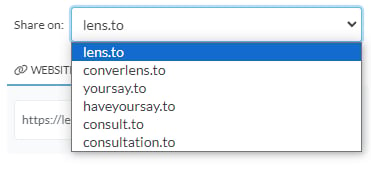 Converlens offers a choice of domain addresses to share your report to. Select your preferred root domain from the dropdown list. The address for your report will be https\://\[selected domain]/report-title/identifier string
To host the report on a custom domain, copy the embed link and insert it as an iframe in your preferred web host.
### Website link (Share your report publicly)
Converlens offers a choice of domain addresses to share your report to. Select your preferred root domain from the dropdown list. The address for your report will be https\://\[selected domain]/report-title/identifier string
To host the report on a custom domain, copy the embed link and insert it as an iframe in your preferred web host.
### Website link (Share your report publicly)
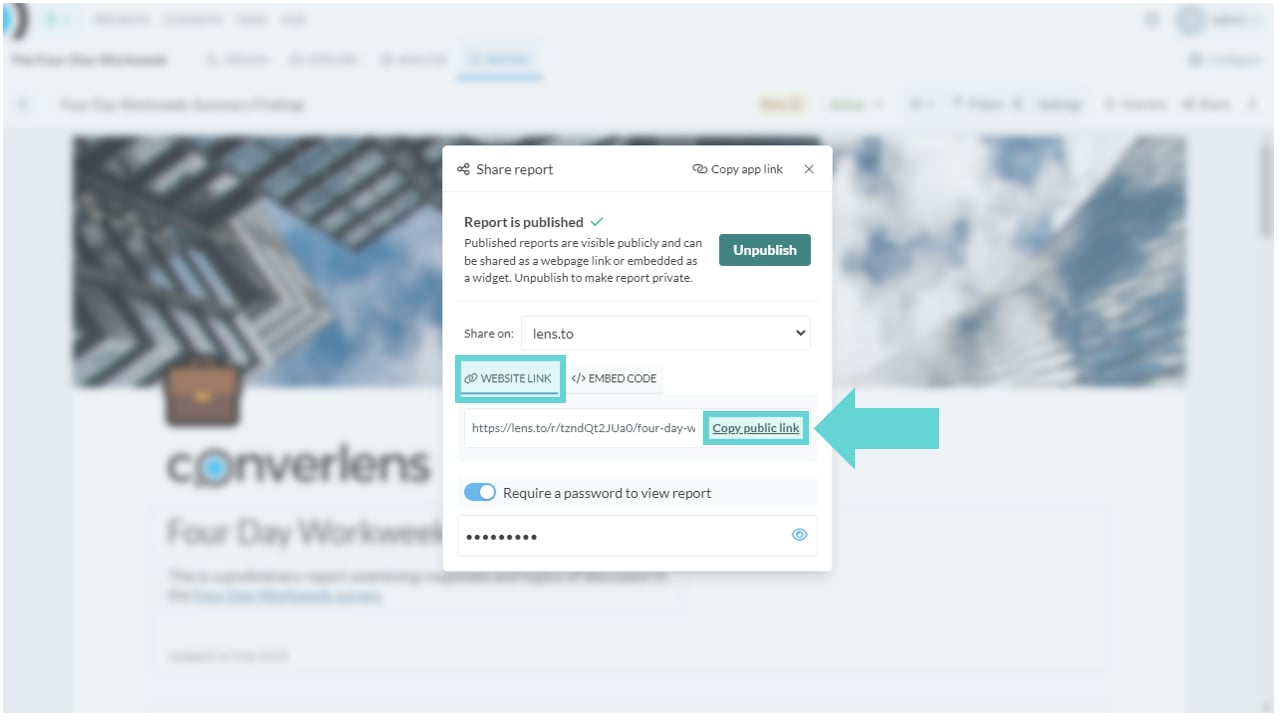 Once a report is published you can copy the public website link. From the Sharing menu, click on the website link tab. Click Copy Public Link. The public link will be copied to your device clipboard. You can then paste this link in a browser, email, messaging app, or anywhere else you would copy text.
The link will load the report to be viewed by anyone with the public link. Note if you have a password requirement to access the report the person receiving the public link will also need the password in order to be able to view the report.
### Embed code
Once a report is published you can copy the public website link. From the Sharing menu, click on the website link tab. Click Copy Public Link. The public link will be copied to your device clipboard. You can then paste this link in a browser, email, messaging app, or anywhere else you would copy text.
The link will load the report to be viewed by anyone with the public link. Note if you have a password requirement to access the report the person receiving the public link will also need the password in order to be able to view the report.
### Embed code
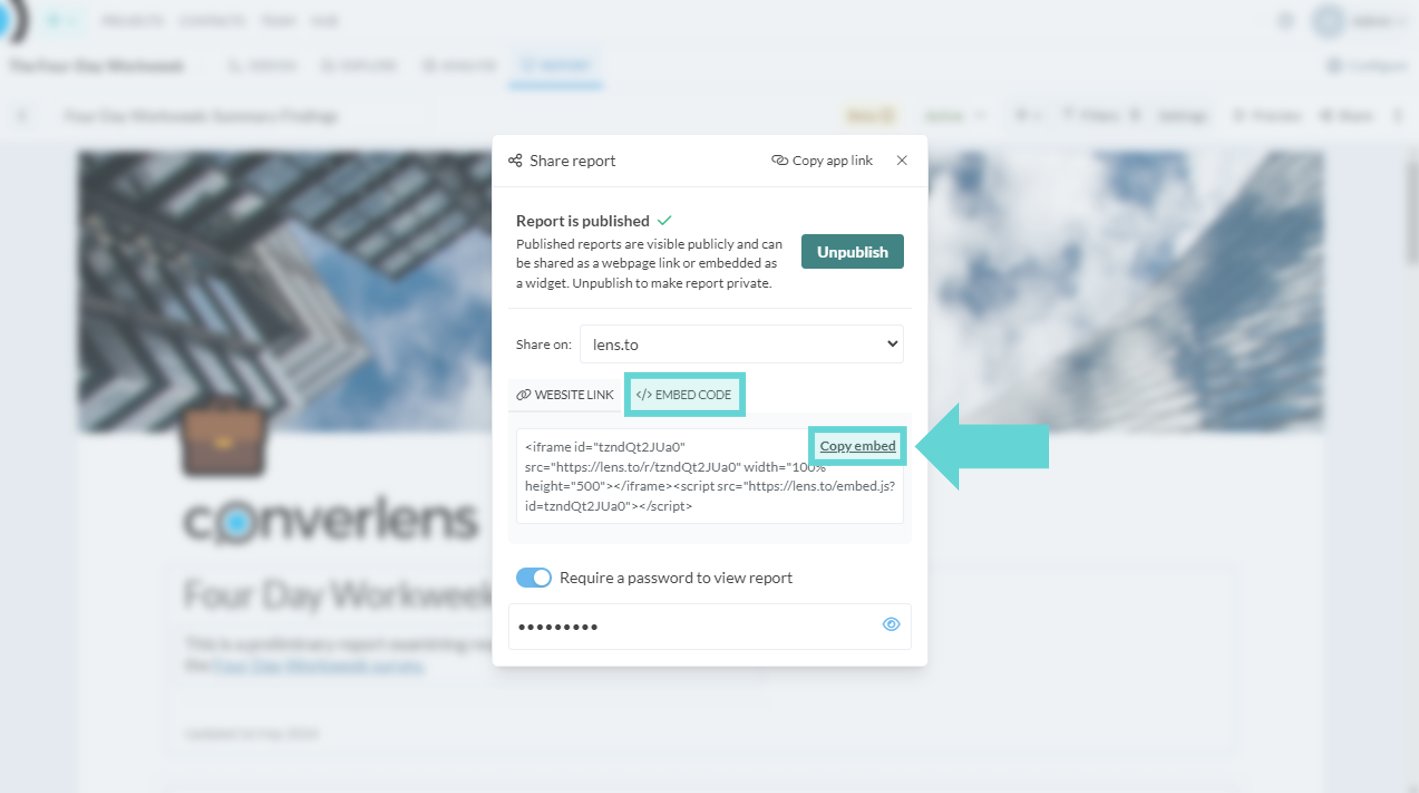 To copy the embed code for the report, ensure your report is published using the steps above. From the Sharing menu, click on the embed code tab. Click the text Copy Embed. The embed code will be copied to your device clipboard. You can then paste this code into your website's HTML, content management system, or any other platform that supports embedded content.
### Password:
To copy the embed code for the report, ensure your report is published using the steps above. From the Sharing menu, click on the embed code tab. Click the text Copy Embed. The embed code will be copied to your device clipboard. You can then paste this code into your website's HTML, content management system, or any other platform that supports embedded content.
### Password:
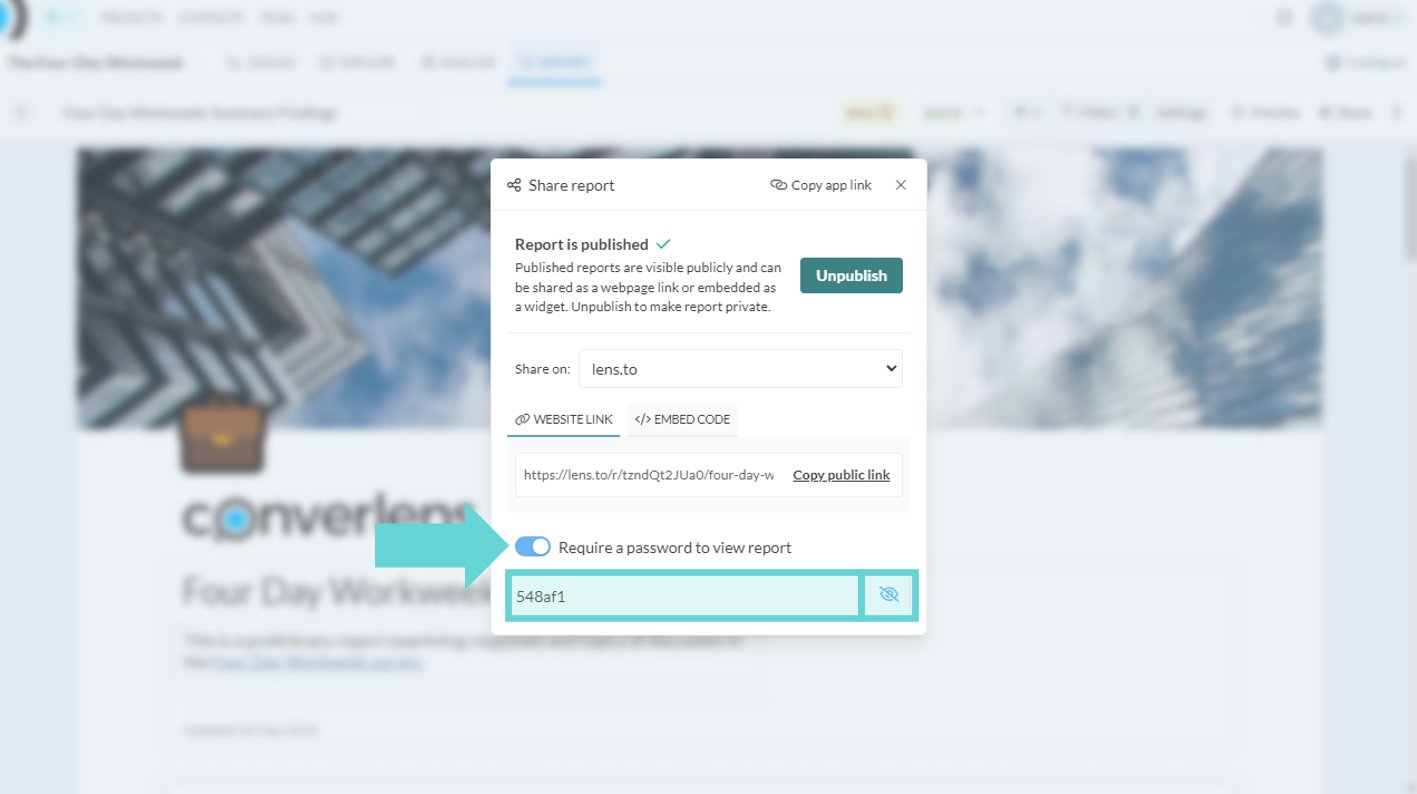 You can require a password for a published report. When you turn on “Require a password to view report”, Converlens will automatically generate a password. You can change the password by typing in the text box. Click on the eye icon to toggle showing or hiding the plain text password. To remove the password requirement, turn off “Require a password to view report”.
The report link will stay the same if you remove the password requirement (you do not need to generate a new link).
## Unpublish report
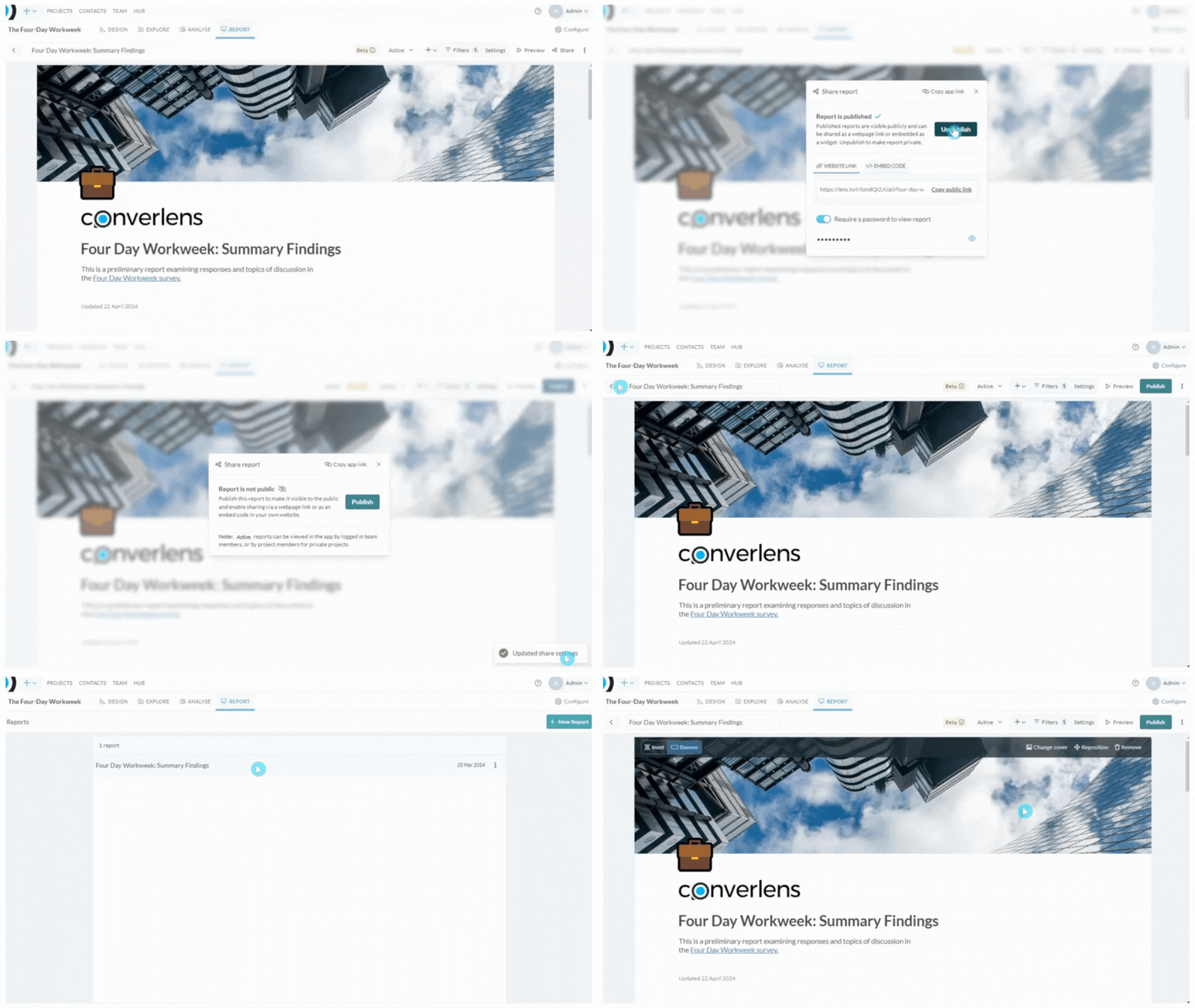
To unpublish a published report and remove public access open the publish menu by clicking **Share** in the right hand corner of the Reports toolbar. If the Share menu is already open (you’ve just published the report) navigate to the next step. The confirmation message in the Share menu will read “Report is published ✔”. Click the teal **Unpublish** button next to this confirmation to **Unpublish** the report. A confirmation message will display in the bottom right hand corner of the Reports Builder window.
You can require a password for a published report. When you turn on “Require a password to view report”, Converlens will automatically generate a password. You can change the password by typing in the text box. Click on the eye icon to toggle showing or hiding the plain text password. To remove the password requirement, turn off “Require a password to view report”.
The report link will stay the same if you remove the password requirement (you do not need to generate a new link).
## Unpublish report
To unpublish a published report and remove public access open the publish menu by clicking **Share** in the right hand corner of the Reports toolbar. If the Share menu is already open (you’ve just published the report) navigate to the next step. The confirmation message in the Share menu will read “Report is published ✔”. Click the teal **Unpublish** button next to this confirmation to **Unpublish** the report. A confirmation message will display in the bottom right hand corner of the Reports Builder window.