> ## Documentation Index
> Fetch the complete documentation index at: https://docs.converlens.com/llms.txt
> Use this file to discover all available pages before exploring further.
# Quick Start
So you’re ready to start using Converlens? Great! Here’s a quick guide on how to get started. If you need more information on any of the steps, click the hyperlinks to go to the detailed guides.
## Get started 👇
* Log in
* Join or create a project
* Add a survey
* View responses
* Analyse data
* Create a report in Present

 ### **Log in**
The first thing you’ll need to do is log in to your account. To do this, go to [https://app.converlens.com/login](https://app.converlens.com/login). Enter the email address you will be using for Converlens. You will receive a temporary login code via your email within 1 minute. Pop that code into the box (or click the link directly from the email).
I’m logged in, now what do I do?
### **Create or join a project**
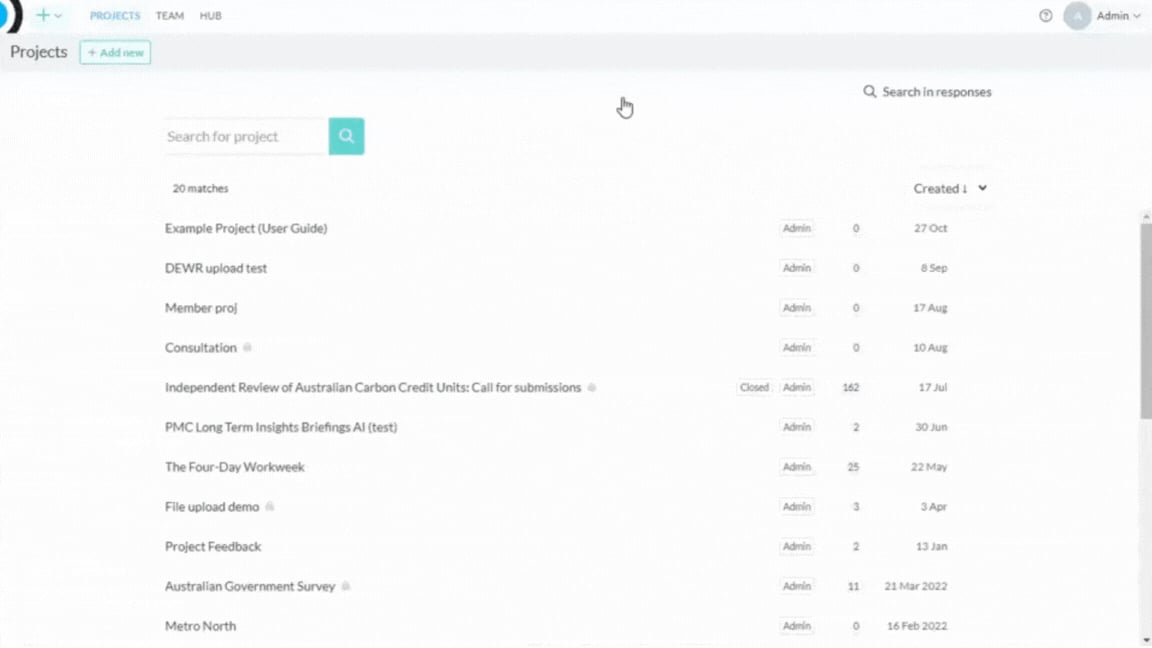
When you log in for the first time, the platform will take you to the Projects page. If your team/organisation has already set up a project and you know the name of it, simply click the link to enter that project space. Go to the next step in this guide: Add a survey, if this is the case.
To create a new project, click the +Add New button. Enter the project name (you can always change this later), and click Create. You can add team members to your project at this stage or later (see Members).
### **Add a survey**
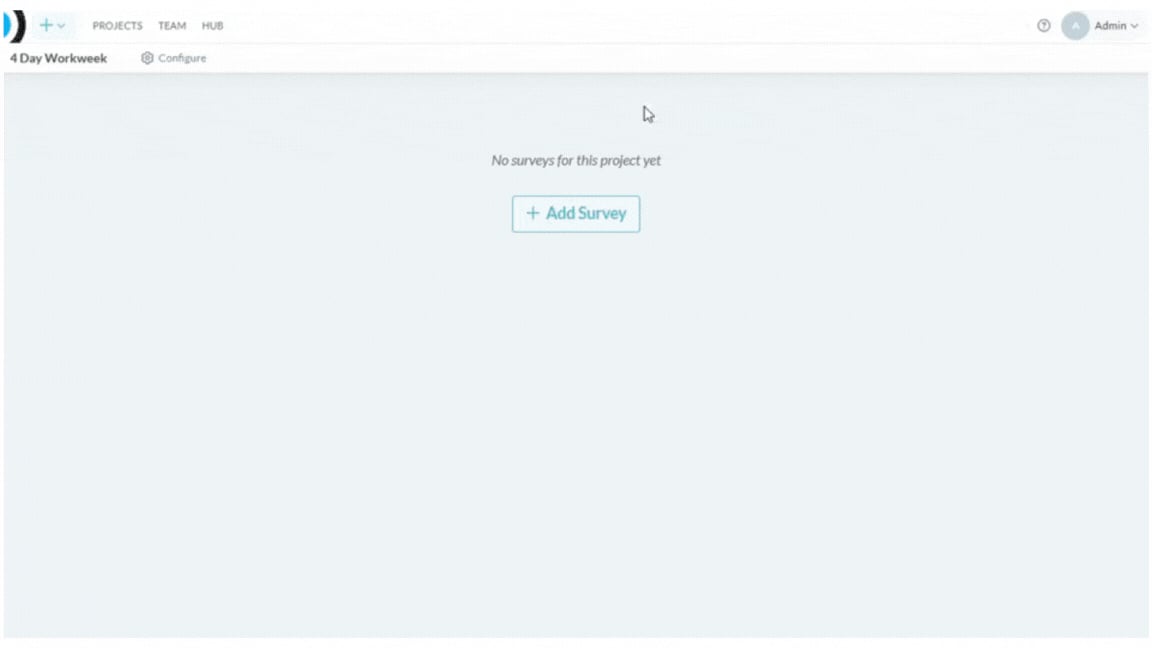
Create a survey for your new project by clicking the +Add Survey button in the middle of the page. You can copy a previous survey (which you can then edit to your requirements), or create a new survey from scratch. For more about how to design your survey and make it live, see Build.
### **View responses**
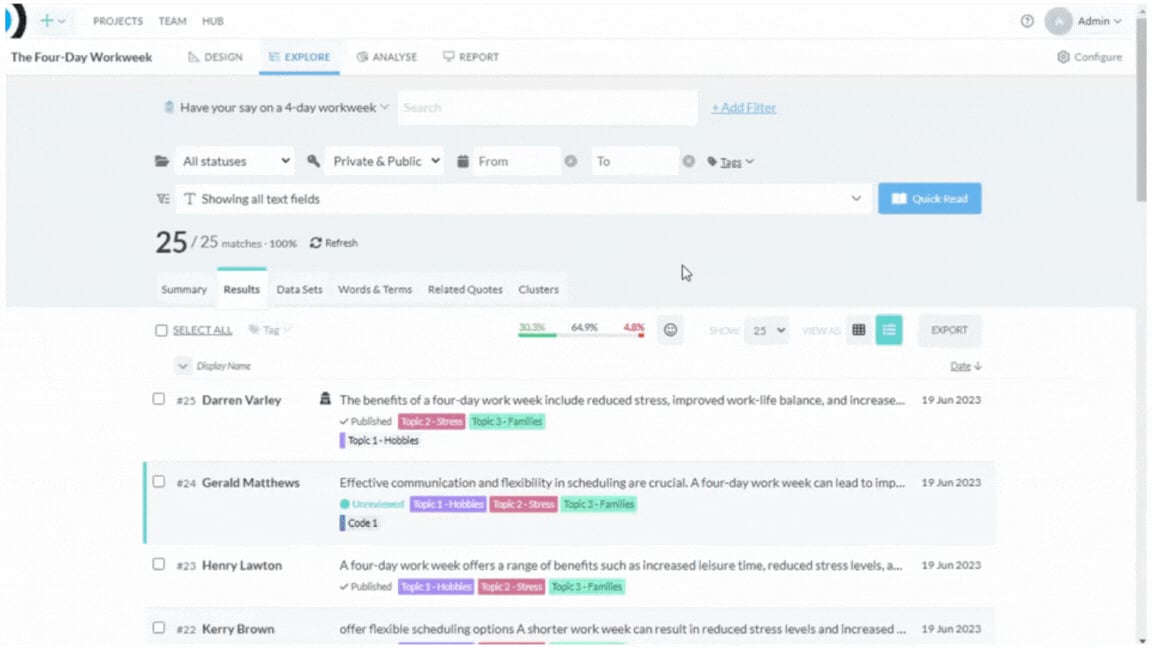
As soon as your survey starts getting responses, head over to the Explore tab. Here you can review responses and see what people are saying in real-time. You can interact with the results as they roll in, explore datasets, quotes, thematic topics and tag results for your analysis requirements. There’s a lot you can do here, so head over to the Explore Guide when you’re ready.
### **Analyse data**
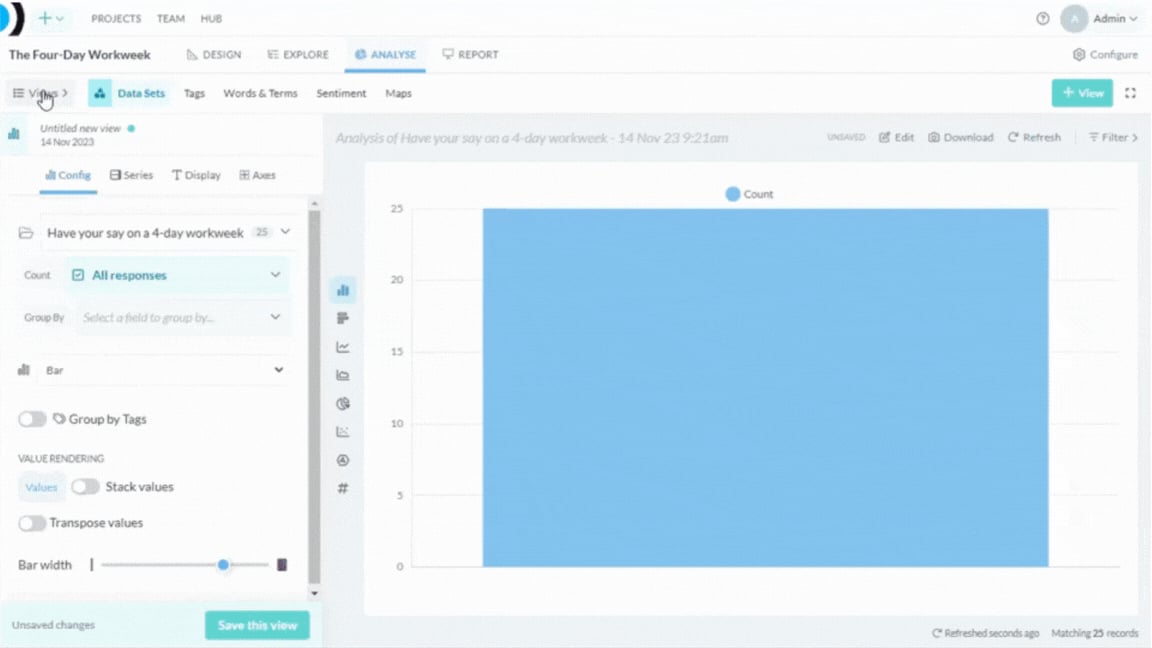
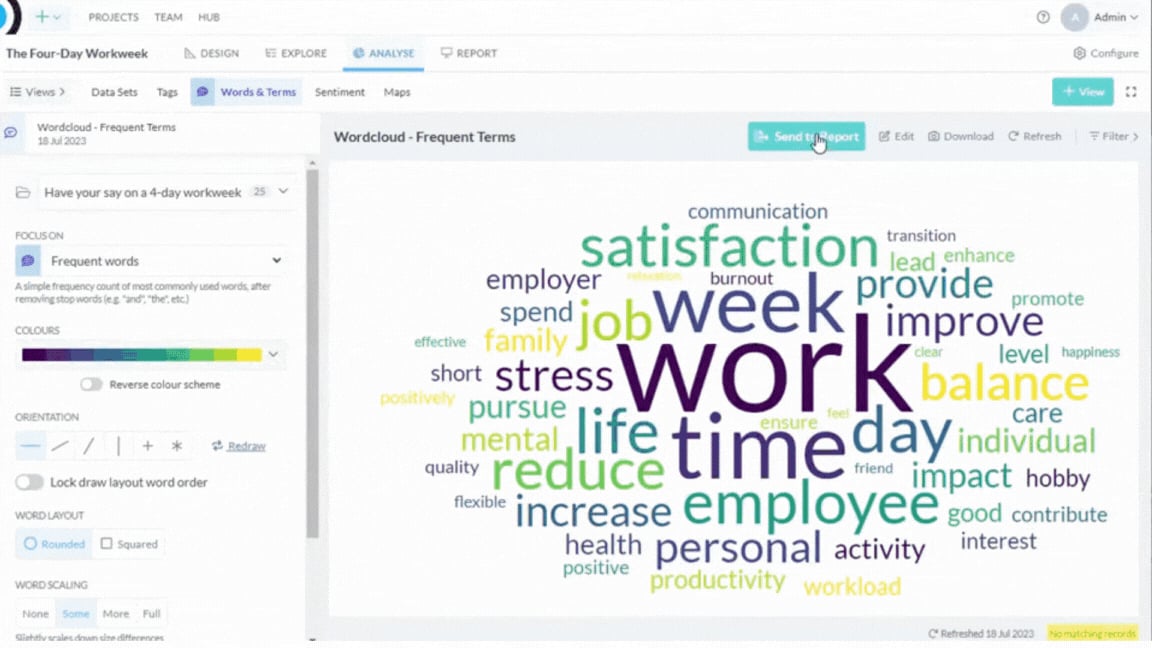
Once you’re ready to dive deeper (usually as the survey comes to a close), head to the Chart tab functions to get instant insights into your data. Here you can create a range of data visualisations, including graphs, word clouds and maps, enabling you to present your results in the most engaging and effective manner possible.
### **Create a report in Present**
Present is the final piece of the puzzle. It's your space to bring everything together. You can compile insights from Explore and Chart into a report, create multiple reports, add your own commentary, and then export or share the report when you're ready.
That’s it! You’re now ready to jump in and get started using Converlens. Don’t forget to check out the detailed guides for each section as needed. We’re also here to help, reach out to our team at [support@converlens.com](mailto:support@converlens.com) if you can’t find the answer in this guide or in our FAQs.
### **Log in**
The first thing you’ll need to do is log in to your account. To do this, go to [https://app.converlens.com/login](https://app.converlens.com/login). Enter the email address you will be using for Converlens. You will receive a temporary login code via your email within 1 minute. Pop that code into the box (or click the link directly from the email).
I’m logged in, now what do I do?
### **Create or join a project**
When you log in for the first time, the platform will take you to the Projects page. If your team/organisation has already set up a project and you know the name of it, simply click the link to enter that project space. Go to the next step in this guide: Add a survey, if this is the case.
To create a new project, click the +Add New button. Enter the project name (you can always change this later), and click Create. You can add team members to your project at this stage or later (see Members).
### **Add a survey**
Create a survey for your new project by clicking the +Add Survey button in the middle of the page. You can copy a previous survey (which you can then edit to your requirements), or create a new survey from scratch. For more about how to design your survey and make it live, see Build.
### **View responses**
As soon as your survey starts getting responses, head over to the Explore tab. Here you can review responses and see what people are saying in real-time. You can interact with the results as they roll in, explore datasets, quotes, thematic topics and tag results for your analysis requirements. There’s a lot you can do here, so head over to the Explore Guide when you’re ready.
### **Analyse data**
Once you’re ready to dive deeper (usually as the survey comes to a close), head to the Chart tab functions to get instant insights into your data. Here you can create a range of data visualisations, including graphs, word clouds and maps, enabling you to present your results in the most engaging and effective manner possible.
### **Create a report in Present**
Present is the final piece of the puzzle. It's your space to bring everything together. You can compile insights from Explore and Chart into a report, create multiple reports, add your own commentary, and then export or share the report when you're ready.
That’s it! You’re now ready to jump in and get started using Converlens. Don’t forget to check out the detailed guides for each section as needed. We’re also here to help, reach out to our team at [support@converlens.com](mailto:support@converlens.com) if you can’t find the answer in this guide or in our FAQs.