

Overview
Messages is your central hub for managing all your messages. From here, you can view, organise, and track your drafts, scheduled, sent, and published communications.Where to find Messages
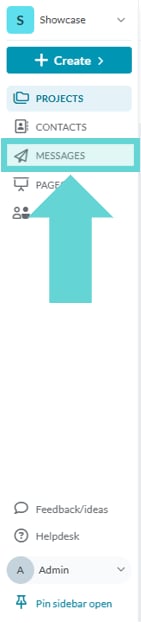
To access Messages, open the Workspace Sidebar, click Messages.Options
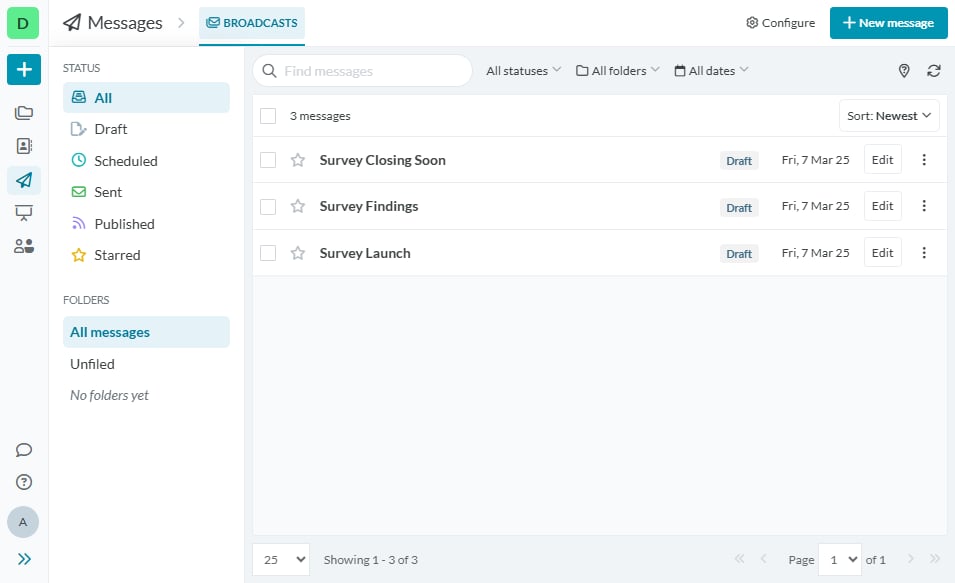
Find message (Search)
Messages Filter
The Messages filter bar applies filters to narrow down messages based on status, folder or date.- Status: Use the dropdown to filter messages based on their current status, such as Draft, Scheduled, Sent, or Published.
- Folder: Use the dropdown to filter messages by their folder location.
- Date: Use the dropdown to filter messages based on specific date parameters:
- Last Edited: Find messages based on the date they were last updated.
- Date Created: Filter messages by the date they were initially created.
- Send Date: Locate messages based on their scheduled or sent date.
- From and To Date: Define a custom date range to filter messages.
- Quick Dates: Select from preset date ranges for faster filtering:
- All Dates: Show messages from all time periods.
- Past 30 Days: Display messages created or edited in the last 30 days.
- Current Month: Focus on messages from the current calendar month.
- Current Year: View messages created or edited during the current year.
Sort
Click on the Sort dropdown to sort the messages in your inbox. Sorting options include:- Newest: Display the most recently created messages first.
- Oldest: Display the earliest created messages first.
- Recently Updated: Show messages with the most recent updates first.
- Least Recently Updated: Show messages with the oldest updates first.
- Title A-Z: Arrange messages alphabetically by title (A to Z).
- Title Z-A: Arrange messages alphabetically by title (Z to A).
Message Status
A status label is applied to each message to indicate its current state. The available statuses are:- Draft: The message is still being composed and has not yet been sent or published.
- Scheduled: The message is queued to be sent at a specified date and time but has not yet been delivered to recipients.
- Sent: The message has been sent to recipients via email.
- Published: The message is available on a public web page.
Message Date
The message date shown in the list follows the current sort mode, such as created date or last updated date. Hover over the date to see created and updated details.Edit
Click Edit to open the Message Composer and continue editing the message. This option is only available for Draft messages.View
Click View to open the message and review its details. The following sections are available:- Overview: Displays key details, including when the message was sent, the last edit time, the unique message ID, and its status (Sent or Published if on the web). You can also toggle Publish to Web (even after sending it as an email) and delete the message if needed.
- Analytics: Provides message performance insights, including total sends, delivery count, open rate, click rate, unsubscribes and engagement metrics.
- Recipients: Lists all recipients, showing their delivery status, open rates, and click activity.
Additional Settings
Click the 3-dot menu to access additional options for managing the message:- Edit Message: Open the Message Composer to make changes.
- View Message: View the message and its associated details.
- Move to Folder: Assign the message to a different folder.
- Duplicate: Create a copy to use as a new message.
- Delete: Permanently remove the message.
Status
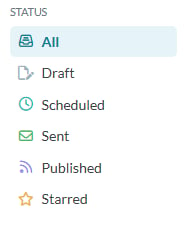
Manage messages based on their current state in the messaging workflow.- All: Displays all messages, regardless of their current status.
- Draft: Shows messages that are still being edited or not yet finalised.
- Scheduled: Lists messages that are queued to be sent at a future date and time.
- Sent: Includes messages that have already been dispatched to recipients.
- Published: Displays messages that have been shared publicly.
- Starred: Displays messages that you have starred.
Folders
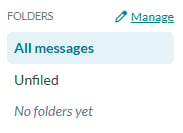
- All Messages: View all messages in your workspace, regardless of their folder.
- Unfiled: Displays messages that have not been assigned to a folder.
-
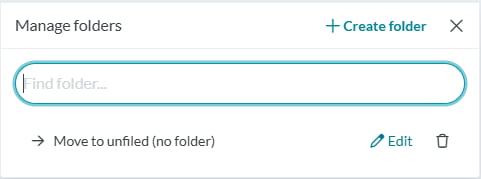
Manage Folders: Use this section to organise existing folders.
- Find Folder: Search for a specific folder by name.
- Move to unfiled (no folder): Remove a message from its current folder and move it back to the unfiled section.
- Edit: Rename or adjust the details of an existing folder.
- Delete: Permanently remove a folder (messages within the folder will be moved to “Unfiled”).
-
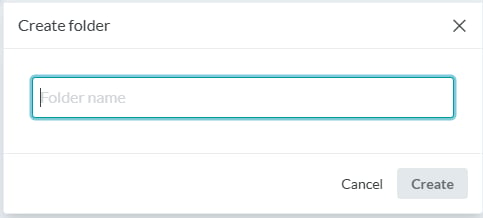
Create Folder: Click +Create Folder from the Manage Folders menu to add a new folder to organise your messages:
- Folder Name: Enter a unique name for your folder.
- Cancel: Discard the folder creation process.
- Create: Save and create the folder.