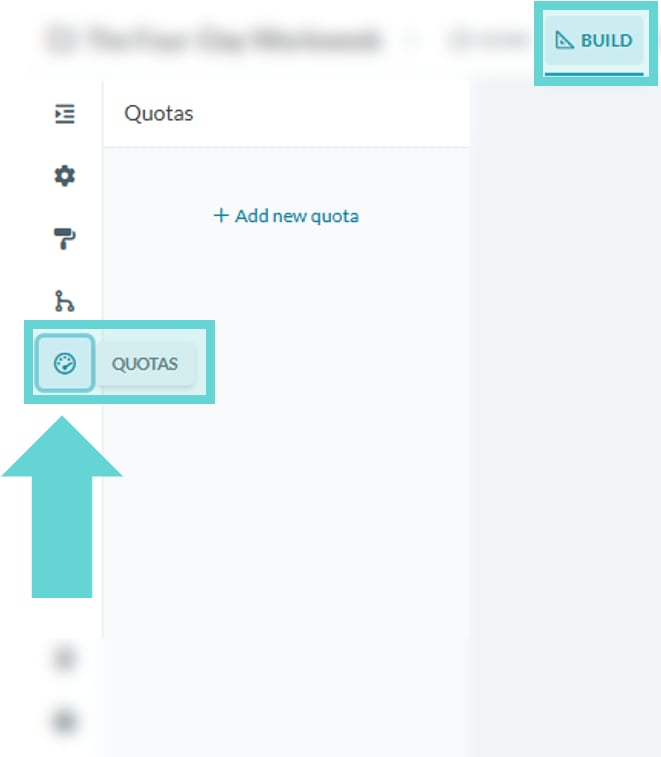
Add a new Quota
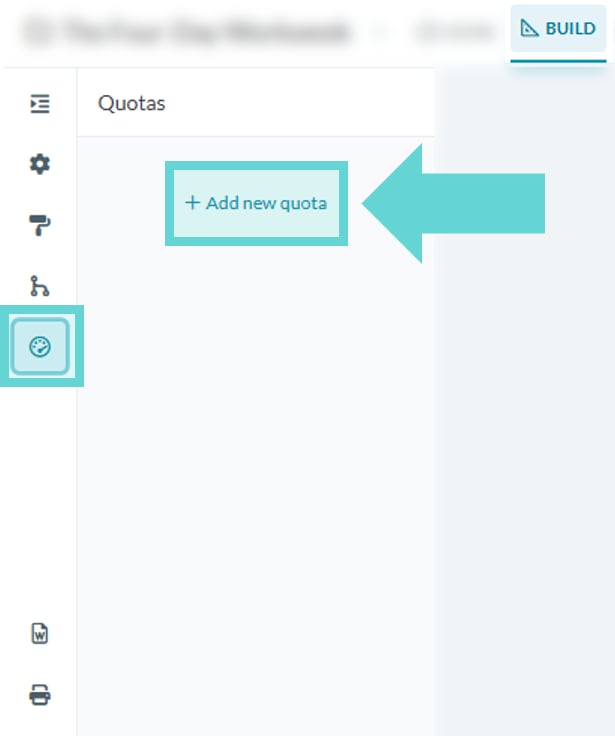
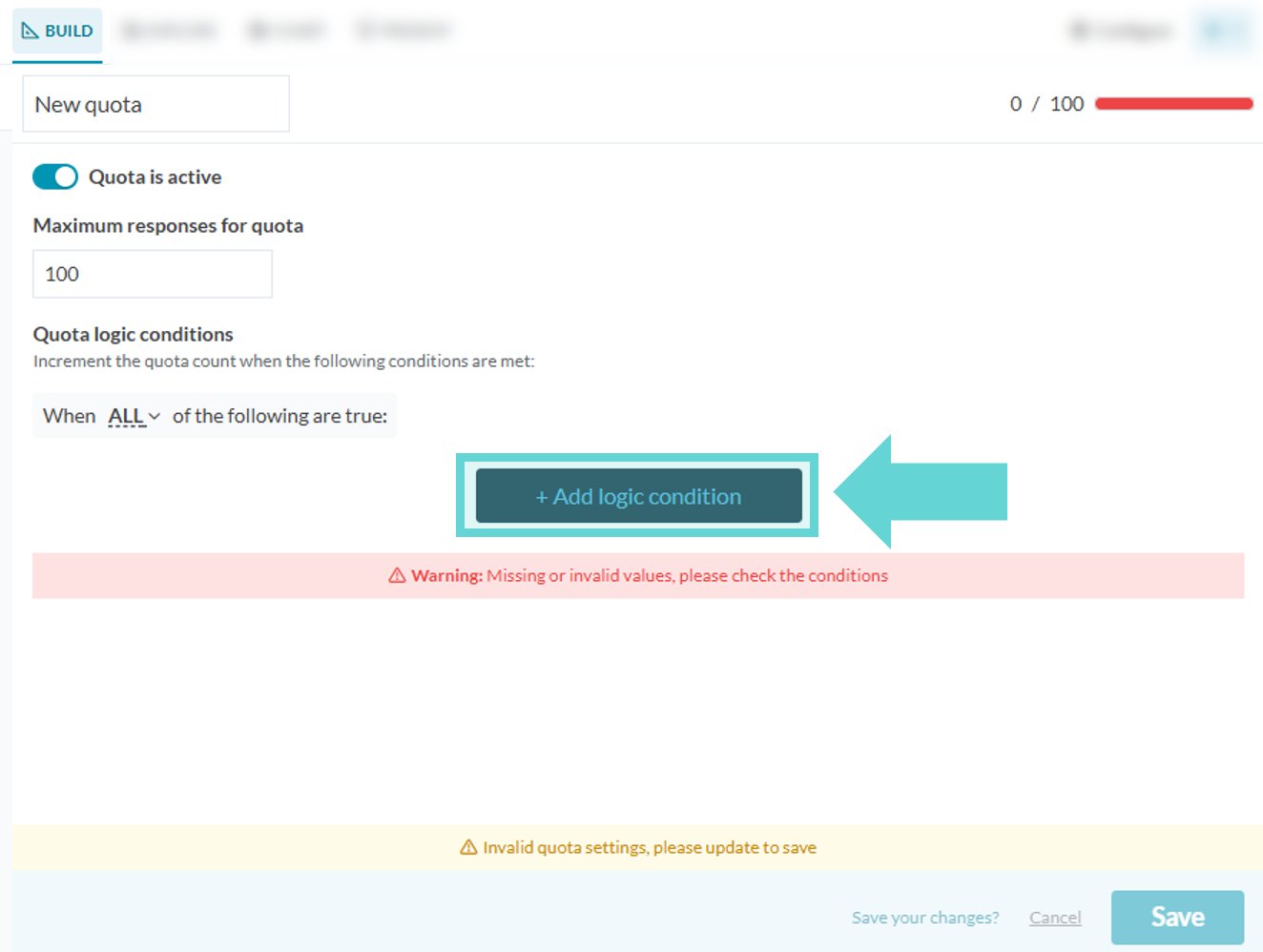
To add a new quota, click +Add new quota in the quota settings panelQuota title
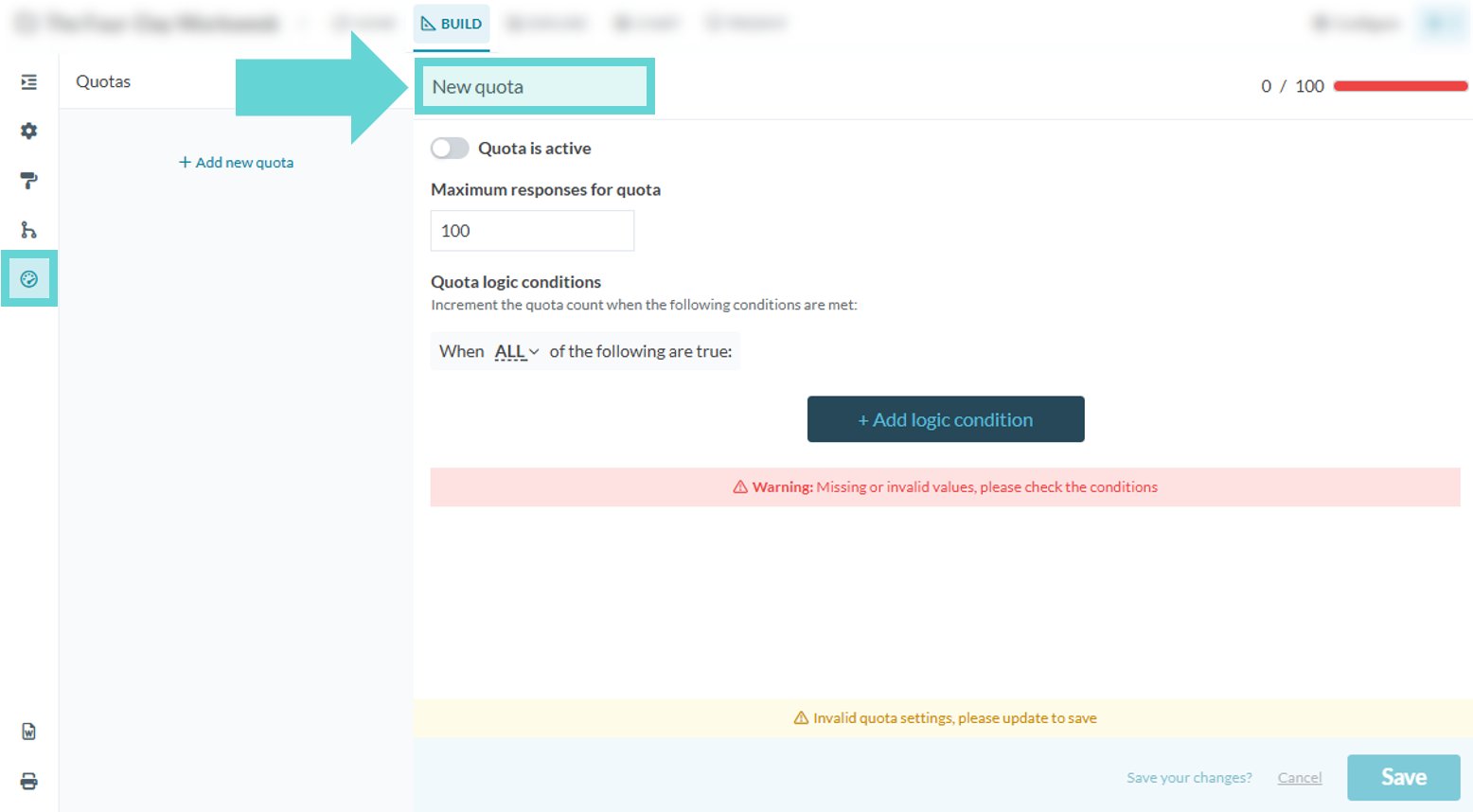
Type in the text box to edit the quota titleQuota is active toggle
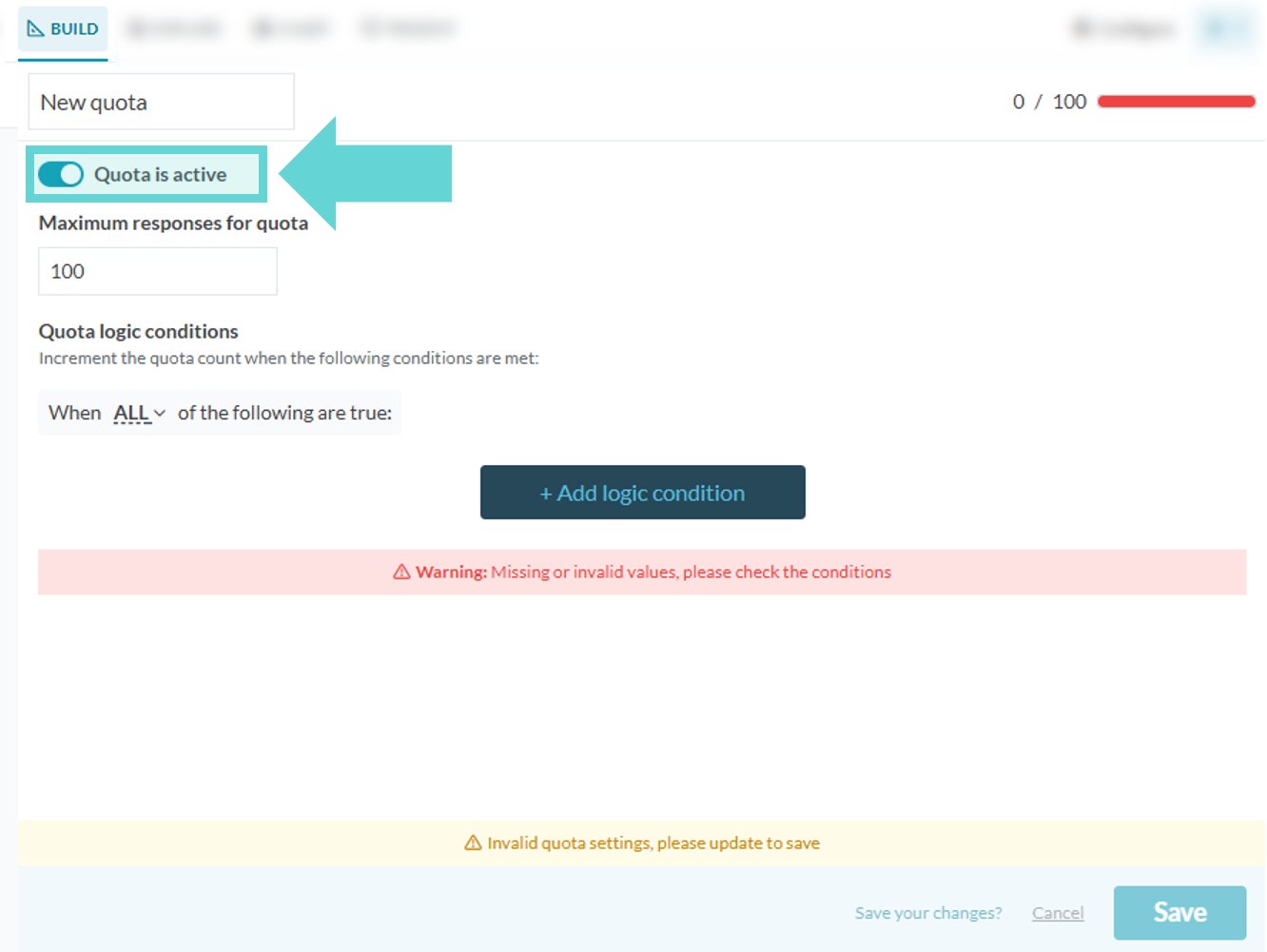
Toggle on/off to enable/disable the quota for this data space (survey). If the slider is positioned to the left and appears grey, the quota is disabled. If the slider is positioned to the right and appears blue, the quota is enabled.Maximum responses for quota
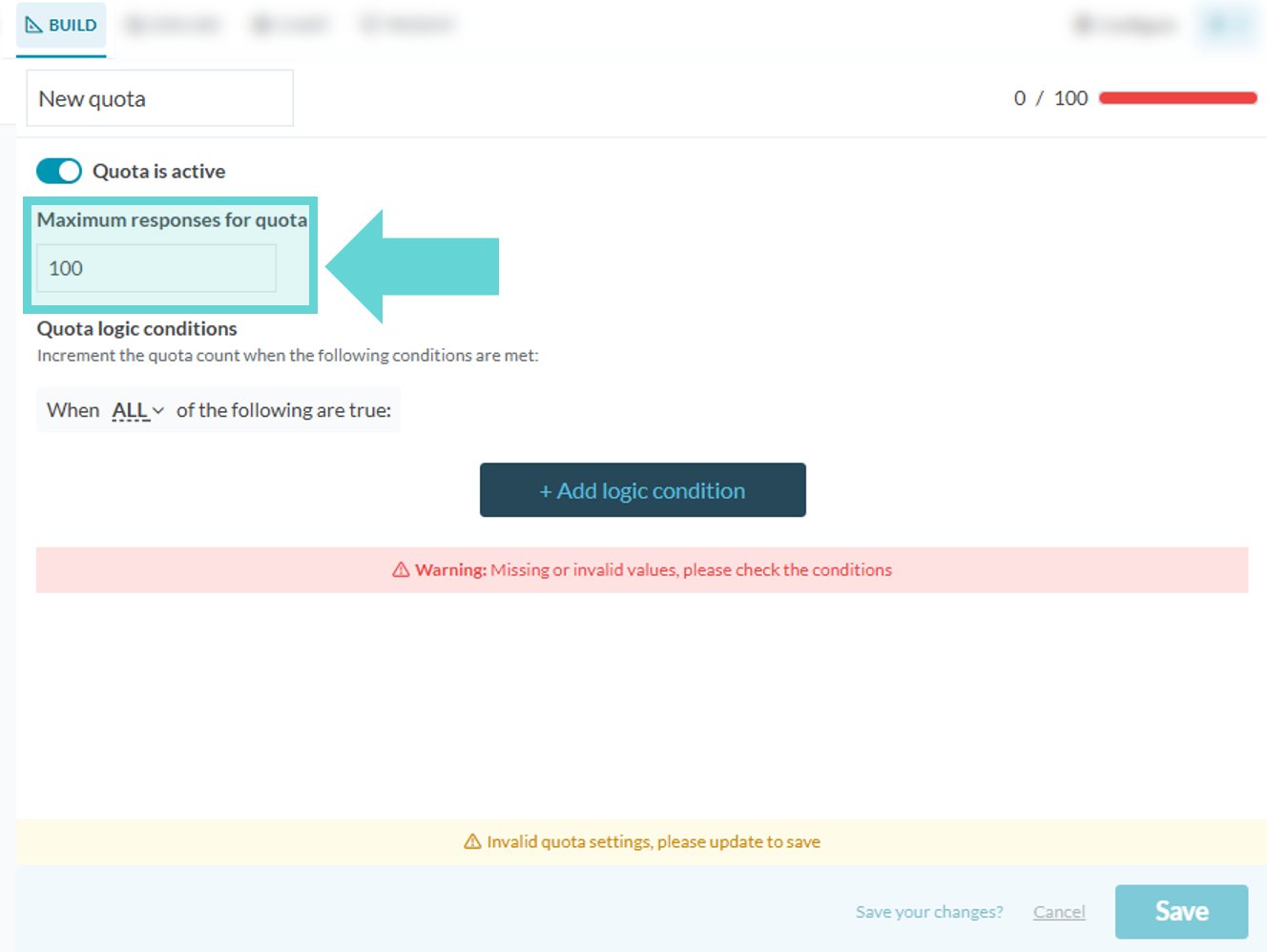
The quota target is the maximum number of respondents you want to take your survey who fulfill the quota conditions. To set the quota target, click the number beneath “Maximum responses for quota”. Type in the quota target (number value) for the conditions you are setting for that particular quota.Quota logic conditions
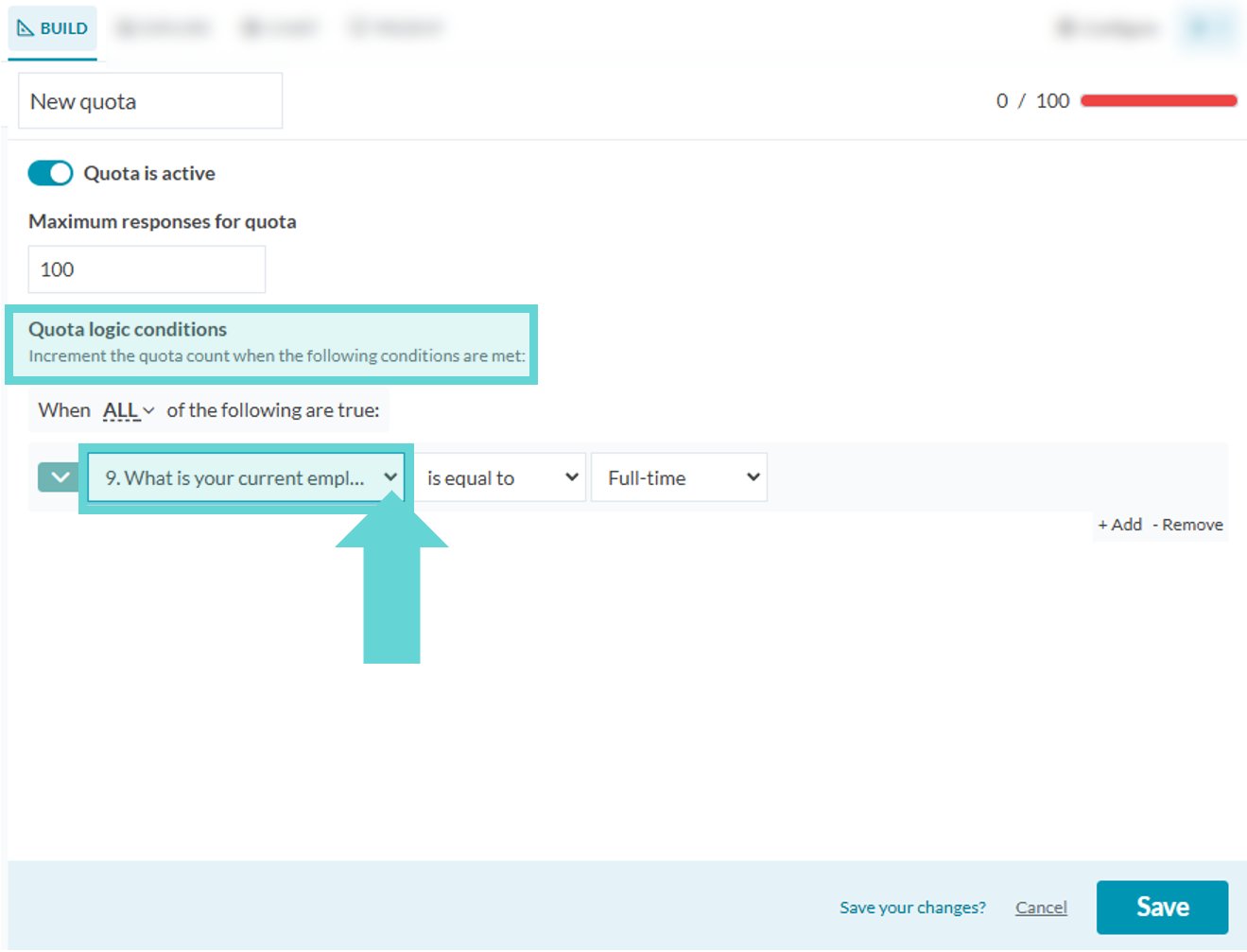
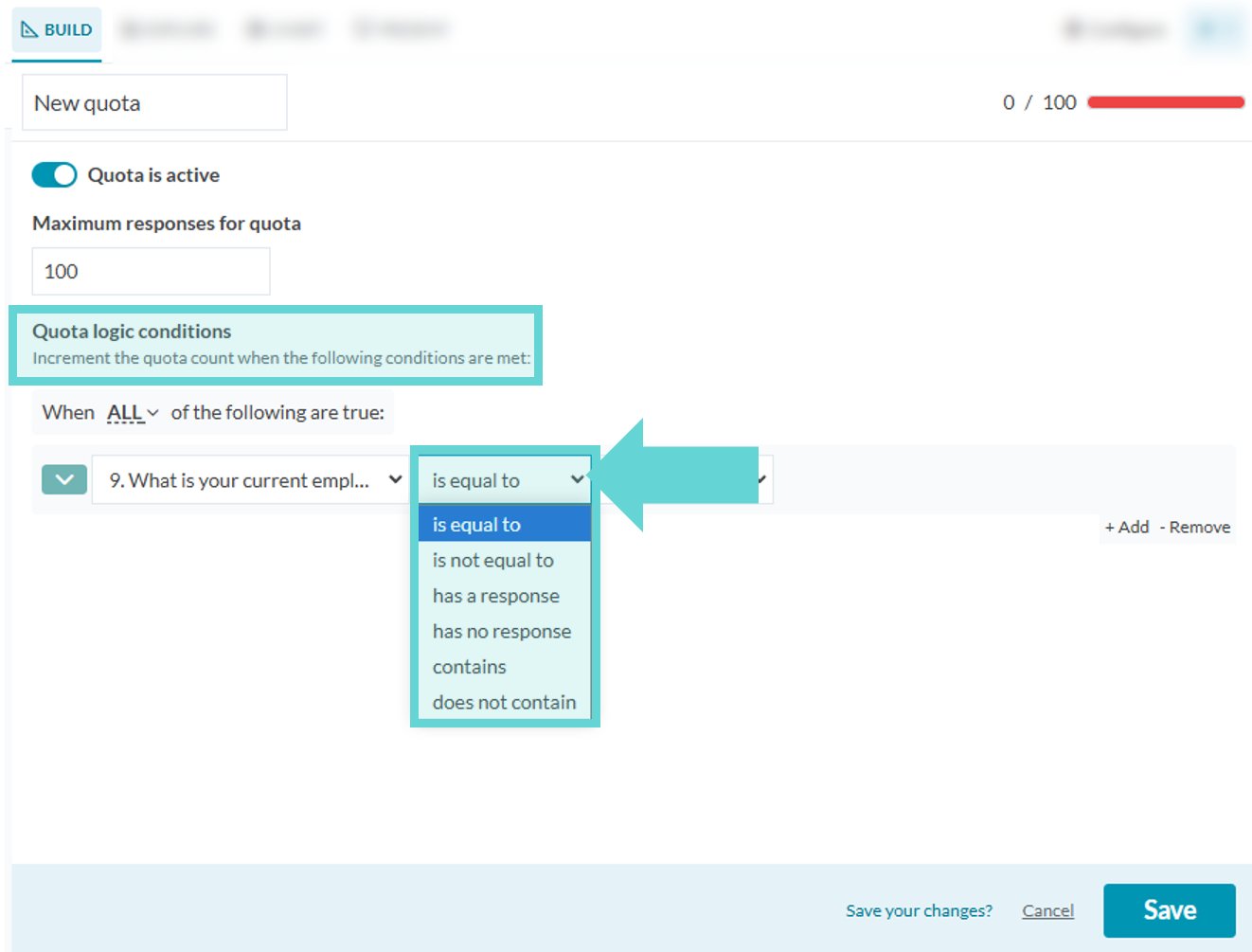
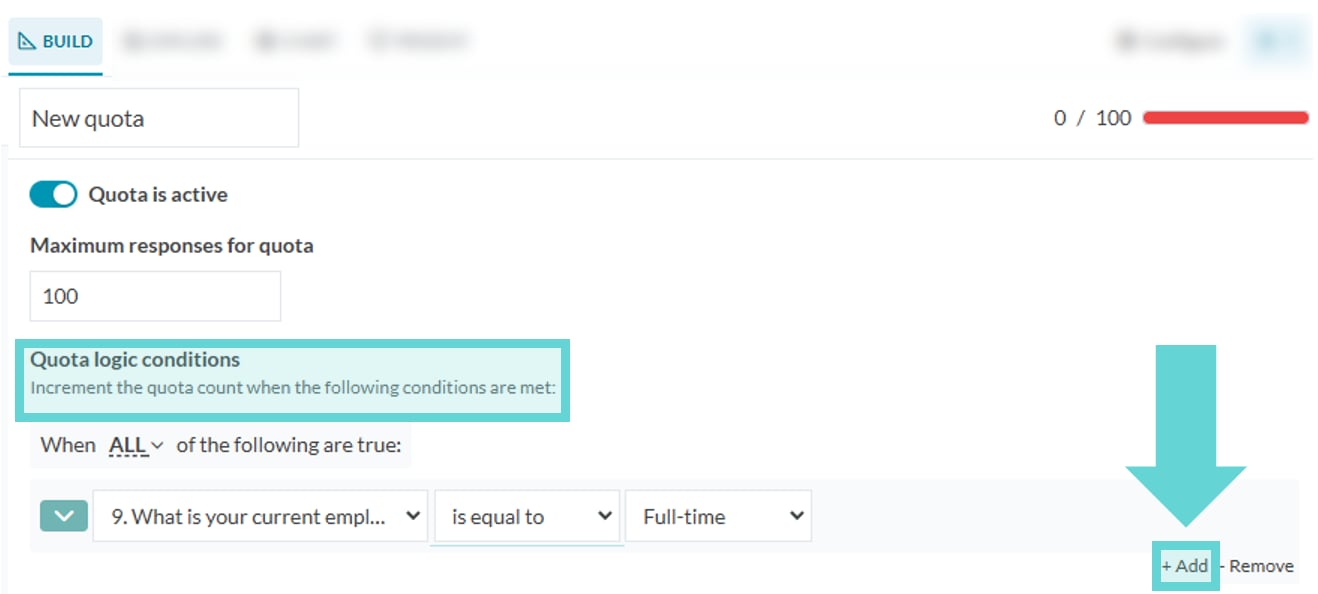
The next step in setting up a quota is to specify conditions that must be true for a respondent to increment the quota. Your quota will be incremented when a respondent meets the condition(s) you have set and finishes the survey.Add logic condition
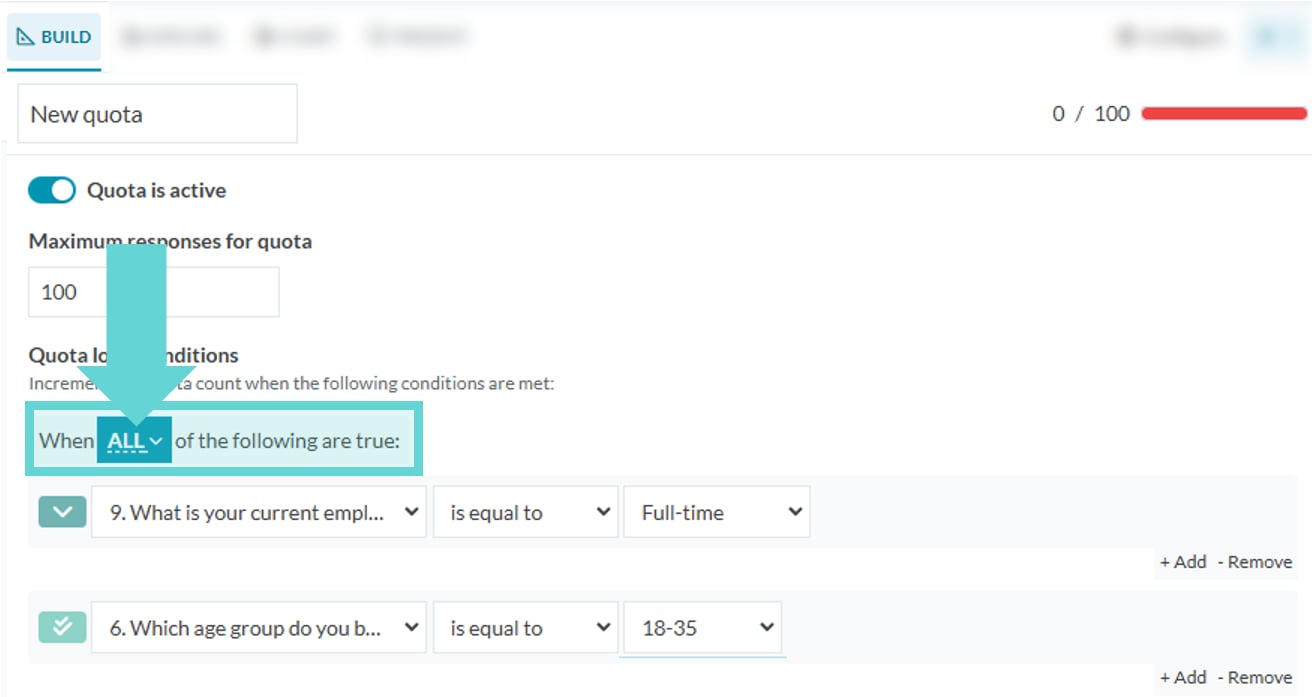
Any/All
Choose between Any/All to decide how conditions should be connected. Click on the dropdown arrow next to ANY/ALL to switch between selecting Any/All for the quota logic conditions. The “any” and “all” options in the quota tool are used to define how the conditions you set should be combined to determine if a respondent meets the criteria for the quota.- Any (OR logic): A respondent is included if they meet at least one condition.
-
If you select “any,” it means that a respondent only needs to meet one or more of the conditions you specify to be included in the quota. This uses an “OR” logic. For example, if you set the following conditions:
- The respondent works full-time.
- The respondent is aged between 18-35.
- The respondent lives in Sydney.
- With “any” selected, a respondent who meets any one of these conditions (works full-time, or is aged 18-35, or lives in Sydney) will be included in the quota.
-
If you select “any,” it means that a respondent only needs to meet one or more of the conditions you specify to be included in the quota. This uses an “OR” logic. For example, if you set the following conditions:
- All (AND logic): A respondent is included only if they meet every condition.
-
If you select “all,” it means that a respondent must meet every single condition you specify to be included in the quota. This uses an “AND” logic. For example, with the same conditions:
- The respondent works full-time.
- The respondent is aged between 18-35.
- The respondent lives in Sydney.
- With “all” selected, only respondents who meet all these conditions simultaneously (they work full-time and are aged 18-35 and live in Sydney) will be included in the quota.
-
If you select “all,” it means that a respondent must meet every single condition you specify to be included in the quota. This uses an “AND” logic. For example, with the same conditions:
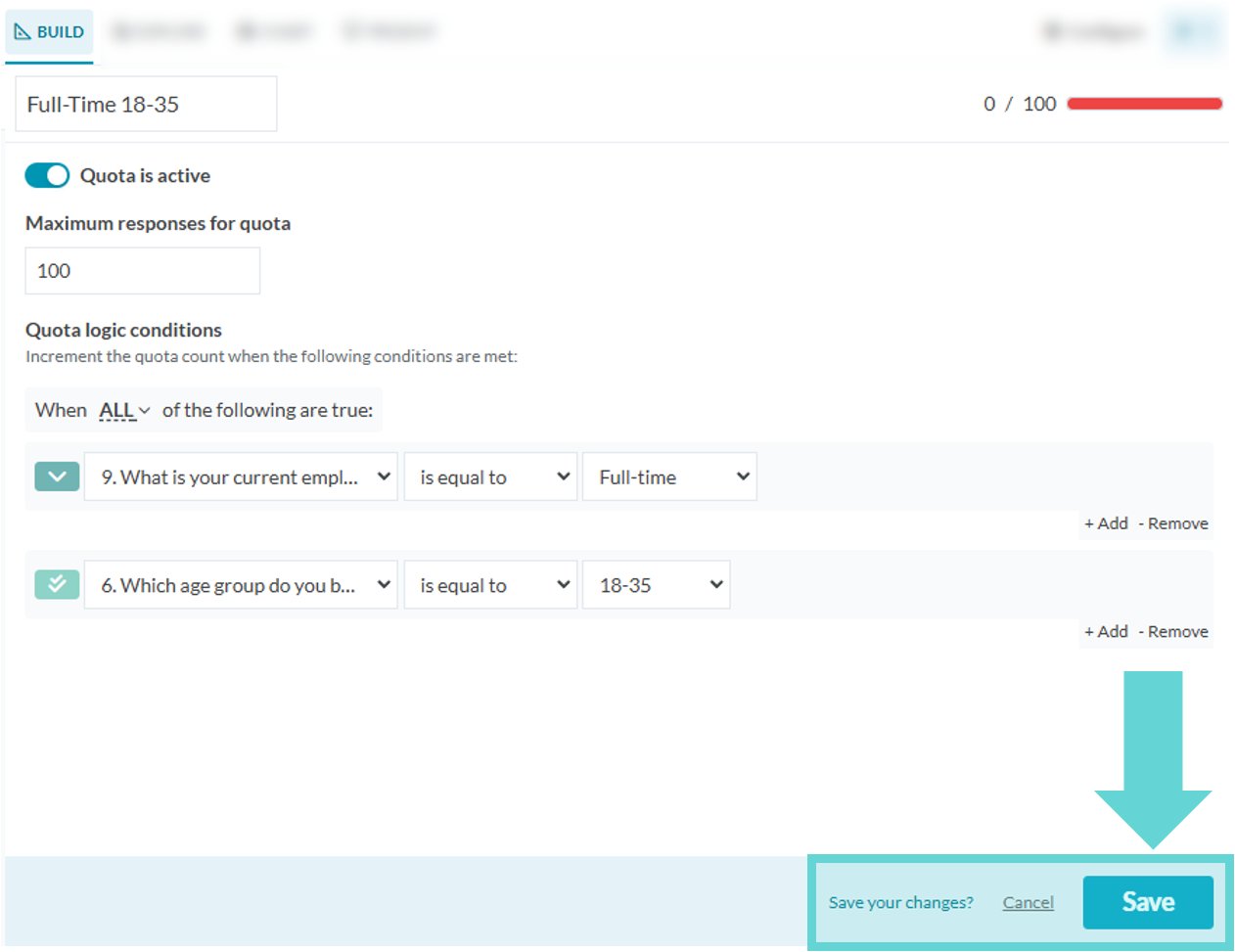
Save changes
When you are happy with your quota settings click Save in the bottom right corner. If the quota toggle is active, the quota will be applied to the survey immediately.Quota count
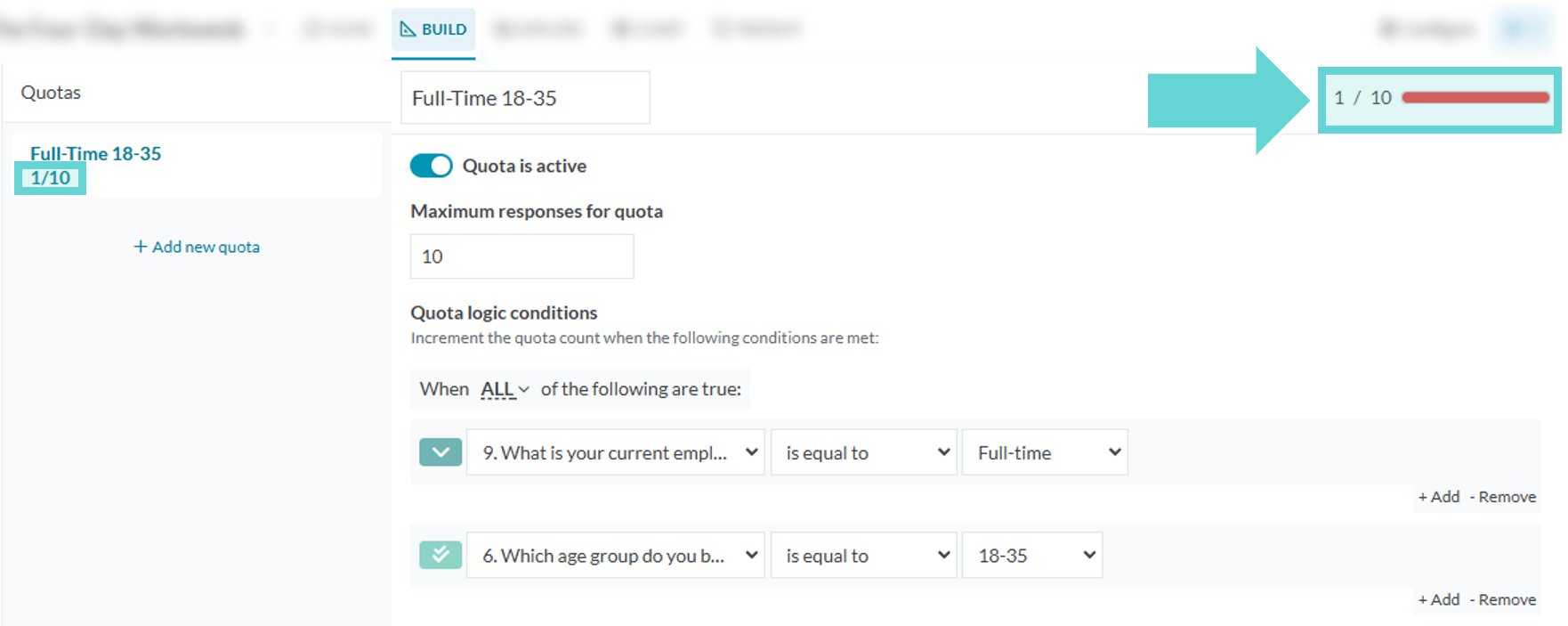
Next to every quota and underneath the quota title, you’ll see a pair of numbers – for example, 0/100. The number on the left of the slash (e.g., 0) is the quota count. The number on the right (e.g., 100) is the quota target. The quota count is the number that indicates how many respondents have taken your survey and met the conditions for the quota. This number automatically changes as new respondents take your survey and meet the specified conditions.Delete a quota