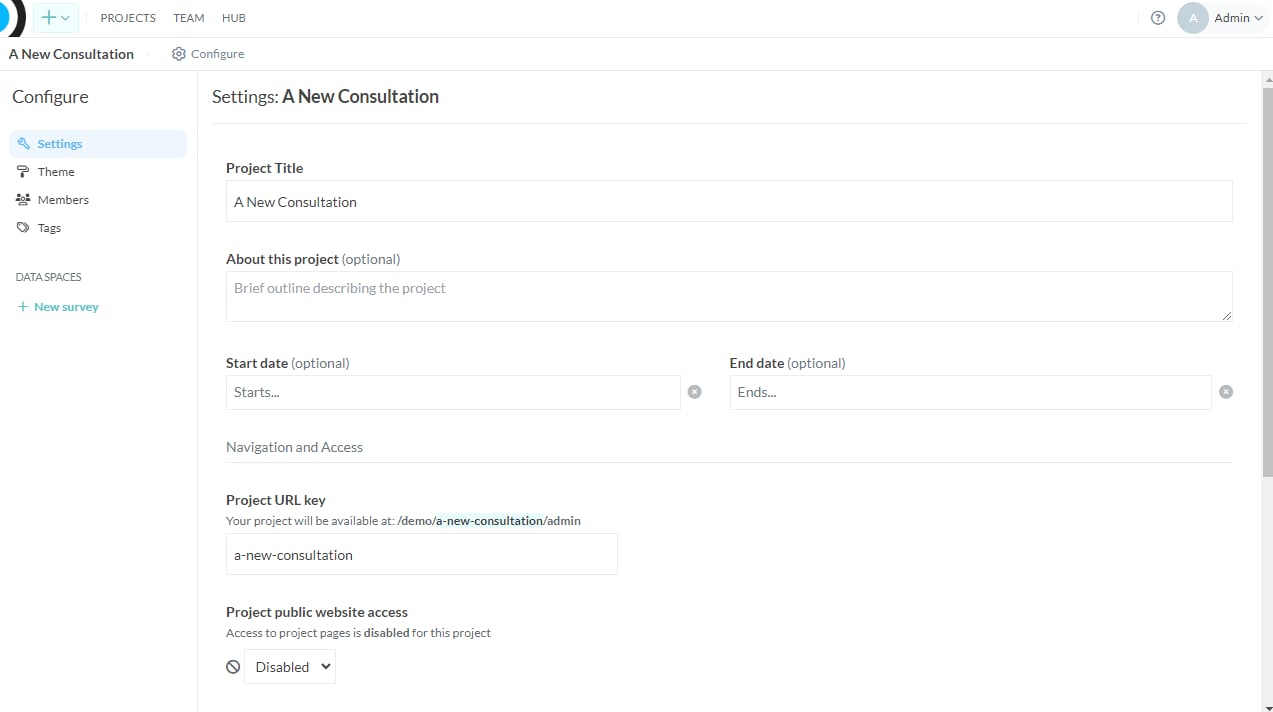
Project title
This is the major title of the project and is used as the web page title. The title is used as the main link text that will appear through-out the consultation hub, in web search engines and in search results.About this project
A short description blurb of what the project is. The blurb will appear on the front page of the consultation page, and is the description that appears in web search engines and other search results.Start and end date
Use these fields to enter the commencement date and end date of your project. These dates can be edited later if required, or left blank. You can control the “open” and “close” dates of all surveys in a project using the Start date and End date for the project.- Keep surveys closed until the Start date will ensure all surveys in your project remain closed until the Start date
- Close surveys after the End date will close all surveys in your project to further submissions
Project URL key
This will be the URL path to the project home page. All Project URL keys must be in lower case, with special characters removed and words separated by hyphens. They need to be unique and be no longer than 45 characters in length (including hyphens). The platform will let you know if you need to change anything to which you might need to use abbreviations to shorten or make the Project URL key unique.Project public website access
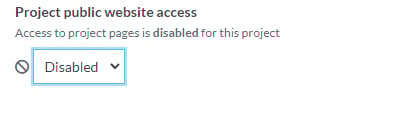
This is where you can edit whether the project is available on public-facing project pages. Public visibility controls front-end project and survey access, not backend app access.Disabled
By default, this will be Disabled. When you are ready for your project to go live, select the dropdown and choose the visibility setting that matches your project.Enabled
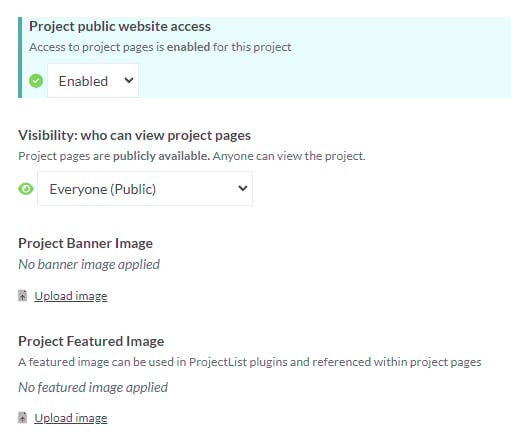
When project public website access is enabled, additional options will display.Visibility: who can view project pages
Visibility settings relate specifically to public-facing pages (e.g. surveys) rather than backend app access. Options may include public access, internal access, members-only access, or disabled access depending on your workspace and project configuration.- Everyone (Public): Project pages are publicly available. Anyone with the link can view the project.
- Team members only (Private): Project pages are hidden from public view. Only logged in team members can view the project.
Hide from search engines
Toggle this option on to ask search engines not to index the project’s public pages.Data export access
Use this setting to choose whether exports are available to everyone with project access or restricted to project admins only.Project Banner Image
You can upload a project image to display as the banner across your survey page. A page banner image is a large, eye-catching image placed at the top of a webpage. It serves as a visual introduction to the website and captures visitors’ attention. It spans across the entire width of the page and is taller than other images. The banner image can feature photographs, illustrations, or graphic designs and often includes important information or branding elements. Its purpose is to convey the website’s message and encourage visitors to explore further or take specific actions.Project Featured Image
If you’d like to use a different image on your consultation hub project card list, this is where you would set that. It allows you to use one image for your project cards on the hub homepage and a different image for the banner on the project page itself.Danger zone
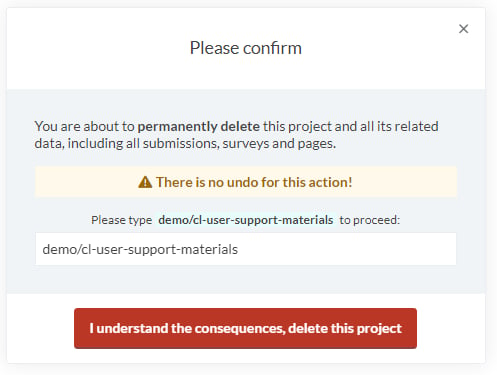
If you need to delete your project you can do so from this section. Deleting your project will remove all data inside the project folder including consultations, surveys, pages, themes, and responses and will delete the entire project. There is no undo for this action.Deleting a project
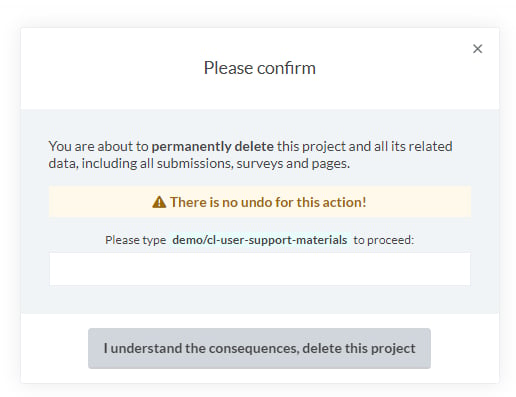
If you need to delete a project click the Delete project button on the bottom right hand corner. Don’t worry if you click this accidentally. Converlens requires a text input confirmation before a project is deleted. If you are sure you want to delete the project and all its data, enter the text prompted in order to change the confirmation box from grey to red. Note the text is case and space sensitive and must match the prompt exactly: Click the I understand the consequences, delete this project box and your project will be removed.