

Adding the first survey

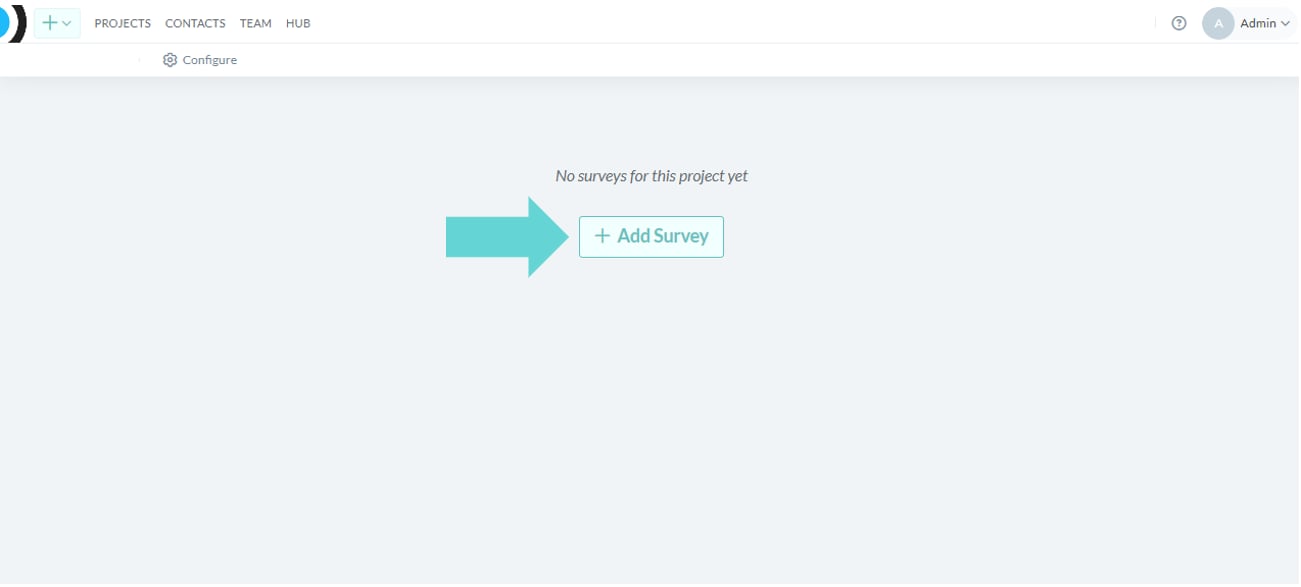
To add a survey to a new project with no other Data Spaces, click the +Add Survey button. Adding a survey screenshot: To add a survey to a new project with no other Data Spaces, click the +Add Survey button.
Adding additional surveys

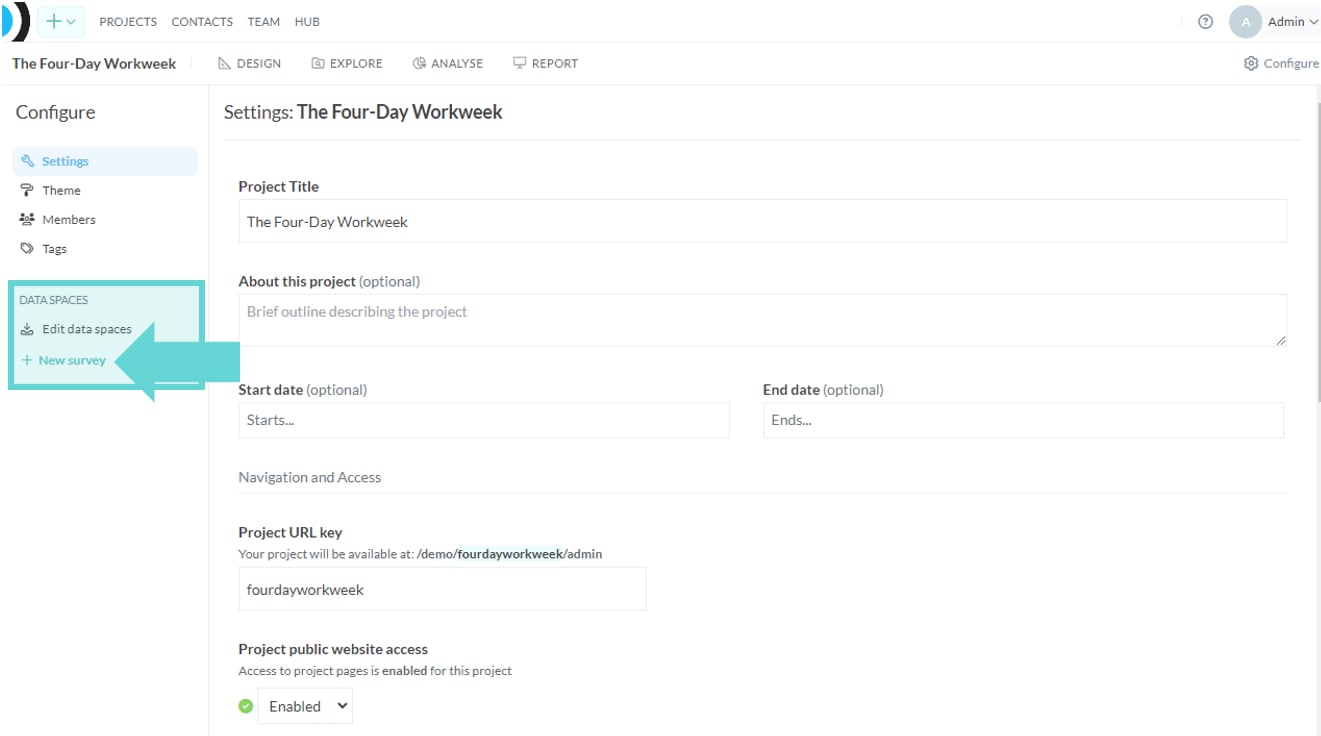
If the project you are working in has other surveys (data spaces) already, go to the Configure menu. Under data spaces, click +New Survey. Adding a survey screenshot: Under data spaces, click +New Survey.
Creating a blank survey

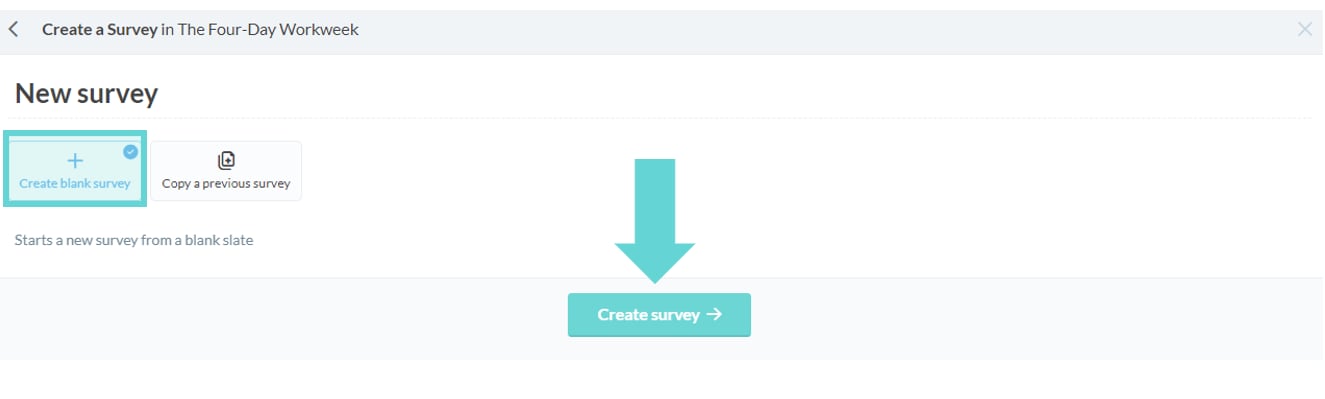
To start a blank survey select the button + Create a blank survey and click Create survey → at the bottom of the screen. Adding a survey screenshot: To start a blank survey select the button + Create a blank survey and click Create survey → at the bottom of the screen.
Copying a template survey

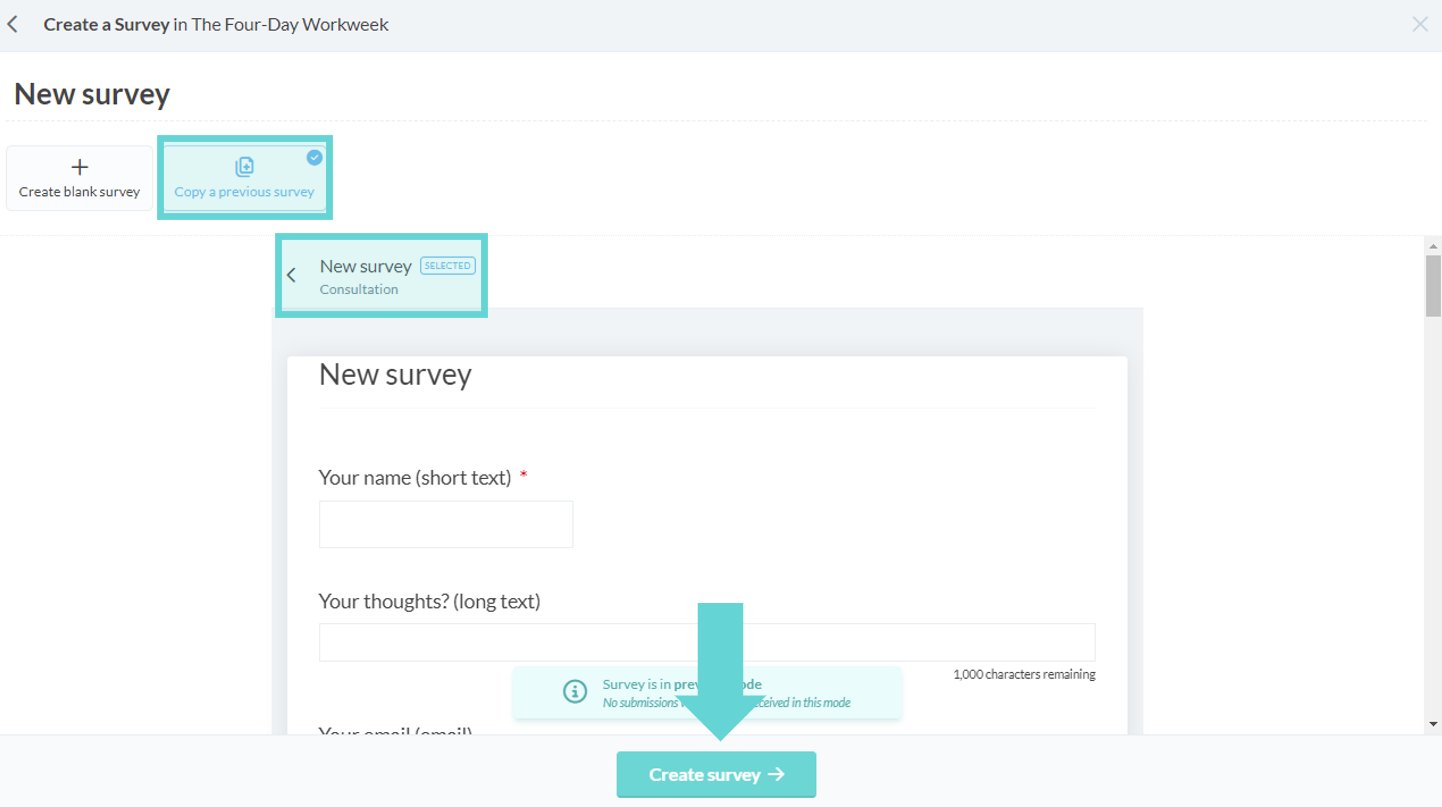
You can also copy a previous survey that has been created in your organisation’s workspace. Click on the name of the survey you want to copy. A preview will load. Click Create survey → at the bottom of the screen. Adding a survey screenshot: You can also copy a previous survey that has been created in your organisation’s workspace. Click on the name of the survey you want to copy. A preview will load. Click Create survey → at the bottom of the screen.
Survey Title

Enter the name of the new survey in the title bar. This can be changed later in the survey settings, so don’t worry if you need to rename it later on. Adding a survey screenshot: Enter the name of the new survey in the title bar. This can be changed later in the Design section so don’t worry if you need to re-name it later on. Once you have created a new survey or copied a template survey you will be taken to the Build page to edit your questions (blocks). Learn more about designing your survey in the Build section of this guide.
