

<<), which will display only icons and expand (>>) on mouseover.
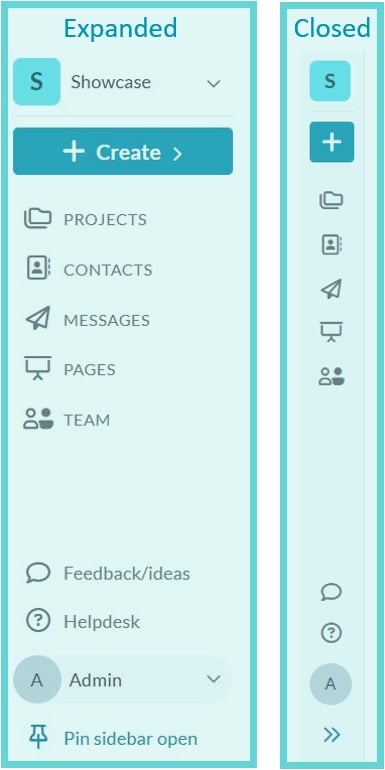
- Workspace dropdown: Switch between workspaces if you are part of multiple organisations or departments.
- + Create button: Quickly create new items, such as projects or team invitations, depending on your permissions.
- Projects: Access and manage your list of projects, including creating new projects if you have permission.
- Contacts: Access your Contacts database to view and manage your list of contacts and relationships, if enabled for your workspace.
- Messages: Access Messages for the workspace, including creating and sending tailored communications to your contacts.
- Team: View and manage workspace members, including adding or removing users.
- Pages: Access your dedicated consultation hub and manage public-facing pages, if enabled for your workspace.
- Feedback/ideas: Share your thoughts and suggestions to help improve the platform.
- Helpdesk: Access support materials, guides, and FAQs to assist you with using the platform.
- Feedback/ideas: Share feedback or ideas with the Converlens team.
- Helpdesk: Open the Converlens help site.
- Tour: Sidebar: Start the sidebar walkthrough.
- Log out: Sign out of your account.