Add new member to Workspace
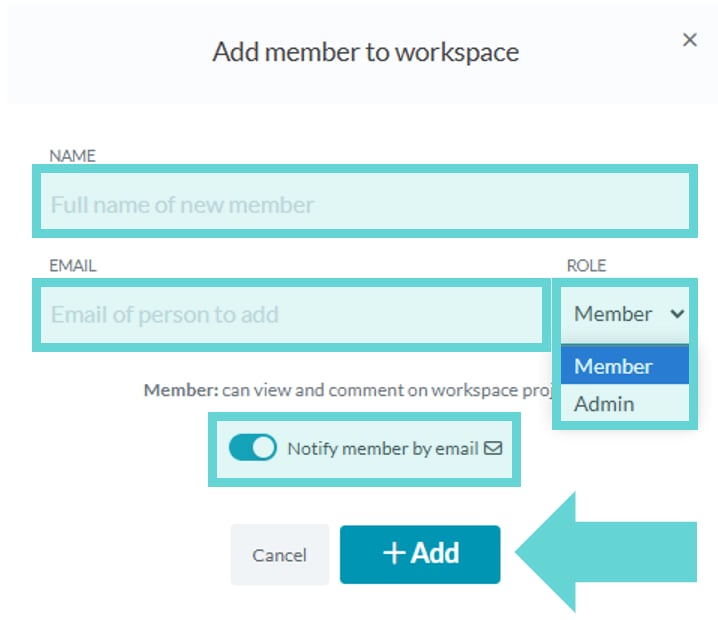
To add a new team member to a workspace, click the Add member button. A pop-up window will appear to enter the details of the new team member to be added. Enter the name, email address and role level. If you would like to notify the new team member by email, ensure the notification option is on. When all details have been entered, click Add to add the new team member to the workspace.Edit team member workspace access
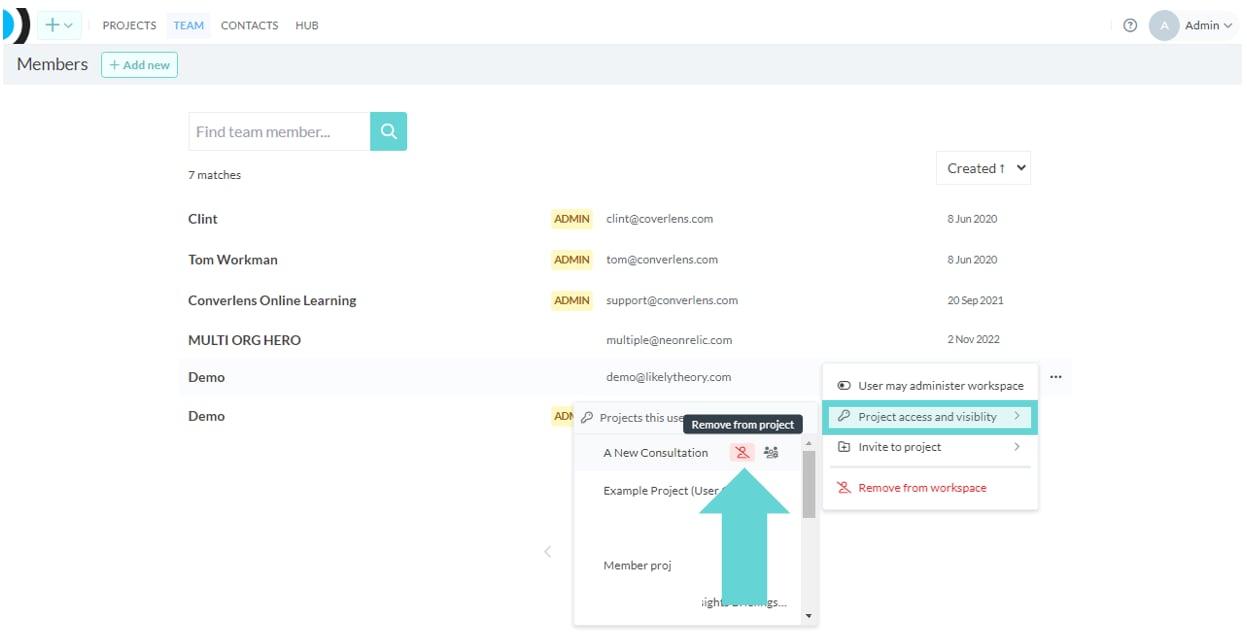
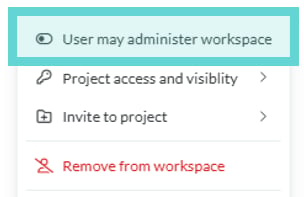
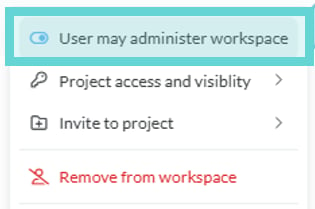
To edit a team member’s project access and visibility, find the name of the team member you would like to edit in the team list. Mouse over their name and click the 3-dot menu that will appear on the right hand side. From this menu, mouse over Project access and visibility and a flyout menu will appear with all the projects the team member can access in the workspace.Remove team member from a project
To remove a team member from a specific project, follow the steps above and on the flyout menu, mouse over the name of the project you would like to remove the member from. A red icon will appear; click this to remove the team member from that project.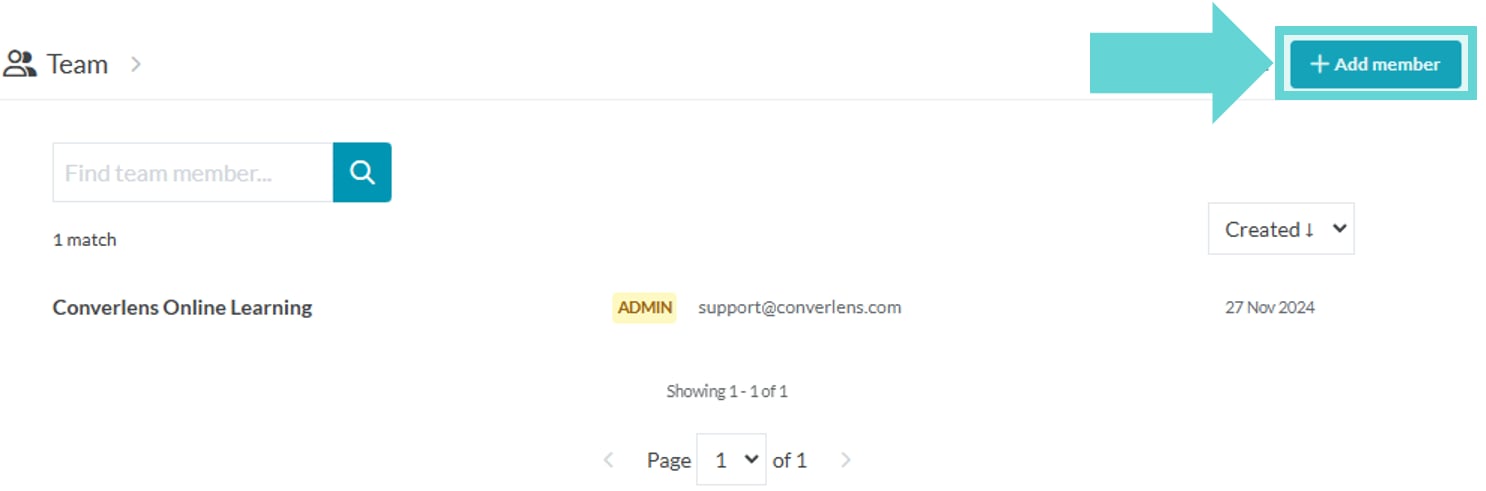
Invite workspace member to a project
You can invite a member to a project from either:- The project’s Settings > Members page
- The workspace Team page, using the menu popup
Make team member workspace admin
To make a team member a workspace admin, find the name of the team member you would like to edit in the team list. Mouse over their name and click the 3-dot menu that will appear on the right hand side. From this menu, click User may administer workspace. A pop-up confirmation will appear. If you are sure you want to make that team member a workspace admin click OK. An admin label will appear next to their email address. For more information on workspace admin permissions, see Roles and permissions.Remove a team member as a workspace admin
To remove a team member as a workspace admin, find the name of the team member you would like to edit in the team list. Mouse over their name and click the 3-dot menu that will appear on the right hand side. From this menu, click User may administer workspace. A pop-up confirmation will appear. If you are sure you want to remove that team member as a workspace admin click OK. The admin label will no longer appear next to their email address.Exporting the members list
To export your workspace team list, click the Export button on the Team page. A CSV file will be automatically downloaded to your device, containing the following details for each team member: the date their account was created, their unique user ID, role, and email address.Remove a team member
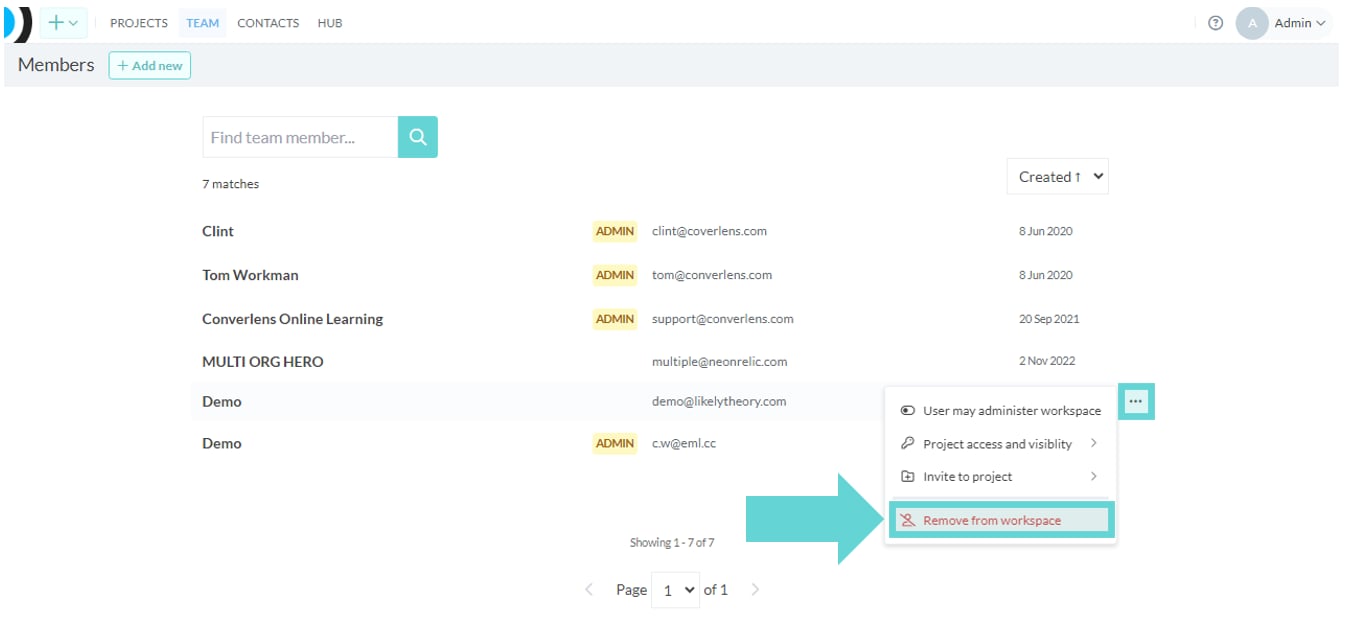
To remove a team member from the workspace, find the name of the team member you would like to edit in the team list. Mouse over their name and click the 3-dot menu that will appear on the right hand side. From this menu, click Remove from workspace. A pop-up confirmation will appear. Click OK and the team member will be removed from the workspace. Removing a team member from a workspace will remove them from ALL projects they had access to.