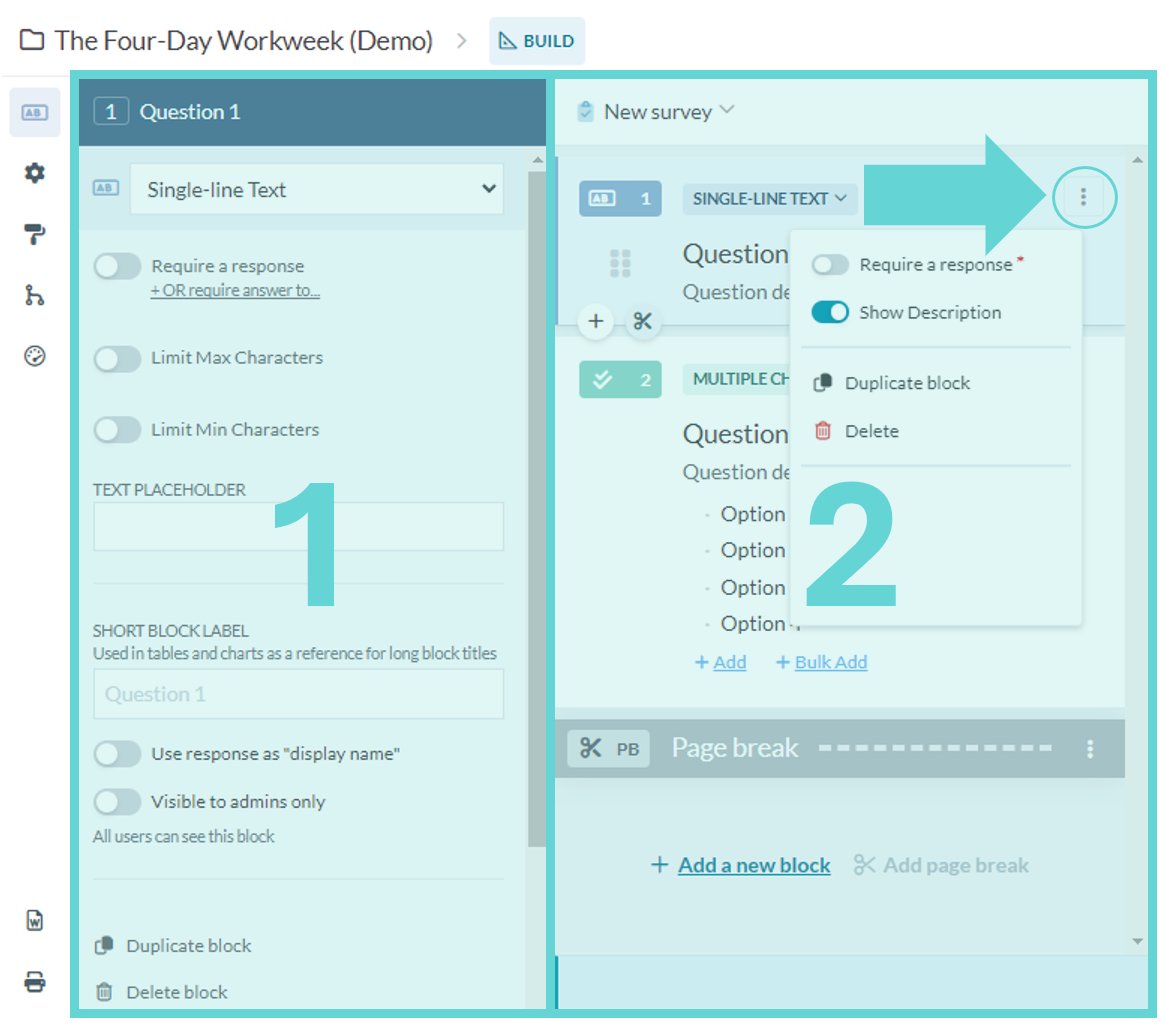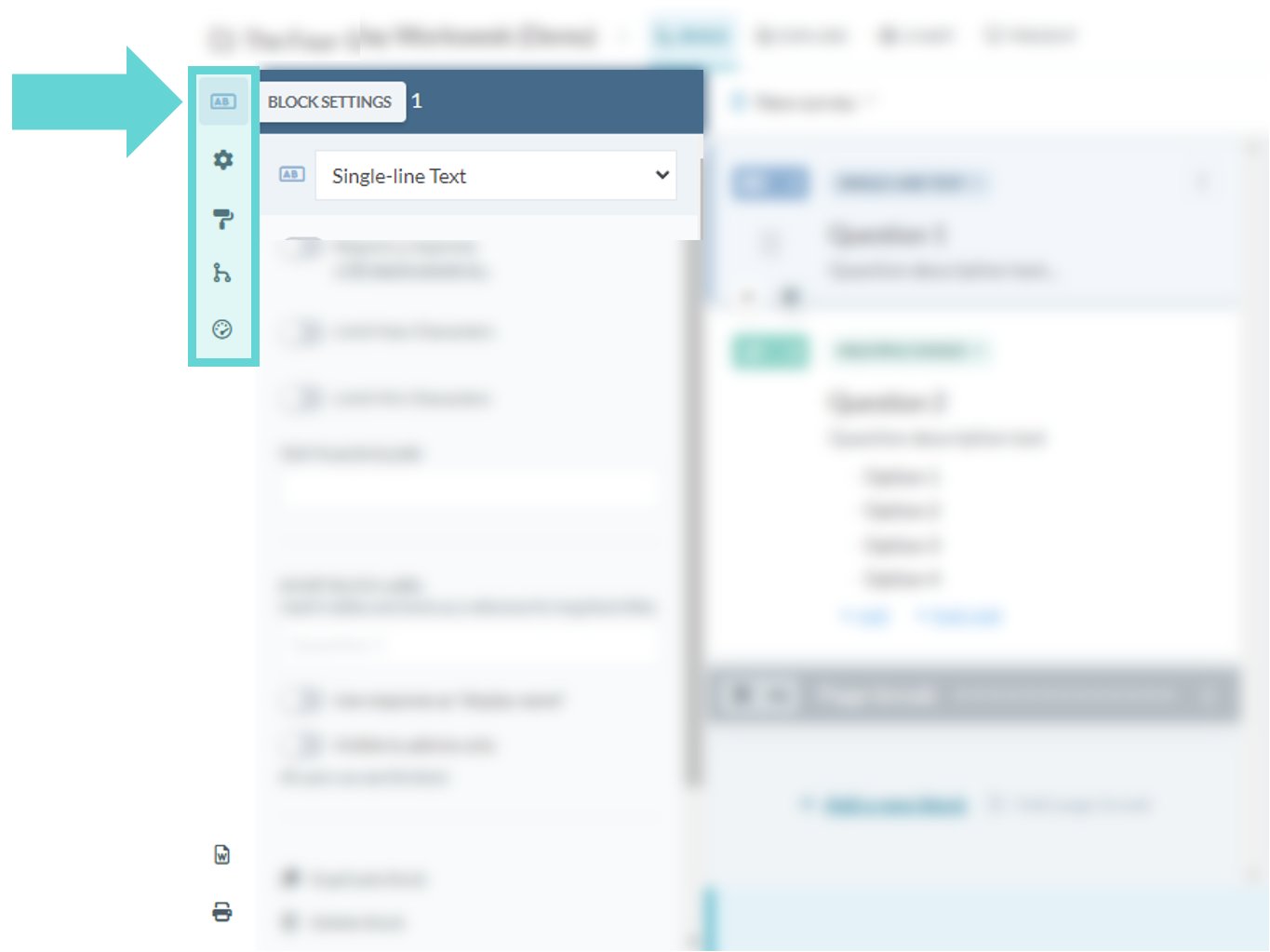
Universal block settings
When you have selected a block there are multiple setting options that you can change. Different block types have different settings. See Detailed block settings for more information on each individual block options. The following settings can be edited no matter what block type is selected:- Require a response (or require answer to): Toggle on/off to require respondents to submit an answer to this question block, or require a user to have answered a previous question block in order to be able to submit a response to the currently active question block.
- Show description: Toggle on/off to show/hide text descriptions. Add a text description to the blocks in order to provide additional context to a question block for respondents.
- Short block label: Add a shorter label for analysis and reporting views.
- Use response as display name: Use this block’s response as a respondent display name.
- Disable text analysis: For long text and file upload blocks, exclude the block from text analysis.
- Visible to admins only: Toggle on/off to limit the block and its responses to project admins.
- Hide answers on publish: If response publishing is enabled for the project, toggle off/on to show/hide the selected block from all published responses.
- Publishing options: Depending on the block type, you may also be able to set a published title, make answers searchable, hide file transcripts or downloads, or show content blocks when responses are published.
- Duplicate block: Clicking this link will duplicate the current block including all text, settings and logic.
- Delete block: Remove/delete the block from the survey entirely. There is no restore for this action.