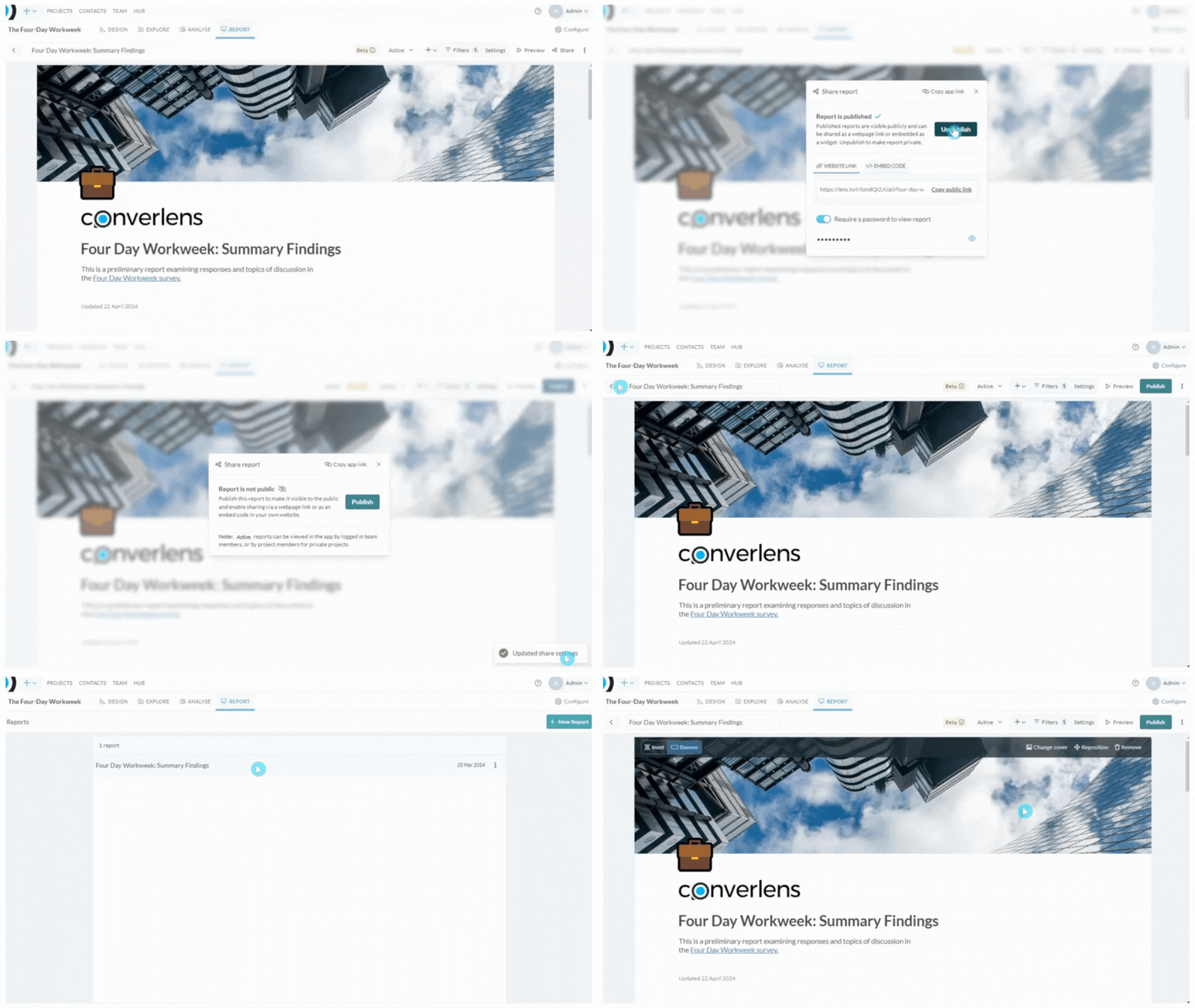
Report Status
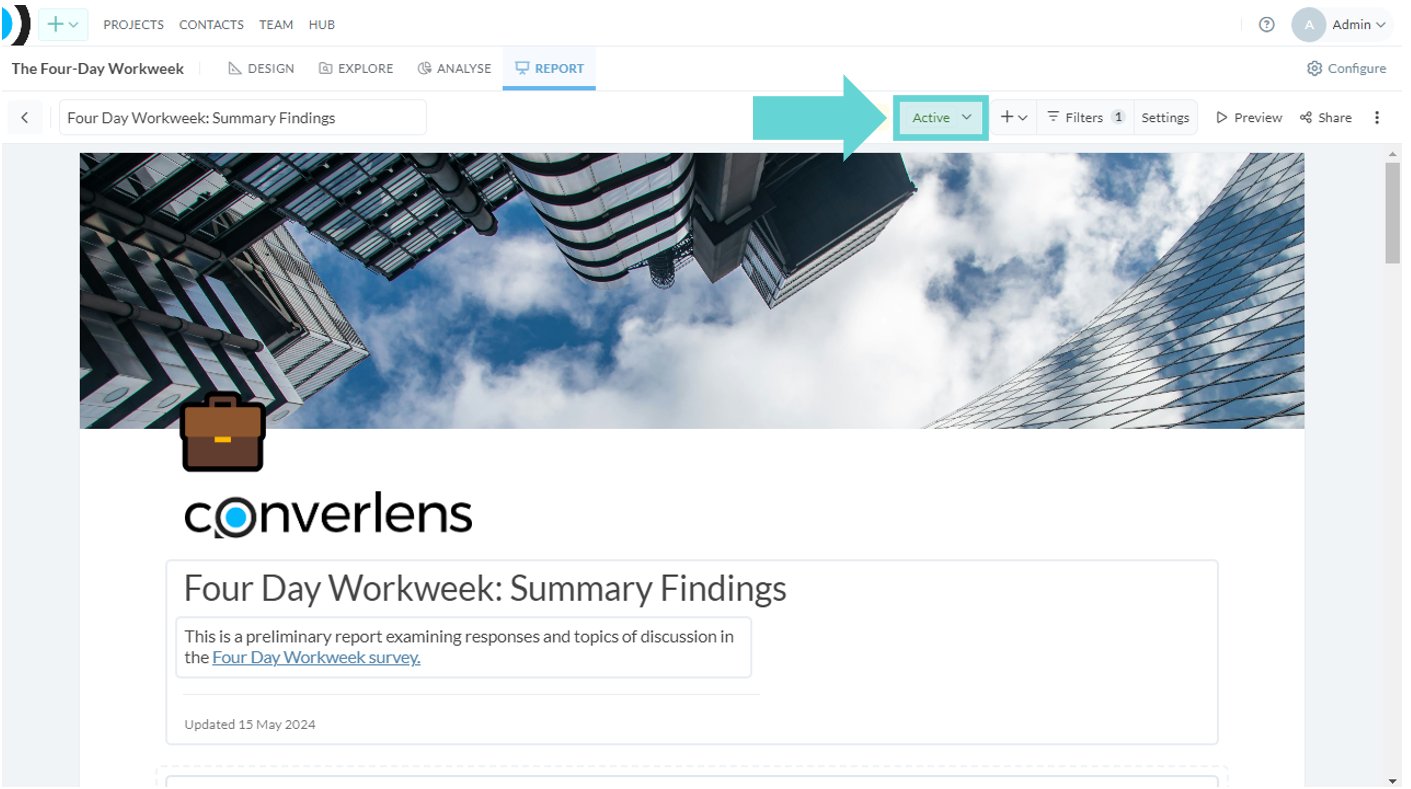
- Draft: Visible only to admins and editors. Cannot be published or shared outside of project admins and editors.
- Active: Visible to all logged in team or project members and can be published and publicly shared.
Change report status
To change the report status, click on the Status dropdown (Active/Draft) from the Report toolbar. The current status will have a blue highlight around it. Click on Active to enable sharing report with team members. To change your report to Draft, click on the dropdown Status menu and select Draft. The current status of your report will show in the Reports toolbar. Draft reports will show the status as Draft in the Present Menu. Published reports will show as Published in the Present Menu.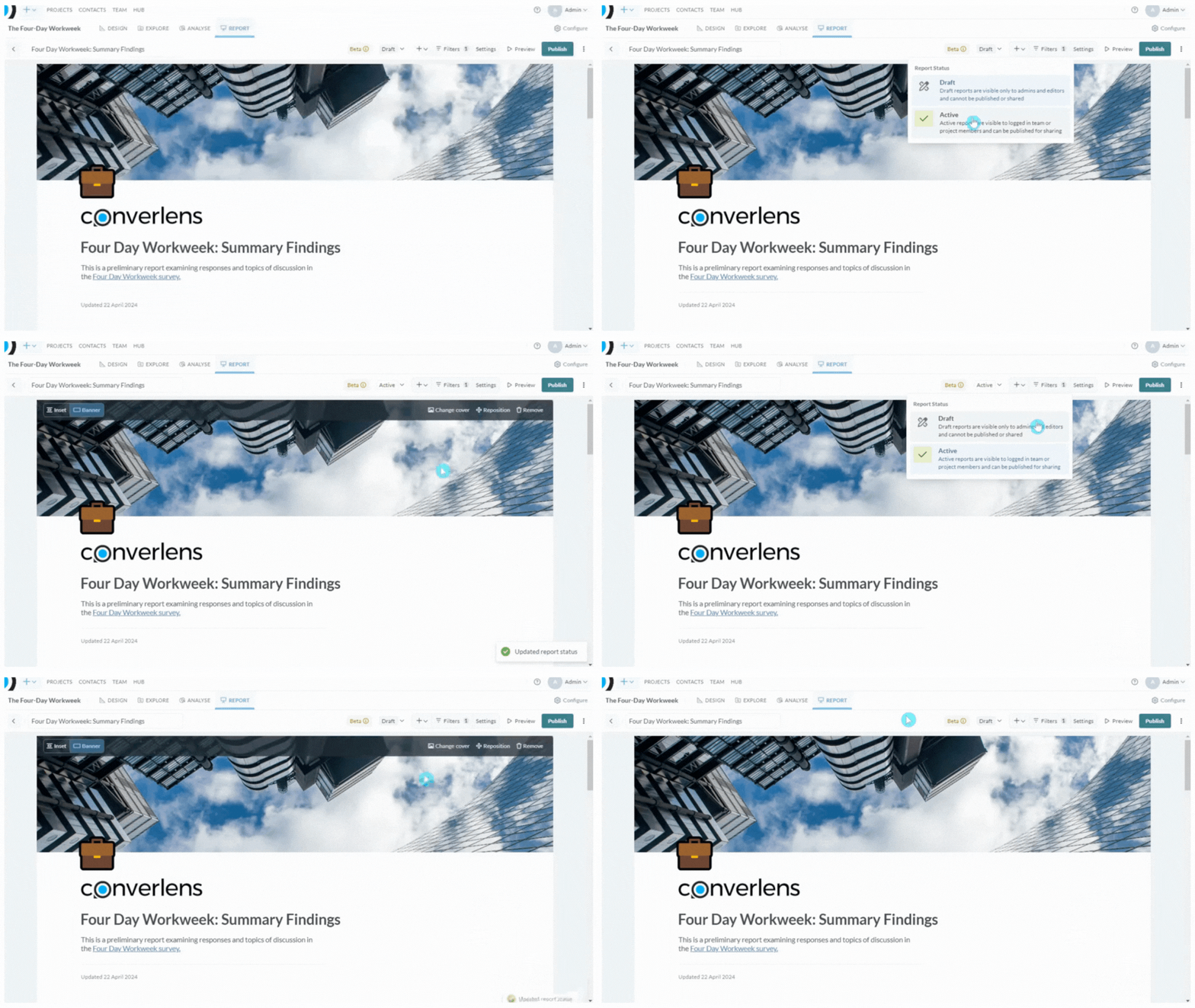
Copy app link
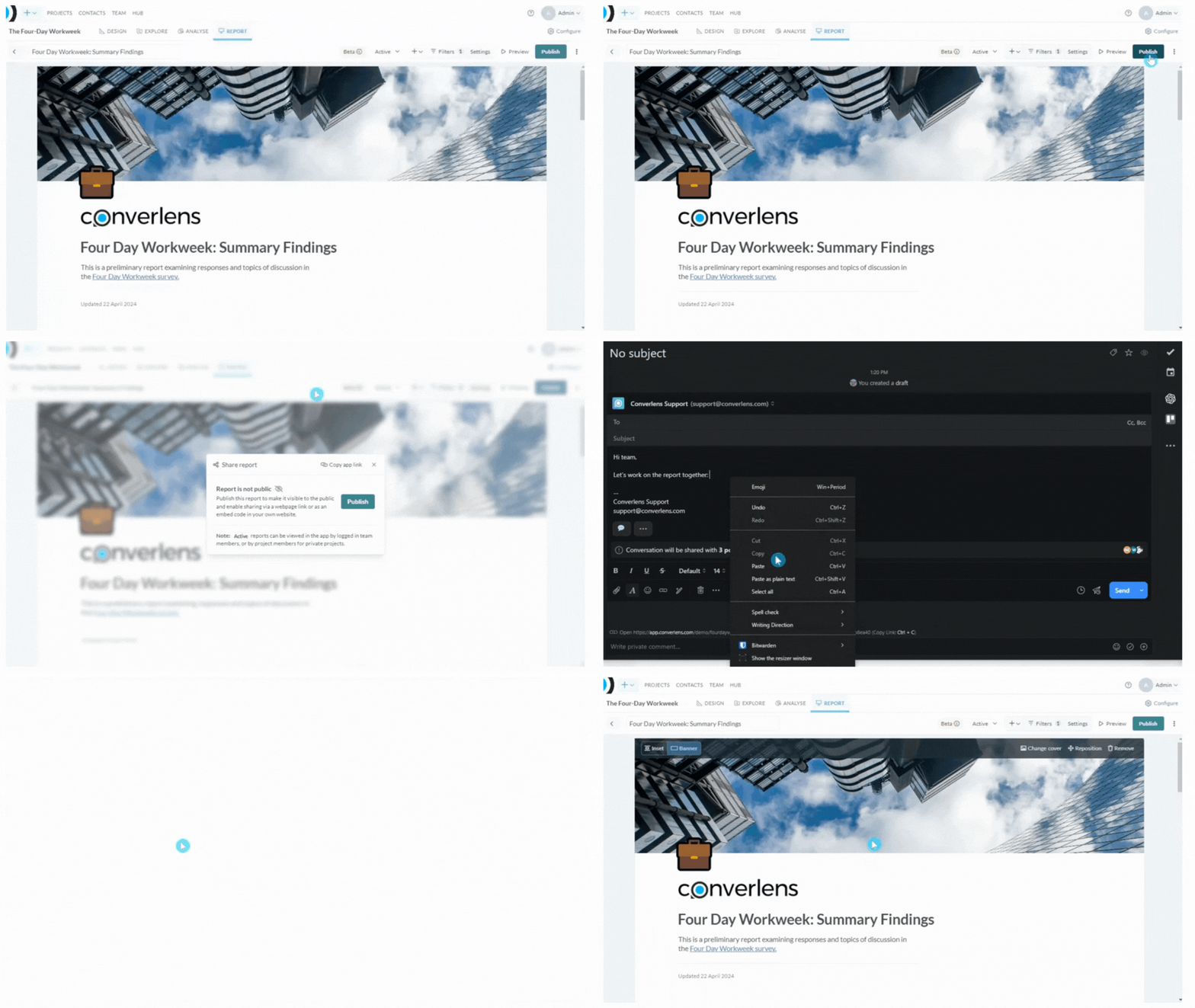
Publish a report
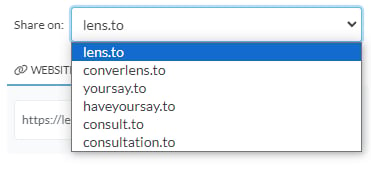
To publish a report and enable public access, click Publish in the right hand corner of the Reports Toolbar. This will open a popup menu. Click Publish from the popup menu. Draft reports will be converted to Active when published. Your report is now published. A confirmation message will display in the bottom right hand corner of the report builder window. The report will also show a Published label in the Present menu.Share on (domain)
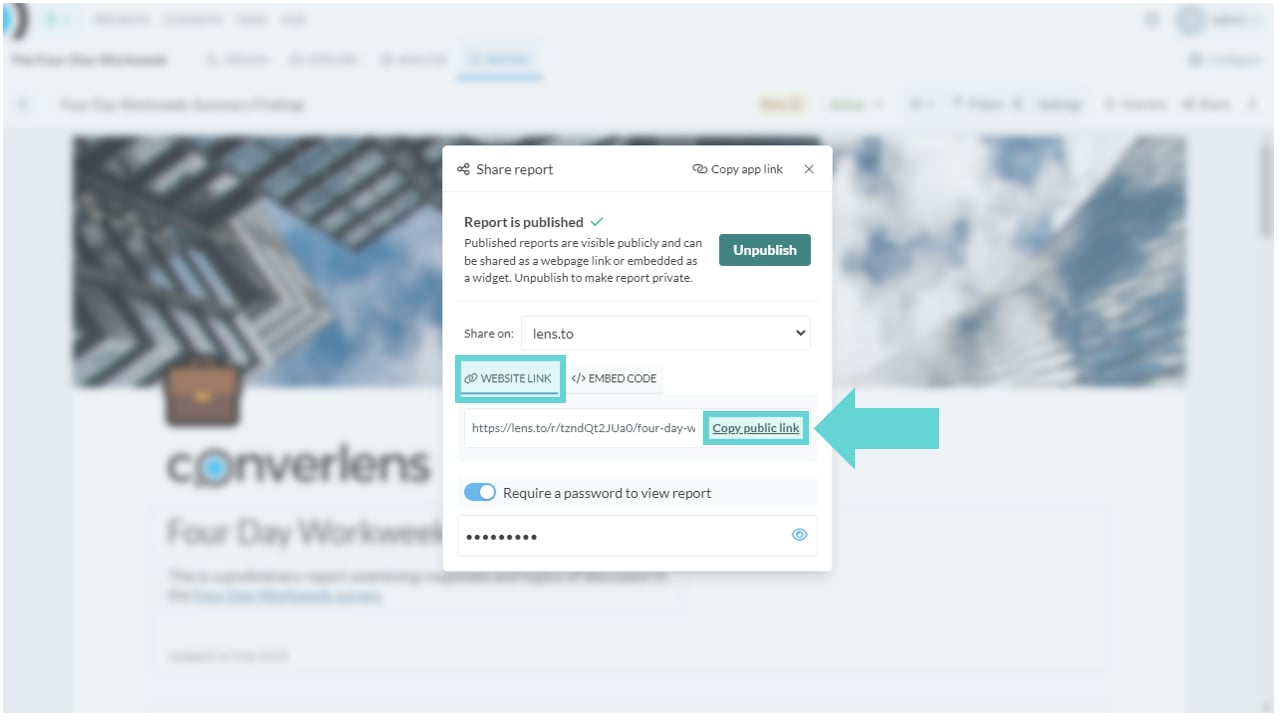
Website link (Share your report publicly)
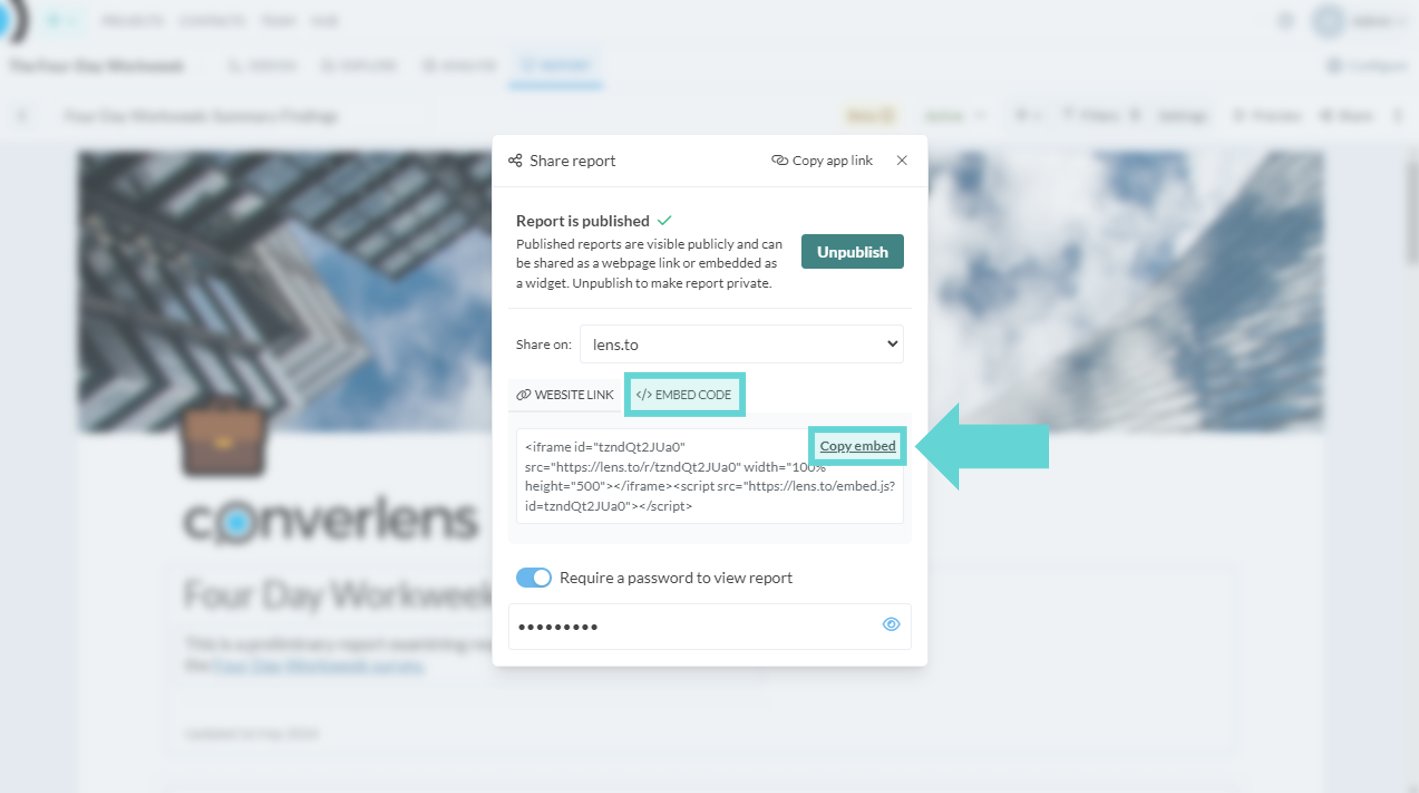
Embed code
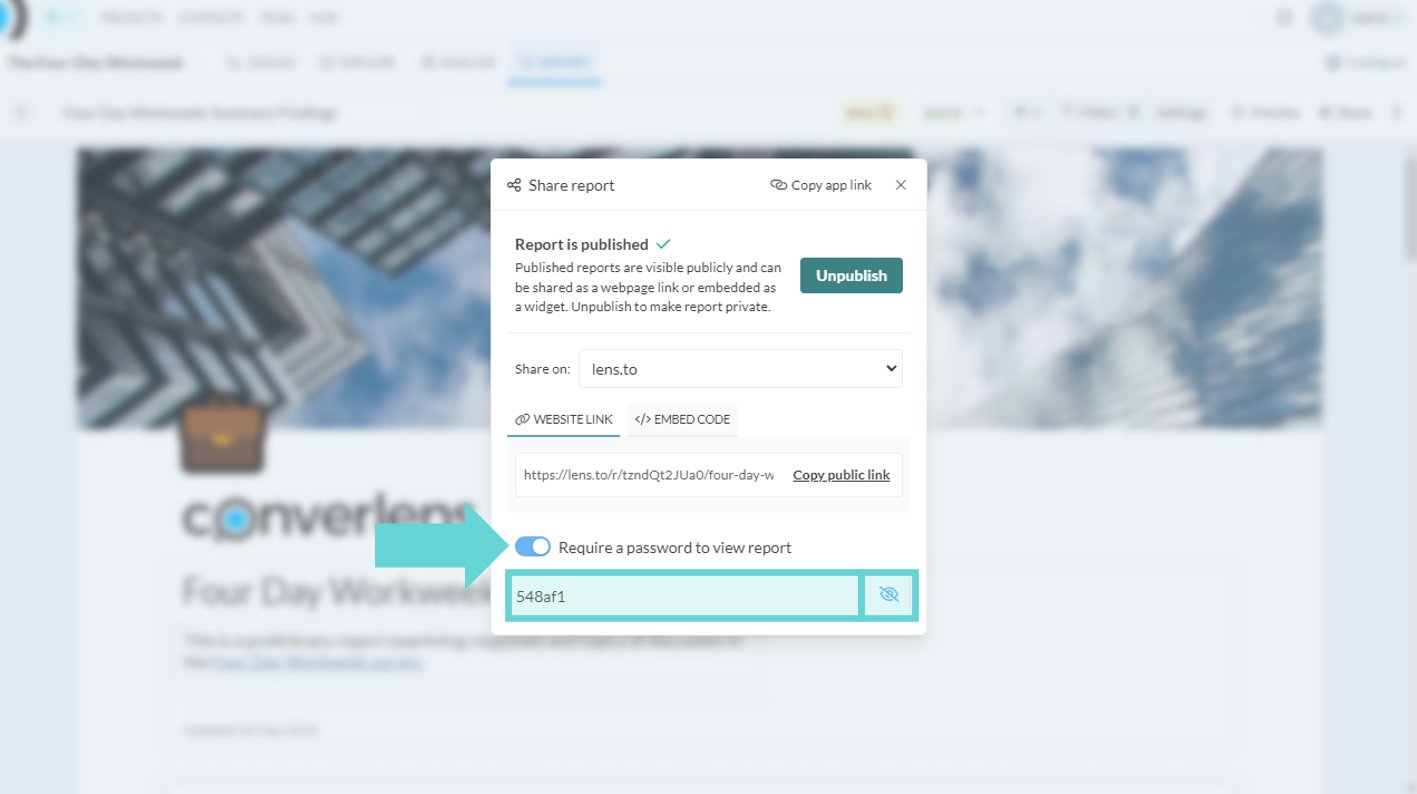
Password:
Unpublish report
To unpublish a published report and remove public access open the publish menu by clicking Share in the right hand corner of the Reports toolbar. If the Share menu is already open (you’ve just published the report) navigate to the next step. The confirmation message in the Share menu will read “Report is published ✔”. Click the teal Unpublish button next to this confirmation to Unpublish the report. A confirmation message will display in the bottom right hand corner of the Reports Builder window.