Report Menu Arrow
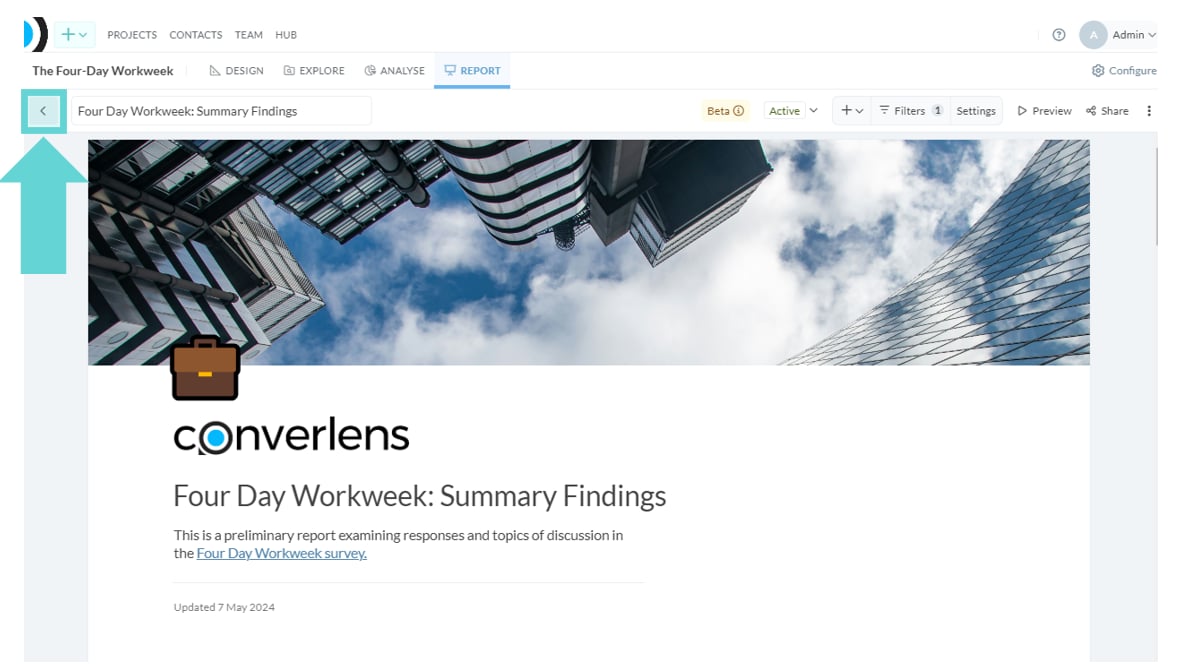
To navigate back to the Reports Menu click the< arrow button.
Report Title
Type directly into the textbox in the Toolbar to edit the report title. This will also show in the report title block of the report builder. See Creating Reports for more detail.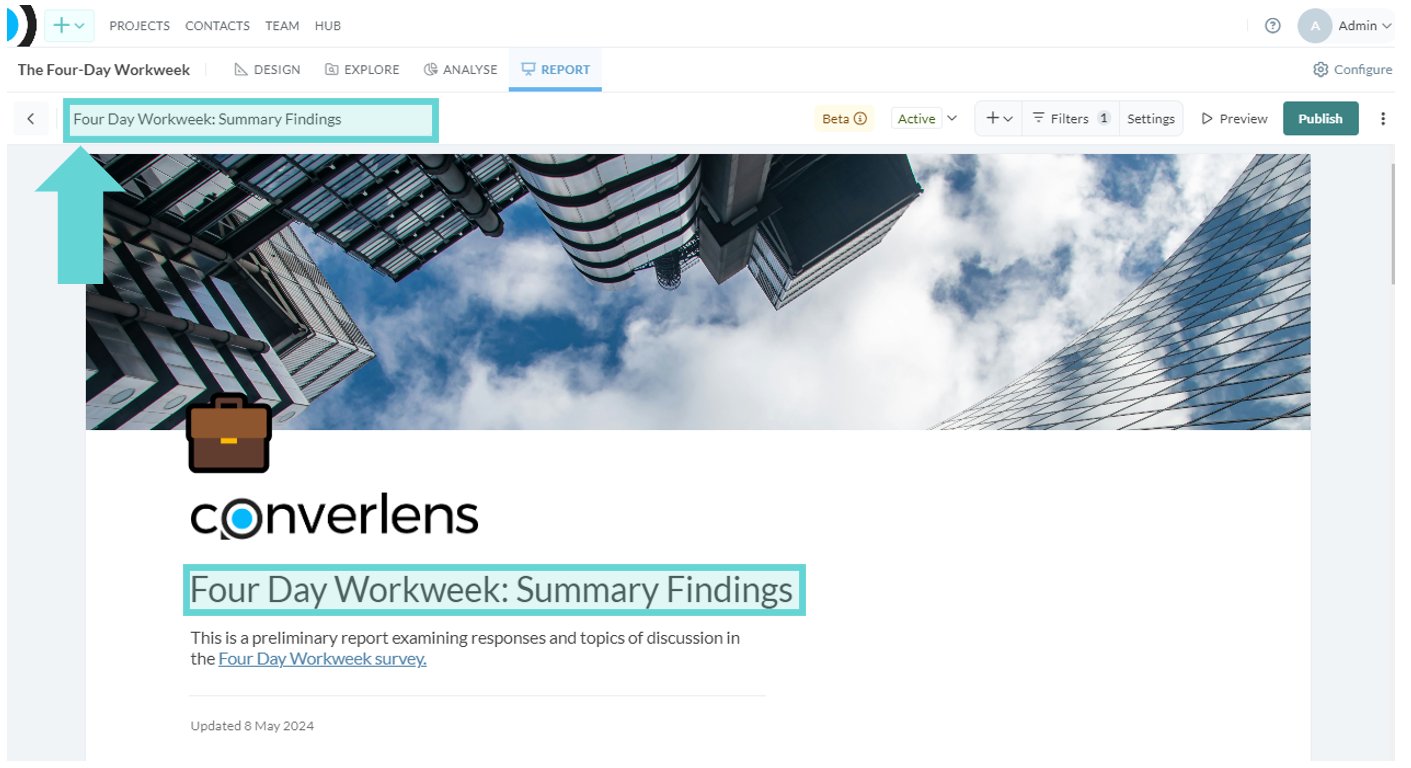
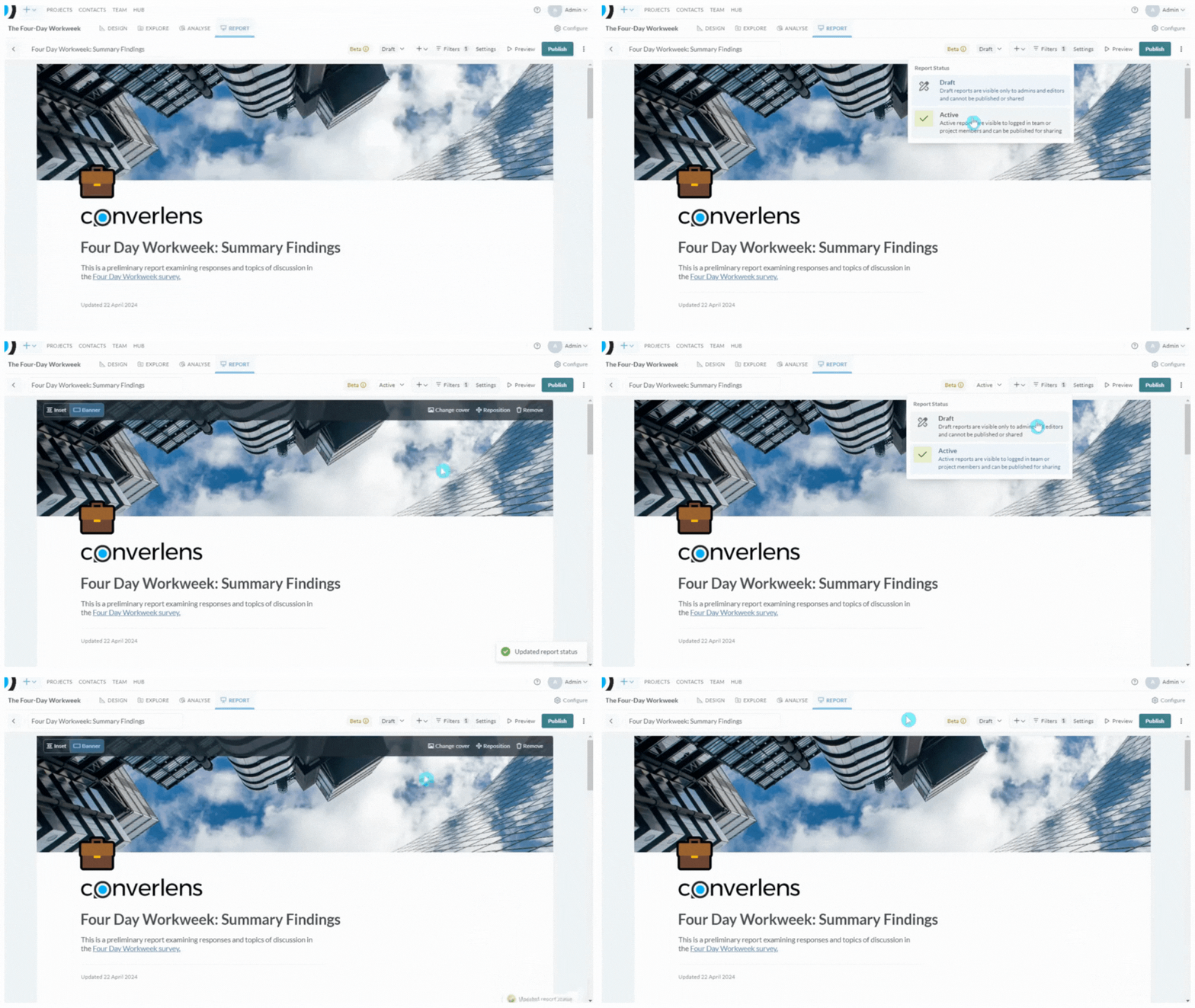
Report Status (Active/Draft)
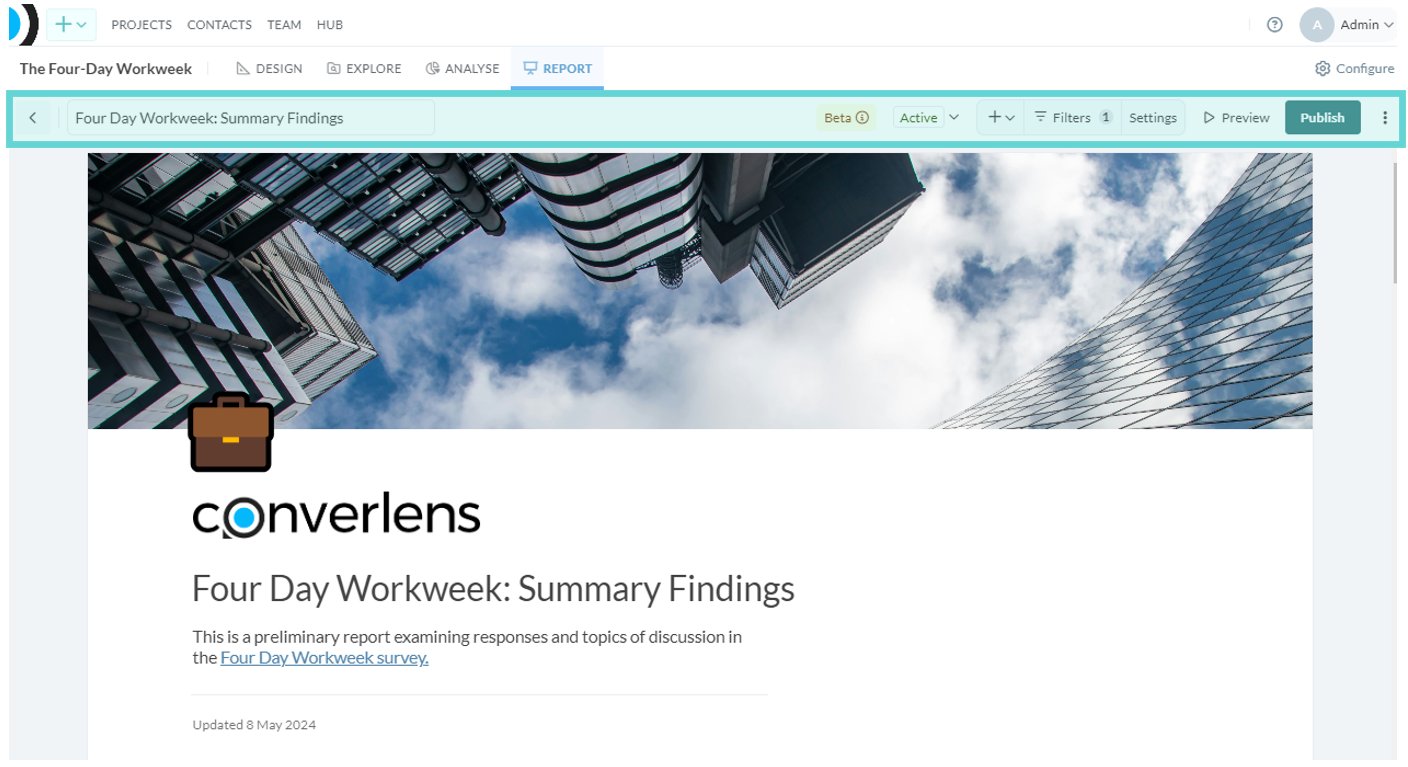
Reports have two statuses:- Draft: Visible only to admins and editors. Cannot be published or shared.
- Active: Visible to logged in team or project members and can be published.
Report Widget Quick Add
Click on the + button to quickly add a widget into your report. Clicking on the button will open a dropdown menu. Select the widget you want to add to your report by clicking on it. For more information about Report Widgets see Report Widgets.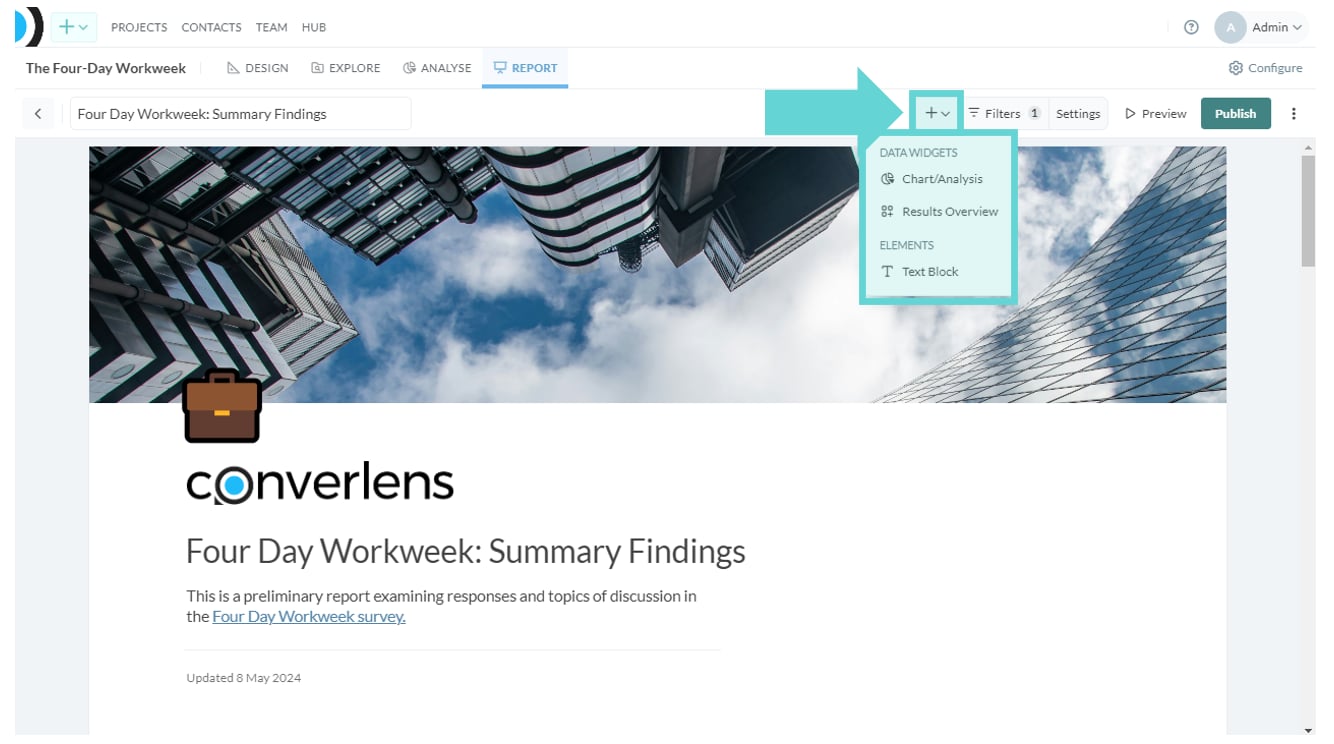
Filters
View, add and edit report filters by clicking the Filters button.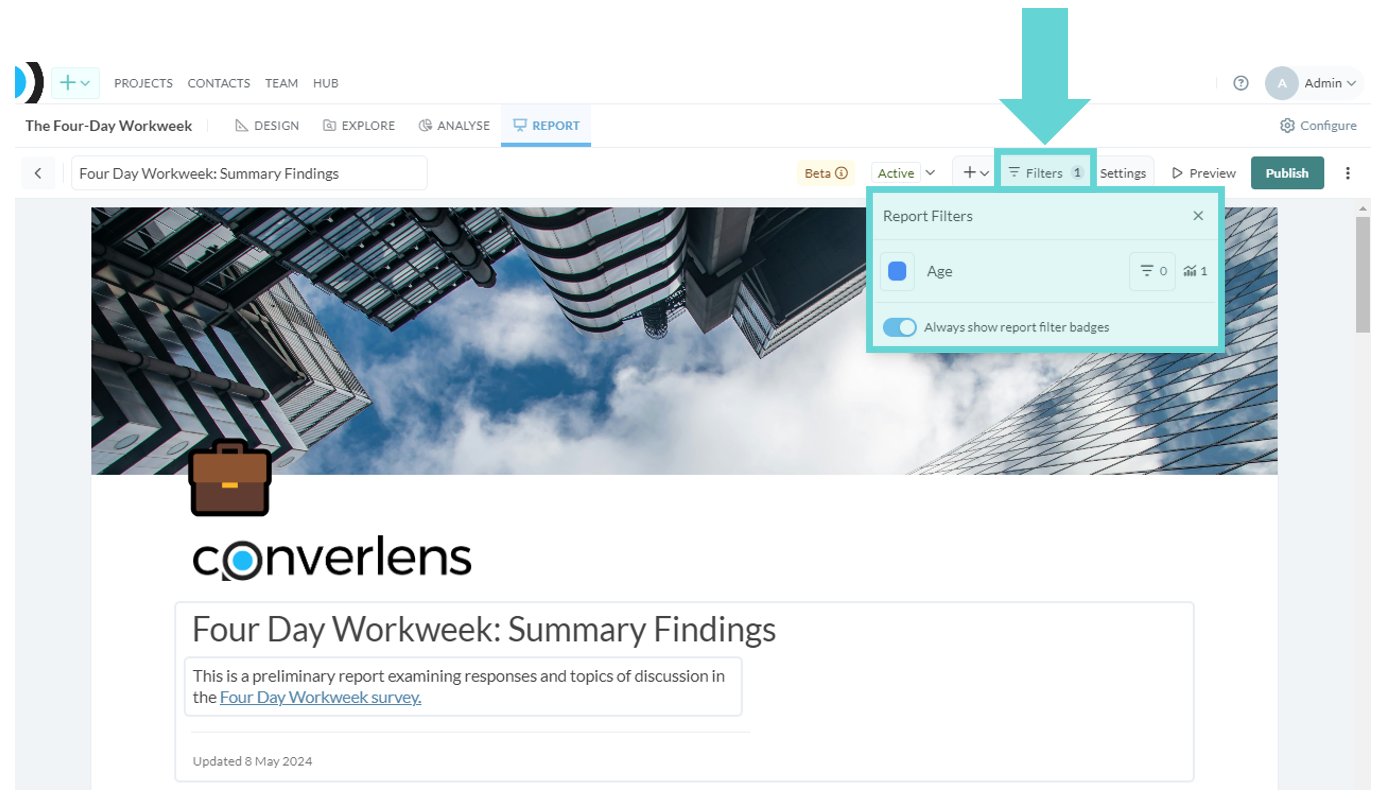
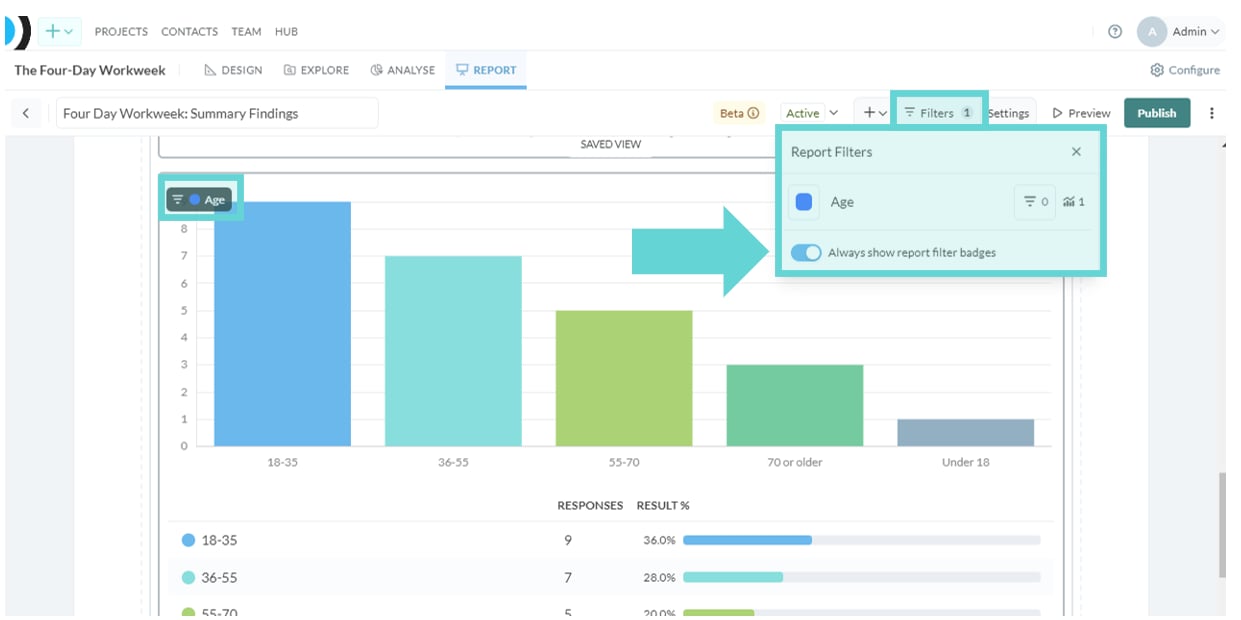
- Always show report filter badges: Toggle on/off to display the filter badge over all charts and widgets within that filter.
Settings
Edit the layout of the Report Builder by clicking on the Settings button.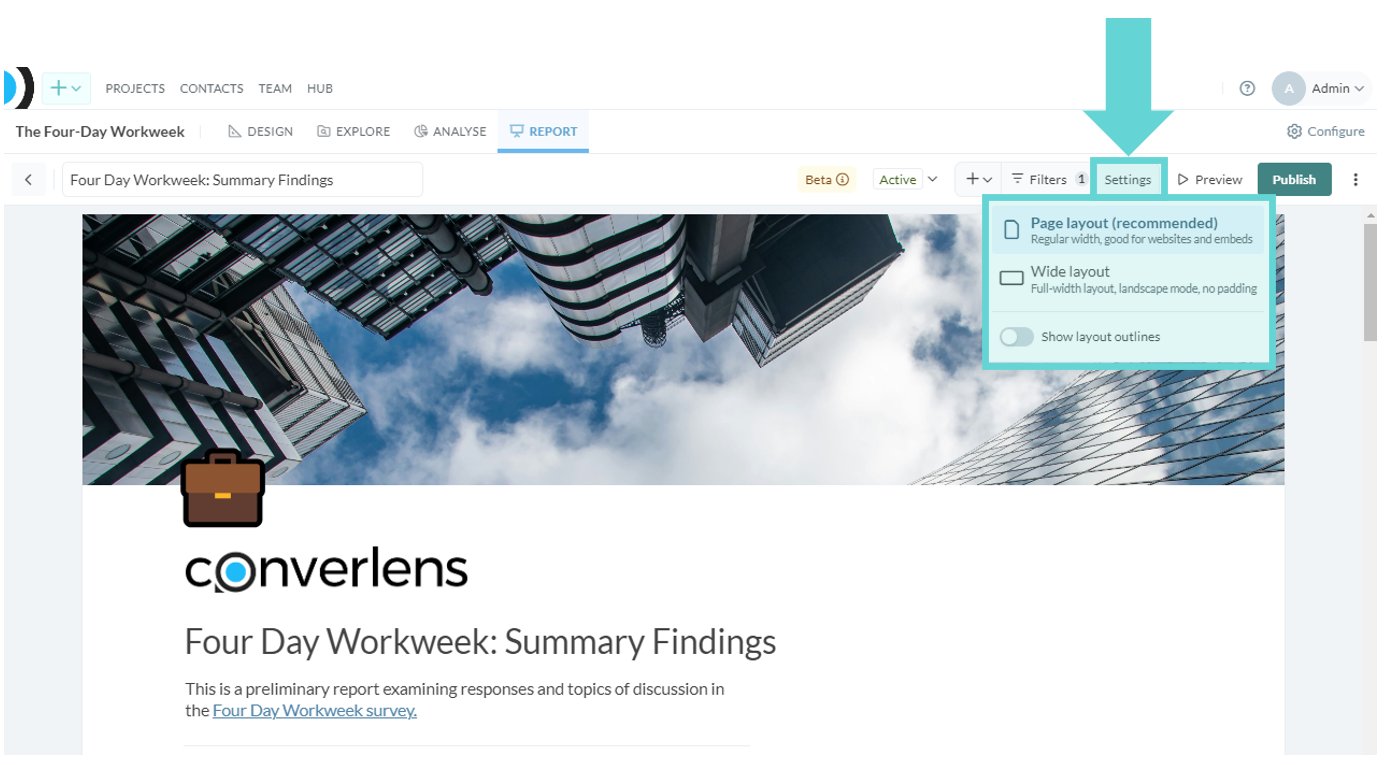
- Page layout: Change the page layout to regular width, good for websites and embeds.
- Wide layout: Change the layout to a full-width landscape layout with no padding.
- Show layout outlines: Toggle on/off to show outlines on report widget blocks.
Report Preview
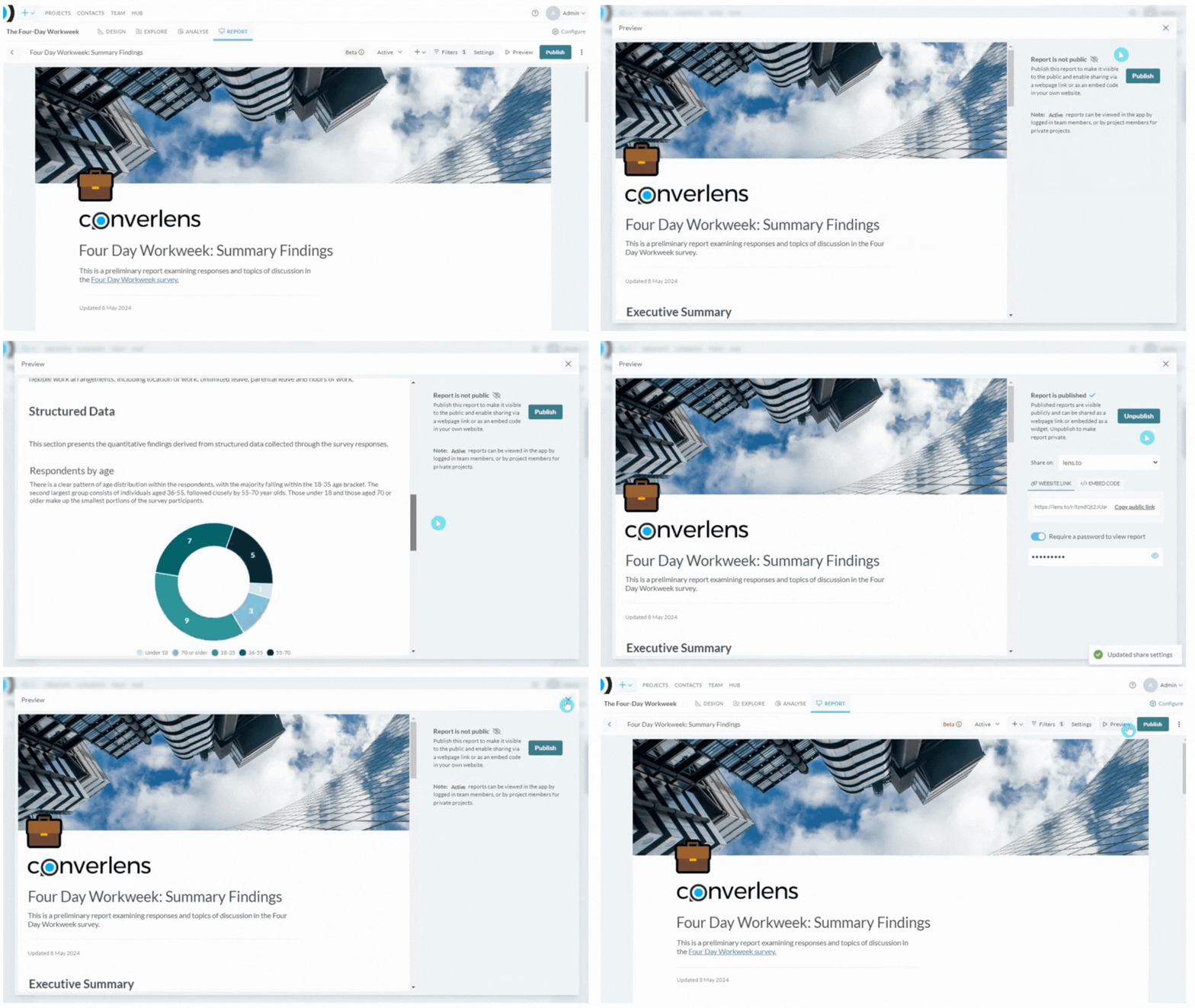
Publish
To publish your report click on the Publish button.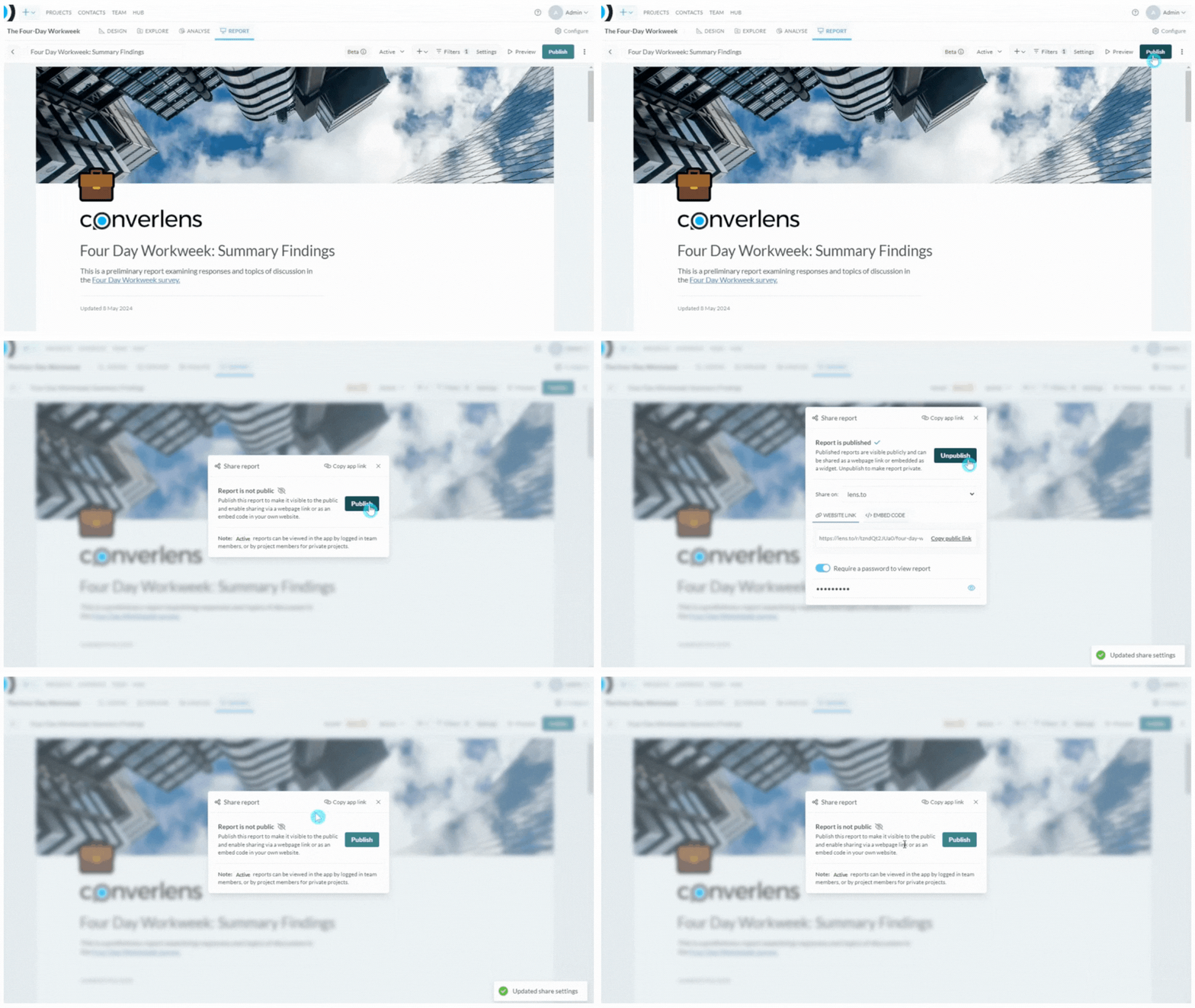
Kebab Menu (Additional Settings)
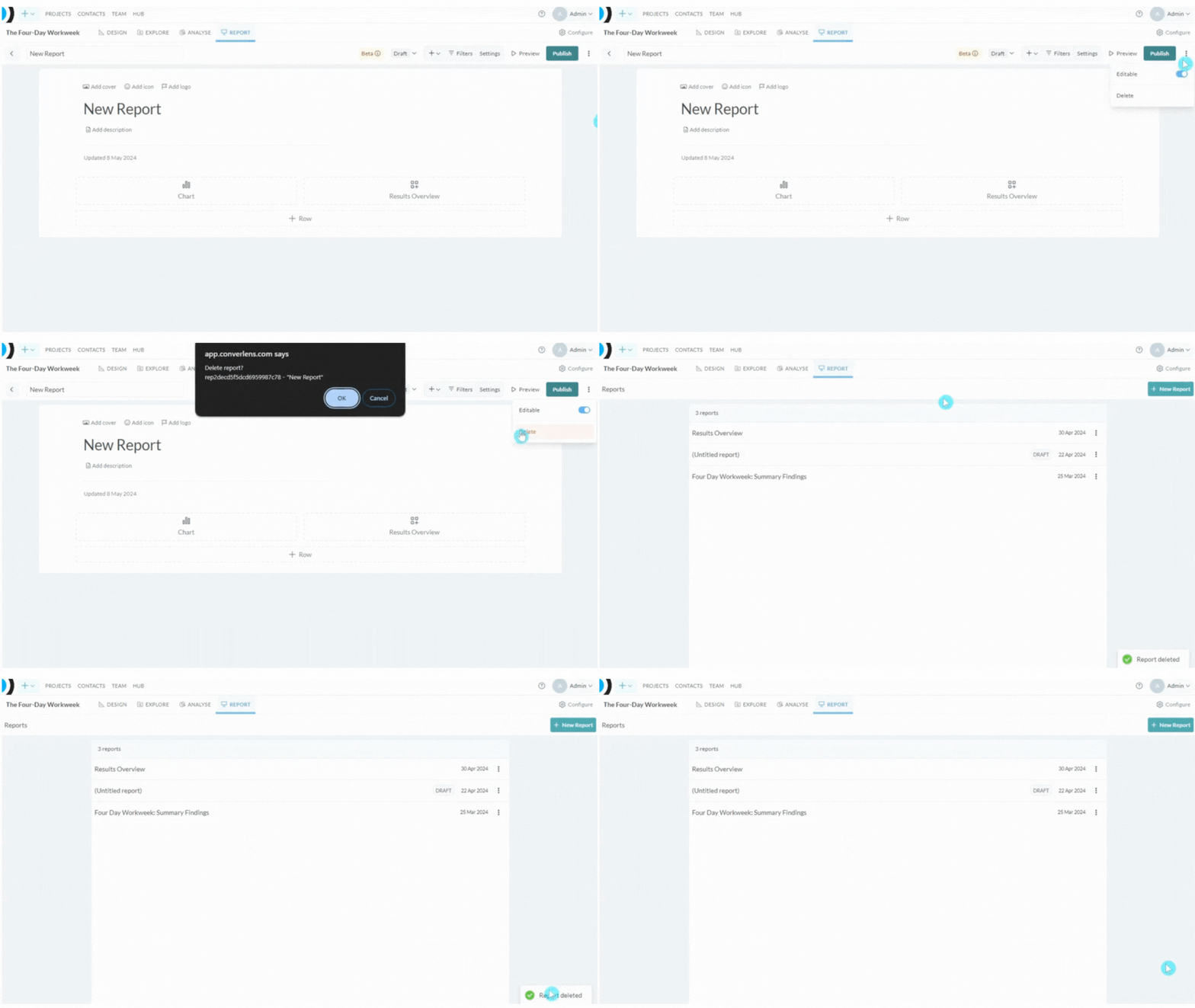
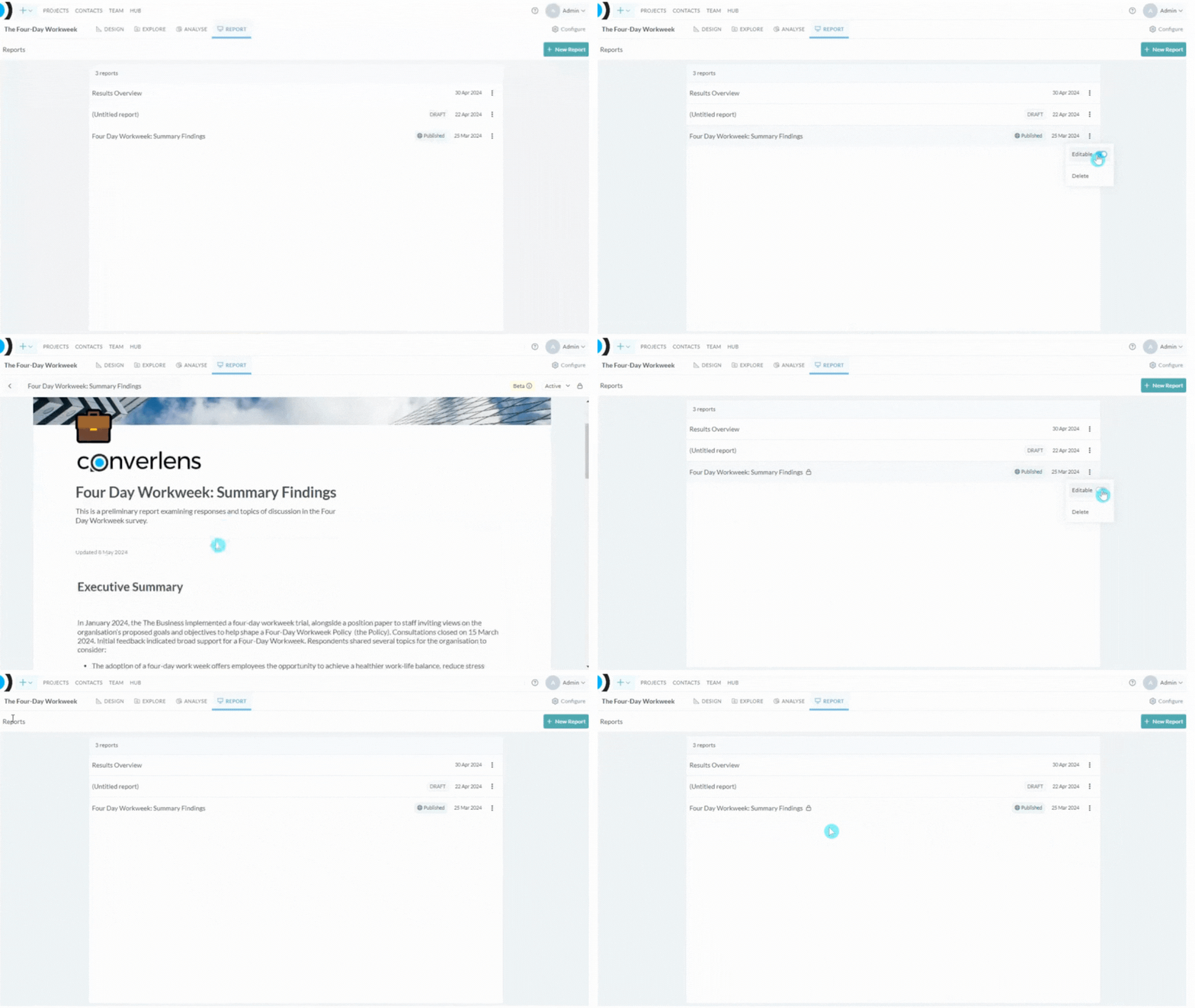
Click on the kebab menu (3 vertical dots) for additional settings. A dropdown menu will appear where you can toggle whether the report is Editable (locked/unlocked), duplicate the report, or delete the report.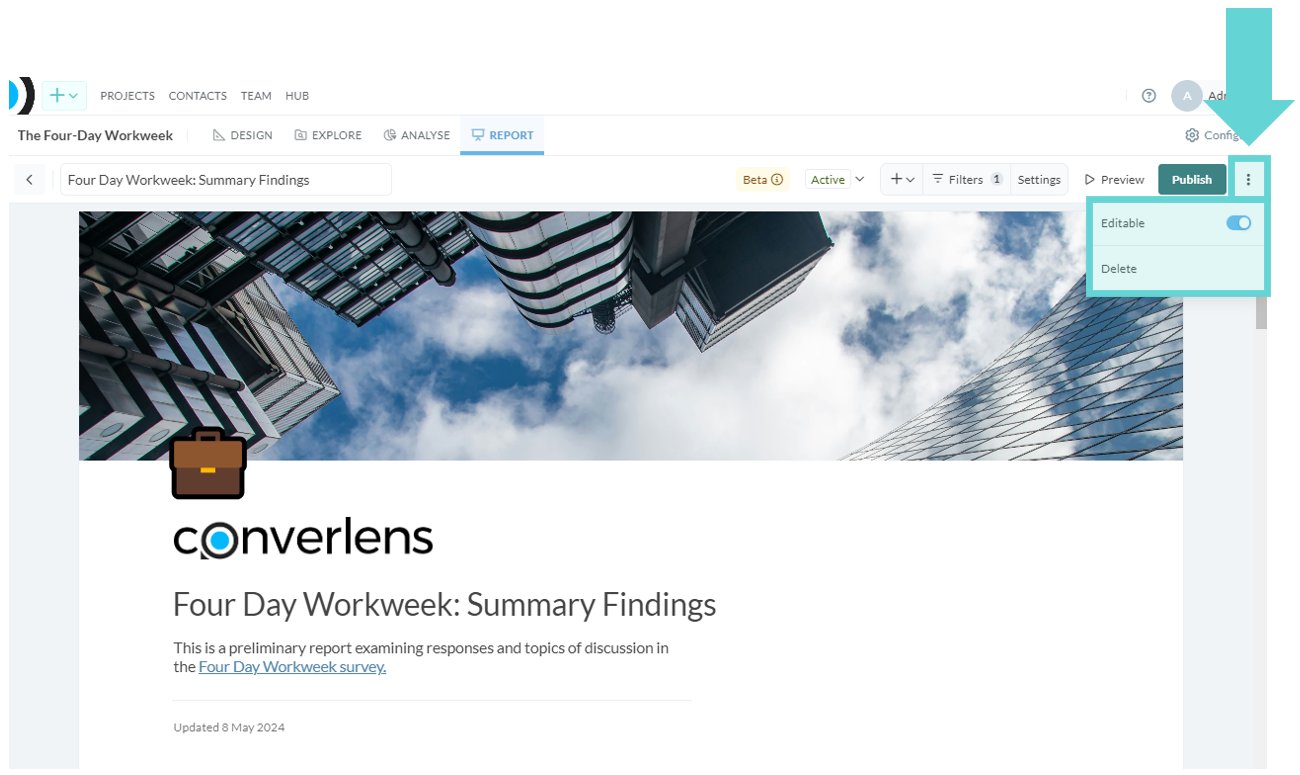
Editable
Delete
To delete a report, click the kebab menu (3 vertical dots). A dropdown menu will appear. Click Delete to delete the report. A confirmation pop up will show. Click OK and the report will be deleted.