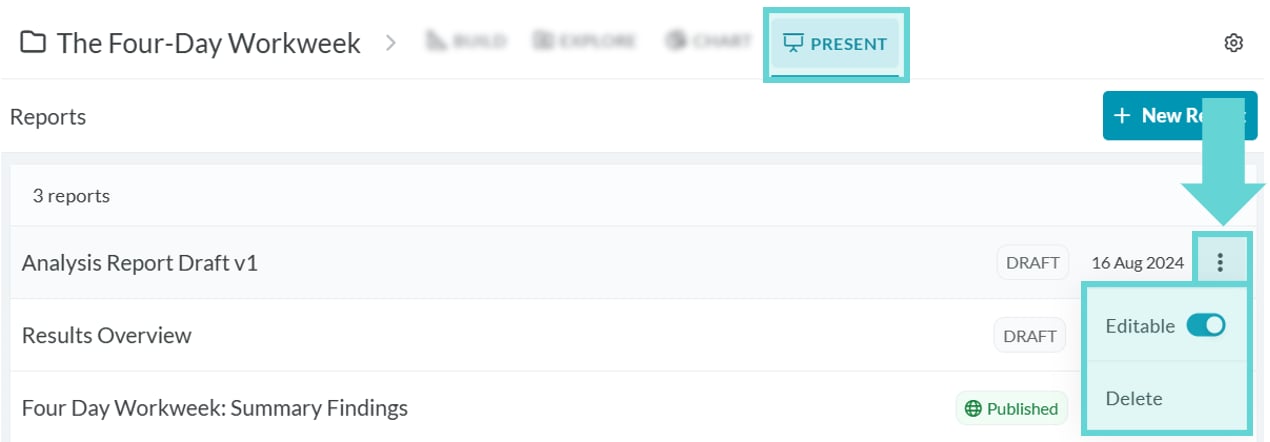
Where to find the Present (reports) Menu
To navigate to the reports menu, click on the Present tab from the Project Navigation Bar. If you are in the Present Composer (creating a report) and need to navigate back to the Present Menu, click the back arrow from the toolbar.Report List
The Present menu will show a list of all the reports created for the Project you are working in. A count of reports created is added to the top of the list. Each report Title will display, as well as the date the report was created (with the most recent report on top of the list). If the report has been marked as Draft or Published a report status will show. Next to the date is a kebab menu (3 vertical dots) that has additional options to lock or delete the report.Open a report
To open a report, click on the report title. This will open the Present Composer where you can edit, share and publish the report. To open the public view of a published report, you will need the public link. See Sharing and Publishing.Lock/Unlock a report
To lock a report so no further edits can be made, click the kebab menu (3 vertical dots) of that report title from the Present Menu. A dropdown menu will appear. The Editable option slider will be on (blue) for the report to be edited. Opening Present Composer will enable a user to make changes to the report. To lock a report, click on the slider to turn off Editing (grey). A lock icon will appear next to the report title in the menu. Opening Present Composer will mean a user cannot make any changes to the report. Only workspace/project admins can lock and unlock reports.Delete a report
To delete a report, click the kebab menu (3 vertical dots) of that report title from the Present Menu. A dropdown menu will appear. Click Delete to delete the report. A confirmation pop up will show. Click OK and the report will be deleted. There is no way to recover a deleted report. Take care when deleting reports.Add a New Report