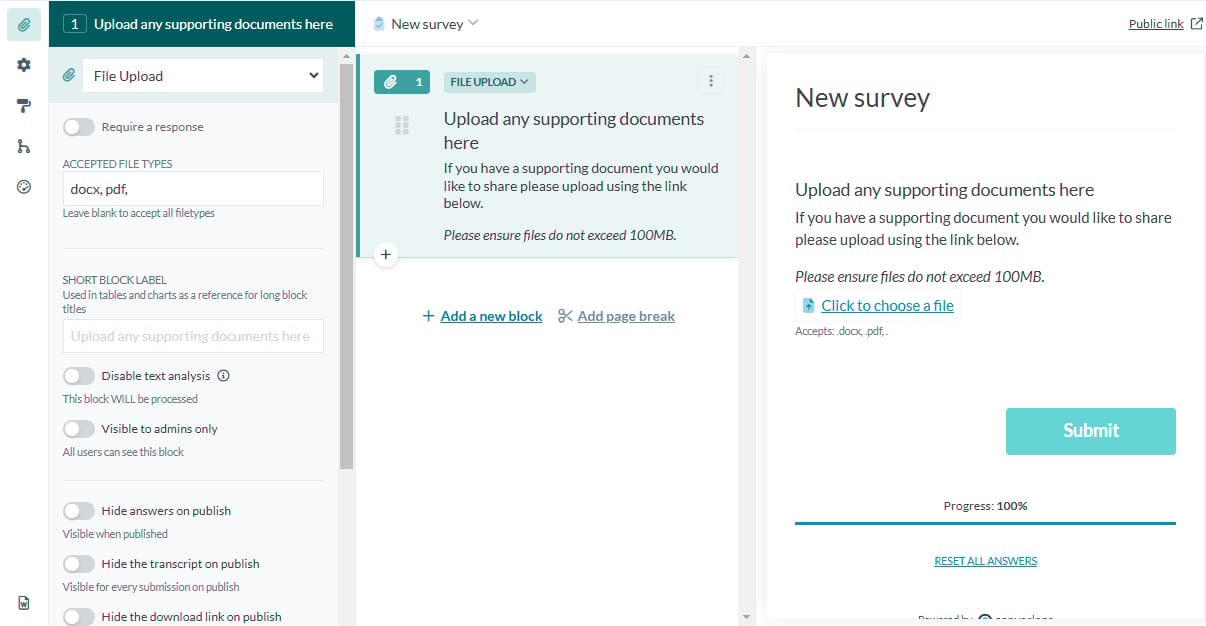
- Require a response: Toggle on/off to require respondents to submit an answer to this question block
- Accepted file types: Enter file types accepted in the survey. If the survey only accepts document files, include docx, pdf etc. If all file types are accepted leave blank.
- Short block label: Specify a concise name for the block title, used in tables and charts as a reference for long block titles to improve readability where space is limited.
- Disable Text analysis: Toggle on/off to enable/disable text analysis for the block
- Visible to admins only: Toggle on/off to make this block and its responses visible only to project admins.
- Hide answers on publish: Toggle on/off to hide/show uploaded files being visible in published responses.
- Hide the transcript on publish: Toggle on/off to hide/show any accompanying text-based transcript of uploaded files in published responses.
- Hide the download link on publish: Toggle on/off to disable/enable the option for others to download uploaded files from published responses.
- Title when published: Specify a custom title for this block in published responses (if you’d prefer something other than the default survey question title).