Publishing responses
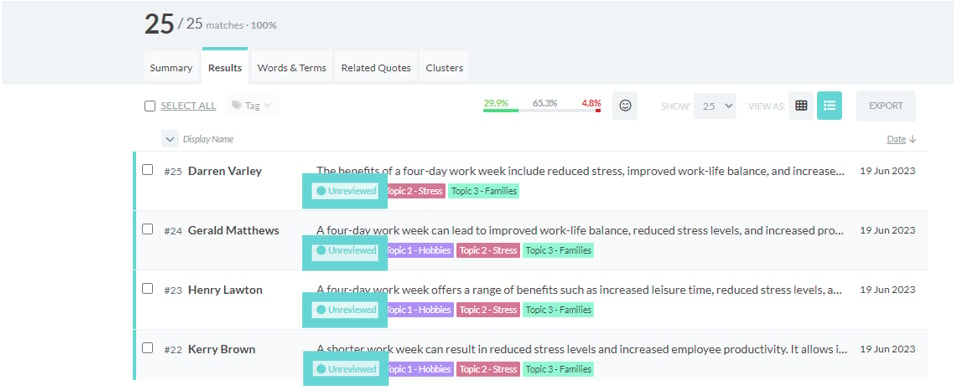
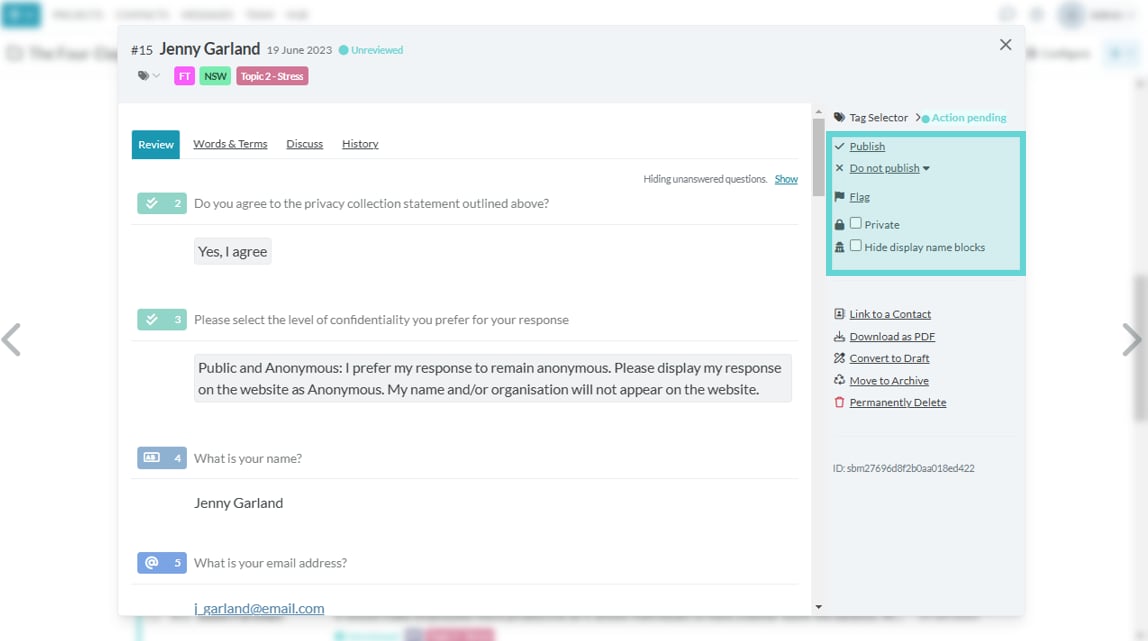
Follow this guide to efficiently publish survey responses in Converlens and customise the visibility and display settings to meet your specific needs. There are two parts to publishing responses: 1) Enabling response publishing in the Project Configure menu, and 2) selecting, editing, and publishing individual submissions. Tip: It’s best practice to ensure respondents have been made aware responses will be public and have given their consent to have their response published. This is usually done by creating a survey question asking the respondent if they want their reply to be private or public or anonymous. Once the ability to publish responses has been enabled (see Enable response publishing in Configure) new options are available when viewing responses. Initially, all responses will have a teal left side border applied next to their response ID number and a new status field appears under their response as well. By default all responses will be ‘Unreviewed’. Click on a response to interact with publishing options. Clicking on a response will open the Submission View window overlay. On the right hand panel, a list of publishing options are available:- All unpublished submissions will show as Unreviewed with Action Pending in the Submission View panel. There are two publishing choices:
- Publish
- Do not publish
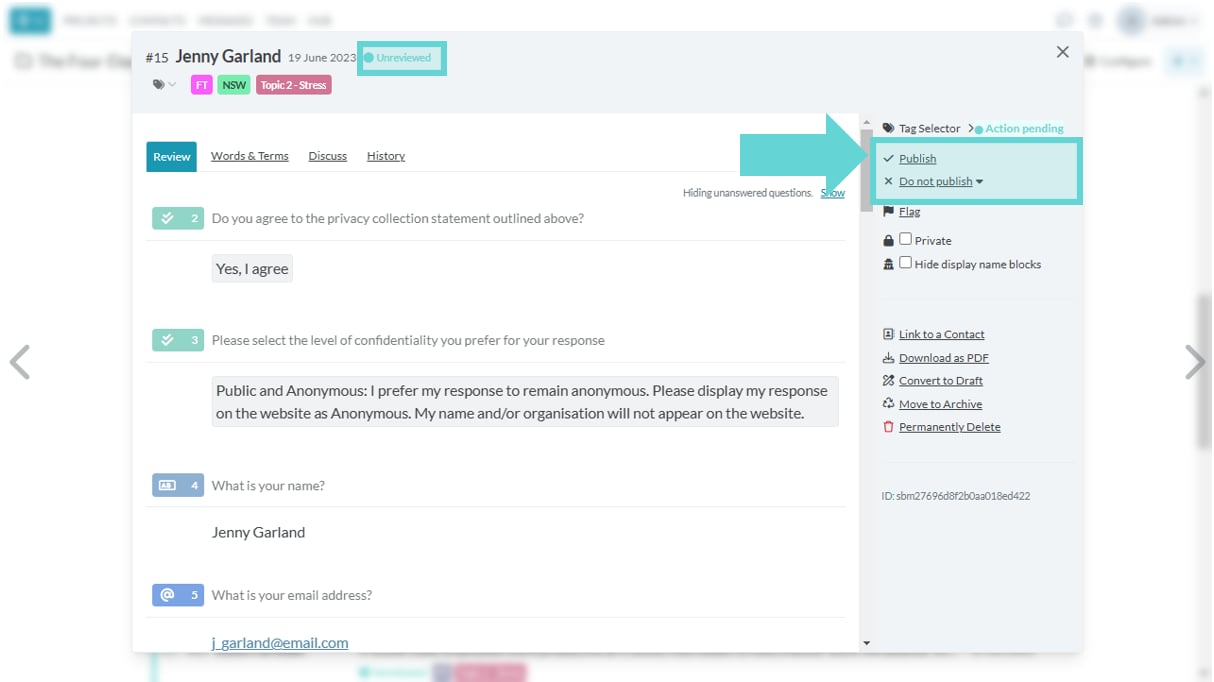
Publish option
Quick Guide - Publishing a Response
- Open Explore from the Project Navigation Bar.
- Select “Results” from the Navigation Tabs in Explore.
- Click on a response to open Submission Reader.
- In the right-hand panel, you will see a label “Action pending”.
- To publish the response, click the “Publish” button. The response will be published immediately.
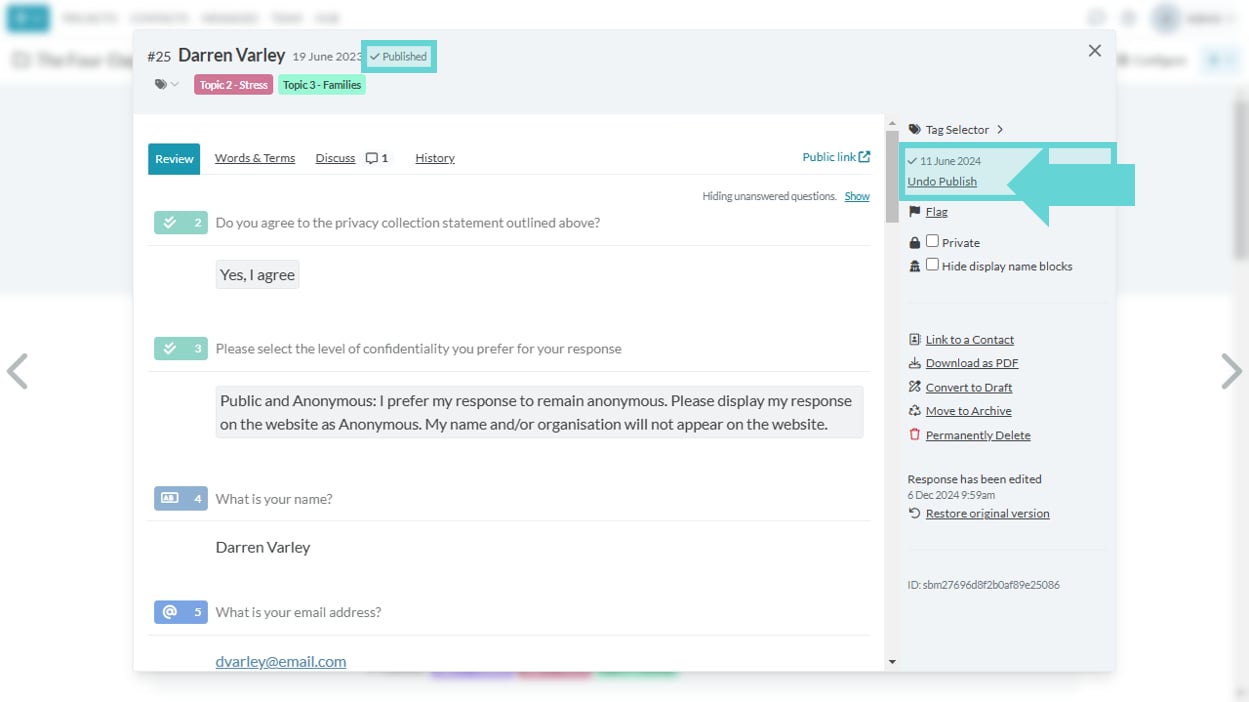
- To unpublish, click “Undo publish” in the Submission Reader actions panel.
Publish
To publish a submission, click “Publish” in the right-hand panel of the Submission Reader’s publishing settings. This action will make the submission public.View published submission
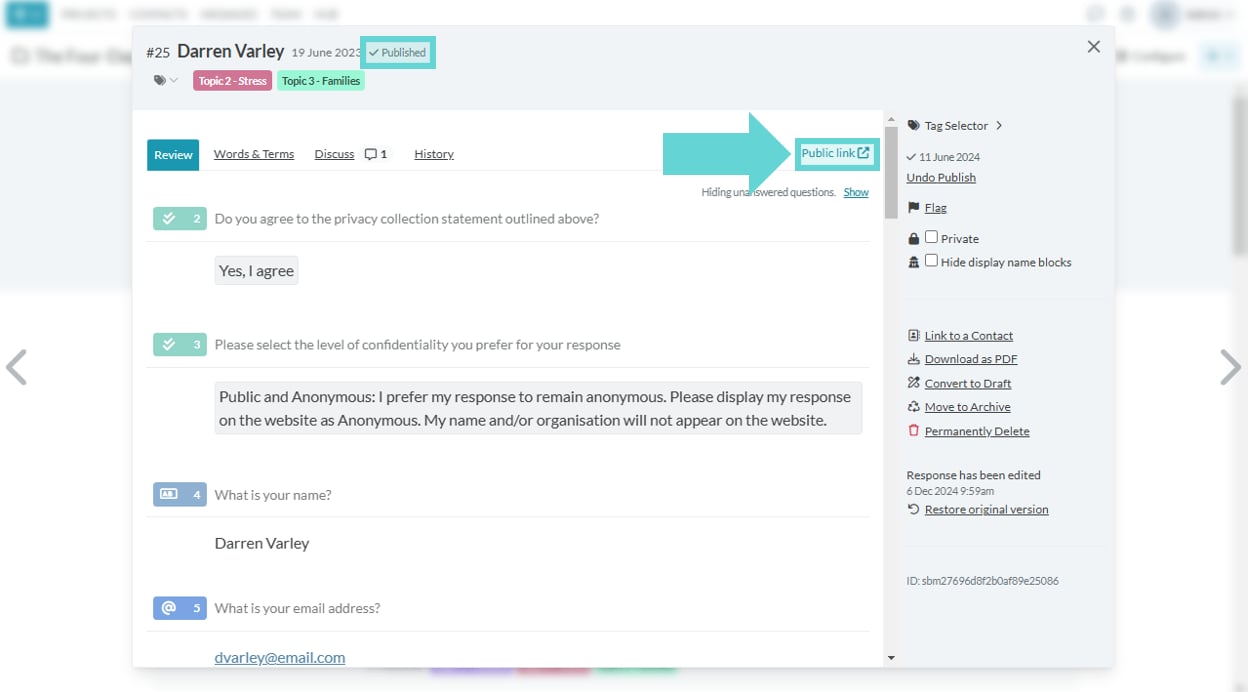
A public link icon will then appear in the Submission View. Click this link to see the published submission as it will appear to the public.Unpublish submission
To unpublish a submission, click “Undo Publish” in the right hand panel of Submission Reader publishing settings. This will immediately unpublish the submission and remove it from the public list of submissions.Hide answers on publish
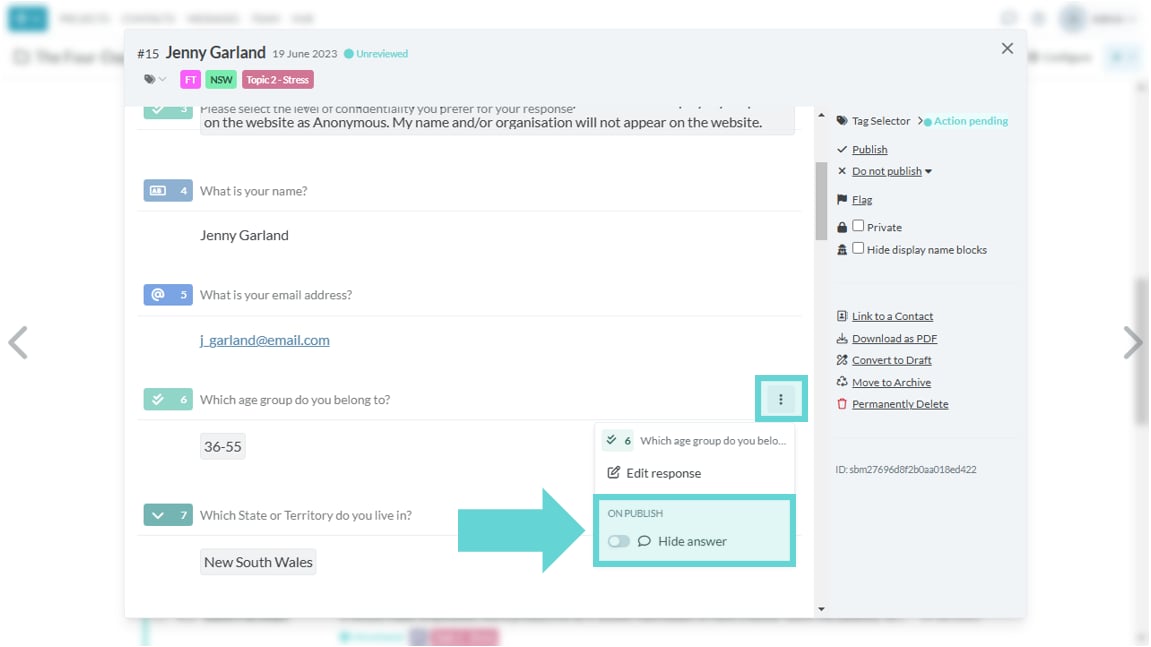
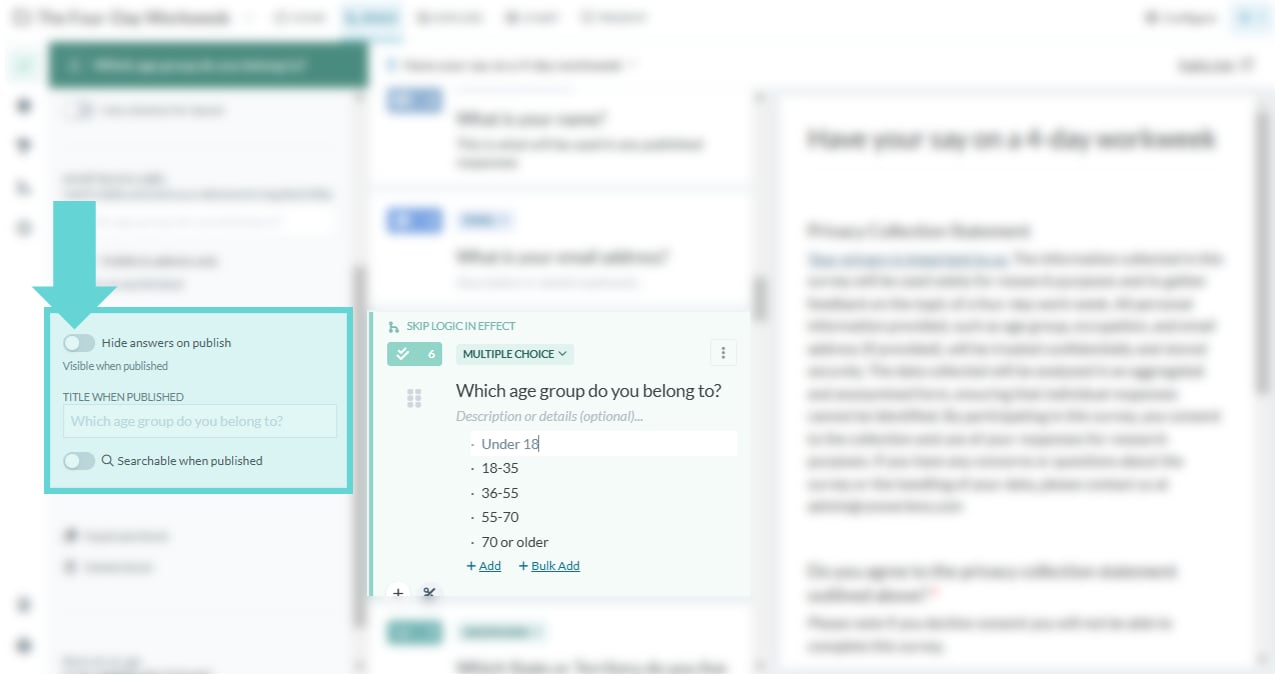
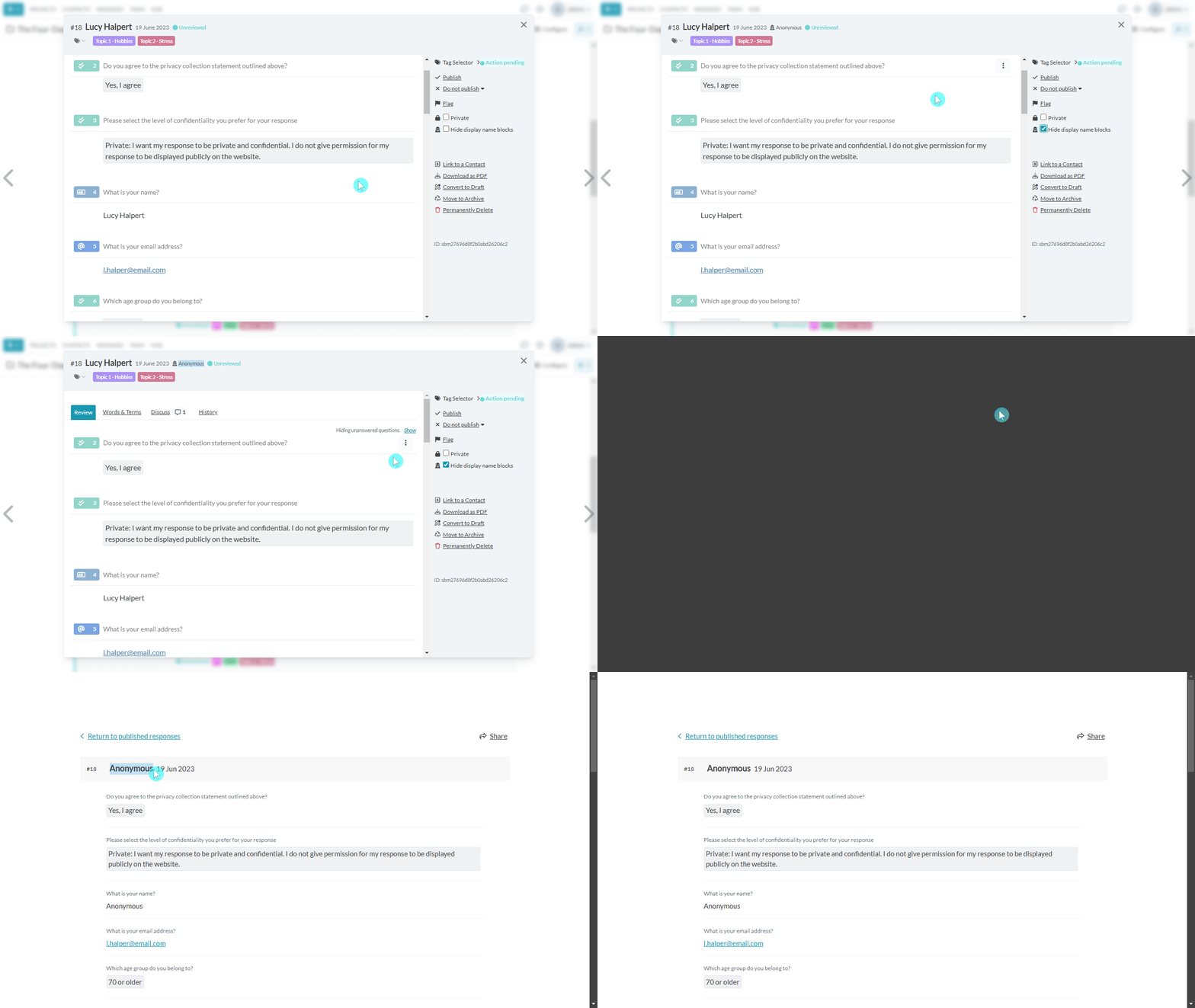
Sometimes you may need to hide a respondent’s answer to a survey question if you are publishing responses. This depends on your survey design, but often includes blocks that contain identifying information (age group, occupation, email address, postcode etc). From the Explore tab, open Results. Click on the submission you want to publish to open Submission Reader>Submission View. Hover over the question text for each block to display the kebab menu on the right hand side which offers additional functions. Click on the kebab menu to display additional options for that block. Toggle “On Publish, Hide Answer” on/off to hide/show this answer from the published public view of the result. Alternatively, to hide all answers to a particular survey question (block), use the “Hide answers on publish” toggle in the Build section of the survey. See Build for further information.Redact Mode
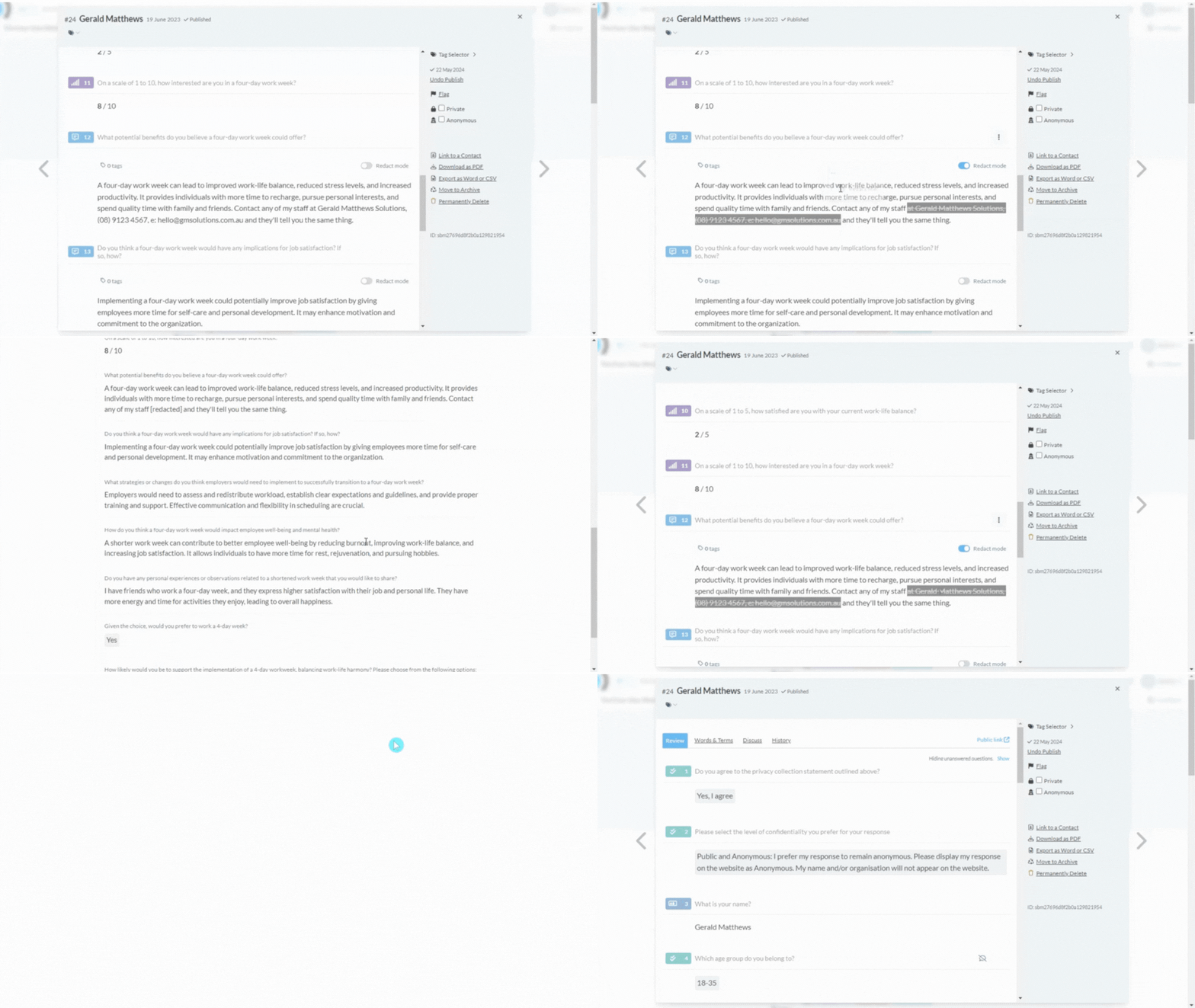
Available for text block types (see Block Types and Functions), redact mode lets you redact text from the answer. When published, this text will show as [redacted]. From the Explore tab, open Results. Click on the submission you want to publish to open Submission Reader > Submission View. To redact text, toggle redact mode on for the block you want to edit. Highlight the text you want to redact and use the floating menu to toggle redact text on. Redactions are made immediately and will display in the public link straight away. To undo a redaction, click anywhere in the redacted text in Submission View, and toggle “redact text” off from the floating menu. Converlens will open a popup confirmation ensuring you want to remove the redaction. Click “OK” and the redaction will be removed.Do Not Publish
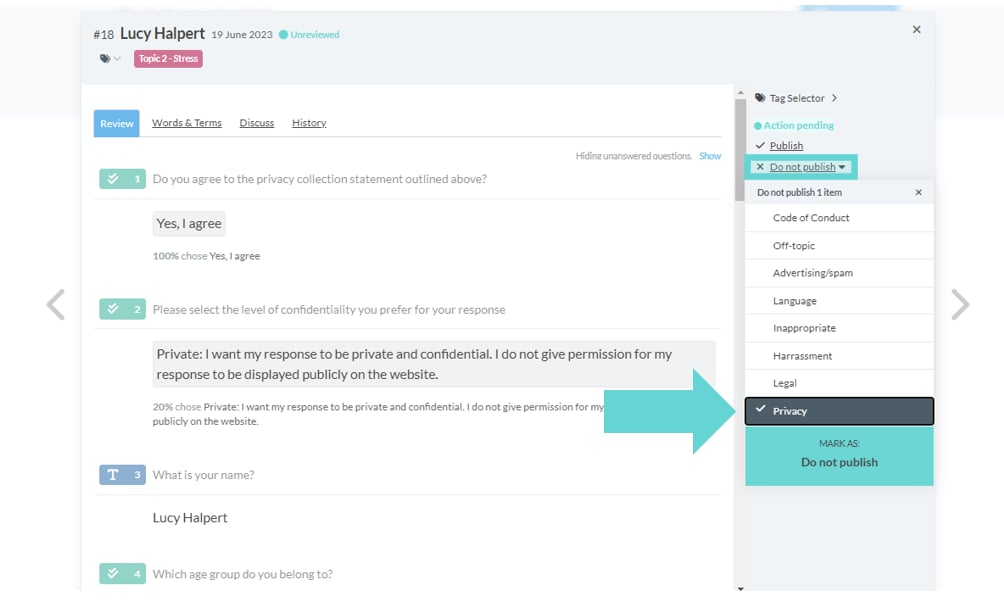
If a submission should not be published, click the ‘Do Not Publish’ option and a dropdown menu will appear. Select the appropriate reason as to why this submission shouldn’t be published. After selecting the reason, confirm the Do not publish action by clicking the Do not publish button at the bottom of the list to ensure that this submission will not be publicly available. Alternatively, if the submission is left as “Unreviewed” and no action is taken it will not appear on the survey website, but will retain the “Unreviewed” status.Hide display name blocks (Anonymous)