

How to access the survey post-closing date
Projects and surveys (data spaces) can be accessed anytime regardless of their current status (open or closed) if you are a project member:- Log in to your Converlens account
- Select the Project from the Projects list, or
- Enter the URL for the project
- app.converlens.com/yourworkspace/projectname/admin/explore
Completing the Survey for Offline or Late Responses
Make sure you’re logged into Converlens, as you’ll need access to the project’s backend to submit the response. Follow these steps to complete the survey on behalf of a respondent:1. Open the Build Tab
Go to the Build tab from the Project Bar:2. Select the Survey (Data Space)
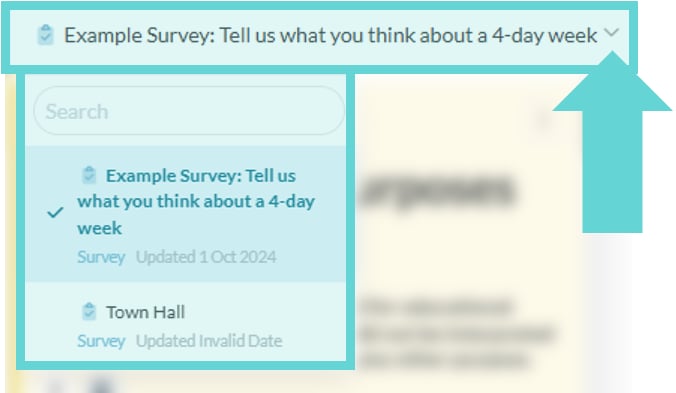
Click the dropdown to load the survey (data space) you want to complete. If the project only has one survey skip this step.3. Take the survey
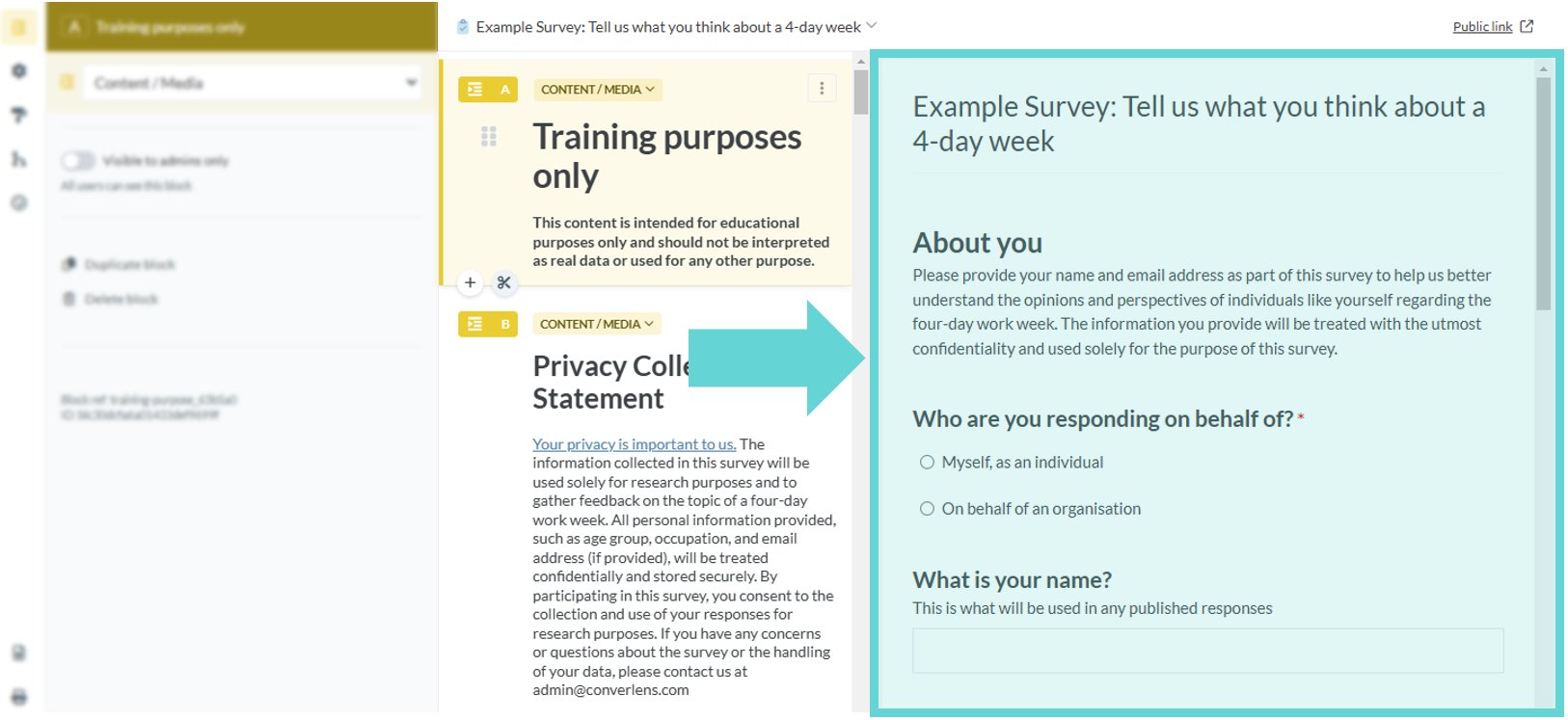
In the survey preview window on the Build view, click through each survey question and complete the responses on behalf of the user. Be sure to answer all required questions to progress through the survey. Tip: Ensure the survey is not in “Preview mode” in order for the submission to be sent and received as a result. Read more about Preview mode here.4. Submit the Survey
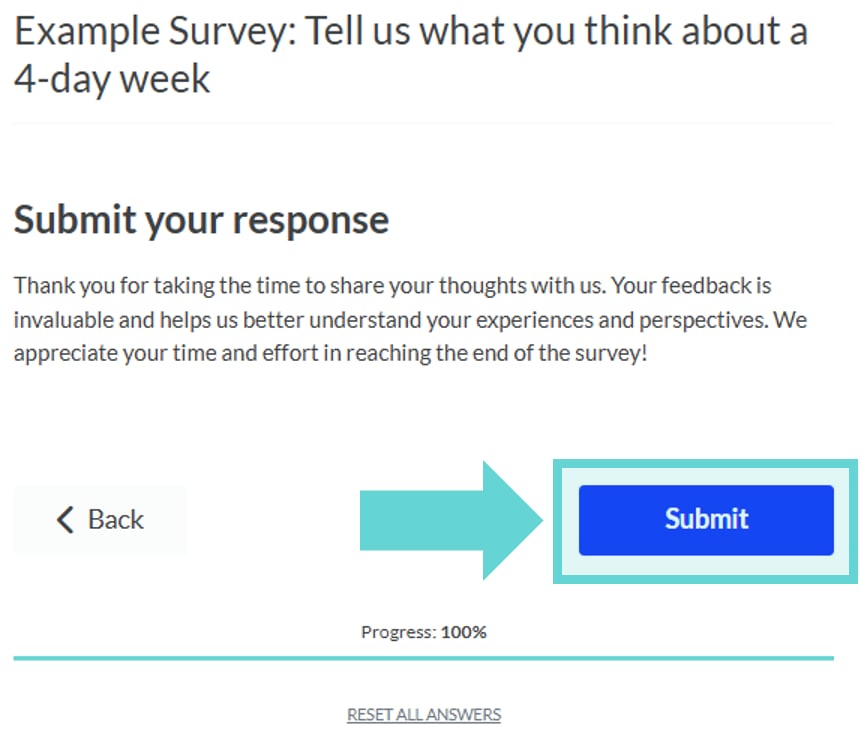
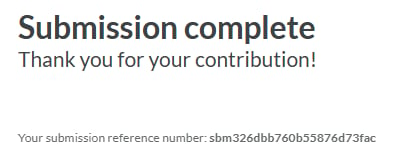
Once all questions are completed, navigate to the end of the survey and click Submit. The response will be submitted and you will be able to view it in the Explore tab list of Results.5. Edit If Needed
Don’t worry if you make a mistake! You can edit the response later using the Submission Reader in the Explore tab.File Uploads

- If the survey includes a File Upload block, you can upload any relevant files as part of the response following the steps above.
- If the survey does not include a File Upload block, you can still manually complete the survey via the Build tab as described above.