About Theme
Theme is a tool within Converlens that helps you tag your qualitative (text) data by identifying key concepts or topics across responses. It simplifies the process of finding patterns in large text datasets by applying Tags — which you can think of as digital post-it notes that describe what the response contains. Tags might reflect topics (e.g. Horse and Rider Safety), categories (e.g. Infrastructure, Feedback on Process), or even internal workflow cues (e.g. Use for Quote, Follow Up). Once applied, tags appear in the Explore tab and can be used for filtering, analysis, charting, or exporting your data. Theme is simply one way to generate and apply topic tags, and it’s especially helpful when you’re working with large volumes of qualitative data. Behind the scenes, Theme uses a semantic matching model. This means it doesn’t just look for exact words, it looks for meaning. You don’t need to list every possible keyword; Theme understands the concept and finds responses that align with it.Where to find Theme
You can access the Theme tool from within the Explore tab of your project, if available for your workspace. To get started:- Navigate to the Explore tab in the project bar
- Click the Theme button at the top of the Explore screen.
How to use Theme
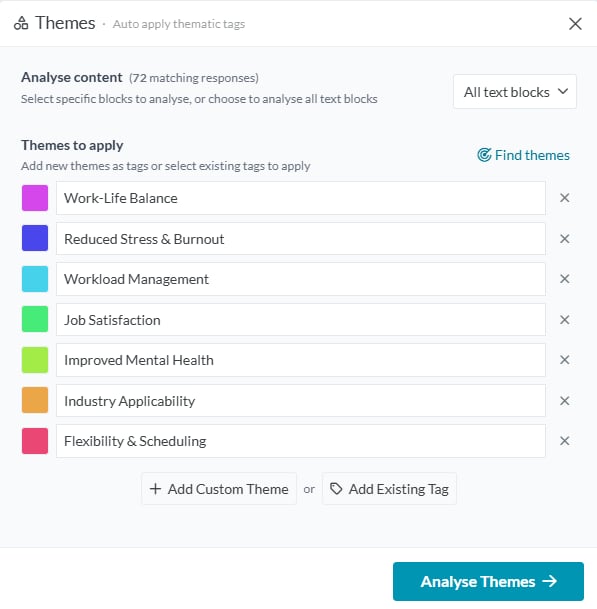
The Theme tool allows you to tag your dataset using concept matching (Find Themes), your own custom themes, or tags that already exist in your project. Theme works in three ways:- Find Themes (Auto-Theme): Uses AI to scan your dataset and suggest themes based on conceptual similarity. For example, a theme like Horse and Rider Safety might pick up phrases like “nails on bridle trail are dangerous”, even if the word “safety” isn’t explicitly mentioned.
- Add Custom Theme: Add your own theme ideas to search for specific topics or concepts already in mind.
- Add Existing Tag: Re-use tags you or your team have already created to search your dataset for additional matches.
1. Choose what to analyse
Before applying themes, you’ll need to select which parts of your data to include.- By default, Theme will analyse all text blocks in your survey (including long-text questions and file upload transcripts).
- If you want to narrow your analysis, click the dropdown labelled “All Text Blocks” and choose the specific question(s) you’d like to apply themes to.
2. Choose your theme method
You have three options for applying themes to your selected data:Find Themes (Auto-Theme)
To use Auto-Theme:- Click Find Themes.
- Wait a few seconds while the tool processes your data (longer for large datasets).
- A list of suggested themes will appear. For each theme, you can:
- Edit the tag title by clicking into the text box
- Remove the tag by clicking the X icon
- Change the tag colour by clicking the colour box
Add Custom Theme
Use this option when you already know the topics you want to look for.- Click Add Custom Theme
- Type in your theme or concept (e.g. “Parking availability”)
- (Optional) Click the colour box to choose a colour for the tag.
- Repeat for as many themes as you want to add
Add Existing Tag
If you or your team have already created tags (from earlier analysis or other tools), you can search for those themes again using the Theme tool.- Click Add Existing Tag
- Use the dropdown to select one or more existing tags.
- The selected tags will appear in your “Themes to apply” list
- Click Analyse Themes → to apply them
3. Review and apply
Once your themes (tags) are listed in the “Themes to apply” panel, before applying review your list of themes:- To edit a tag title: Click into the text field and update the wording.
- To remove a tag: Click the X icon next to the theme.
- To change a tag’s colour: Click the coloured box and choose a new colour.
Notes and Best Practices
Existing tags in Auto-Theme
If tags already exist in your project, Auto-Theme may surface them as suggested themes. You’ll see a tag icon next to these items.To change their name, go to the Tag Configure menu (see Tags Guide).
Tag tracking
Since tags are the end result of any Theme action, we recommend using prefixes or suffixes (e.g. “(Auto)” or “Q1:”) to keep track of where each tag came from, especially when combining team inputs or revisiting themes later.Learn more about tags
Review our Tags Guide to understand how tags work across your workspace.Inductive vs Deductive Tagging
Theme can support both inductive and deductive approaches to analysis:- Inductive (Find Themes): Let the data suggest the themes. This is sometimes called a bottom-up approach: ideal when you don’t know what to expect in your dataset.
- Deductive (Add Custom Theme): Use a list of pre-determined topics or categories and look for those ideas in the data. This top-down approach is often used when evaluating specific ideas, policies, or hypotheses.
Need help?