The Rows widget enables adding text based content to your report. They serve as a building block to add customisable content and widgets. Think of rows like paragraphs or “sections” of your report.

Add a row

To add a row, click the Text Block button at the bottom of the report builder or select Text Block from the toolbar add menu. Think of rows as your report sections. Rows screenshot: button at the bottom of the Reports Builder. Think of these as your report sections. Adding a row will add a tile to the report which can be edited in the Layout options. Add a text block to a row:
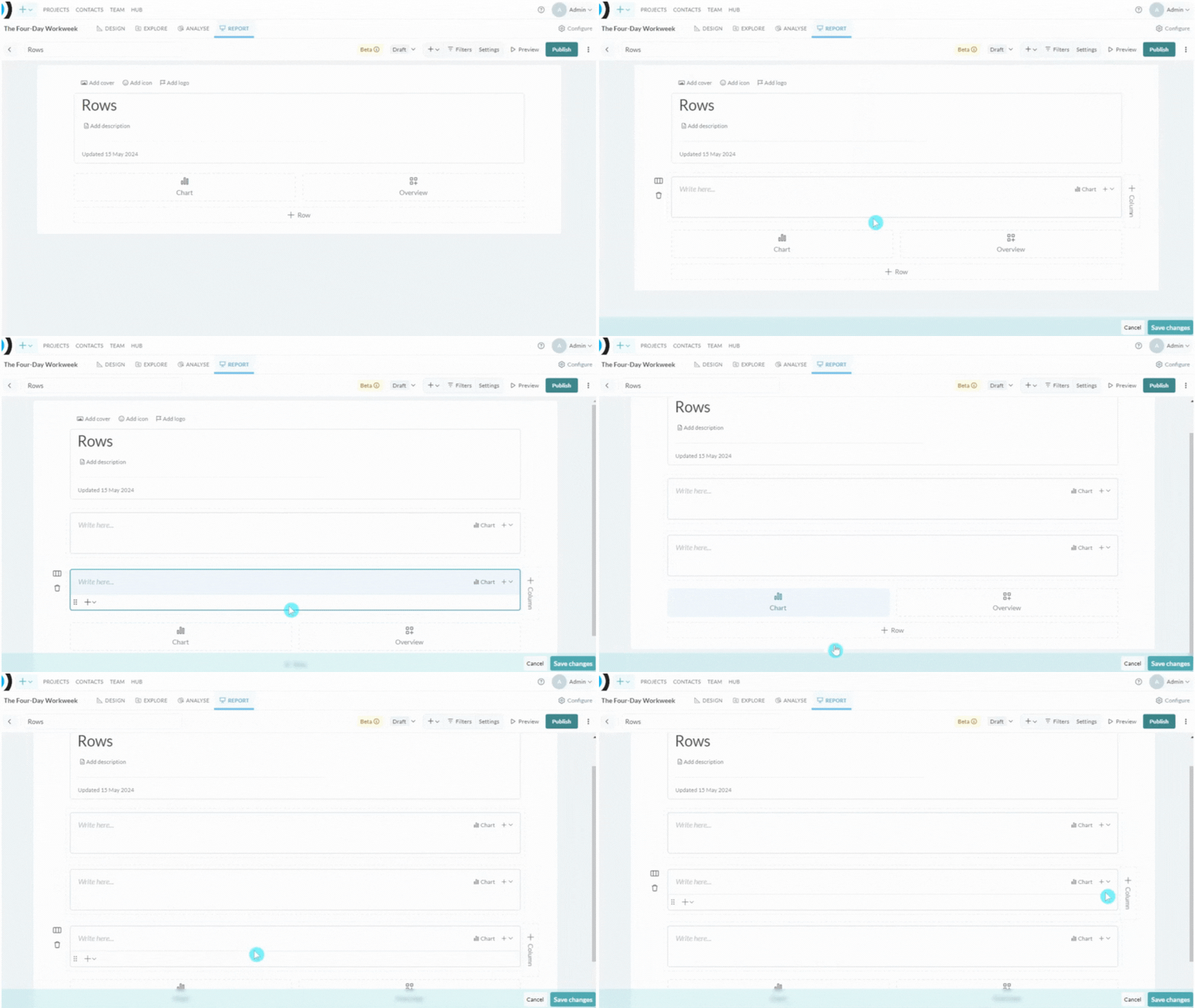
  • Select the + button in the Reports Toolbar and click on Text Block under Elements. This will add a text block to the last row.
  • From a row tile, hover over the bottom of the tile and open the add menu. Select Text Block under Elements to add another text block. You can also access this menu from the top right hand corner of the tile.
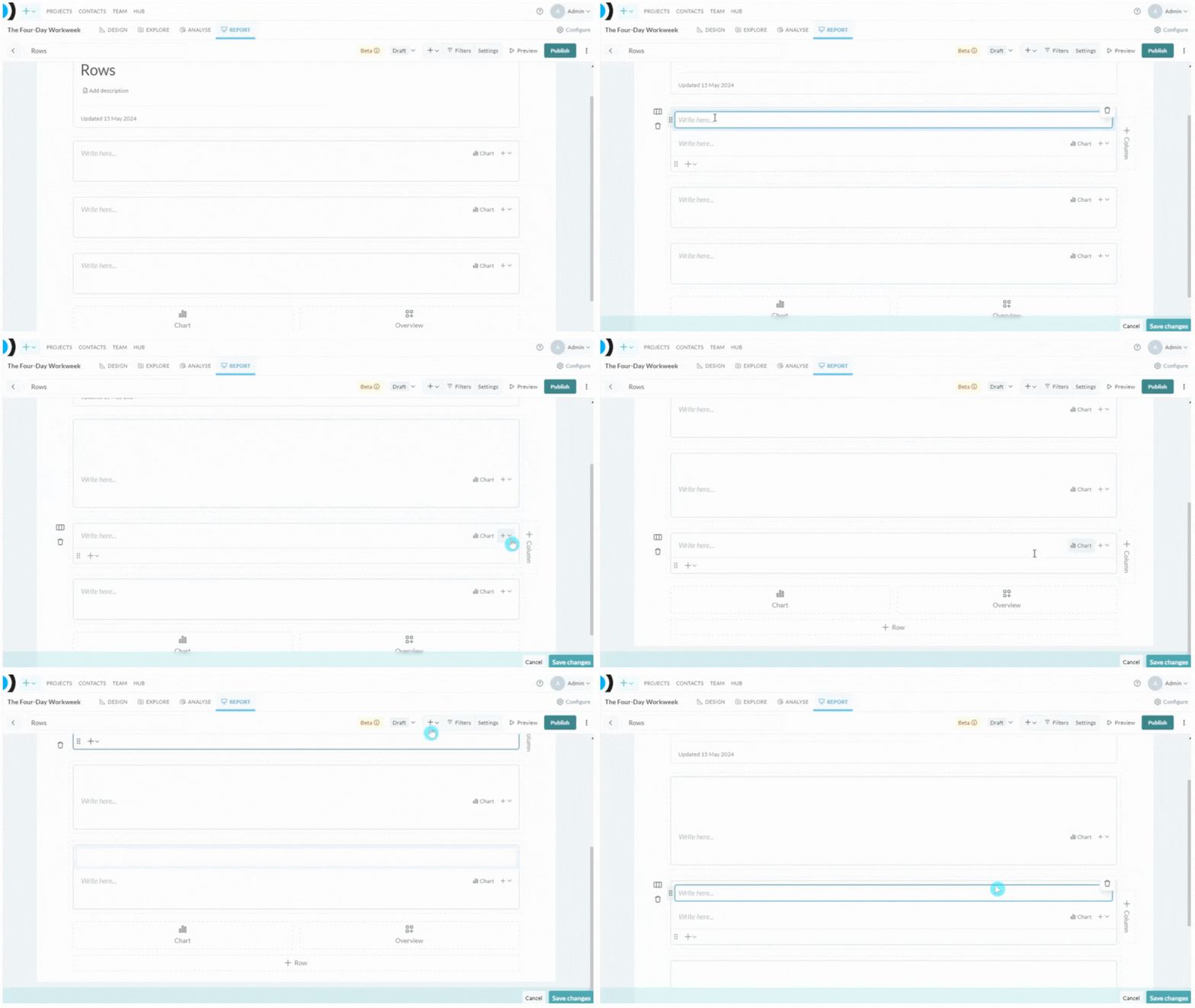
Rows screenshot: under Elements to add another row. You can also access this menu from the top right hand corner of the tile. Tip: Think of Text Blocks as your report paragraphs. Add a new text block where you would add a new paragraph. Add a new Row where you would insert a section break.

Rich Text Editor Options

To open the Rich Text Editor (RTE) click on a text box. Rows screenshot: To open the Rich Text Editor (RTE) click on a text box. The Rich Text Editor has the following options:
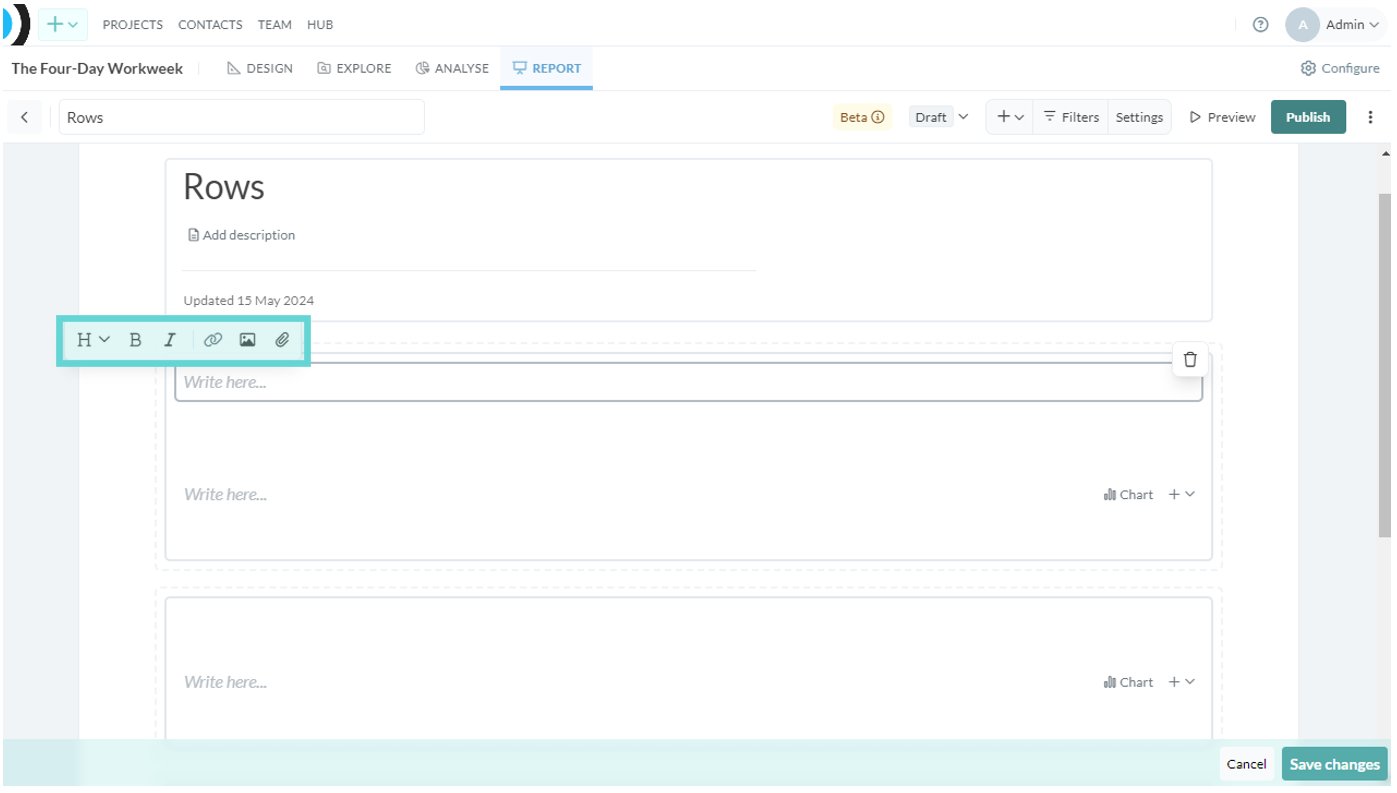
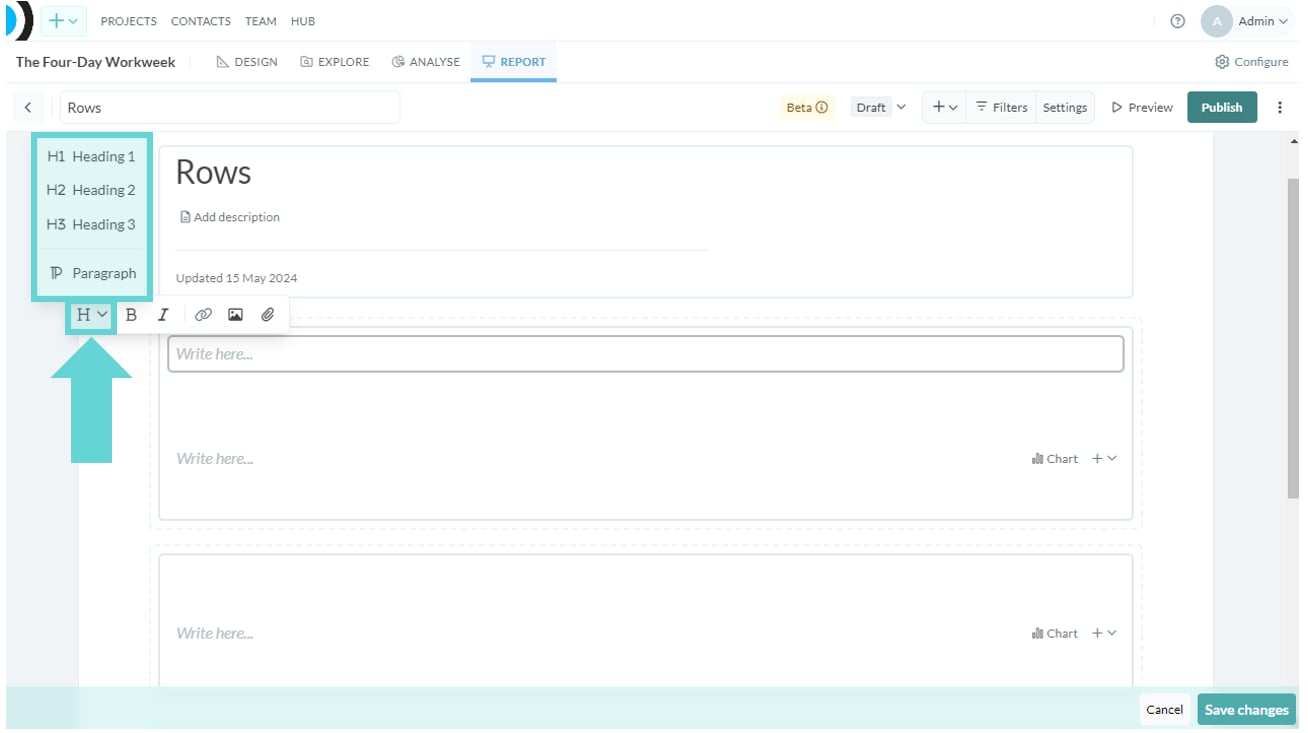
  • H: Change the heading and paragraph size of text
  • B: Change the text to bold
  • I: Change the text to italics
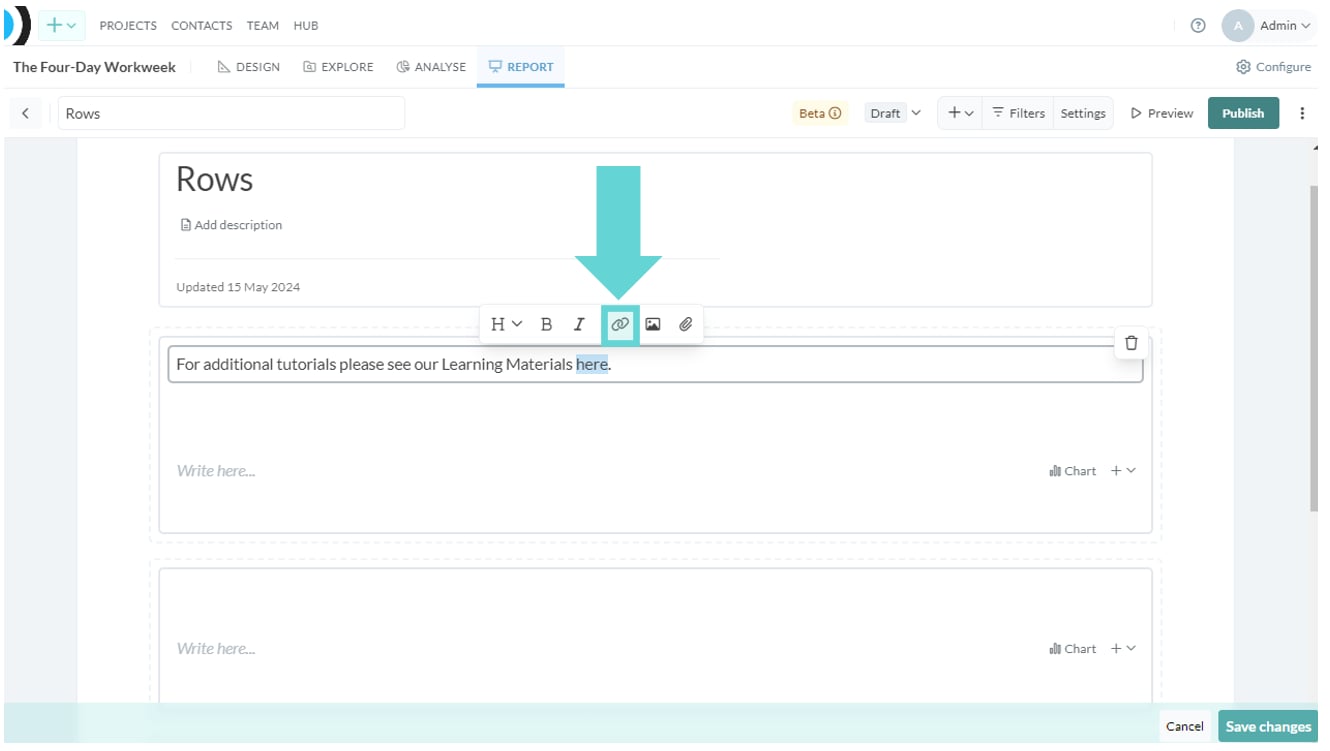
  • Link icon: add a link to your report
  • Image icon: add an image to your report
  • Paperclip icon: add an attachment to your report

Headings

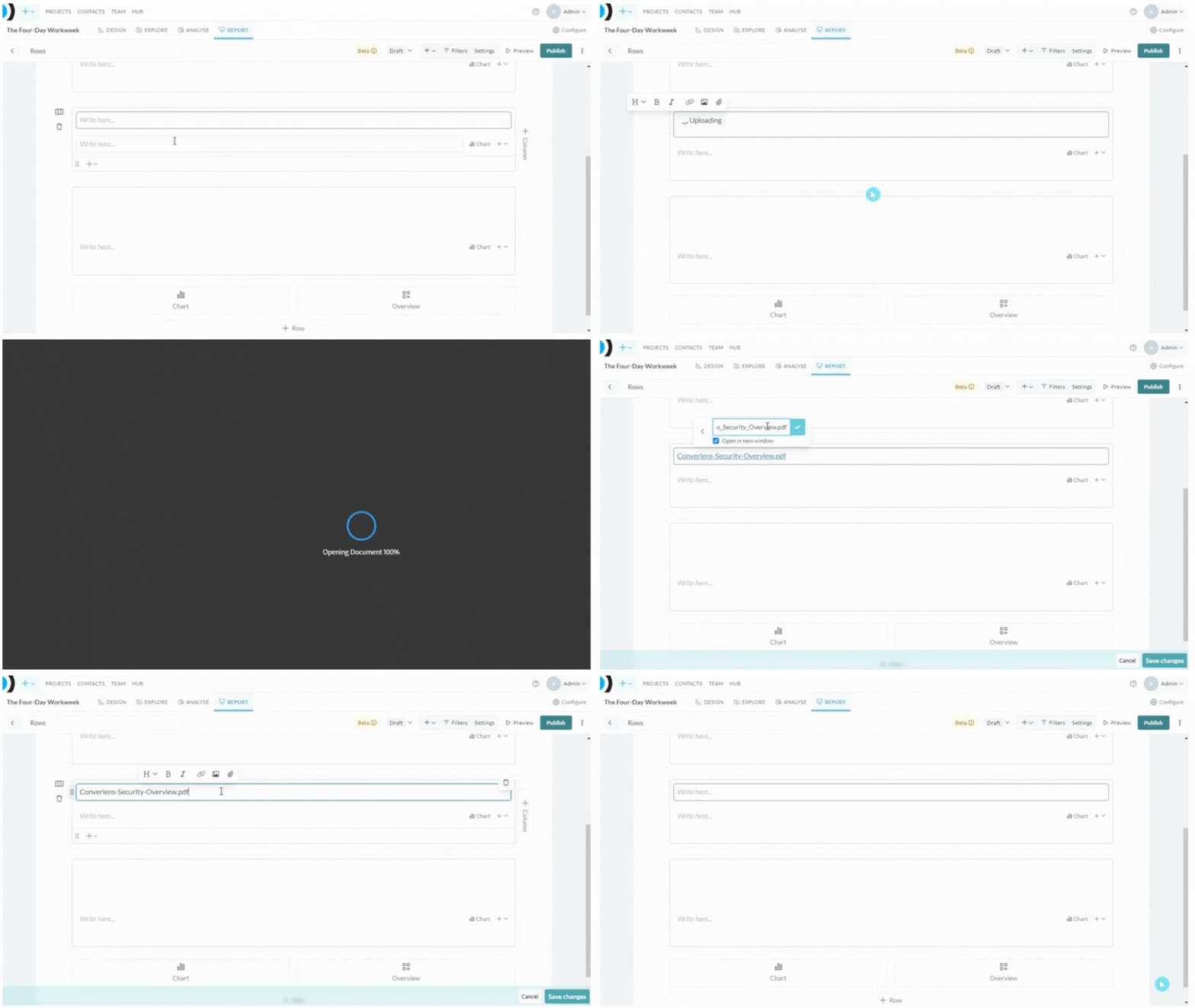
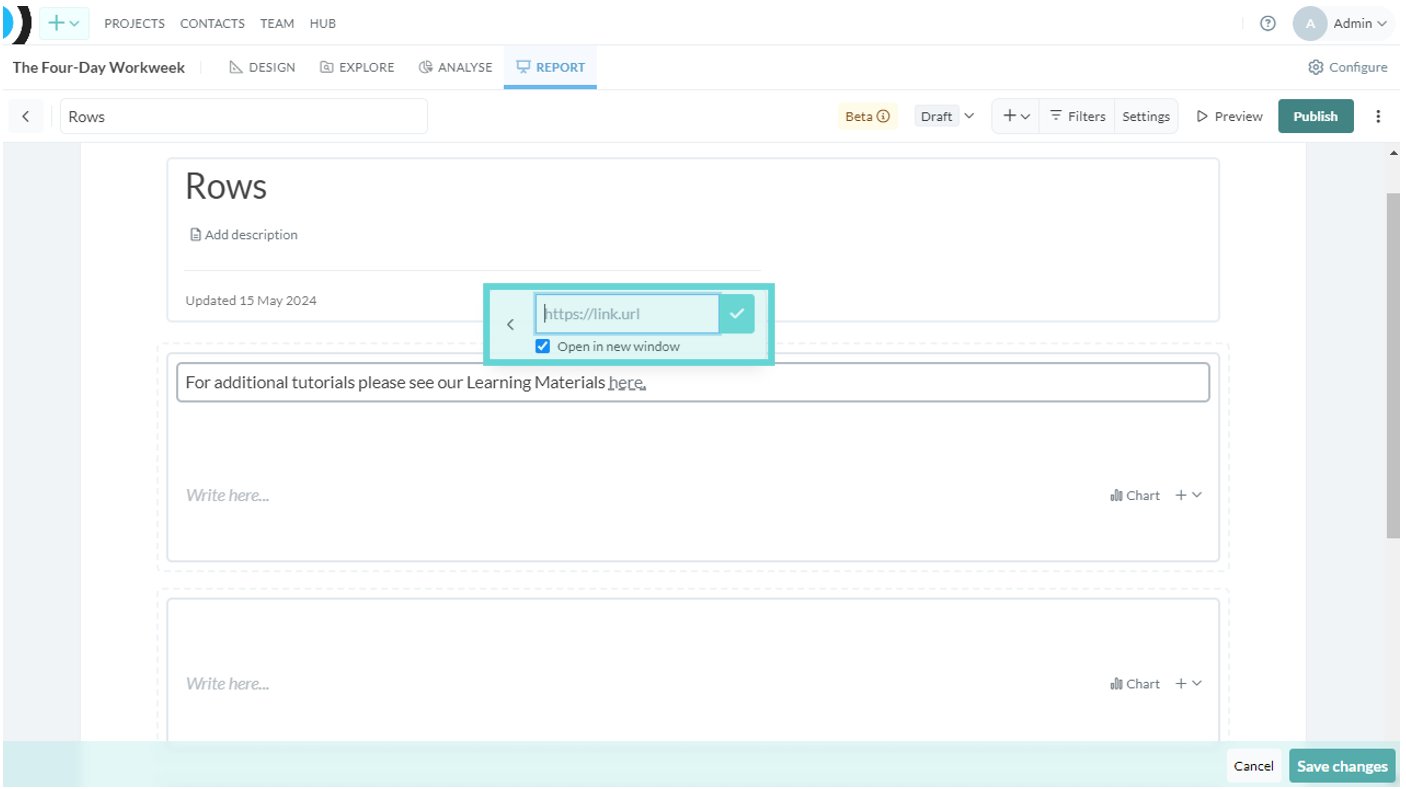
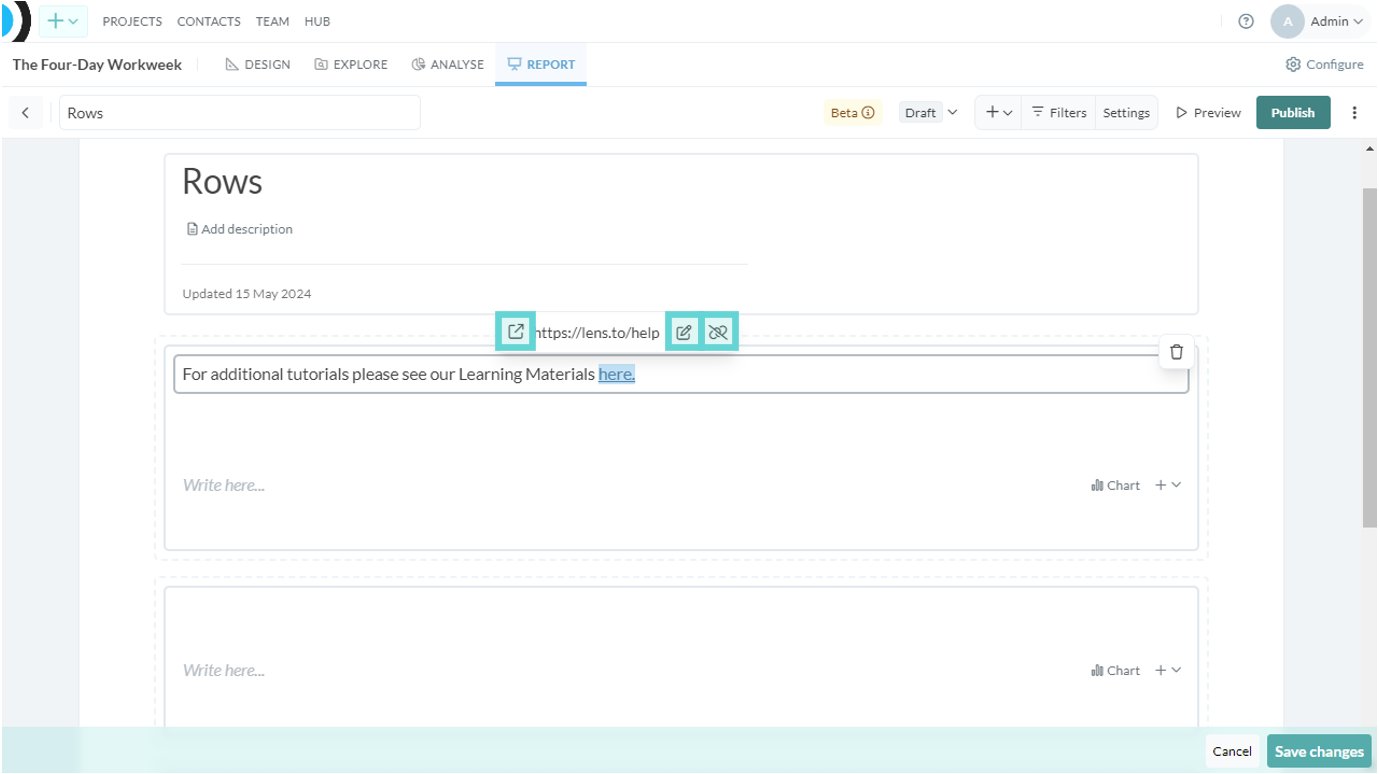
To change the headings click on the H icon. A menu will appear. Select the level of heading to apply to the selected text. Select paragraph for normal text. Rows screenshot: To change the headings click on the H icon. A menu will appear. Select the level of heading to apply to the selected text. Select paragraph for normal text. To add a link to the text block, select (highlight) the text where you want the link to appear. Click the chain icon. Rows screenshot: To add a link to the text block, select (highlight) the text where you want the link to appear. Click the chain icon. This will open a box for you to enter the link. There is a checkbox to select/deselect opening the link in a new window. Enter the URL link in the box and click the blue tick when complete: Rows screenshot: This will open a box for you to enter the link. There is a checkbox to select/deselect opening the link in a new window. Enter the URL link in the box and click the blue tick when complete Rows screenshot: This will open a box for you to enter the link. There is a checkbox to select/deselect opening the link in a new window. Enter the URL link in the box and click the blue tick when complete Once a link has been added, the link menu will display. Clicking on the link icon will open the link (in a new window if selected, otherwise it will open in the same tab and take you away from the report). To edit the link, click on the pencil icon. To remove the link, click on the cross through chain icon.
Adding an image

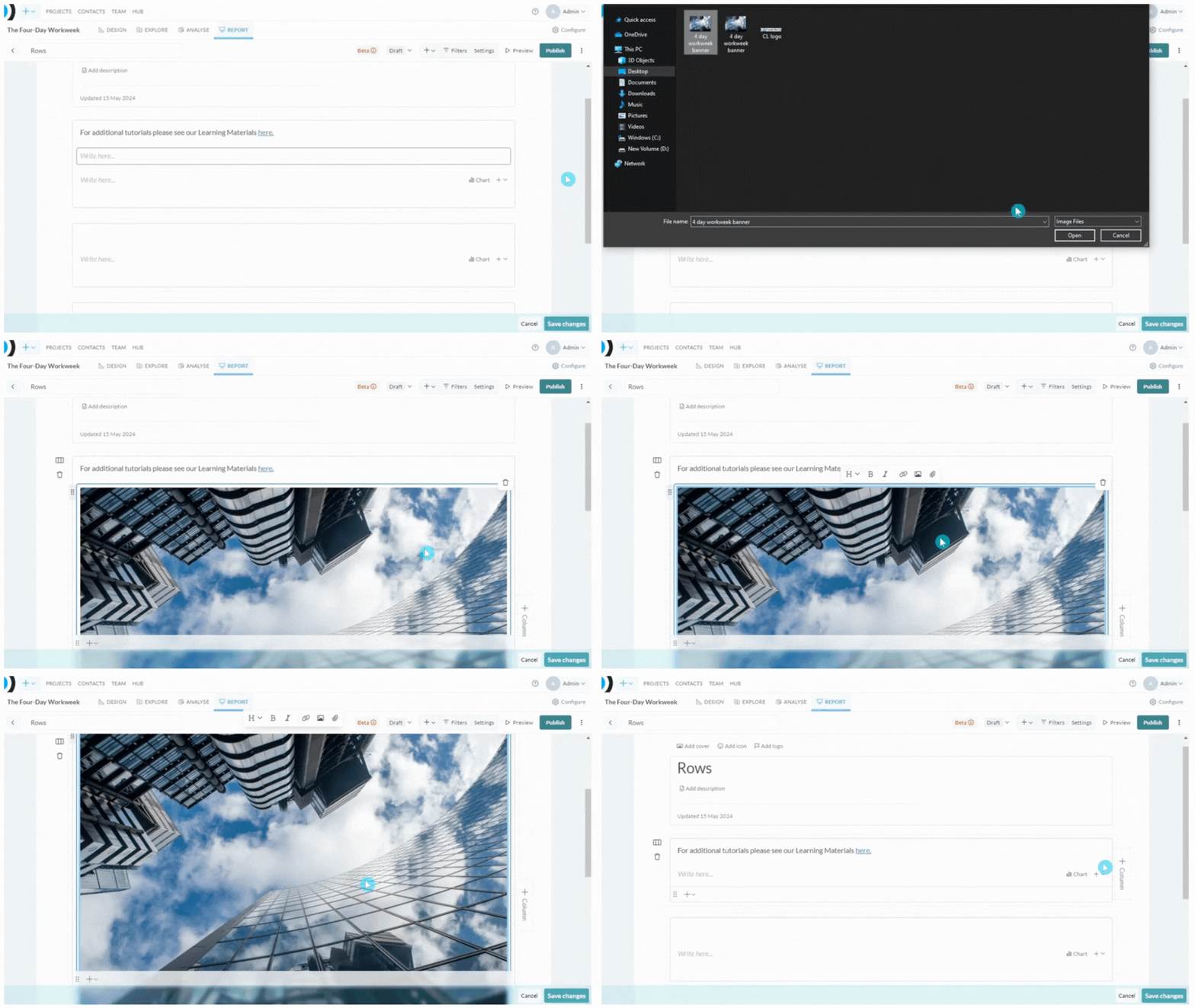
To add an image click the image icon from the Rich Text Editor menu. This will open a file explorer window where you can upload your image. Rows screenshot: To add an image click the image icon from the Rich Text Editor menu. This will open a file explorer window where you can upload your image. To delete the image, simply hover over it and click the trash icon in the top right hand side. You can also delete an image by clicking on it and pressing delete or backspace on your keyboard. Alternatively you can remove the whole text block or row tile but keep in mind this will remove any other content added to those elements. Tip: For ease of formatting later on, we recommend inserting the image in its own row so you can move it around or delete if required.
Adding an attachment

Rows screenshot: Adding an attachment To add an attachment click the paperclip (attachment) icon from the Rich Text Editor menu. This will open a file explorer window where you can upload your attachment. There is a checkbox to select/deselect opening the link in a new window. Tip: The attachment will display as the name of the file and file type. Make sure you save the attachment using the title you want to display in the report. Once an attachment has been added, click the attachment name to open the attachment menu. Clicking on the link icon will open the attachment (in a new window if selected, otherwise it will open in the same tab and take you away from the report). To edit the attachment, click on the pencil icon. To remove the attachment, click on the bin icon.