

About Results
Results is where you can view and manage all responses collected through a survey or other form of data collection. This section provides a live feed of incoming data and serves as the complete repository once data collection is finished. Within Results, you can read and review responses, apply tags, refine your view (table, list, or quick read), and export data for further analysis. It also provides access to Submission Reader, enabling you to interact with individual responses in more detail.Where to find Results
To access Results, navigate to the Explore tab and select “Results” from the Navigation Tabs:Results Options
Select Responses
Use the checkboxes on the left of each response to select/deselect responses to perform bulk actions such as tagging multiple responses at once. To select all results, including those on additional pages, check the Select All box. This will mark each result with a blue tick and display the total number of selected results next to the Select All option. To deselect all results, click the select all checkbox again. To deselect a single result, simply click the checkbox next to that specific result.Apply a Tag to Responses
Click the dropdown “Tag” next to the Select All checkbox to open the list of tags created for that project. If you have selected results, you can use this menu to quickly apply or remove a tag to/from multiple results. To apply a tag:- Select the results you want to tag using the Select checkbox.
- With the results selected (blue checkmark), click the tag dropdown menu.
- Find and select the desired tag. It will highlight, and a blue tick will appear next to the tag name.
- At the bottom of the tag menu, click “Add”.
- A popup confirmation will appear showing the number of tags being applied to the number of selected submissions. Click “OK” to apply the tag.
- Select the results you want to untag.
- With the results selected, click the tag dropdown menu.
- Find and select the tag you want to remove. It will highlight, and a blue tick will appear next to the tag name.
- At the bottom of the tag menu, click “Remove”.
- A popup confirmation will appear showing the number of tags being removed from the selected submissions. Click “OK” to remove the tag.
Change the number of responses displayed
Click the down arrow next to “Show” to choose how many results to display on each page (25, 50 or 75).Change how responses are displayed
Click the icons in the View As section to toggle the responses displaying between List view, Table view or Quick Read view.Table View
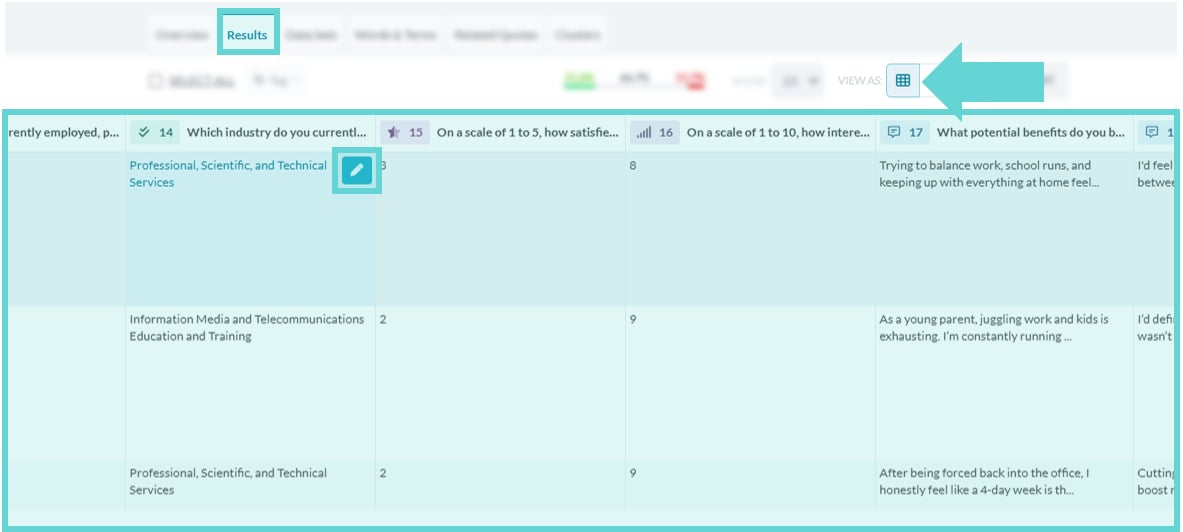
To view the responses as a table, click the table icon in View As. This view is useful for easy editing of responses. Simply hover over the cell (block) you want to edit and click the pencil icon to make changes. To open Submission Reader and interact with the individual response, click on any cell of the response you want to view.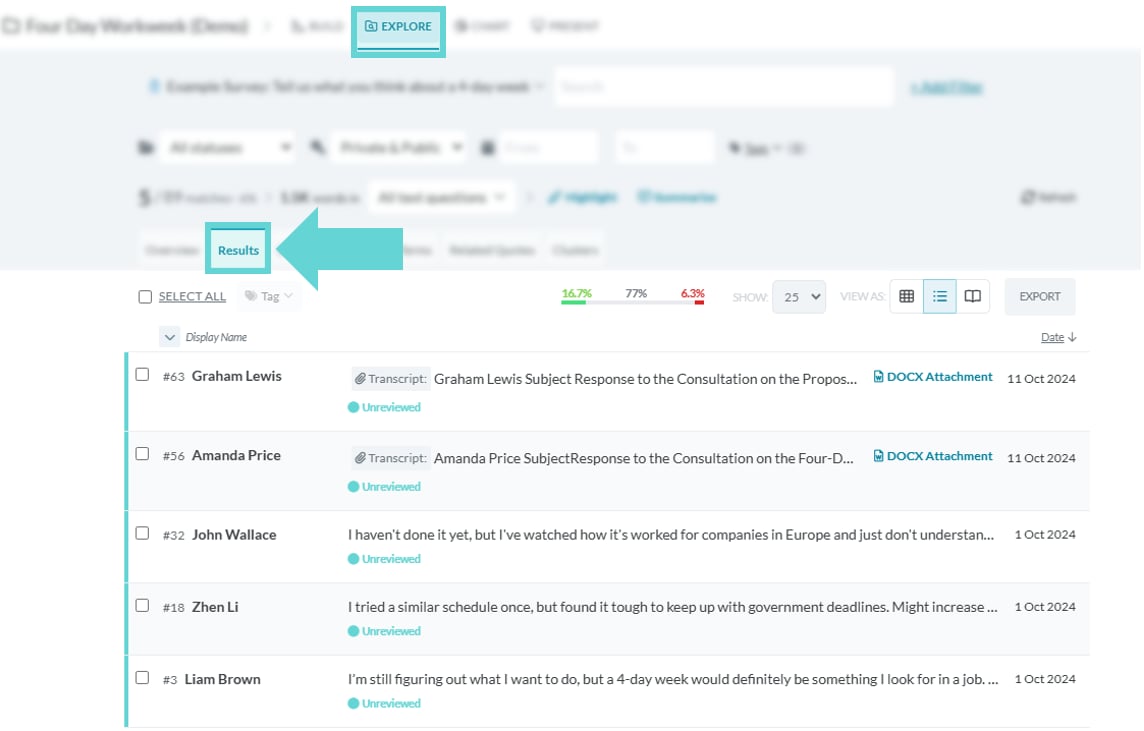
List View
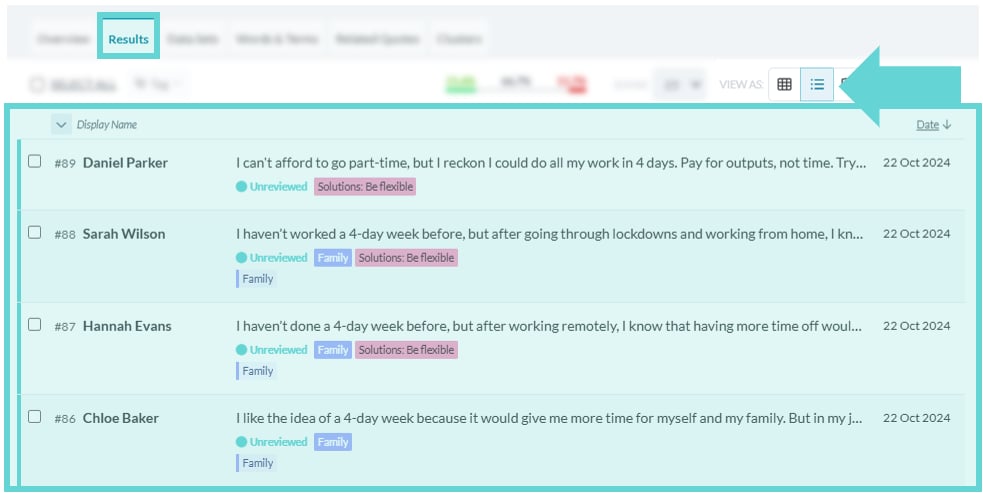
To view the responses in a list one after the other, click the list icon in View as. This is the default Results view and will list the responses by Response Number, Display Name, Date received. To open Submission Reader and interact with the individual response, click anywhere in the row of the response you want to view.Quick Read View
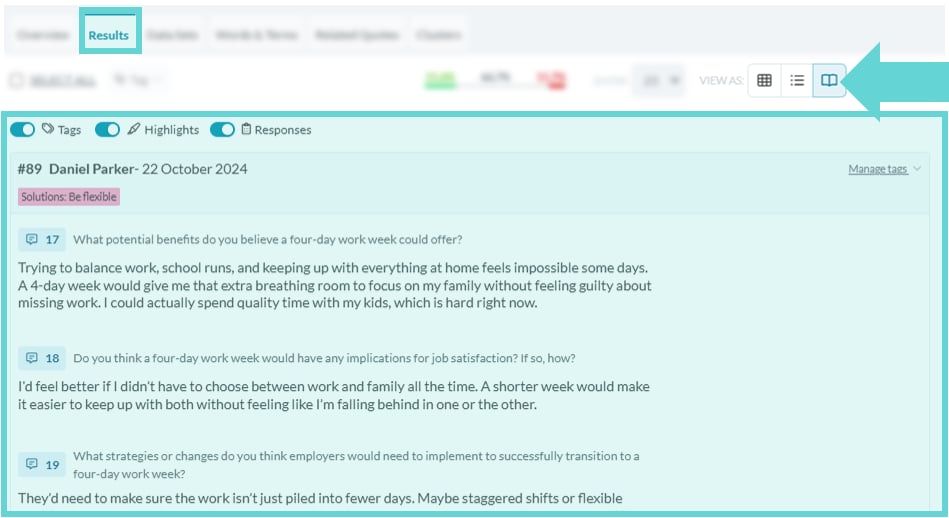
To view the responses by previewing the text from the entire submission line by line, click the book (Quick Read) icon in View as. This will display responses in a ‘quick read’ view, enabling you to review all responses in one window as opposed to opening up the submission view for each result. Quick read is especially useful if you have applied highlights to your data or if you want to isolate the text from a particular text-based question block and only view those answers. Combine Quick Read with Filters and Text Limiter to dive deep into qualitative data.- Tags: Toggle on/off to show/hide record level tags in the Quick Read view
- Highlights: Toggle on/off to show/hide text highlights in the Quick Read view
- Responses: Toggle on/off to show/hide the entire response in the Quick Read view