About Results Overview

The Results Overview feature automatically converts quantitative data from your response data into charts, accompanied by detailed data tables that show the distribution of responses. For text-based questions (both short and long text), responses are displayed sequentially, with each response shown in full for the corresponding question block.

Where to find Results Overview

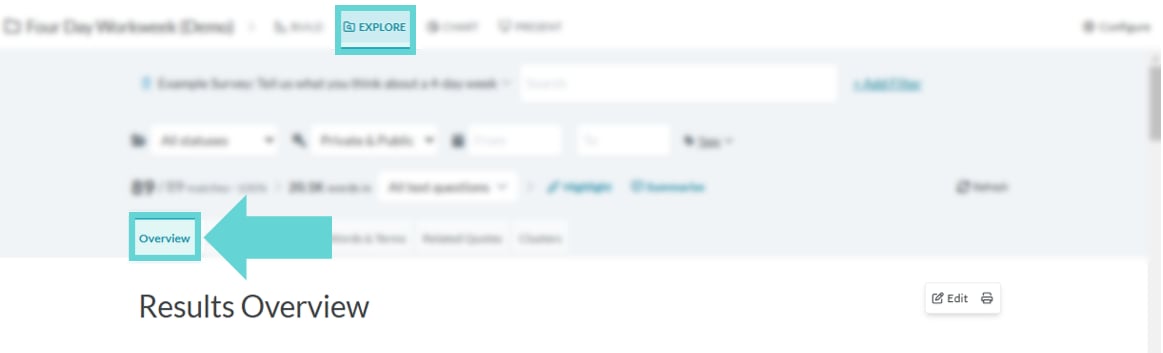
To access the Results Overview, navigate to the Explore tab and select “Overview” from the Navigation Tabs:

Results Overview Options

From the Results Overview, you can: Overview screenshot: Edit Results Overview Read on to discover more or click on the hyperlinks above to go to a specific section.

Load additional blocks in Results Overview

By default Results Overview will show the first 10 blocks of your survey. To load additional blocks, scroll to the bottom of the Results Overview window and click on “Show more blocks”. To revert back to the first 10 blocks only, scroll to the bottom of the Results Overview window and click on “Show less”. To print the Results Overview, click on the print icon in the top right hand corner of the Overview window (next to Edit). This will open a print overlay determined by your browser settings. From here, you can select to print to a physical printer or Save As PDF for a PDF’d offline copy of the Results Overview. If you would like to made edits to the Overview before printing, see below. Tip: When printing the Results Overview, the print will load what is currently displayed. If you want a version with hidden blocks or other changes, see Edit Results Overview below.

Edit Results Overview

To edit the Results Overview, click Edit in the top right hand corner of the Overview window. This will open the Results Overview in the Present tab. From there, you can show/hide blocks, toggle the data tables on/off, add text based commentary and narrative to the charts, change the display settings and series settings, and more. A full guide to editing the Results Overview in Present is available in Present: Report Widgets (Results Overview). Note: If you edit the Results Overview while in Present, any changes you save will also update the Overview in Explore. To keep the Explore Overview unchanged while creating an edited version, avoid clicking “Edit” in Explore. Instead, go to the Present tab, create a new report, and add the Overview as a widget. This allows you to make edits without affecting the original view in Explore.