About Related Quotes
The Related Quotes feature showcases quotes from the language used by respondents in your data. By default, it displays random quotes from the dataset. To make the most of this feature, add a filter (either choice-based questions, specific word searches, or text-based question filter). This will refine the displayed quotes to match the criteria set by your filters. Use this tool to easily find and highlight relevant respondent feedback, enhancing your analysis and understanding of the survey data.Where to find Related Quotes
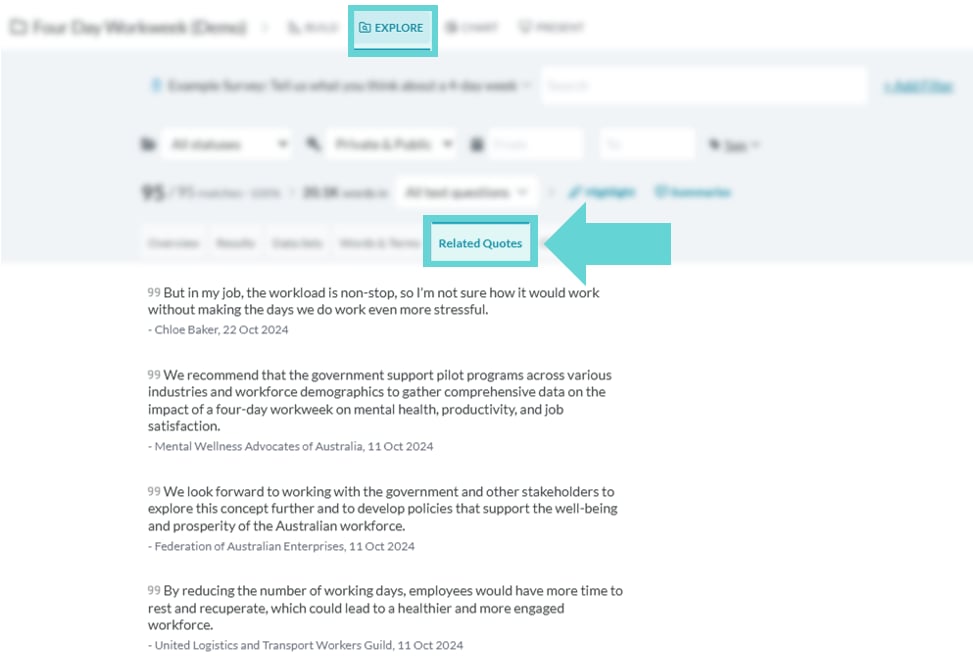
To access the Related Quotes, navigate to the Explore tab and select “Related Quotes” from the Navigation Tabs:Related Quotes options
Show more quotes
By default the Related Quotes will show 5 quotes. To see more quotes that match the criteria (or to see quotes from additional respondents) scroll to the bottom of the Related Quotes window and click on the link “Show more quotes”. Additional quotes will load automatically. To collapse the view again, click “Show fewer quotes”.Apply a filter
Apply a filter to change the Related Quotes to show representative quotes that match the filters applied. Add filters in the Search & Filter area. These can be choice based question filters (via +Add Filter button), Text question limiter, or adding a search term. If required, combine and add multiple filters and filter types to drill into the text of the dataset through Related Quotes.Enter a Search term
If you have a search term entered in the search bar, Related Quotes will pull text from results that used that term and give you some quotes. This can be a fast way to get a read of what respondents had to say about “word” without having to go through all responses one by one looking for that “word”. The search bar enables text-based searching on the dataset. Enter one or more search terms and the results will filter to responses of only those with the entered search word(s).+Add Filter (choice block)
The +Add Filter link enables limiting the results to parameters set by the structured data (not text based question blocks) applicable to the survey and dataset. Select the +Add Filter link and a dropdown of the survey blocks will appear. Click the dropdown arrow to show the full list of blocks available to filter by. Select the block (question) andApply a Text Limiter
To limit the results to only show text from a selected block (Long Text or File Upload block), select the All text questions dropdown menu and click on the required question block. The Related Quotes will now only show text from responses which answered that question text block.Open a response